Introduzione
Welcome to your new TERIOS Mobile Game Controller. This manual provides detailed instructions for setup, operation, and maintenance to ensure optimal performance and an enhanced gaming experience across various platforms including Android smartphones, Windows PCs, and PlayStation 3 consoles. Please read this manual thoroughly before using the device.
Caratteristiche principali
- Innovative Gaming: Designed to enrich your mobile gaming experience with precision and responsiveness.
- Ampia compatibilità: Connects via Bluetooth 4.0 to Android smartphones, and is compatible with Windows PC and PlayStation 3. Supports popular games like PUBG, Call of Duty, and Mobile Legends.
- Gaming Joysticks: Features dual analog sticks for comprehensive and precise control.
- Design ergonomico: Comfortable grip with an integrated smartphone holder for extended gaming sessions.
- Funzione Turbo: Allows for rapid, continuous input with a single button press.
- Responsive Active Buttons: Includes 2 quick access buttons on the back and numerous action buttons for enhanced accuracy.
- Batteria a lunga durata: Fino a 12 ore di riproduzione continua con una singola carica.
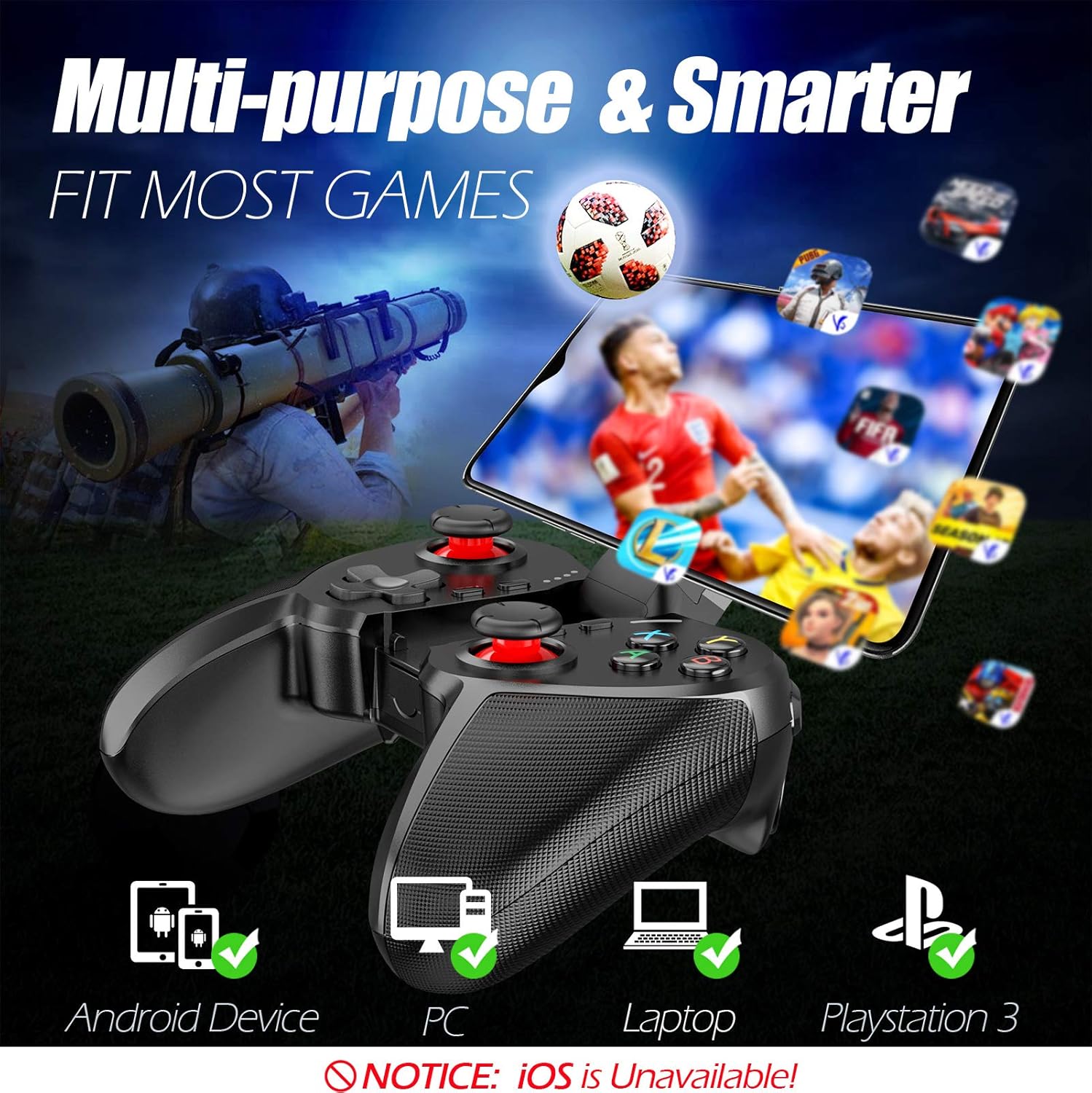
Figure 1: The TERIOS controller is compatible with Android devices, PCs, Laptops, and PlayStation 3.

Figure 2: Detail of the controller's built-in smartphone bracket, accurate buttons, and comfortable soft rubber grips.
Impostazione e connessione
1. Ricarica del controller
Before first use, fully charge the controller. Connect the provided Micro USB cable to the controller's charging port and the other end to a USB power source (e.g., computer USB port, USB wall adapter). The indicator lights will show charging status and turn off when fully charged.

Figure 3: The controller features a 400mAh battery, providing 12-14 hours of playtime with a 2-3 hour charging time.
2. Accensione/Spegnimento
- Per accendere: Premere e tenere premuto il tasto CASA button for 2 seconds. The indicator lights will flash.
- Per spegnere: Premere e tenere premuto il tasto CASA button for 5 seconds until the indicator lights turn off. The controller will automatically power off after 5 minutes of inactivity.
3. Bluetooth Pairing (Android Smartphones / PS3)
- Assicurarsi che il controller sia spento.
- On your Android smartphone or PS3, enable Bluetooth.
- Premere e tenere premuto il tasto CASA button on the controller until the indicator lights flash rapidly, indicating pairing mode.
- On your device, search for new Bluetooth devices. Select "TERIOS Gamepad" or similar from the list.
- Una volta effettuato il collegamento, la spia luminosa diventerà fissa.
4. Connessione al computer
For PC connection, the controller typically uses a USB dongle (often included). Insert the USB dongle into an available USB port on your PC. The controller should automatically connect. If not, press the CASA button to initiate connection.
5. Initial Setup and App (V3 App)
For optimal customization and compatibility with certain mobile games, it is recommended to download the V3 app from the Google Play Store. This app allows you to map virtual keys on your screen to the physical buttons of the controller.
- Download the "V3" app from the Google Play Store.
- Connect the TERIOS gamepad to your smartphone via Bluetooth.
- Open the V3 app and follow the on-screen instructions to customize key mappings for your desired games.

Figure 4: The V3 app allows for easy customization of virtual keys to match controller buttons, creating more combinations.
Istruzioni per l'uso
1. Disposizione e funzioni dei pulsanti

Figure 5: The TERIOS Mobile Game Controller with a smartphone securely mounted in its integrated holder.
- Levetta analogica sinistra: Controllo primario del movimento.
- Levetta analogica destra: Controllo della telecamera o movimento secondario.
- D-Pad (tastiera direzionale): Input direzionale preciso.
- Pulsanti ABXY: Pulsanti di azione standard (A, B, X, Y).
- Pulsanti L1/L2, R1/R2: Pulsanti dorsali e grilletti per varie azioni di gioco.
- Pulsante SELEZIONA: Solitamente utilizzato per la navigazione nei menu o per funzioni di gioco specifiche.
- Pulsante Start: Solitamente utilizzato per mettere in pausa i giochi o per accedere ai menu.
- Tasto CASA: Powers on/off, enters pairing mode, and returns to home screen on some devices.
- Pulsante TURBO: Activates the turbo function for other buttons.
- Pulsante CANCELLA: Deactivates the turbo function.

Figure 6: The dual analog sticks are designed for precise control and execution in games.
2. Funzione Turbo
The Turbo function allows a button to be pressed repeatedly as long as you hold it down, which is useful for rapid-fire actions in games.
- Attivare: Premere e tenere premuto il tasto Turbosoffiante button, then press the desired action button (e.g., A, B, X, Y, L1, R1). Release both buttons. Now, holding down the action button will activate turbo fire.
- Per disattivare: Premere e tenere premuto il tasto CHIARO button, then press the action button for which turbo was activated. Release both buttons.

Figure 7: The dedicated Turbo button enables rapid-fire functionality with one click.
3. Smartphone Holder Usage
The integrated smartphone holder can accommodate most smartphone sizes. Gently extend the holder and place your smartphone securely within the clamps. Ensure the phone is centered for balance.
Manutenzione
- Pulizia: Per pulire il controller, utilizzare un panno morbido e asciutto. Non utilizzare detergenti abrasivi o solventi.
- Magazzinaggio: Conservare il controller in un luogo fresco e asciutto, lontano dalla luce solare diretta e da temperature estreme.
- Cura della batteria: Per prolungare la durata della batteria, evitare di scaricare completamente il controller frequentemente. Caricarlo regolarmente, anche se non lo si utilizza per lunghi periodi.
Risoluzione dei problemi
| Problema | Possibile causa | Soluzione |
|---|---|---|
| Il controller non si connette tramite Bluetooth. | Controller not in pairing mode; device Bluetooth off; interference. | Ensure controller is in pairing mode (rapid flashing lights). Check device Bluetooth settings. Move closer to the device. Try restarting both controller and device. |
| I pulsanti non rispondono o sono lenti. | Batteria scarica; problema software; interferenza. | Charge the controller fully. Restart the controller. Ensure no other strong wireless signals are nearby. For mobile games, check V3 app settings. |
| Il controller si disconnette frequentemente. | Batteria scarica; troppo lontano dal dispositivo; interferenza. | Charge the controller. Stay within the recommended Bluetooth range. Minimize wireless interference. |
| La funzione Turbo non funziona. | Incorrect activation sequence; button not supported. | Ensure you press and hold TURBO, then press the desired action button, then release both. Some games or buttons may not fully support turbo. |
Specifiche del prodotto
| Caratteristica | Dettaglio |
|---|---|
| Marca | TERIOS |
| Modello | T-12 |
| Tecnologia di connettività | Bluetooth 4.0 |
| Dispositivi compatibili | Android Smartphones, Windows PC, PlayStation 3 |
| Fonte di alimentazione | Alimentato a batteria (polimero di litio) |
| Capacità della batteria | 400mAh (approx. 1.48 Watt Hours) |
| Tempo di gioco | Fino a 12-14 ore |
| Tempo di ricarica | 2-3 ore |
| Numero di pulsanti | 16 (including ABXY, D-pad, analog sticks, L/R triggers/bumpers, Select, Start, Home, Turbo, Clear) |
| Caratteristiche speciali | Turbo Function, Dual Analog Sticks, In-built Smartphone Holder, Responsive Action Buttons |
| Dimensioni (confezione) | Dimensioni: 17 x 12.4 x 7.7 cm |
| Peso (confezione) | 310 grammi |
Informazioni sulla garanzia e sull'assistenza
The TERIOS Mobile Game Controller is designed for durability and performance. For any product-related inquiries, technical support, or warranty claims, please refer to the contact information provided with your purchase or visit the official TERIOS support websito. Si prega di conservare la prova d'acquisto ai fini della garanzia.