
1. Introduzione
Thank you for choosing the iClever BK10 Bluetooth Keyboard. This manual provides essential information for setting up, operating, maintaining, and troubleshooting your new wireless keyboard. Please read it carefully to ensure optimal performance and longevity of your device.
Cosa c'è nella scatola
- Tastiera Bluetooth iClever BK10
- Cavo di ricarica USB-C
- Manuale d'uso
- Protective Silicone Cover (for key protection)

Figure 1: Included items with the iClever BK10 Bluetooth Keyboard.
2. Caratteristiche principali
- Sleek & Wireless Design: Constructed with stainless steel and ABS, featuring a 10-degree tilt for comfortable desktop use.
- Multi-Device & Multi-OS Compatibility: Seamlessly switch between up to 3 devices using Bluetooth 5.1 technology. Automatically recognizes and adapts to Windows, macOS, iPadOS, Android, iPhone, and Chromebooks.
- Responsive & Low-Profile Chiavi: Scissor-key mechanism provides enhanced feedback, stability, and quiet typing (below 50 dB). Optimized key-travel and anti-slip tapes ensure comfort and precision.
- Compact & Efficient: Full-size layout with a standard numeric keypad. Includes hotkeys for Calculator, Fn lock, Mute, Volume up/down, and more to boost productivity.
- USB-C Rechargeable & Energy Saving: Built-in rechargeable battery offers up to 45 days of use after a 2-hour charge. Features an automatic power-saving sleep mode after 30 minutes of inactivity.
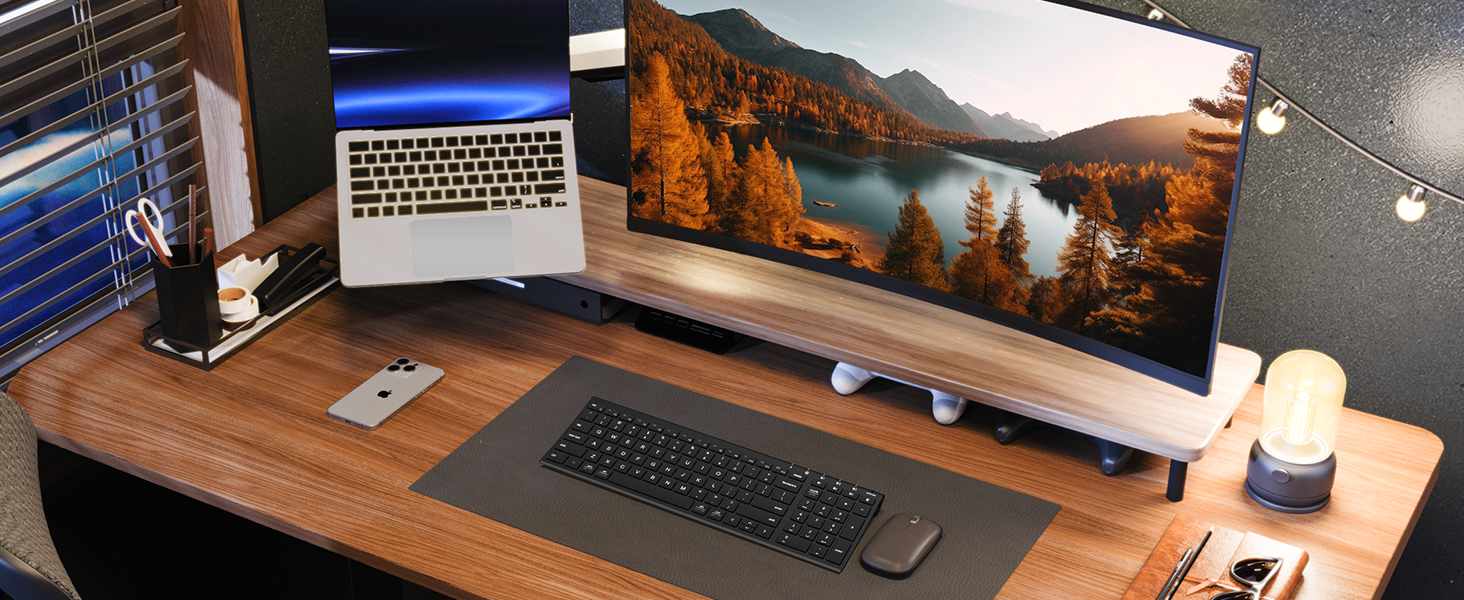
Figure 2: The sleek and wireless design of the iClever BK10 keyboard.
3. Impostazione
3.1 Ricarica della tastiera
Before initial use, fully charge the keyboard using the provided USB-C cable. Connect the USB-C end to the keyboard's charging port (located on the right side) and the USB-A end to a power source (e.g., computer USB port, USB wall adapter). The charging indicator light will illuminate during charging and turn off when fully charged.

Figure 3: USB-C charging port on the iClever BK10 keyboard.
3.2 Accensione/Spegnimento
Locate the ON/OFF switch on the top right side of the keyboard. Slide the switch to the 'ON' position to power on the keyboard. Slide it to 'OFF' when not in use to conserve battery life.
3.3 Associazione Bluetooth
The iClever BK10 keyboard supports pairing with up to three devices simultaneously. Follow these steps to pair your devices:
- Accendere la tastiera utilizzando l'interruttore ON/OFF.
- Press and hold one of the Bluetooth channel keys (B1, B2, or B3) for 3-5 seconds until its indicator light starts flashing rapidly. This indicates the keyboard is in pairing mode.
- Sul tuo dispositivo (computer, tablet, smartphone), vai alle impostazioni Bluetooth e cerca i dispositivi disponibili.
- Selezionare "iClever BK10" dall'elenco dei dispositivi trovati.
- Seguire le istruzioni visualizzate sullo schermo per completare il processo di associazione. La spia luminosa sulla tastiera smetterà di lampeggiare e rimarrà fissa per alcuni secondi, per poi spegnersi, indicando l'avvenuta associazione.
- Repeat these steps for up to two additional devices using the other Bluetooth channel keys (B2 and B3).

Figure 4: Multi-device connectivity of the iClever BK10 keyboard.
4. Istruzioni per l'uso
4.1 Passaggio da un dispositivo all'altro
To switch between paired devices, simply press the corresponding Bluetooth channel key (B1, B2, or B3) once. The keyboard will connect to the selected device automatically.
4.2 Tasti funzione e tasti di scelta rapida
The iClever BK10 keyboard features a row of function keys (F1-F12) that also serve as hotkeys for various media and system controls. To use the hotkey functions, press the 'Fn' key simultaneously with the desired function key. Some common hotkeys include:
- Fn+F1: Casa
- Fn+F2: Cerca
- Fn+F3: Seleziona tutto
- Fn+F4: Copia
- Fn+F5: Impasto
- Fn+F6: Taglio
- Fn+F7: Traccia precedente
- Fn+F8: Riproduci/Pausa
- Fn+F9: Traccia successiva
- Fn+F10: Muto
- Fn+F11: Abbassa il volume
- Fn+F12: Alza il volume
The keyboard also includes dedicated keys for Calculator, Fn lock, and a standard numeric keypad for efficient data entry.

Figura 5: Oltreview of keyboard layout and multi-OS features.
4.3 Operating System Layout Recognition
The keyboard automatically recognizes different operating systems (Windows, macOS, iPadOS, Android) and adjusts its key layout accordingly. For example, the 'Win' key functions as 'Alt' on Mac, and 'Alt' functions as 'Cmd'.
5. Manutenzione
5.1 Pulizia
To clean your keyboard, power it off and disconnect any cables. Use a soft, lint-free cloth slightly dampened with water or a mild cleaning solution. Avoid excessive moisture and harsh chemicals. The included silicone cover can be removed and washed with mild soap and water.
5.2 Cura della batteria
Per massimizzare la durata della batteria:
- Evitare di scaricare completamente la batteria frequentemente.
- Caricare la tastiera quando l'indicatore della batteria è basso.
- Se non si utilizza la tastiera per lunghi periodi, conservarla in un luogo fresco e asciutto.
- The keyboard enters a power-saving sleep mode after 30 minutes of inactivity. Press any key to wake it up.
6. Risoluzione Dei Problemi
6.1 La tastiera non si connette/associa
- Assicurarsi che la tastiera sia accesa e completamente carica.
- Assicurati che il Bluetooth sia abilitato sul tuo dispositivo.
- Place the keyboard within the effective range (typically 10 meters) of your device.
- If already paired, try unpairing the keyboard from your device's Bluetooth settings and then re-pairing it.
- Prova a riavviare sia la tastiera che il dispositivo.
6.2 I tasti non rispondono
- Check if the keyboard is connected to the correct device (verify the active Bluetooth channel).
- Assicurarsi che la batteria non sia eccessivamente scarica.
- Pulisci eventuali detriti attorno ai tasti interessati.
6.3 Connectivity Issues/Lag
- Reduce interference by moving away from other wireless devices (e.g., Wi-Fi routers, cordless phones).
- Assicurati che i driver Bluetooth del tuo dispositivo siano aggiornati.
- Try connecting to a different Bluetooth channel on the keyboard.
7. Specifiche
| Caratteristica | Dettaglio |
|---|---|
| Numero di modello | BK10 |
| Tecnologia di connettività | Bluetooth 5.1 |
| Dispositivi compatibili | Windows laptops/desktops, MacBook/iMac, iPad/iPhone, Android tablets/phones, Chromebooks |
| Numero di chiavi | 104 |
| Tipo di interruttore a chiave | Interruttore a forbice |
| Livello di rumore | <50 dB |
| Fonte di alimentazione | Batteria ricaricabile (USB-C) |
| Durata della batteria | Up to 45 days (after 2 hours charging) |
| Dimensioni del prodotto (L x P x A) | 14.41" x 4.92" x 0.63" |
| Materiale | Acrilonitrile Butadiene Stirene, Alluminio |
8. Garanzia e supporto
8.1 Informazioni sulla garanzia
The iClever BK10 Bluetooth Keyboard comes with a 12 mesi di garanzia dalla data di acquisto. Questa garanzia copre i difetti di fabbricazione e garantisce che il prodotto sia privo di difetti di materiali e lavorazione in normali condizioni di utilizzo.
8.2 Assistenza clienti
If you encounter any issues or have questions regarding your iClever BK10 Bluetooth Keyboard, please refer to the contact information provided in your product packaging or visit the official iClever support websito per assistenza.