
cimetech KF003-Grey
cimetech 2.4GHz Wireless Keyboard User Manual
Model: KF003-Grey
Brand: cimetech
Introduzione
This manual provides comprehensive instructions for the setup, operation, maintenance, and troubleshooting of your cimetech 2.4GHz Wireless Keyboard. Designed for seamless compatibility with various operating systems including Windows, iOS, and Android, this full-size keyboard offers a comfortable and efficient typing experience for laptop, desktop PC, and tablet users.
Per garantire prestazioni ottimali e lunga durata, leggere attentamente il presente manuale prima di utilizzare la tastiera.

Figure 1: cimetech 2.4GHz Wireless Keyboard (KF003-Grey) with USB receiver.
Guida all'installazione
1. Contenuto della confezione
- cimetech 2.4GHz Wireless Keyboard
- Ricevitore Nano USB
- 2 batterie AAA (incluse)
2. Installazione della batteria
- Individuare il vano batteria sul retro della tastiera.
- Rimuovere il coperchio della batteria.
- Inserire due (2) batterie AAA, assicurandosi della corretta polarità (+/-).
- Riposizionare saldamente il coperchio della batteria.
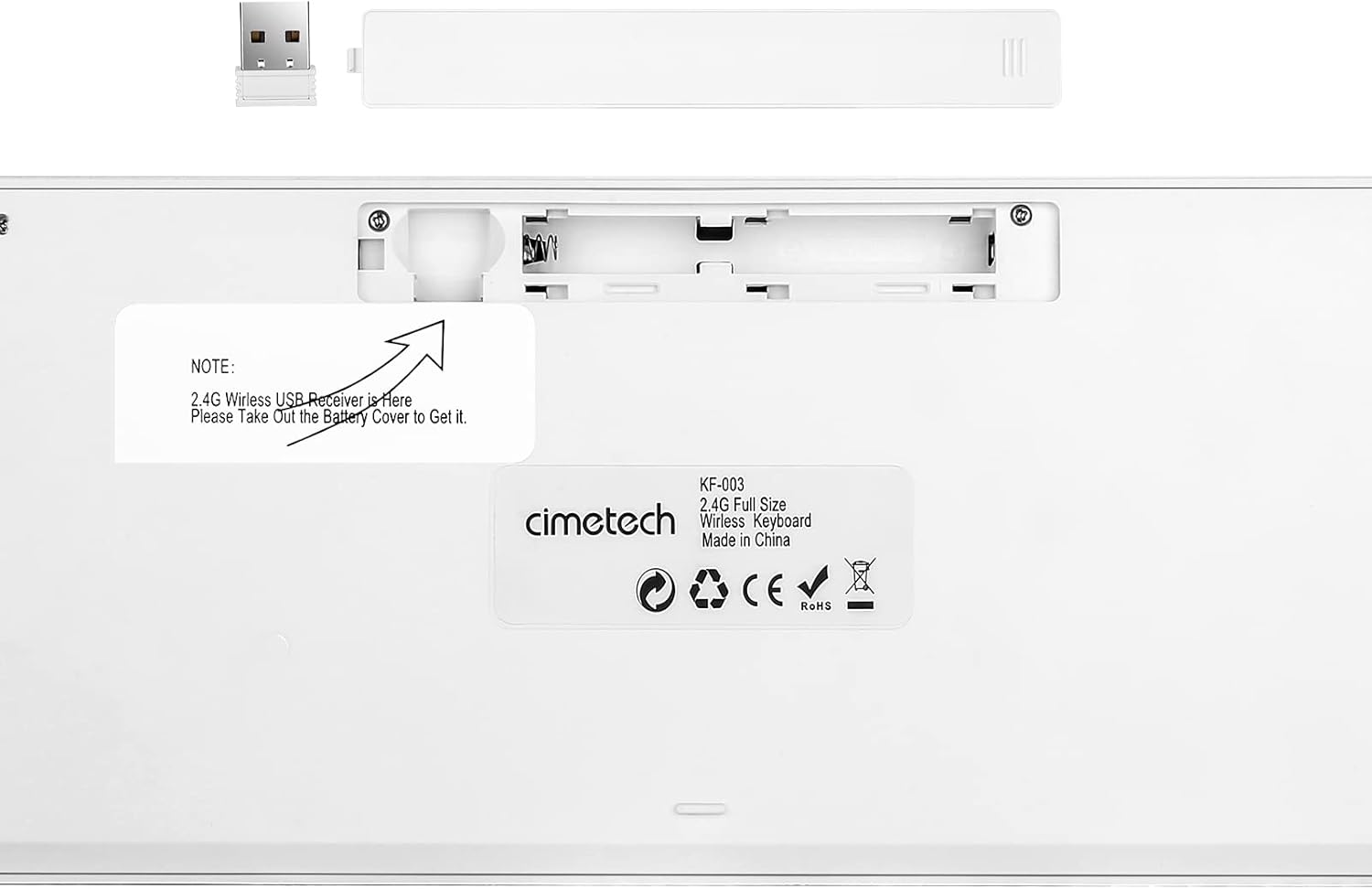
Figure 2: Back of the keyboard indicating battery compartment and USB receiver storage.
3. Collegamento della tastiera
The cimetech wireless keyboard utilizes 2.4G wireless technology for a stable and clutter-free connection.
- Locate the Nano USB receiver, typically stored within the battery compartment on the back of the keyboard (refer to Figure 2).
- Rimuovere il ricevitore USB dal suo slot di archiviazione.
- Insert the Nano USB receiver into an available USB-A port on your computer, laptop, or tablet.
- The keyboard should automatically connect within a few seconds. No additional drivers are required for most operating systems.

Figure 3: 2.4G Wireless Plug and Play connection diagram.
Istruzioni per l'uso
1. Layout e caratteristiche della tastiera
The cimetech KF003-Grey keyboard features a full-size layout with 110 keys, including a dedicated numeric pad and 17 shortcut keys for enhanced productivity.

Figure 4: Keyboard layout with dimensions (43.5cm x 12.3cm).
The ergonomic keycaps are designed for comfortable and quiet typing, reducing noise and providing a smooth tactile feel. Rubber pads on the back ensure stability during use.

Figure 5: Detail of the scissor-switch key mechanism for responsive and smooth typing.
2. Spie luminose
The keyboard features three indicator lights located above the numeric pad:
- NUM Indicator: Lights up when the Number Lock (Num Lock) function is active.
- Indicatore CAPS: Lights up when the Caps Lock function is active.
- Indicatore di energia: Indicates battery status. It will light up when the keyboard is turned on and may flash when battery power is low.

Figure 6: Location of NUM, CAPS, and POWER indicator lights.
3. Function (Fn) Keys and Multimedia Shortcuts
The keyboard includes a Function (Fn) key that, when pressed in combination with the F1-F12 keys, activates various multimedia and system shortcuts. This allows for quick access to common functions without needing to use a mouse.
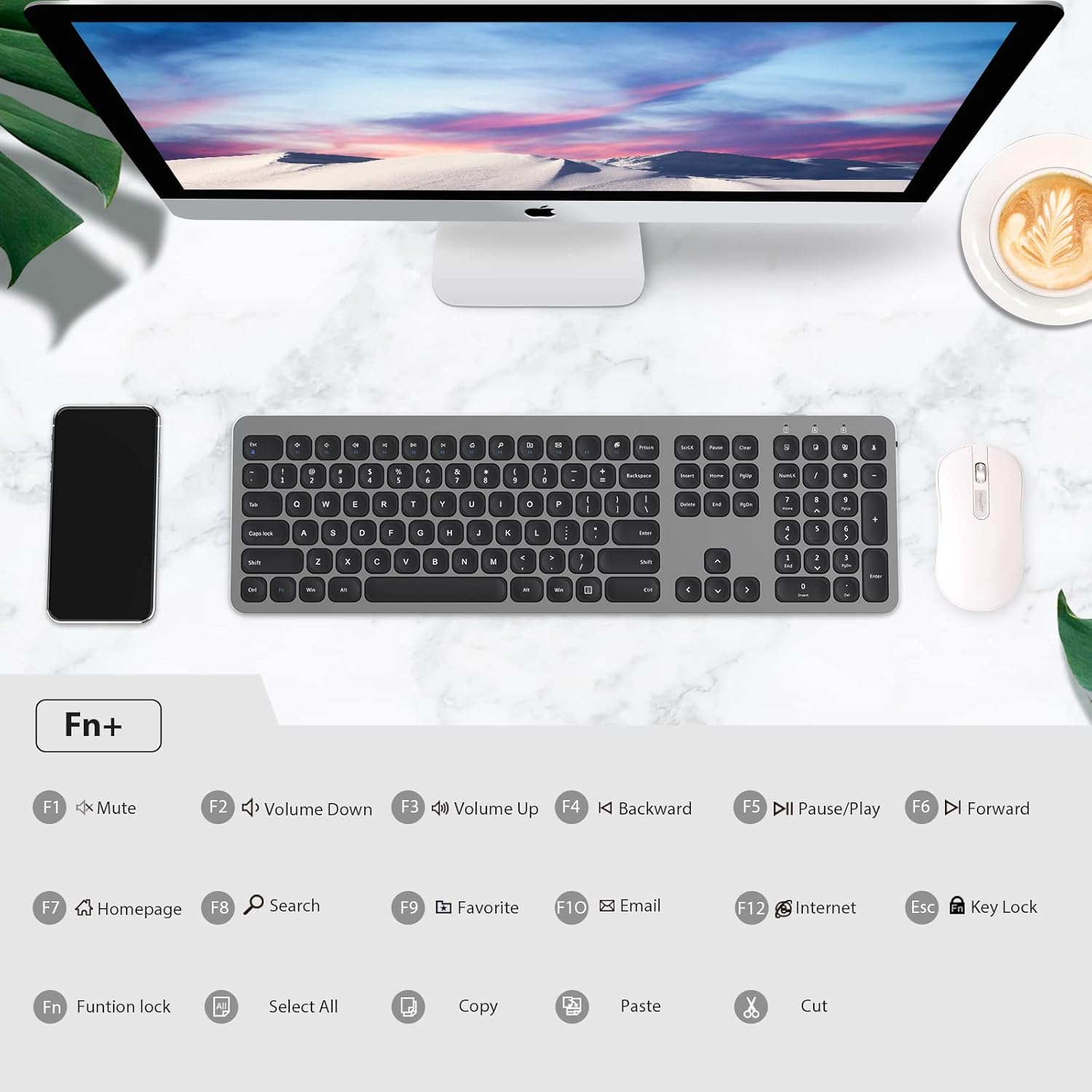
Figure 7: Fn key combinations for multimedia and system shortcuts.
| Combinazione di tasti | Funzione |
|---|---|
| Tasto F1 | Disattiva audio |
| Tasto F2 | Abbassa il volume |
| Tasto F3 | Alza il volume |
| Tasto F4 | Backward (Media) |
| Tasto F5 | Pause/Play (Media) |
| Tasto F6 | Forward (Media) |
| Tasto F7 | Pagina iniziale |
| Tasto F8 | Cerca |
| Tasto F9 | Preferito |
| Tasto F10 | |
| Tasto F11 | Browser Internet |
| Tasto F12 | Blocco chiave |
| Fn + Esc | Function Lock (toggles F1-F12 to act as standard function keys or multimedia keys) |
| Fn + LA | Seleziona tutto |
| Fn+C | Copia |
| Fn+V | Impasto |
| F+X | Taglio |
Manutenzione
1. Pulizia della tastiera
Per mantenere la pulizia e la funzionalità della tastiera:
- Utilizzare un panno morbido e privo di lanugine leggermente damplucidato con acqua o una soluzione detergente delicata.
- Evitare di spruzzare liquidi direttamente sulla tastiera.
- Non utilizzare detergenti abrasivi, solventi o spray aerosol.
- Per rimuovere polvere e detriti tra i tasti, utilizzare aria compressa.
2. Durata della batteria e risparmio energetico
The keyboard is designed for long-term operation with its power-saving features:
- The keyboard has a separate ON/OFF switch located on the back. Turn off the keyboard when not in use for extended periods to conserve battery life.
- A smart auto-sleep feature activates after a period of inactivity to save power. Press any key to wake the keyboard.
- Replace the AAA batteries when the POWER indicator light flashes or the keyboard becomes unresponsive.
Risoluzione dei problemi
If you encounter issues with your cimetech wireless keyboard, please refer to the following common solutions:
| Problema | Possibile causa/soluzione |
|---|---|
| Keyboard is unresponsive or not typing. |
|
| Lag or delayed response when typing. |
|
| Certain keys or multimedia functions are not working. |
|
| La tastiera si disconnette spesso. |
|
Specifiche
| Caratteristica | Dettaglio |
|---|---|
| Modello | KF003-Grey |
| Tecnologia di connettività | 2.4GHz Wireless (RF), USB-A Receiver |
| Distanza operativa | Fino a 10 metri (33 piedi) |
| Numero di chiavi | 110 |
| Fonte di alimentazione | 2 batterie AAA (incluse) |
| Dispositivi compatibili | Portatile, Pc, Tablet |
| Sistemi operativi | Windows XP / Vista / 7 / 8 / 10, iOS, Android, Mac OS |
| Dimensioni del prodotto | 14.57 x 5.12 x 0.79 pollici (37 x 13 x 2 cm) |
| Peso dell'articolo | 1.1 libbre (0.5 kg) |
| Caratteristiche speciali | Portable, Ergonomic, Lightweight, Hotkeys and Media Keys, Quiet Click |
Garanzia e supporto
For information regarding warranty coverage, technical support, or customer service, please refer to the warranty card included with your product packaging or visit the official cimetech webluogo. Conserva la ricevuta di acquisto per eventuali richieste di garanzia.
Per ulteriore assistenza, puoi anche contattare direttamente il venditore tramite la piattaforma su cui hai acquistato il prodotto.
Ask a question about this manual
Ask about setup, troubleshooting, compatibility, parts, safety, or missing instructions. Manuals+ will review the question and use this page’s manual context to help answer it.