
Logitech K860, MX Vertical
Logitech Ergo K860 Wireless Ergonomic Keyboard and MX Vertical Wireless Mouse User Manual
Model: K860, MX Vertical
1. Introduzione
This manual provides comprehensive instructions for setting up, operating, and maintaining your Logitech Ergo K860 Wireless Ergonomic Keyboard and MX Vertical Wireless Mouse. This combo is designed for all-day comfort, promoting a more relaxed posture and reducing strain during extended use.
Per garantire prestazioni ottimali e longevità del prodotto, leggere attentamente il presente manuale prima di utilizzarlo.
2. Prodotto finitoview

Figure 2.1: Logitech Ergo K860 Wireless Ergonomic Keyboard and MX Vertical Wireless Mouse Combo. This image displays the full product set, including the keyboard, mouse, and USB receivers.

Figure 2.2: Advanced Ergonomic Solution. This image highlights the ergonomic design of the keyboard and mouse, emphasizing comfort for prolonged use.
2.1 Caratteristiche principali
- Ergonomic Split Keyboard: The ERGO K860 features a curved, split, and sloping keyframe designed to reduce wrist bending and forearm strain.
- Pillowed Wrist Rest: Integrated wrist rest provides 54% more wrist support compared to standard keyboards, enhancing comfort.
- Sollevamento regolabile del palmo: Tilt legs allow for adjustable angles (0, -4, -7 degrees) to maintain a natural wrist position whether seated or standing.
- MX Vertical Mouse: Designed with a unique 57-degree vertical angle to place the hand in a natural handshake position, reducing wrist pressure.
- Connettività multi-dispositivo: Connects via Bluetooth or USB receiver to up to three devices, allowing seamless switching.
- Tasti silenziosi: PerfectStroke keys are crafted for precision and quiet typing.
3. Impostazione
3.1 Disimballaggio e ispezione iniziale
- Aprire con attenzione la confezione del prodotto.
- Remove the keyboard, mouse, and USB receiver(s).
- Inspect all components for any signs of damage. If any damage is found, contact customer support.
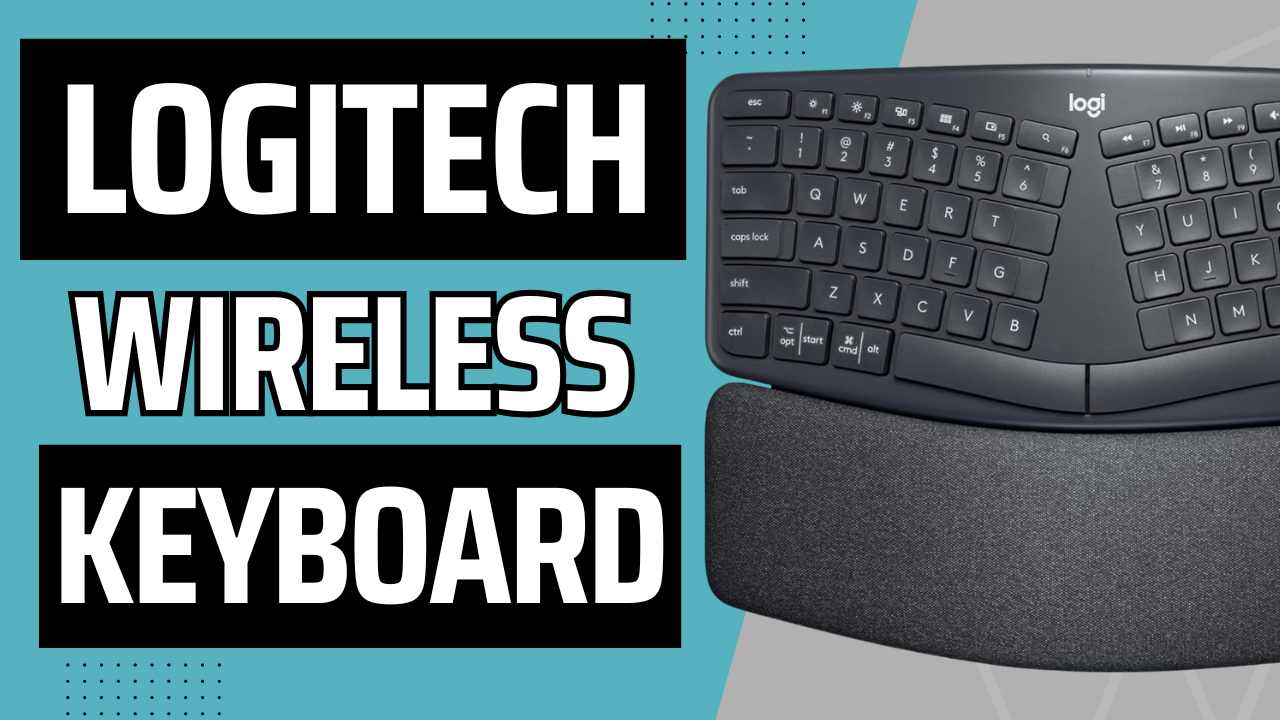
Figure 3.1: Unboxing the Logitech ERGO K860. This image shows the keyboard being removed from its packaging, highlighting the initial setup process.
3.2 Accensione e installazione della batteria
The keyboard uses AAA batteries. The mouse has a built-in rechargeable battery.
- For the keyboard, locate the battery compartment on the underside.
- Insert the provided AAA batteries, ensuring correct polarity.
- Turn on the keyboard using the power switch, usually located on the top right edge.
- For the mouse, ensure it is charged. It comes with a USB cable for charging.
- Turn on the mouse using its power switch, typically on the underside.

Figure 3.2: Keyboard Battery Compartment. This image illustrates the location for inserting AAA batteries into the keyboard.

Figure 3.3: MX Vertical Mouse Charging. This image shows the USB-C charging port on the MX Vertical mouse.
3.3 Connessione al dispositivo
The combo supports both Bluetooth and Logitech Unifying USB receiver connections.
3.3.1 Using the Logitech Unifying USB Receiver
- Collegare il ricevitore USB Unifying a una porta USB disponibile sul computer.
- The keyboard and mouse should automatically connect. If not, press and hold one of the Easy-Switch buttons (1, 2, or 3) on the keyboard/mouse until the LED blinks rapidly, then follow on-screen prompts or use Logitech Options software.
Figure 3.4: Logitech Unifying USB Receiver. The small USB dongle is visible, used for wireless connection.
3.3.2 Utilizzo del Bluetooth
- Assicurati che il Bluetooth sia abilitato sul tuo computer.
- On the keyboard/mouse, press and hold one of the Easy-Switch buttons (1, 2, or 3) until the LED blinks rapidly. This indicates it's in pairing mode.
- On your computer, go to Bluetooth settings and select "Logitech ERGO K860" or "Logitech MX Vertical" from the list of available devices.
- Segui le istruzioni visualizzate sullo schermo per completare il processo di associazione.

Figure 3.5: Multi-Device Pairing. This image demonstrates how the keyboard can be paired with up to three different devices, such as laptops and monitors.
4. Utilizzo del dispositivo
4.1 Utilizzo della tastiera
The split design of the ERGO K860 promotes a natural typing posture. Place your hands on the pillowed wrist rest, allowing your wrists to remain straight and relaxed.

Figure 4.1: Proper Ergonomic Typing. This image shows a user's hands positioned correctly on the keyboard, demonstrating the ergonomic benefits.

Figure 4.2: Ergonomic Certification. This image displays certifications for the product's ergonomic design, indicating user testing and approval.
4.1.1 Adjustable Palm Lift
The keyboard features adjustable tilt legs on the underside. You can set them to 0, -4, or -7 degrees to find the most comfortable angle for your wrists, whether you are sitting or standing.

Figure 4.3: Adjustable Keyboard Tilt. This image illustrates the adjustable feet on the keyboard's underside, allowing users to modify the tilt for optimal comfort.
4.1.2 Easy-Switch Buttons
Use the Easy-Switch buttons (1, 2, 3) located on the top right of the keyboard to seamlessly switch between connected devices. Simply press the button corresponding to the device you wish to control.
4.2 Utilizzo del mouse
The MX Vertical mouse is designed to reduce muscle strain by promoting a natural handshake position. Grip the mouse comfortably with your hand at a 57-degree vertical angle.
Figure 4.4: MX Vertical Mouse Grip. This image demonstrates the natural handshake grip encouraged by the MX Vertical mouse's design.

Figure 4.5: MX Vertical Mouse Features. This image labels various parts of the MX Vertical mouse, including the scroll wheel, buttons, and sensor.
4.2.1 Cursor Speed Switch
The MX Vertical mouse features a cursor speed switch (DPI button) to instantly adjust the pointer speed and accuracy. This allows for precise control for different tasks.
4.3 Logitech Options Software
Scarica e installa il software Logitech Options dal sito ufficiale Logitech webposto (www.logitech.com/software/logitech-options.html) to customize your keyboard and mouse settings. This software allows you to:
- Riassegnare i tasti funzione e i pulsanti del mouse.
- Regola la velocità del puntatore e il comportamento di scorrimento.
- Enable Logitech Flow for seamless multi-computer control (requires compatible Logitech Flow devices).
5. Manutenzione
5.1 Pulizia
- Utilizzare un panno morbido e privo di lanugine leggermente dampcon acqua o una soluzione detergente delicata per pulire le superfici della tastiera e del mouse.
- Evitare l'uso di detergenti abrasivi, solventi o spray aerosol.
- For the keyboard's fabric wrist rest, gently wipe with a damp cloth. The fabric is stain-resistant.
5.2 Cura della batteria
- Replace AAA batteries in the keyboard when the battery indicator light turns red.
- Recharge the MX Vertical mouse when its battery indicator is low using the provided USB-C cable. A full charge provides approximately four months of power, and a one-minute quick charge provides three hours of use.
- Conservare i dispositivi in un luogo fresco e asciutto quando non vengono utilizzati per periodi prolungati.
6. Risoluzione Dei Problemi
| Problema | Possibile causa | Soluzione |
|---|---|---|
| Dispositivo non connesso | Low battery, incorrect pairing, USB receiver issue. |
|
| Connessione lenta o intermittente | Interference, distance from receiver/device. |
|
| I tasti non rispondono | Problema software, danno fisico. |
|
7. Specifiche
| Caratteristica | Descrizione |
|---|---|
| Marca | Logitech |
| Modello | ERGO K860 (Keyboard), MX Vertical (Mouse) |
| Connettività | Bluetooth, USB Unifying Receiver |
| Disposizione della tastiera | Ergonomic Split, Full-size with Numpad |
| Poggiapolsi | Integrated Pillowed Wrist Rest (Stain-resistant fabric) |
| Inclinazione regolabile | 0, -4, -7 degrees |
| Mouse Ergonomics | 57-degree vertical angle for natural handshake position |
| Sensore del mouse | 4000 DPI high-precision sensor |
| Durata della batteria (tastiera) | Up to 2 years (with AAA batteries) |
| Battery Life (Mouse) | Up to 4 months (rechargeable, 1 min quick charge for 3 hrs) |
| Sistemi operativi compatibili | Windows, macOS, Chrome OS, Linux, iOS, Android |
8. Garanzia e supporto
Per informazioni sulla garanzia e supporto tecnico, visitare il supporto ufficiale Logitech websito o fare riferimento alla scheda di garanzia inclusa nella confezione del prodotto.
Supporto Logitech: support.logi.com
9. Video ufficiali dei prodotti
Sulla base dei dati forniti, non sono disponibili video ufficiali del prodotto del venditore da incorporare in questo manuale.
Ask a question about this manual
Ask about setup, troubleshooting, compatibility, parts, safety, or missing instructions. Manuals+ will review the question and use this page’s manual context to help answer it.