
1. Introduzione e oltreview
The Alienware Aurora R10 Gaming Desktop is engineered to deliver exceptional performance for gaming and demanding applications. Featuring an AMD Ryzen 7 3700X processor, AMD Radeon RX 5700 XT graphics, and a robust storage configuration, this system provides a powerful computing experience. Its innovative design prioritizes efficient airflow and ease of access for upgrades.

Figura 1: Fronte view of the Alienware Aurora R10 Gaming Desktop, showcasing its distinctive design and front panel ports.
2. Guida all'installazione
Follow these steps to set up your Alienware Aurora R10 Gaming Desktop:
- Disimballaggio: Carefully remove the desktop from its packaging. Ensure all accessories, including the keyboard and mouse, are present.
- Posizionamento: Place the desktop on a stable, flat surface with adequate ventilation around all sides. Avoid placing it in enclosed spaces or near heat sources.
- Connetti le periferiche:
- Connect your monitor(s) to the appropriate display ports on the graphics card (DisplayPort, HDMI).
- Collegare la tastiera e il mouse inclusi alle porte USB disponibili.
- Collegare altre periferiche, come altoparlanti, cuffie o unità esterne.
- Collegamento elettrico: Connect the power cable to the power port on the rear of the desktop and then to a grounded electrical outlet.
- Accensione iniziale: Press the power button located on the front of the desktop. The system will boot into Windows 10 Home. Follow the on-screen instructions for initial setup.

Figura 2: Posteriore view of the Alienware Aurora R10, illustrating the various connectivity ports for peripherals and power.
3. Istruzioni per l'uso
Your Alienware Aurora R10 comes pre-installed with Windows 10 Home, providing a familiar and intuitive operating environment. For optimal performance, ensure your system drivers and Windows updates are kept current.
3.1 Gestione dell'alimentazione
- Accensione: Press the Alienware head icon on the front panel.
- Fermare: Fare clic sul pulsante Start in Windows, quindi su Arresta il sistema > Arresta il sistema.
- Ricomincia: Fare clic sul pulsante Start in Windows, quindi su Arresta > Riavvia.
- Modalità risparmio: Fare clic sul pulsante Start in Windows, quindi su Arresta > Sospensione.
3.2 AlienFX Lighting Control
The Alienware Aurora R10 features customizable AlienFX lighting. You can personalize the lighting zones on the front panel using the Alienware Command Center software, which is pre-installed on your system. This software allows you to choose from a wide range of colors and effects to match your setup or mood.
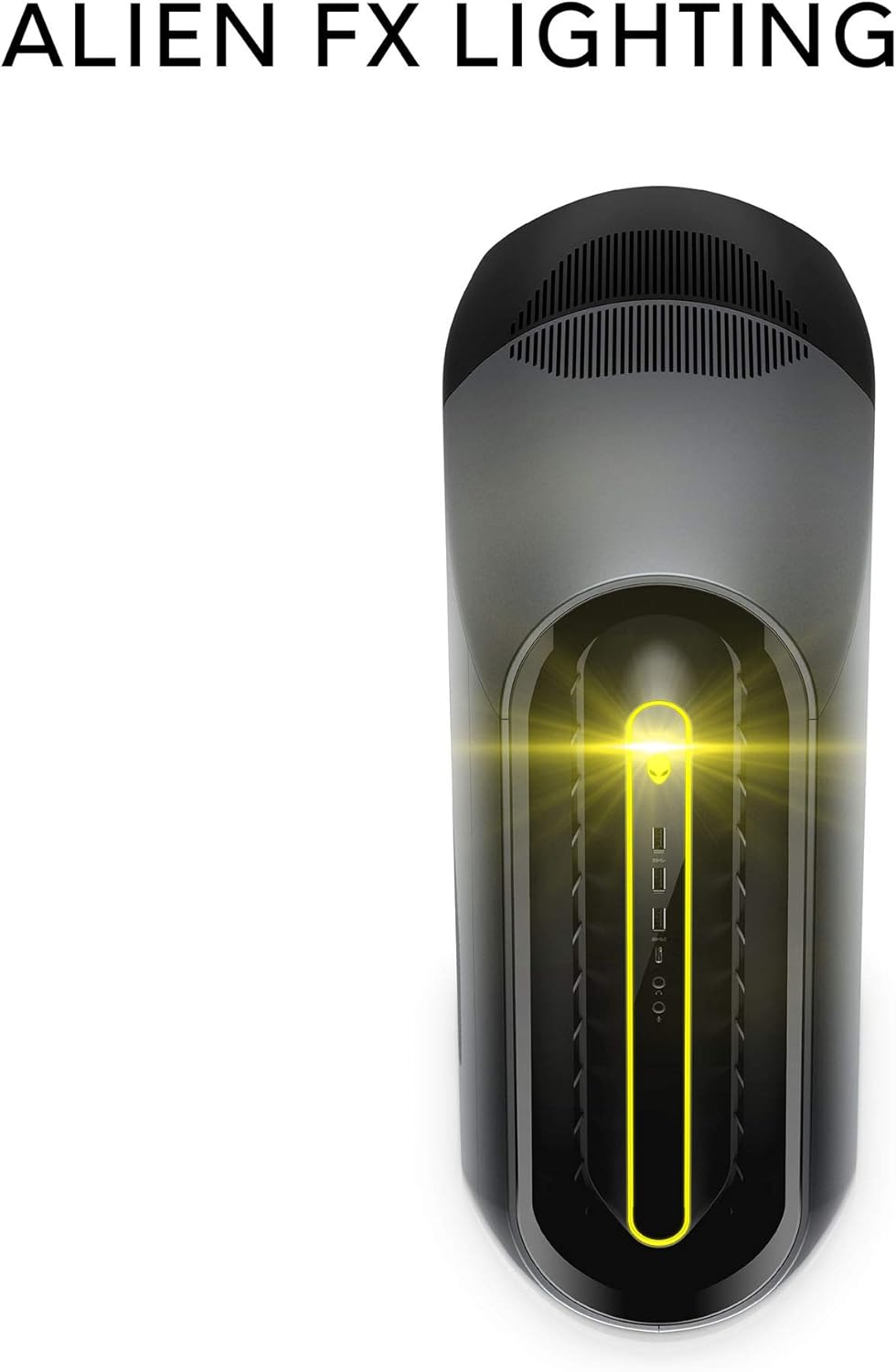
Figure 3: The AlienFX lighting system on the front of the desktop, offering personalized illumination.
3.3 Ottimizzazione delle prestazioni
The Alienware Command Center also provides tools for performance monitoring and optimization, including fan speed control and overclocking options for advanced users. Refer to the software's built-in help for detailed instructions on these features.
Video 1: Video ufficiale mostratoasing the features and design of the Alienware Aurora R10 Gaming Desktop.
4. Caratteristiche principali
The Alienware Aurora R10 is designed with several key features to enhance your computing and gaming experience:
- Processore potente: Equipped with an AMD Ryzen 7 3700X (8-Core, 32MB L3 Cache, max boost clock of 4.4GHz) processor, providing robust performance for multitasking and demanding applications.
- Grafica avanzata: Features an AMD Radeon RX 5700 XT 8GB GDDR6 graphics card, delivering high frame rates and immersive visuals for modern games.
- PCI-Express 4.0 Technology: The first Alienware machine to feature PCI-Express 4.0, doubling the bandwidth available to graphics cards and other components for enhanced overall performance.
- Flusso d'aria ottimizzato: The Legend Industrial Design incorporates an improved airflow pattern, efficiently reducing CPU temperatures and allowing for more stable performance and higher overclocking potential.
- Hybrid Storage Solution: A combination of a 512GB M.2 PCIe NVMe SSD for fast boot times and application loading, paired with a 1TB 7200 RPM SATA 6 Gb/s HDD for ampla capacità di archiviazione.
- Tool-Less Entry: Designed for easy access to internal components, simplifying upgrades and maintenance.
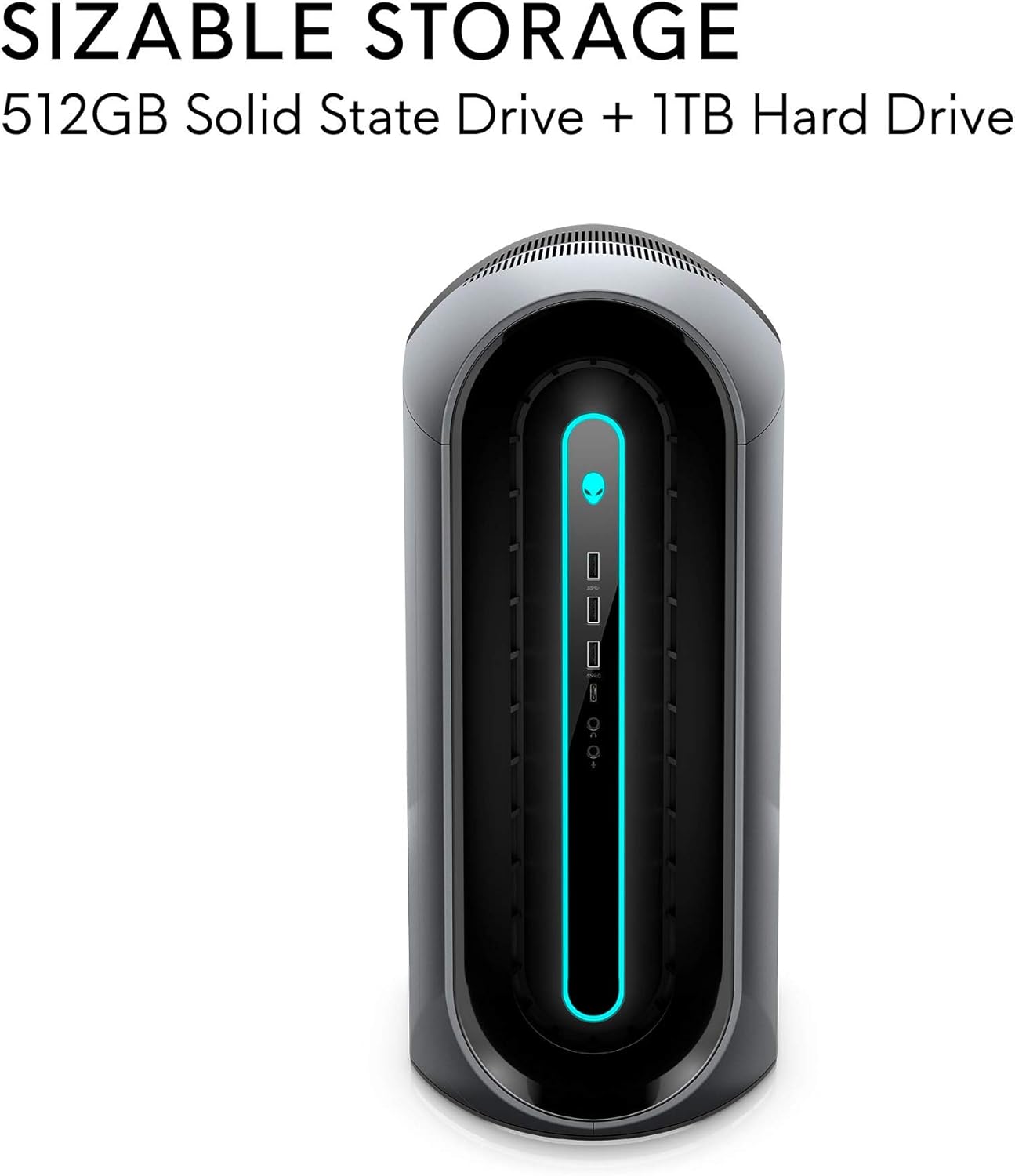
Figure 4: Illustration of the sizable storage configuration, combining SSD and HDD for speed and capacity.

Figure 5: The tool-less entry design of the desktop, allowing for convenient internal access.

Figure 6: Visual representation of the optimized airflow within the Aurora R10 chassis.

Figure 7: The AMD Radeon RX 5700 XT graphics card, a core component for high-performance gaming.
5. Manutenzione
Regular maintenance helps ensure the longevity and optimal performance of your Alienware Aurora R10.
- Rimozione della polvere: Periodically clean the exterior and ventilation grilles with a soft, dry cloth. For internal components, use compressed air to gently remove dust from fans and heatsinks. Ensure the system is powered off and unplugged before cleaning.
- Aggiornamenti software: Regularly check for and install updates for Windows 10, graphics drivers (AMD Radeon Software), and Alienware Command Center. These updates often include performance improvements, security patches, and bug fixes.
- Gestione dei cavi: Ensure all cables are neatly organized and not obstructing airflow.
- Diagnostica di sistema: Utilize the diagnostic tools available through Alienware Command Center or Dell SupportAssist to check for hardware issues.

Figura 8: lato view of the desktop, highlighting the large ventilation grilles crucial for maintaining optimal temperatures.
6. Risoluzione Dei Problemi
This section provides basic troubleshooting steps for common issues. For more complex problems, refer to the Alienware support websito o contattare il supporto tecnico.
- Nessun potere:
- Assicurarsi che il cavo di alimentazione sia collegato saldamente sia al desktop sia alla presa elettrica.
- Verificare che la presa di corrente funzioni collegandovi un altro dispositivo.
- Check the power supply unit (PSU) for any indicator lights or unusual noises.
- Nessuna visualizzazione:
- Confirm the monitor is powered on and connected to the correct display port on the graphics card.
- Se disponibile, provare un cavo di visualizzazione o un monitor diverso.
- Ensure the graphics card is properly seated in its slot (requires opening the chassis).
- Problemi di rallentamento/prestazioni del sistema:
- Chiudere le applicazioni in background non necessarie.
- Check for and install all available Windows updates and driver updates.
- Monitor system temperatures using Alienware Command Center to ensure components are not overheating.
- Esegui una scansione completa del sistema per rilevare malware o virus.
- Rumori insoliti:
- Loud fan noise may indicate dust buildup or high temperatures. Clean the fans and ensure proper airflow.
- Clicking or grinding noises from the hard drive may indicate a failing drive. Back up your data immediately and contact support.
7. Specifiche
| Caratteristica | Specificazione |
|---|---|
| Marca | Alienware |
| Serie | Aurora R10 |
| Numero modello articolo | AWAUR10-A886BLK-PUS |
| Processore | AMD Ryzen 7 3700X (8-Core, 4.4 GHz Max Boost) |
| Memoria RAM | 16 GB 2933MHz DDR4 XMP dual channel HyperX Fury |
| Disco rigido | 512 GB M.2 PCIe NVMe SSD Boot + 1 TB 7200 RPM SATA 6 Gb/s Storage |
| Coprocessore grafico | Scheda grafica AMD Radeon RX 5700 XT da 8 GB GDDR6 |
| Sistema operativo | Windows 10 Casa |
| Piattaforma hardware | Finestre |
| Peso dell'articolo | 38.5 libbre |
| Colore | Dark Side Of The Moon |
| Numero di porte USB 2.0 | 6 |
| Numero di porte USB 3.0 | 1 |
| Slot di memoria disponibili | 4 |
8. Cosa c'è nella scatola
Your Alienware Aurora R10 Gaming Desktop package includes:
- Desktop da gioco Alienware Aurora R10
- Tastiera
- Topo
- Cavo di alimentazione
9. Garanzia e supporto
Your Alienware Aurora R10 Gaming Desktop comes with a standard manufacturer's warranty. For detailed warranty information, technical support, and service requests, please visit the official Alienware support website or Dell's customer service portal.
Puoi trovare maggiori informazioni e risorse di supporto visitando il Negozio Alienware su Amazon.