1. Introduzione
Thank you for choosing the EINCAR 7-inch Android 10.0 Car Stereo. This advanced multimedia system is designed to enhance your driving experience with features like GPS navigation, Bluetooth connectivity, Wi-Fi, and smartphone mirroring. This manual provides detailed instructions for installation, operation, and maintenance to ensure optimal performance and longevity of your device.

Image 1.1: The EINCAR 7-inch Android 10.0 Car Stereo unit, displaying the Android 10 interface, along with included accessories like the rear camera, GPS antenna, and wiring harnesses.
2. Informazioni sulla sicurezza
Si prega di leggere attentamente tutte le istruzioni di sicurezza prima dell'installazione e dell'uso. Il mancato rispetto di queste linee guida può causare lesioni o danni al dispositivo o al veicolo.
- Do not operate the device or watch videos while driving. Distracted driving can lead to serious accidents.
- Assicurare un cablaggio e un isolamento adeguati per prevenire cortocircuiti e pericoli elettrici.
- Se non si è sicuri di alcuni passaggi, consultare un professionista per l'installazione.
- Tenere il dispositivo lontano da acqua, umidità e temperature estreme.
- Non tentare di smontare o modificare l'unità. Ciò invaliderà la garanzia.
3. Contenuto della confezione e informazioni sul prodottoview
3.1. Contenuto della confezione
Verificare che tutti gli articoli siano presenti nel pacco:

Immagine 3.1: Dettagliata view of the car stereo's dimensions, along with a clear display of all included accessories and the back panel connections.
- 1 x EINCAR 7-inch Android Car Stereo Unit
- 1 x cavo di alimentazione
- 2 x AV Cables
- 1 antenna GPS
- 2 x Cavi USB
- 2 x Install Brackets (with 4 x Screws)
- 1 posteriore View Telecamera
- 1 x User Manual (Built-in)
3.2. Dimensioni del prodotto
The unit features a standard double DIN size for compatibility with most vehicles. Refer to the image below for precise measurements:
| Dimensione | Misurazione |
|---|---|
| Larghezza | 178 mm (7.01 pollici) |
| Altezza | 100 mm (3.94 pollici) |
| Depth (Main Unit) | 104 mm (4.09 pollici) |
| Depth (Rear Section) | 45 mm (1.77 pollici) |
3.3. Back Display Connections
The rear panel of the unit provides various ports for power, audio/video output, and external accessories.
- Power Cable Diagram connection point
- Posizione del fusibile
- RCA Output Sockets
- GPS Antenna connection point
4. Installazione
Installation of the car stereo requires careful attention to wiring and mounting. A wire diagram is provided with the unit to assist you. If you are not confident with the installation process, it is highly recommended to seek professional assistance.
- Montaggio: Use the provided install brackets and screws to secure the unit in your vehicle's double DIN slot.
- Collegamento elettrico: Connect the power cable according to the provided wiring diagram. Ensure correct positive, negative, and accessory wire connections.
- Collegamenti degli altoparlanti: Connect your vehicle's speaker wires to the corresponding outputs on the stereo's wiring harness.
- Antenna GPS: Montare l'antenna GPS in una posizione con una vista libera view del cielo, in genere sul cruscotto o sotto il parabrezza.
- Posteriore View Telecamera: Installa la parte posteriore view camera at the back of your vehicle and connect its video output to the dedicated input on the stereo. Ensure the reverse trigger wire is connected for automatic display when reversing.
- Connessioni USB: Instradare i cavi USB verso una posizione accessibile, come il vano portaoggetti o la console centrale.
- Prova: Before fully reassembling your dashboard, perform a quick test to ensure all functions (power, audio, touch screen, GPS, camera) are working correctly.
5. Configurazione iniziale
Dopo aver completato correttamente l'installazione, accendere l'unità e seguire questi passaggi per la configurazione iniziale:
- Selezione della lingua: Upon first boot, you may be prompted to select your preferred language. The unit supports multiple OSD languages including German, French, Russian, Portuguese, Spanish, and English.
- Ora e data: Imposta il fuso orario, la data e l'ora corretti. Spesso è possibile sincronizzarli automaticamente tramite GPS o tramite l'ora di rete se si è connessi al Wi-Fi.
- Connessione Wi-Fi:
- Vai a Impostazioni > Rete e Internet > Wifi.
- Attiva il Wi-Fi On.
- Seleziona la rete Wi-Fi desiderata dall'elenco e inserisci la password.
- Once connected, you can browse the internet, download apps, and use online navigation.
- Configurazione GPS: The unit comes with pre-installed navigation. Ensure the GPS antenna is properly connected and positioned for optimal signal reception. You can also download and use other online map applications via Wi-Fi.
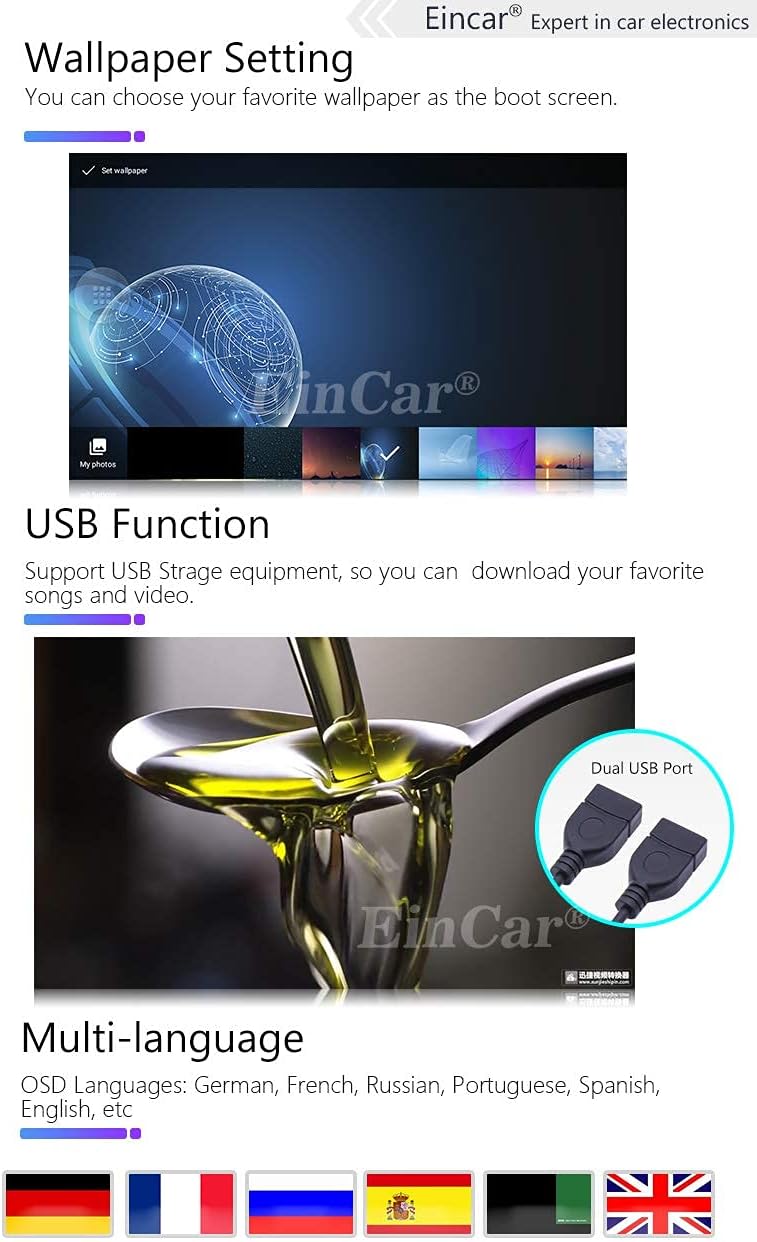
Image 5.1: Demonstrates the wallpaper setting feature, the dual USB port for storage, and the multi-language support of the system.
6. Istruzioni per l'uso
6.1. Interfaccia principale finitaview
The main interface provides quick access to key functions. Icons represent different applications or settings:

Image 6.1: Highlights the 7-inch capacitive HD touch screen with 1024*600 resolution and illustrates the main interface icons and their functions.
- Press to go to Google Map (or default navigation app).
- Press to go to Radio.
- Press to go to Music Play.
- Press to go to Bluetooth.
- Press to go to Video Play.
- Press to go to Settings.
6.2. Funzione Bluetooth
Il modulo Bluetooth integrato consente chiamate in vivavoce e streaming audio.
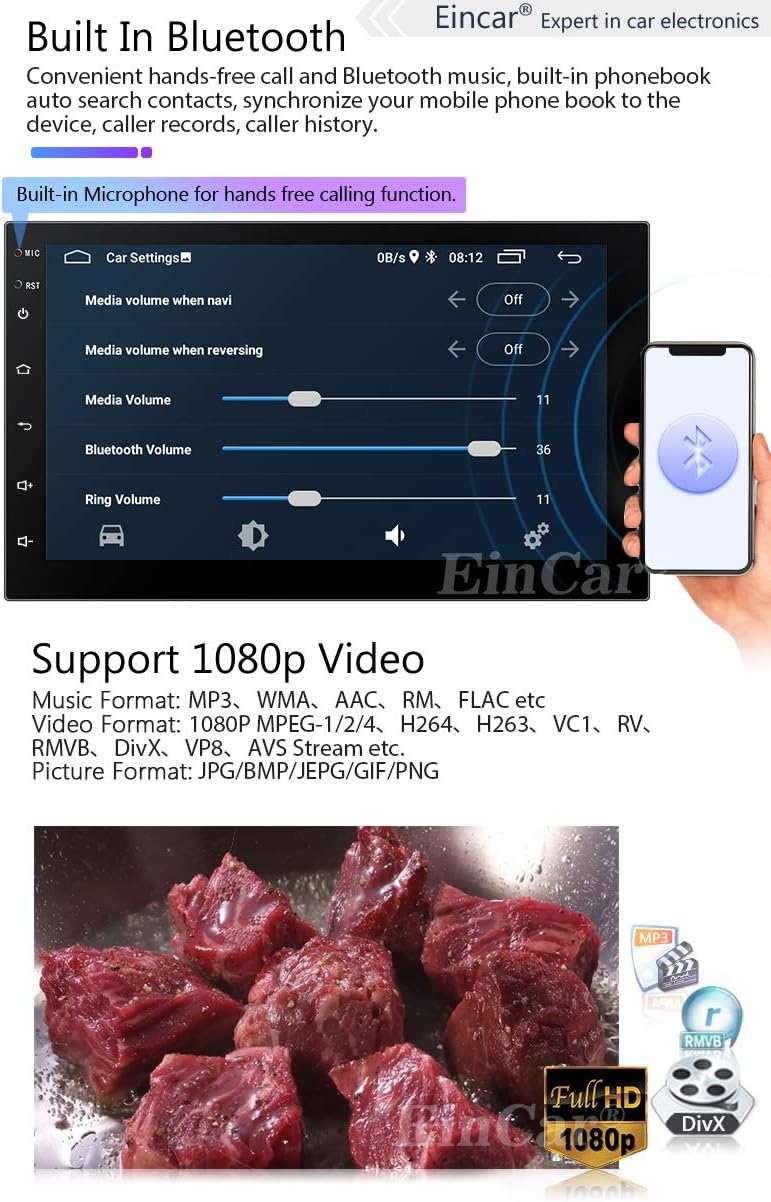
Image 6.2: Shows the Bluetooth interface for hands-free calling and confirms support for 1080p video playback with various media formats.
- Abbinamento: Enable Bluetooth on your mobile phone and search for the device (usually named "EINCAR" or similar). Select it and confirm pairing.
- Chiamate in vivavoce: Once paired, you can make and receive calls directly from the stereo. The built-in microphone ensures clear communication.
- Rubrica: Download your phone's contacts to the stereo for easy access.
- Musica Bluetooth (A2DP): Trasmetti in streaming l'audio dal tuo telefono all'autoradio in modalità wireless.
6.3. Collegamento telefonico (collegamento mirror)
Mirror Link consente di visualizzare lo schermo del tuo smartphone sul display dell'autoradio.

Image 6.3: Illustrates the Phone Link (Mirror Link) functionality for both Android and iPhone, along with Wi-Fi/3G/4G connectivity and access to Google Play.
- Per iPhone: Connect your iPhone to the stereo via Wi-Fi. The iPhone's display, including main menu, photos, videos, and online navigation, can be mirrored.
- Per Android: Connect your Android phone using a USB charging cable to the stereo's USB port. The Android smartphone's display will be mirrored.
6.4. Navigazione GPS
The unit supports both pre-installed offline maps and online navigation applications.

Image 6.4: Displays the GPS navigation interface showing a route, and explains the steering wheel control function for convenient operation.
- Mappe offline: Use the pre-loaded maps for navigation without an internet connection.
- Mappe online: Connect to Wi-Fi (via hotspot from your phone or a dongle) to use online mapping services like Google Maps, Waze, etc., which provide real-time traffic updates.
6.5. Riproduzione multimediale
The stereo supports various audio and video formats for playback from USB drives or internal storage.
- Formati video supportati: 1080P MPEG-1/2/4, H264, H263, VC1, RV, RMVB, DivX, VP8, AVS Stream, etc.
- Formati musicali supportati: MP3, WMA, AAC, RM, FLAC, ecc.
- Formati immagine supportati: JPG/BMP/JEPG/GIF/PNG.
- Riproduzione USB: Insert a USB drive into one of the USB ports to access your media files.
6.6. Controllo del volante
The unit supports resistance-based analog signal input steering wheel controls, allowing you to manage basic functions without taking your hands off the wheel.
- Impostare: Access the Steering Wheel Control settings in the system menu. Follow the on-screen instructions to map your vehicle's steering wheel buttons to the stereo's functions (e.g., volume up/down, track skip, answer call).
- Funzioni: Typically includes volume control, track/station change, mode switching, and call answer/end.
6.7. Posteriore View Telecamera
La parte posteriore inclusa view la telecamera visualizza automaticamente la parte posteriore view on the screen when the vehicle is put into reverse gear, aiding in parking and maneuvering.
- Ensure the camera is properly installed and connected to the dedicated camera input and reverse trigger wire.
7. Manutenzione
- Pulizia: Utilizzare un panno morbido e asciutto per pulire lo schermo e l'unità. Non utilizzare detergenti abrasivi o solventi.
- Aggiornamenti software: Controllare periodicamente le istruzioni del produttore websito o contattare l'assistenza per gli aggiornamenti software disponibili, per garantire prestazioni ottimali e l'accesso alle nuove funzionalità.
- Temperatura: Evitare di esporre l'unità a temperature estreme, sia calde che fredde, poiché ciò potrebbe comprometterne le prestazioni e la durata.
8. Risoluzione Dei Problemi
If you encounter issues with your EINCAR car stereo, refer to the following common problems and solutions:
| Problema | Possibile causa/soluzione |
|---|---|
| Nessun potere | Check power cable connections, fuse, and vehicle's power supply. Ensure the ignition is on. |
| Nessun suono | Check speaker wiring, volume level, and audio source selection. Ensure mute is not activated. |
| Touch screen non reattivo | Riavviare l'unità. Se il problema persiste, potrebbe essere necessario un ripristino delle impostazioni di fabbrica (eseguire prima un backup dei dati). |
| Segnale GPS perso/impreciso | Assicurarsi che l'antenna GPS sia collegata correttamente e abbia una visuale libera view del cielo. Spostatevi in un'area aperta. |
| Bluetooth non si connette | Assicurati che il Bluetooth sia abilitato su entrambi i dispositivi. Elimina le associazioni precedenti e prova a riassociarle. Riavvia entrambi i dispositivi. |
| La telecamera posteriore non viene visualizzata | Check camera video input connection and reverse trigger wire connection. Ensure camera is powered. |
For further assistance, please refer to the official help page via the card delivered with the package or contact EINCAR customer support.
9. Specifiche
| Caratteristica | Dettaglio |
|---|---|
| Sistema operativo | Androide 10.0 |
| Dimensioni dello schermo | 7 pollici |
| Tipo di visualizzazione | Capacitive HD Touch Screen LCD |
| Risoluzione dello schermo | 1024 x 600 pixel |
| Processore | Quad-core |
| Memoria RAM | 1 GB |
| Memoria interna | 16 GB |
| Connettività | Bluetooth, Wi-Fi, USB |
| GPS | Built-in GPS Module, supports online/offline maps |
| Input dell'interfaccia umana | Microfono, Touchscreen |
| Dispositivi compatibili | Smartphone |
| Tipo di servizio del veicolo | Auto |
| Dimensioni (L x A) | 178mm x 100mm (Double Din Standard) |
10. Garanzia e supporto
EINCAR is committed to providing high-quality products and customer satisfaction. While specific warranty details are not provided in this manual, please retain your purchase receipt as proof of purchase.
For any issues, questions, or technical support, please contact EINCAR customer service. You can find contact information on the official help page via the card delivered with your package. Our support team aims to respond within 24 hours.
For the latest information, software updates, and additional resources, please visit the official EINCAR websito.