
1. Introduzione
The HUAWEI MateDock 3 is a compact and versatile docking station designed to expand the connectivity options of your compatible devices. It provides multiple ports including HDMI, VGA, USB-A, USB-C, an integrated microSD card reader, and a LAN (RJ45) connection. This manual provides instructions for setting up, operating, and maintaining your MateDock 3.

Immagine 1.1: In alto view of the HUAWEI MateDock 3, showcasingrazie al suo design compatto e al cavo USB-C integrato.
2. Contenuto della confezione
Assicurarsi che tutti gli articoli siano presenti nel pacco:
- HUAWEI MateDock 3 Multi-Port Docking Station
- Manuale dell'utente (questo documento)
3. Prodotto finitoview
The MateDock 3 features a range of ports to enhance your device's connectivity. Familiarize yourself with the port layout:

Image 3.1: Detailed diagram of the HUAWEI MateDock 3 ports, including LAN, USB-A, HDMI, VGA, microSD, and USB-C.
- Cavo di ingresso USB-C: Connects to your host device (laptop, tablet, smartphone).
- Porta HDMI: Connects to an external display for video and audio output.
- Porta VGA: Connects to an external display for video output.
- Porta USB-A: Connects to USB peripherals such as keyboards, mice, or external storage.
- Porta USB-C: For power delivery to the host device or connecting other USB-C peripherals.
- Porta LAN (RJ45): Provides wired Ethernet network connectivity.
- Lettore di schede microSD: For reading and writing data to microSD cards.
4. Configurazione e installazione
The HUAWEI MateDock 3 is designed for plug-and-play functionality, requiring no driver installation for most operating systems.
- Connetti al dispositivo host: Plug the integrated USB-C cable of the MateDock 3 into an available USB-C port on your laptop, tablet, or smartphone.
- Collegamento elettrico (facoltativo): If your host device requires charging or if you are connecting power-intensive peripherals, connect a USB-C power adapter to the USB-C port on the MateDock 3.
- Connetti le periferiche: Connect your desired external devices (monitor, keyboard, mouse, Ethernet cable, microSD card) to the corresponding ports on the MateDock 3.
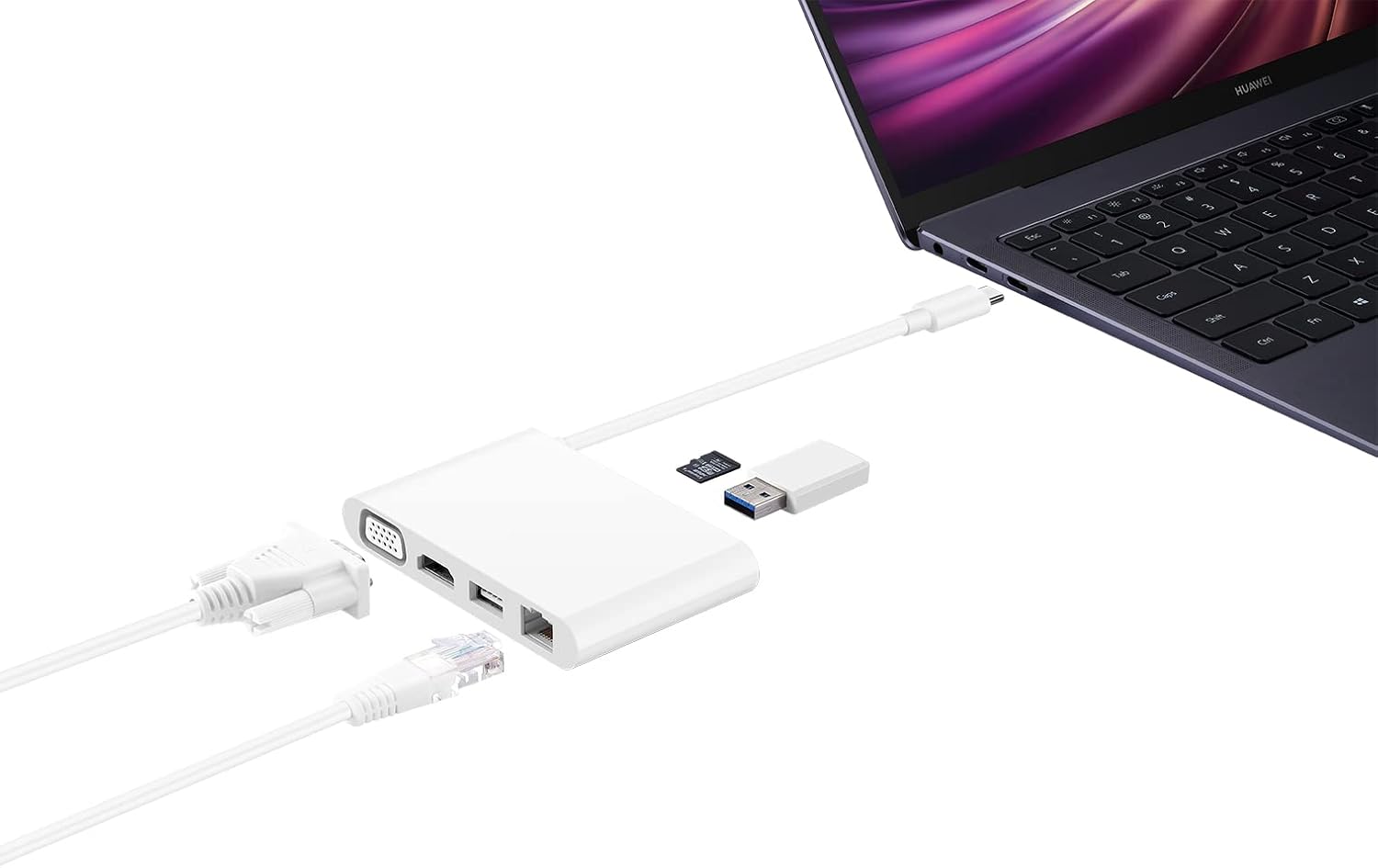
Image 4.1: The MateDock 3 in use, connected to a laptop, demonstrating connections for a monitor, Ethernet, and USB devices.
5. Istruzioni per l'uso
5.1. Video Output (HDMI / VGA)
- Connect an HDMI cable from your monitor/TV to the HDMI port on the MateDock 3.
- Alternatively, connect a VGA cable from your monitor/projector to the VGA port on the MateDock 3.
- Your host device should automatically detect the external display. You may need to adjust display settings (e.g., mirror, extend) in your operating system.
- Nota: Only one video output (HDMI or VGA) can be used at a time.
5.2. USB Peripherals (USB-A / USB-C)
- Plug your USB-A devices (e.g., mouse, keyboard, USB flash drive) into the USB-A port.
- The USB-C port on the dock can be used for power delivery to your host device or for connecting other USB-C peripherals.
5.3. Network Connection (LAN)
- Connect an Ethernet cable from your router or network switch to the LAN (RJ45) port on the MateDock 3.
- Your host device will establish a wired network connection.
5.4. Lettore di schede microSD
- Insert a microSD card into the designated slot on the MateDock 3.
- The card will appear as a removable drive on your host device, allowing you to access its contents.
6. Manutenzione e cura
- Keep the MateDock 3 clean and dry. Avoid exposure to liquids or excessive humidity.
- Non esporre il dispositivo a temperature estreme.
- Pulire l'esterno con un panno morbido e asciutto. Evitare detergenti abrasivi.
- Maneggiare con cura il cavo USB-C integrato per evitare danni.
7. Risoluzione Dei Problemi
- Nessuna uscita di visualizzazione:
- Ensure the MateDock 3's USB-C cable is securely connected to your host device.
- Verify that the HDMI or VGA cable is firmly connected to both the dock and the display.
- Controlla le impostazioni di visualizzazione del dispositivo host per assicurarti che il monitor esterno venga rilevato e configurato correttamente.
- Try connecting only one video output (HDMI or VGA) at a time.
- Dispositivi USB non funzionanti:
- Ensure the USB device is properly inserted into the USB-A or USB-C port.
- If the device requires external power, ensure the MateDock 3 is connected to a power source via its USB-C port.
- Test the USB device directly with your host device to rule out device-specific issues.
- Nessuna connessione di rete:
- Verify that the Ethernet cable is securely connected to both the MateDock 3 and your router/switch.
- Check your host device's network settings.
- Assicurati che il router/switch funzioni correttamente.
- microSD Card Not Detected:
- Ensure the microSD card is fully inserted into the slot.
- Check if the card is formatted correctly and readable by your host device.
8. Specifiche
| Caratteristica | Dettaglio |
|---|---|
| Numero di modello | 55031424 |
| Dimensioni (L x P x A) | Dimensioni: 9.4 x 5.9 x 1.4 cm |
| Peso | 86 grammi |
| Interfaccia Hardware | HDMI, VGA, USB-A, USB-C, LAN (RJ45), microSD |
| Numero di porte | 5 (excluding input USB-C cable and microSD slot) |
| Dispositivi compatibili | Devices with USB-C ports supporting video output and power delivery |
| Colore | Bianco |
9. Informazioni sulla garanzia
For detailed warranty information, please refer to the warranty card included with your product packaging or visit the official Huawei websito. Conservare la ricevuta d'acquisto come prova d'acquisto per eventuali reclami in garanzia.
10. Assistenza clienti
If you encounter any issues or have questions not covered in this manual, please contact Huawei customer support through their official websito o le informazioni di contatto fornite nella documentazione del prodotto.


