Introduzione
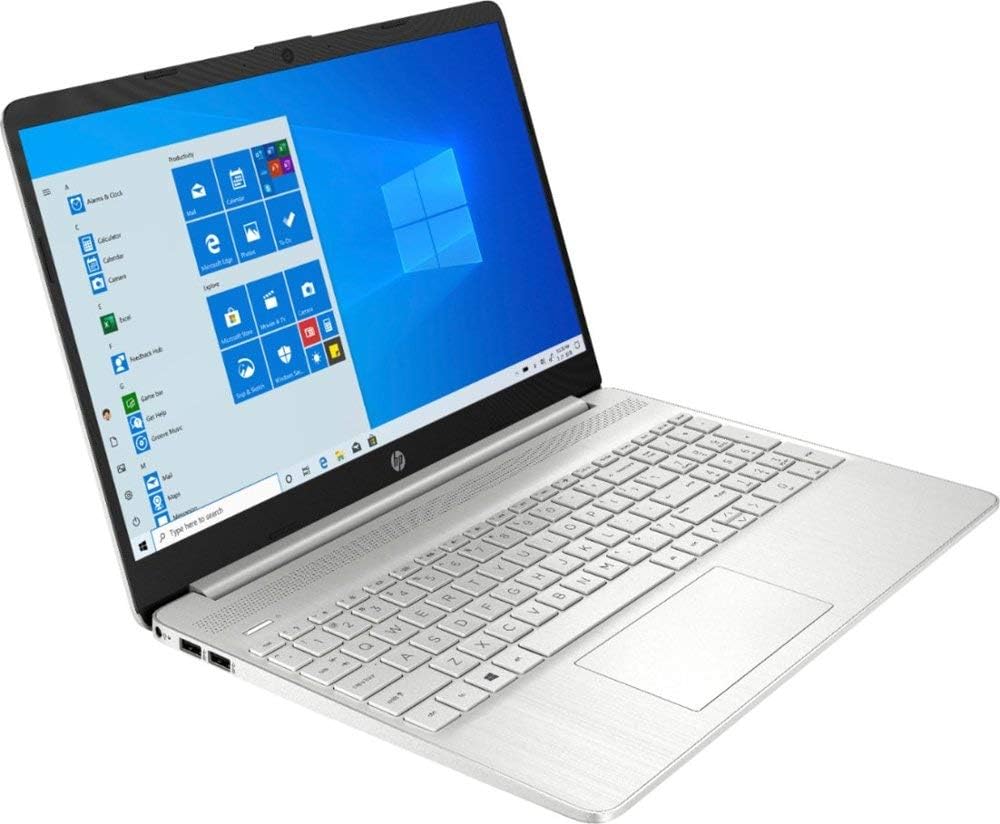
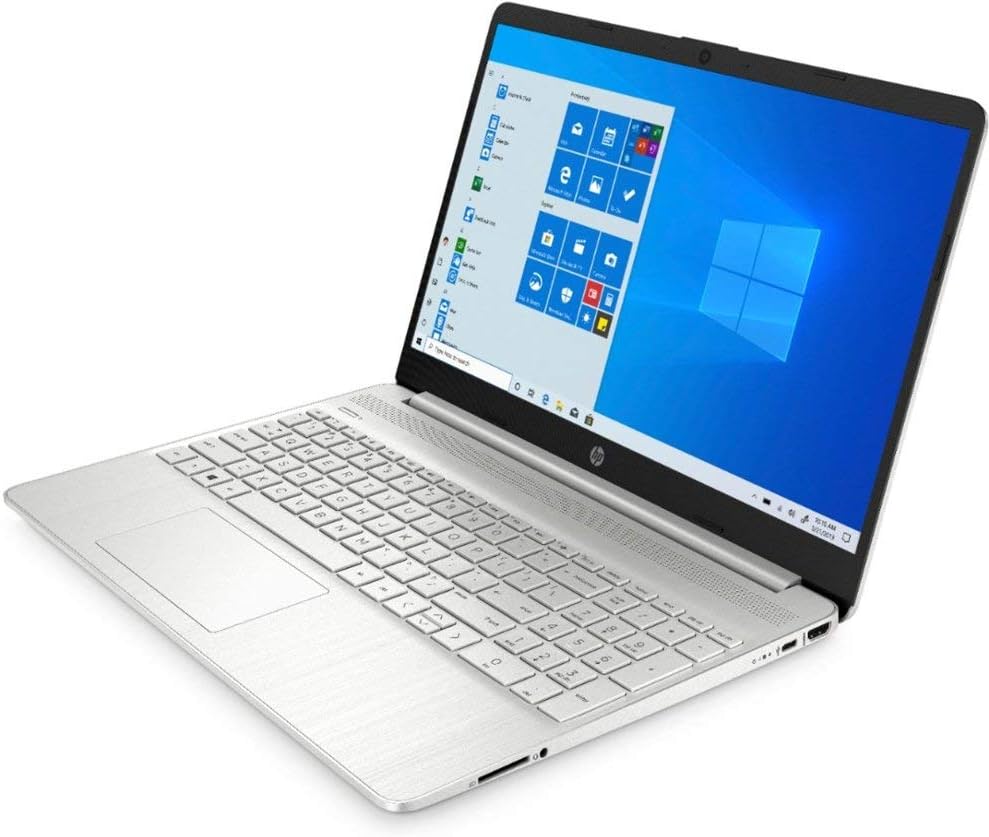
This manual provides essential information for the HP 15.6-inch Touch-Screen Laptop, model 15-EF0023dx. It covers initial setup, daily operation, maintenance tips, troubleshooting common issues, and detailed product specifications. Please read this manual thoroughly to ensure optimal performance and longevity of your device.
Your HP laptop features an AMD Ryzen 5 3500U processor, 12GB of RAM, a 256GB PCI-e SSD, and a 15.6-inch BrightView HD WLED touch-screen display. It comes pre-installed with Windows 10 Home in S Mode.
1. Impostazione
1.1 Disimballaggio e ispezione iniziale
Carefully remove your laptop and its accessories from the packaging. Ensure all components are present:
- HP 15.6-inch Touch-Screen Laptop
- Adattatore di alimentazione e cavo di alimentazione
- Documentazione (questo manuale, informazioni sulla garanzia)
Inspect the laptop for any physical damage. If you find any, contact your retailer immediately.
1.2 Collegamento all'alimentazione
Before first use, connect the laptop to a power outlet using the provided power adapter. This ensures the battery is charged and provides stable power during initial setup.
- Plug the power adapter into the charging port on the side of the laptop.
- Collegare il cavo di alimentazione all'adattatore di alimentazione.
- Collegare l'altra estremità del cavo di alimentazione a una presa a muro.
The charging indicator light (if present) will illuminate, indicating the laptop is receiving power.
1.3 Accensione iniziale e configurazione di Windows
Press the power button to turn on your laptop. Follow the on-screen instructions to complete the Windows 10 Home setup process. This includes selecting your region, language, creating a user account, and accepting the license agreement.
Note on Windows 10 Home in S Mode:
Your laptop comes with Windows 10 Home in S Mode, which is designed for security and performance by exclusively running apps from the Microsoft Store. If you require applications outside the Microsoft Store, you can switch out of S Mode at any time. This switch is irreversible.
Per uscire dalla modalità S:
- Vai a Impostazioni > Aggiornamento e sicurezza > Attivazione.
- Nella sezione "Passa a Windows 10 Home", seleziona Vai allo Store.
- On the "Switch out of S Mode" (or similar) page that appears in the Microsoft Store, click the Ottenere pulsante.
- Follow the prompts to confirm the switch.
1.4 Connessione al Wi-Fi
During the initial Windows setup, you will be prompted to connect to a Wi-Fi network. If you skip this step, you can connect later:
- Fare clic sul Rete icona (simile a un globo o a un segnale Wi-Fi) nella barra delle applicazioni.
- Seleziona la rete Wi-Fi desiderata dall'elenco.
- Clic Collegare e immettere la chiave di sicurezza di rete (password) se richiesta.
2. Utilizzo del laptop
2.1 Using the Touch-Screen and Touch Pad
Your laptop features both a touch-screen and a precision touch pad for navigation.
- Touch screen: Use gestures similar to a smartphone or tablet. Tap to select, pinch to zoom, and swipe to scroll.
- Touchpad: Move your finger across the surface to control the cursor. Tap with one finger for a left-click, tap with two fingers for a right-click. Use two fingers to scroll.
2.2 Funzioni della tastiera
The keyboard includes standard alphanumeric keys, function keys (F1-F12), and a numeric keypad. Many function keys have secondary actions (e.g., volume control, screen brightness) accessible by pressing the Fn tasto in combinazione con il tasto funzione desiderato.
2.3 Collegamento di dispositivi esterni
Your laptop provides various ports for connecting external devices:
- Porte USB (3 in totale): Per collegare unità USB, tastiere esterne, mouse e altri accessori USB.
- Porta HDMI (1): For connecting to external displays, monitors, or TVs.
- Lettore di schede SD: Per leggere i dati dalle schede di memoria SD.
- Jack combinato per cuffie/microfono: Per collegare cuffie o un auricolare con microfono.
To connect a Bluetooth device, go to Impostazioni > Dispositivi > Bluetooth e altri dispositivi e segui le istruzioni di associazione per il tuo dispositivo specifico.
2.4 Usando il Webtelecamera e microfono
The integrated HP TrueVision HD webcam and dual-array digital microphone are located at the top of the display. They are ready for use with video conferencing applications, online meetings, and recording.
2.5 Gestione della batteria
The laptop is equipped with a Lithium Ion battery providing up to 8 hours of battery life under optimal conditions. To maximize battery lifespan:
- Evitare di scaricare completamente la batteria frequentemente.
- Keep the laptop in a cool, dry environment.
- Adjust screen brightness to a comfortable, lower level when on battery power.
- Chiudere le applicazioni non necessarie in esecuzione in background.
3. Manutenzione
3.1 Pulizia del computer portatile
- Schermo: Utilizzare un panno morbido e privo di lanugine leggermente dampPulire con acqua o con un detergente per schermi specificamente progettato per dispositivi elettronici. Non spruzzare il detergente direttamente sullo schermo.
- Telaio e tastiera: Utilizzare un panno morbido e asciutto. Per lo sporco ostinato, un panno leggermente damp è possibile utilizzare un panno. Evitare prodotti chimici aggressivi.
- Porte: Utilizzare aria compressa per rimuovere delicatamente la polvere dalle porte.
3.2 Aggiornamenti software
Regularly update your operating system and drivers to ensure optimal performance, security, and compatibility. Windows Update will typically handle this automatically, but you can manually check by going to Impostazioni > Aggiornamento e sicurezza > Aggiornamento di Windows.
3.3 Gestione dell'archiviazione
Periodicamente riview e gestisci il tuo spazio di archiviazione SSD da 256 GB. Elimina i dati non necessari files, disinstallare le applicazioni non utilizzate e prendere in considerazione l'archiviazione cloud per grandi fileper mantenere le prestazioni del sistema.
4. Risoluzione Dei Problemi
Questa sezione affronta i problemi più comuni che potresti riscontrare con il tuo laptop HP.
4.1 Il laptop non si accende
- Ensure the power adapter is securely connected to both the laptop and a working wall outlet.
- Verificare che la presa di corrente funzioni collegandovi un altro dispositivo.
- Se la batteria è completamente scarica, potrebbero essere necessari alcuni minuti di ricarica prima che il laptop possa accendersi.
4.2 Problemi di connessione Wi-Fi
- Verify that Wi-Fi is enabled on your laptop (check the Network icon in the taskbar).
- Riavvia il router e il modem Wi-Fi.
- Assicurati di inserire la password Wi-Fi corretta.
- Try connecting to a different Wi-Fi network if available to determine if the issue is with your laptop or the network.
4.3 Touch-Screen Not Responding
- Riavviare il portatile.
- Assicurarsi che lo schermo sia pulito e privo di detriti.
- Check for any pending Windows updates that might include touch-screen driver updates.
4.4 Prestazioni lente
- Chiudere le applicazioni e le schede del browser non necessarie.
- Controllare Task Manager (Ctrl+Maiusc+Esc) per individuare i processi che consumano molta CPU, memoria o disco.
- Assicurati che il tuo sistema sia aggiornato con gli ultimi aggiornamenti di Windows.
- Eseguire una pulizia del disco per rimuovere i dati temporanei files.
5. Specifiche
Detailed technical specifications for your HP 15.6-inch Touch-Screen Laptop (Model 15-EF0023dx):
| Caratteristica | Specificazione |
|---|---|
| Nome del modello | 15-EF0023dx |
| Processore | AMD Ryzen 5 3500U Quad-Core (2.1 GHz, fino a 3.7 GHz) |
| Grafica | Scheda grafica AMD Radeon Vega 8 integrata |
| Display | 15.6-inch BrightView HD WLED Touch-Screen (1366 x 768) |
| Memoria RAM | 12 GB di DDR4 SDRAM (3200 MHz) |
| Magazzinaggio | 256 GB PCI-e NVMe M.2 Solid State Drive (SSD) |
| Sistema operativo | Windows 10 Home in modalità S |
| Connettività wireless | Wi-Fi 5 (802.11ac), Bluetooth 5 |
| Porti | 3x USB Ports, 1x HDMI, 1x SD Card Reader, 1x Headphone/Microphone Combo Jack |
| Webcamma | HP TrueVision HD Webcam with Dual-Array Digital Microphone |
| Durata della batteria | Fino a 8 ore |
| Dimensioni | 14.1"L x 9.5"W x 0.7"S |
| Peso | 3.8 libbre |
6. Informazioni sulla garanzia
Your HP 15.6-inch Touch-Screen Laptop (Model 15-EF0023dx) comes with a Garanzia limitata di 1 anno. This warranty covers defects in materials and workmanship under normal use. For full terms and conditions, please refer to the warranty document included with your product or visit the official HP support websito.
7. Supporto
If you encounter issues not covered in this manual or require further assistance, please utilize the following resources:
- Supporto HP Websito: Visita supporto.hp.com for drivers, software, troubleshooting guides, and contact options.
- Windows Help: Use the built-in "Get Help" app in Windows 10 or visit the Microsoft Support websito.
- Supporto al rivenditore: Contact your point of purchase for return or exchange policies within their specified period.
Immagini del prodotto