
Introduzione
Welcome to your new Gembird GHS-U-5.1-01 USB 5.1 Surround Headset. This manual provides essential information for setup, operation, and maintenance to ensure optimal performance and an immersive audio experience.
Contenuto della confezione
La confezione deve contenere i seguenti elementi:
- Gembird GHS-U-5.1-01 USB 5.1 Surround Headset

Image: Retail packaging for the Gembird GHS-U-5.1-01 USB 5.1 Surround Headset, showing the headset inside a clear window.
Prodotto finitoview
The Gembird GHS-U-5.1-01 is a USB headset designed for immersive audio experiences with 5.1 surround sound. It features an adjustable microphone, built-in volume control, comfortable ear pads, and an adjustable headband for extended use.
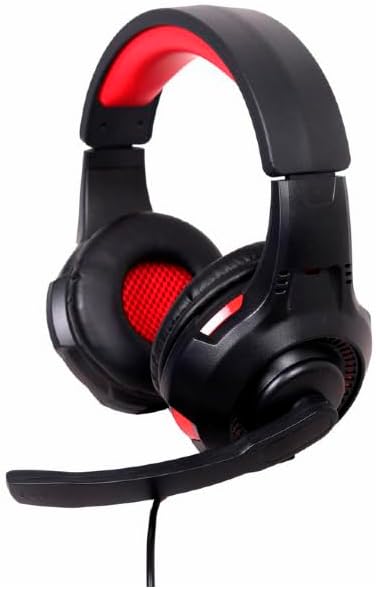
Immagine: Angolata view of the Gembird GHS-U-5.1-01 USB 5.1 Surround Headset, showcasing its black and red design with the microphone boom extended.
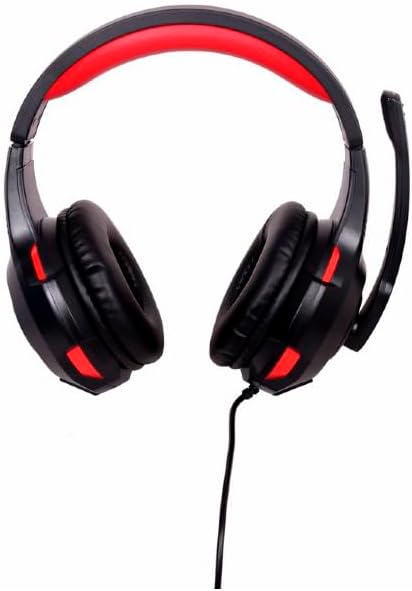
Immagine: Frontale view of the Gembird GHS-U-5.1-01 USB 5.1 Surround Headset, highlighting the adjustable headband and earcups.

Image: Close-up of the in-line control unit for the Gembird GHS-U-5.1-01 headset, showing volume up/down and microphone mute buttons.
Impostare
Collegamento dell'auricolare
The Gembird GHS-U-5.1-01 headset connects via a standard USB port.
- Individua una porta USB disponibile sul tuo computer.
- Collegare il connettore USB dell'auricolare alla porta USB.
- Il sistema operativo dovrebbe rilevare e installare automaticamente i driver necessari. Questo processo potrebbe richiedere alcuni istanti.
- Once installed, the headset will be ready for use as an audio input and output device.
Audio Settings Configuration
For optimal 5.1 surround sound experience, you may need to configure your computer's audio settings.
- Finestre: Go to "Sound Settings" (right-click speaker icon in taskbar) > "Sound Control Panel" > "Playback" tab. Select the Gembird headset, click "Configure," and choose "5.1 Surround."
- Mac OS: Go to "System Preferences" > "Sound" > "Output" tab. Select the Gembird headset.
Istruzioni per l'uso
Controllo del volume
The headset features an in-line remote control for easy volume adjustment.
- Utilizzare il "+" pulsante per aumentare il volume.
- Utilizzare il "-" pulsante per diminuire il volume.
Utilizzo del microfono
The adjustable microphone boom allows for precise positioning.
- Position the microphone approximately 1-2 inches from your mouth for clear voice capture.
- Use the microphone mute button on the in-line remote to toggle the microphone on or off.
Regolazione del comfort
Adjust the headband to fit comfortably on your head. The ear pads are designed for extended use.
Manutenzione
To ensure the longevity and performance of your headset, follow these maintenance guidelines:
- Pulizia: Utilizzare un panno morbido e asciutto per pulire il visore. Non utilizzare prodotti chimici aggressivi o detergenti abrasivi.
- Magazzinaggio: Store the headset in a clean, dry place away from extreme temperatures.
- Cura del cavo: Per evitare danni, evitare di piegare bruscamente o tirare eccessivamente il cavo USB.
Risoluzione dei problemi
No Sound or Microphone Not Working
- Controllare la connessione USB: Assicurati che il connettore USB sia completamente inserito nella porta. Prova una porta USB diversa.
- Controllare i livelli del volume: Verify that the volume on the in-line control, your computer's system volume, and application-specific volumes are not muted or set too low.
- Controlla le impostazioni audio: Confirm that the Gembird headset is selected as the default playback and recording device in your computer's sound settings.
- Riavvia il computer: Sometimes a simple restart can resolve driver or software conflicts.
Problemi di qualità del suono
- Aggiornamento driver: Assicurati che i driver del tuo sistema operativo siano aggiornati.
- Qualità della fonte: Poor audio quality may stem from the audio source itself. Test with different audio fileso applicazioni.
Specifiche
| Nome del modello | GHS-U-5.1-01 |
| Connettività | USB cablato |
| Fattore di forma | Sull'orecchio |
| Colore | Nero |
| Materiale | Alluminio (involucro) |
| Peso | 0.4 chilogrammi |
| Caratteristiche aggiuntive | Adjustable microphone boom, Built-in volume control, Comfortable ear pads, Adjustable headband |
Informazioni sulla garanzia
This Gembird headset comes with a 24 Month Manufacturer Guarantee. Please retain your proof of purchase for warranty claims. For detailed warranty terms and conditions, refer to the documentation provided with your product or contact Gembird customer support.
Supporto
If you encounter issues not covered in this manual or require further assistance, please visit the official Gembird website or contact their customer support for technical assistance.