
Plugable UD-3900Z
Plugable USB 3.0 and USB-C Universal Laptop Docking Station
Model: UD-3900Z | Brand: Plugable
Introduzione
This Plugable USB 3.0 and USB-C Universal Laptop Docking Station (Model UD-3900Z) is designed to expand the connectivity of your laptop, providing dual HD HDMI video outputs, wired Gigabit Ethernet, a 3.5mm combination audio jack, two USB 3.0 ports, and four USB 2.0 ports. It includes both USB 3.0 and USB-C cables for flexible host connectivity across various systems.
The docking station supports dual monitors with resolutions up to 1920x1200, including 1080p (1920x1080). It is compatible with Windows 11, 10, 8.x, and 7 systems, macOS 10.14+ (driver required), and ChromeOS 100+. Please note that this dock does not charge the connected computer and does not support HDCP, meaning it will not play back encrypted or copy-protected content.

Image: The Plugable UD-3900Z Universal Laptop Docking Station, showcasing its sleek black design and compact form factor, alongside its included USB-A and USB-C host cables.
Guida all'installazione
Follow these steps to set up your Plugable UD-3900Z Docking Station:
- Contenuto della confezione: Carefully remove all items from the packaging. Verify that you have the docking station, power adapter, USB 3.0 cable, and USB-C cable.
- Connetti alimentazione: Connect the included power adapter to the "12V/2A" port on the back of the docking station and then plug it into a wall outlet.
- Connetti al laptop host: Use either the provided USB 3.0 cable or USB-C cable to connect the docking station to your laptop's corresponding port.
- Install DisplayLink Driver (macOS and some Windows/ChromeOS systems):
For macOS, a DisplayLink driver must be manually installed for displays to function. For Windows and ChromeOS, drivers typically install automatically via Windows Update or are built-in. If not, manual installation may be required.
- Vai a plugable.com/displaylink.
- Choose the corresponding driver for your operating system.
- Scarica e installa il driver.
- For macOS only: Navigate to Security & Privacy settings, allow the DisplayLink driver, and ensure "Screen recording permission" is enabled for DisplayLink Manager.
- Connetti le periferiche: Connect your monitors to the HDMI ports, and other USB devices (keyboard, mouse, flash drives) to the available USB 3.0 and USB 2.0 ports. Connect an Ethernet cable for wired network access.

Image: Contents of the Plugable UD-3900Z package, including the docking station, power cable, USB-C cable, and USB 3.0 cable.
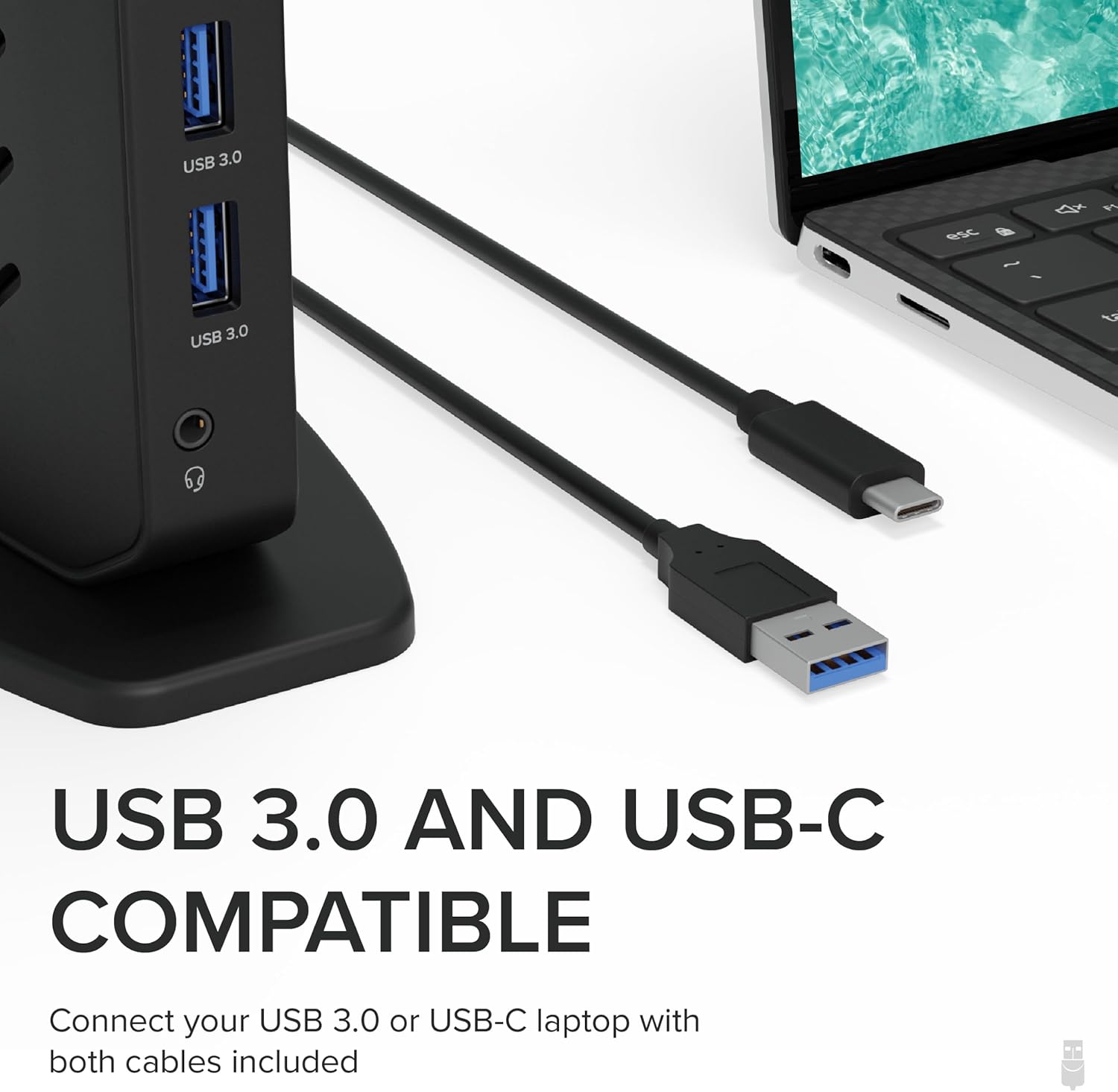
Image: Close-up of the USB 3.0 and USB-C host cables included with the docking station, highlighting their compatibility with various laptop ports.

Image: A visual guide detailing the four steps to download and install the DisplayLink driver, including specific macOS security settings.

Immagine: dettagliata view of the Plugable UD-3900Z docking station's ports, including USB 2.0, Ethernet, HDMI 1, HDMI 2, USB 3.0 (host connection), power input, and front-facing USB 3.0 and audio ports.
Istruzioni per l'uso
Configurazione del doppio monitor
The docking station allows for easy connection of two external HDMI monitors. Once the DisplayLink driver is installed (if required), your operating system should automatically detect and configure the displays. You can then adjust display settings (resolution, orientation, extended/mirrored mode) through your computer's display settings.
- Connect your primary monitor to HDMI 1 and your secondary monitor to HDMI 2.
- Supported resolutions for dual monitors are up to 1920x1200.

Image: A diagram illustrating the various ports on the Plugable UD-3900Z, including 2x USB 3.0, 4x USB 2.0, Ethernet, 2x HDMI, Audio In/Out, and connections for host and power.
Connettività USB
Utilize the six USB ports (two USB 3.0 on the front, four USB 2.0 on the back) to connect various peripherals such as keyboards, mice, external hard drives, and flash drives. The front USB 3.0 ports are easily accessible for frequently connected devices.
Network and Audio
- Gigabit: Collegare un cavo Ethernet alla porta RJ45 per una connessione di rete cablata stabile e veloce.
- Jack audio: The 3.5mm combination audio jack on the front supports both headphones and microphones.
Considerazioni importanti
- No Laptop Charging: This docking station does not provide power delivery to charge your connected laptop. Your laptop's original power adapter must be used for charging.
- HDCP Not Supported: The docking station does not support HDCP (High-bandwidth Digital Content Protection), which means it cannot be used to play back encrypted or copy-protected content from sources like Blu-ray players or streaming services that require HDCP.
- Compatibilità: The docking station is universally compatible with a wide range of operating systems and devices.

Image: A visual representation clarifying that the docking station does not charge the laptop, indicating that an external power supply is required for the host system.

Image: A chart detailing the compatibility of the docking station with various OS versions (macOS 11+, Windows 10+, ChromeOS 100+) and connection types (USB-A, Thunderbolt, USB-C, USB4), along with examples of compatible laptop models.
Manutenzione
To ensure the longevity and optimal performance of your docking station, consider the following maintenance tips:
- Pulizia: Utilizzare un panno morbido, asciutto e privo di lanugine per pulire l'esterno della docking station. Evitare l'uso di detergenti abrasivi, solventi o spray aerosol.
- Ventilazione: Ensure the docking station is placed in a well-ventilated area to prevent overheating. Do not block the ventilation slots.
- Magazzinaggio: Quando non viene utilizzata per lunghi periodi, conservare la docking station in un luogo fresco e asciutto, lontano dalla luce solare diretta e da temperature estreme.
- Gestione dei cavi: Avoid sharp bends or excessive tension on the cables connected to the docking station to prevent damage.
Risoluzione dei problemi
If you encounter issues with your docking station, please refer to the following common troubleshooting steps:
- Nessuna uscita di visualizzazione:
- Assicurarsi che la docking station sia accesa e che l'adattatore di alimentazione sia collegato saldamente.
- Verify that the host cable (USB 3.0 or USB-C) is firmly connected to both the docking station and your laptop.
- Check that the HDMI cables are securely connected to both the docking station and your monitors.
- For macOS users, confirm that the DisplayLink driver is installed and that "Screen recording permission" is enabled for DisplayLink Manager in Security & Privacy settings.
- Prova a riavviare il computer portatile e la docking station.
- Dispositivi USB non riconosciuti:
- Ensure the USB device is properly inserted into the docking station's USB port.
- Try connecting the USB device to a different USB port on the docking station or directly to your laptop to isolate the issue.
- Verificare che la docking station sia alimentata.
- Problemi di connettività di rete:
- Controllare il collegamento del cavo Ethernet tra la docking station e il router/modem.
- Assicurati che i driver di rete sul tuo laptop siano aggiornati.
- Audio non funzionante:
- Verify that your headphones/speakers are correctly plugged into the 3.5mm audio jack.
- Check your computer's sound settings to ensure the correct audio output device (DisplayLink Audio) is selected.
Per una risoluzione dei problemi più dettagliata, fare riferimento al sito ufficiale Guida alla risoluzione dei problemi (PDF) provided by Plugable.
Specifiche
| Caratteristica | Dettaglio |
|---|---|
| Numero di modello | UD-3900Z |
| Marca | Collegabile |
| Dimensioni del prodotto | 5.31 x 2.76 x 7.48 pollici |
| Peso dell'articolo | 11.7 once (333 grammi) |
| Colore | Nero |
| Interfaccia Hardware | USB 3.1 Type A, USB 3.1 Type C, USB Docking Station, USB Type C |
| Porte USB totali | 6 (2x USB 3.0, 4x USB 2.0) |
| Porte HDMI totali | 2 |
| Risoluzione massima | 1920x1200 (Dual Monitors) |
| Etereo | Ethernet Gigabit |
| Audio | 3.5mm Combination Audio Jack |
| Potenza in ingresso | 12V/2A (24W) |
| Dispositivi compatibili | macOS (with DisplayLink driver installation) 10.14+, Windows 7/8/8.1/10/11, ChromeOS 100+ |
Garanzia e supporto
Every Plugable product, including the UD-3900Z Docking Station, is covered by a 2 anno di copertura against defects from the date of purchase.
Plugable also provides Assistenza a vita for its products. If you have any questions, require assistance with setup, or encounter any issues, you can contact their North American-based support team. For contact information and further details, please visit the official Plugable websito o fare riferimento alla Guida rapida inclusa nel prodotto.