
Introduzione
The cimetech Wireless Mouse TM004 is a 2.4G cordless mouse designed for comfort and efficiency. It features silent clicks, adjustable DPI settings, and broad compatibility with various operating systems and devices. This manual provides instructions for setup, operation, maintenance, and troubleshooting to ensure optimal performance.

Image: The cimetech Wireless Mouse TM004 in grey, shown with its compact USB receiver.
Contenuto della confezione
- 1 mouse senza fili
- Ricevitore USB 1 x
- 1 x Manuale utente
Istruzioni di installazione
1. Installazione della batteria
The cimetech Wireless Mouse TM004 requires one (1) AA battery for operation. To install the battery:
- Individuare il coperchio del vano batteria sul lato inferiore del mouse.
- Far scorrere il coperchio per aprirlo.
- Inserire una batteria AA, assicurandosi che la polarità (+/-) corrisponda a quella indicata nello schema all'interno del vano.
- Chiudere saldamente il coperchio del vano batterie.

Image: The bottom of the mouse, indicating the battery compartment, USB receiver storage, and the power switch.
2. Collegare il ricevitore USB
The mouse uses a 2.4G wireless connection via a USB receiver. To connect:
- Rimuovere il ricevitore USB dal suo alloggiamento nella parte inferiore del mouse.
- Collegare il ricevitore USB a una porta USB disponibile sul computer o sul dispositivo.
- Your operating system should automatically detect and install the necessary drivers. This is a plug-and-play device, requiring no additional software installation.

Image: The wireless mouse in use, demonstrating its connection to a laptop via the USB receiver.
3. Accensione/spegnimento
Locate the On/Off switch on the underside of the mouse. Slide the switch to the 'On' position to activate the mouse. Slide it to 'Off' when not in use to conserve battery life.
Istruzioni per l'uso
Funzioni di base
- Pulsante sinistro: Primary click function, typically used for selecting items.
- Pulsante destro: Secondary click function, typically used for context menus.
- Rotella di scorrimento: Utilizzato per scorrere i documenti e web pagine. Può anche funzionare come pulsante centrale.
Regolazione DPI
The mouse features 3 adjustable DPI (Dots Per Inch) settings: 800, 1200, and 1600. DPI controls the cursor sensitivity and speed. To adjust the DPI:
- Press the DPI Switch Button located behind the scroll wheel.
- Each press cycles through the available DPI settings (800 → 1200 → 1600).
- Select the DPI setting that best suits your work or entertainment needs for accurate and fast tracking.

Image: The mouse highlighting its DPI adjustment button and the silent click feature, with DPI levels of 800, 1200, and 1600.
Pulsanti Avanti/Indietro
The mouse is equipped with additional side buttons, typically located on the left side. These buttons are often used for navigation, such as 'Forward' and 'Backward' in web browser o file explorers, enhancing efficiency.
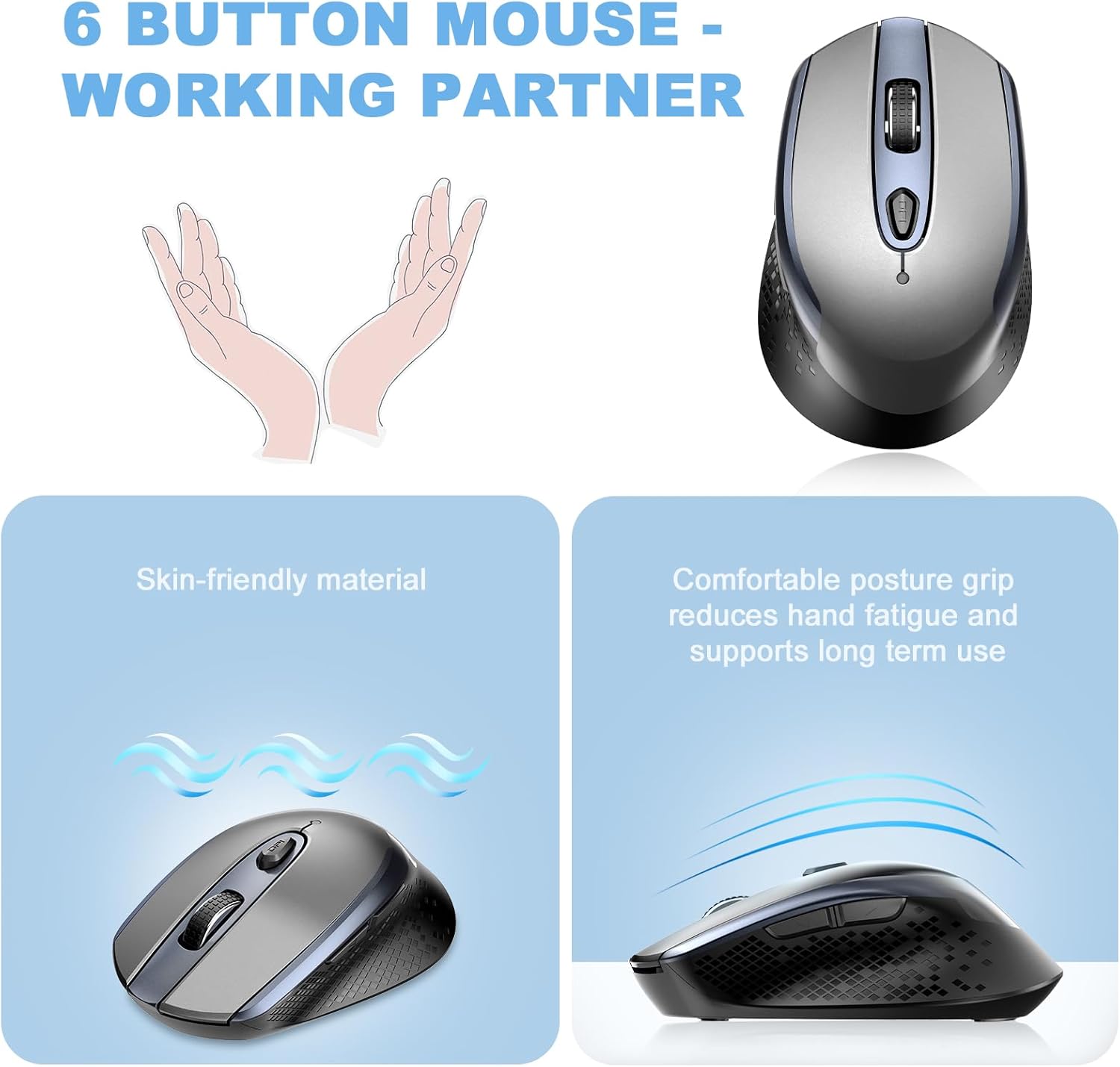
Immagine: dall'alto verso il basso view of the mouse, illustrating its six-button layout including the side navigation buttons.
Compatibilità
The cimetech Wireless Mouse TM004 is compatible with a wide range of operating systems and devices, including:
- Windows 7/8/10/XP
- Vista 7/8
- Linux
- Desktops, Laptops, PCs
- ChromeBook, Galaxy Book, Vivobook, IdeaPad, Nitro, MateBook, HP Stream, ElliteBook, Dell Inspiron, Windows Surface, and other devices.
Manutenzione
Pulizia
Per mantenere le prestazioni e l'aspetto del mouse:
- Per pulire la parte esterna del mouse, utilizzare un panno morbido e asciutto.
- Per sporco ostinato, leggermente dampInumidire il panno con acqua o con una soluzione detergente delicata, quindi asciugarlo immediatamente.
- Evitare l'uso di prodotti chimici aggressivi o materiali abrasivi, poiché potrebbero danneggiare la superficie.
- Keep the optical sensor on the underside clean and free of dust or debris.
Sostituzione della batteria
When the mouse performance degrades (e.g., erratic cursor movement, unresponsiveness), it may be time to replace the AA battery. Follow the battery installation steps outlined in the Setup section.
Risoluzione dei problemi
| Problema | Possibile causa | Soluzione |
|---|---|---|
| Il mouse non risponde | Low battery; USB receiver disconnected; Mouse powered off. | Replace battery; Ensure USB receiver is securely plugged in; Turn mouse On. |
| Movimento irregolare del cursore | Low battery; Dirty optical sensor; Unsuitable surface; Interference. | Replace battery; Clean optical sensor; Use on a mouse pad or smooth, non-reflective surface; Move closer to receiver or away from other wireless devices. |
| Connection issues (intermittent) | Distance from receiver; Interference; USB port issue. | Ensure mouse is within 50 feet of receiver; Avoid obstacles; Try a different USB port. |
| L'impostazione DPI non cambia | Il pulsante DPI non è stato premuto correttamente. | Press the DPI button firmly to cycle through settings. |
Specifiche
- Numero modello: TM004
- Tecnologia di connettività: 2.4GHz Wireless (USB Wireless Receiver)
- Tecnologia di rilevamento del movimento: Ottico
- DPI regolabile: 800/1200/1600
- Pulsanti: 6 (Sinistra, Destra, Rotellina di scorrimento, Interruttore DPI, Avanti, Indietro)
- Caratteristiche speciali: Ergonomic Design, Portable Lightweight, Silent Click, Water Resistant (design), Wireless Soundless
- Fonte di energia: 1 batterie AA (non incluse)
- Peso dell'articolo: 2.82 once
- Dimensioni della confezione: 4.29 x 2.8 x 1.73 pollici
- Portata wireless: Fino a 50 piedi
Garanzia e supporto
For warranty information or technical support, please refer to the contact details provided with your purchase or visit the official cimetech webluogo. Conserva la ricevuta di acquisto per eventuali richieste di garanzia.