
Introduzione
Thank you for choosing the Lepro Smart LED Bulb. This intelligent E27 bulb offers a wide range of features including dimmable multi-color lighting, warm to cool white light, and smart control via a mobile application or voice commands through Amazon Alexa and Google Home. This manual provides detailed instructions for installation, setup, operation, and troubleshooting to ensure optimal use of your smart bulb.
Informazioni sulla sicurezza
- Prima di installare o rimuovere la lampadina, assicurarsi che l'alimentazione sia disattivata.
- Questa lampadina è progettata esclusivamente per l'uso in ambienti interni.
- Do not expose the bulb to water or high humidity.
- Non smontare o modificare la lampadina.
- Use only in an E27 compatible light fixture.
- Tenere fuori dalla portata dei bambini.
Contenuto della confezione
- 1 x Lepro Smart LED Bulb (E27, 9W)
- 1 x Manuale utente
Specifiche
| Parametro | Valore |
|---|---|
| Numero di modello | PR901004-UE |
| Tipo di base | E27 |
| Consumo energetico | 9 Watt |
| Flusso luminoso | 806 lumen |
| Temperatura del colore | 2700K - 6500K (bianco caldo-freddo) |
| Opzioni colore | 16 milioni di colori RGB |
| Connettività | Wi-Fi 2.4 GHz (IEEE 802.11b/g/n) |
| Voltage | 1.1E+2 Volt |
| Dimensioni (L x P x A) | Dimensioni: 6 x 6 x 11.9 cm |
| Peso | 90 grammi |
| Grado di protezione IP | Grado di protezione IP20 |
The Lepro Smart LED Bulb is a 9W bulb, equivalent to a traditional 60W incandescent bulb, offering energy efficiency and versatile lighting options.

Image: The Lepro 9W LED Smart Bulb, which provides illumination equivalent to a 60W incandescent bulb.

Image: Energy efficiency label for the Lepro Smart LED Bulb, indicating its energy class and consumption.
Per maggiori dettagli sull'etichetta energetica, visita: https://eprel.ec.europa.eu/qr/1059152
Impostare
1. Installazione fisica
- Assicurarsi che l'alimentazione dell'apparecchio di illuminazione sia disattivata tramite l'interruttore principale.
- Carefully screw the Lepro Smart LED Bulb into a standard E27 light socket.
- Turn on the power to the light fixture. The bulb should blink, indicating it is in pairing mode. If it does not blink, turn it off and on three times rapidly until it starts blinking.
2. Download dell'app e creazione dell'account
The Lepro Smart LED Bulb can be controlled using the "Lepro LampUX" or "Smart Life" application. Both apps are available for free on iOS and Android devices.
- Scan the QR code on the product packaging or search for "Lepro LampUX" or "Smart Life" in your device's app store.
- Download and install the chosen application.
- Open the app and register a new account if you don't have one, or log in with an existing account.
3. Connessione al Wi-Fi
The Lepro Smart LED Bulb connects directly to your home Wi-Fi network (2.4 GHz only). No additional hub or gateway is required.
- Ensure your smartphone is connected to a 2.4 GHz Wi-Fi network. The bulb does not support 5 GHz Wi-Fi.
- Apri il Lepro LampUX or Smart Life app.
- Tocca l'icona "+" nell'angolo in alto a destra per aggiungere un dispositivo.
- Selezionare "Illuminazione" o "Sorgente luminosa (Wi-Fi)" dall'elenco dei dispositivi.
- Confirm that the bulb is blinking rapidly. If not, reset it by turning it off and on three times until it blinks.
- Inserisci la password della tua rete Wi-Fi a 2.4 GHz.
- Follow the on-screen instructions to complete the pairing process. The bulb will stop blinking once successfully connected.

Image: The Lepro Smart LED Bulb shown with its packaging, illustrating app control and compatibility with voice assistants.
Istruzioni per l'uso
1. Controllo di base On/Off
You can turn the bulb on or off directly from the app's main interface or by using the physical light switch. Note that using the physical switch to turn off the bulb will disconnect it from the app until it is turned back on.
2. Regolazione della luminosità e del colore
The app allows for full customization of the bulb's lighting.
- Luminosità: Use the dimmer slider in the app to adjust the light intensity from 1% to 100%.
- Luce bianca: Select the 'White' tab in the app to choose from warm white (2700K) to cool white (6500K) to suit your preference.
- Colore Luce: Navigate to the 'Color' tab to select from over 16 million colors. Drag your finger across the color wheel to pick your desired hue.
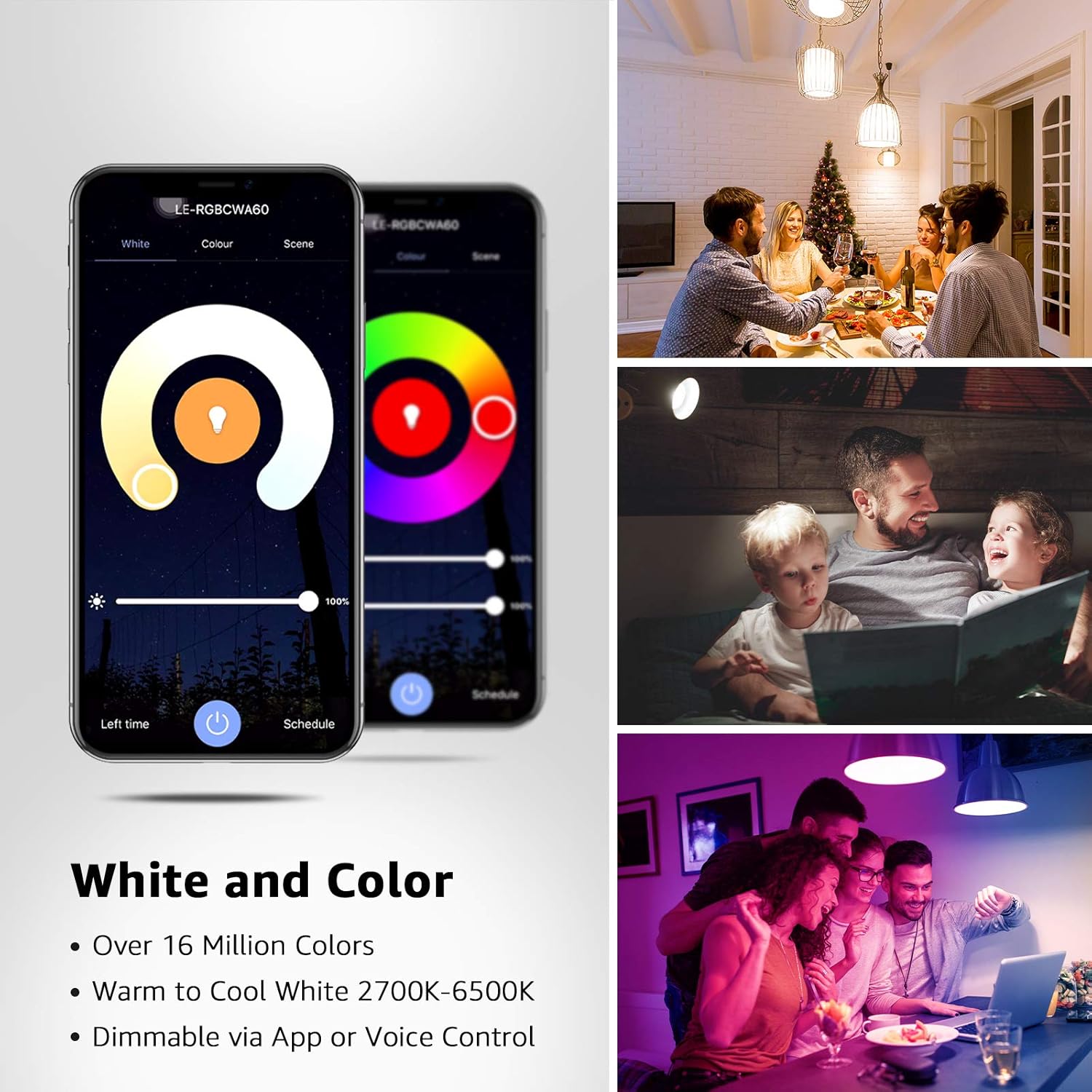
Image: Screenshots of the Lepro app interface, demonstrating controls for adjusting white light temperature and selecting from a wide spectrum of colors.

Image: A living space showcasing the vibrant range of 16 million colors achievable with the Lepro Smart LED Bulb, allowing for diverse mood settings.
3. Controllo vocale (Alexa/Google Home)
The Lepro Smart LED Bulb is compatible with Amazon Alexa and Google Home for convenient hands-free control.
- Collega account: In your Alexa or Google Home app, enable the "Smart Life" skill (or "Lepro LampUX" if available) and link your Lepro/Smart Life account.
- Scopri i dispositivi: Una volta effettuato il collegamento, chiedi al tuo assistente vocale di "Trovare dispositivi" oppure avvia manualmente la ricerca nell'app.
- Comandi vocali: You can now control your bulb using voice commands. Exampincludono:
"Alexa, accendi la luce del soggiorno."
"Ehi Google, imposta la luce della camera da letto su blu."
"Alexa, dim the kitchen light to 50 percent."
"Ehi Google, cambia la lamp al bianco caldo."
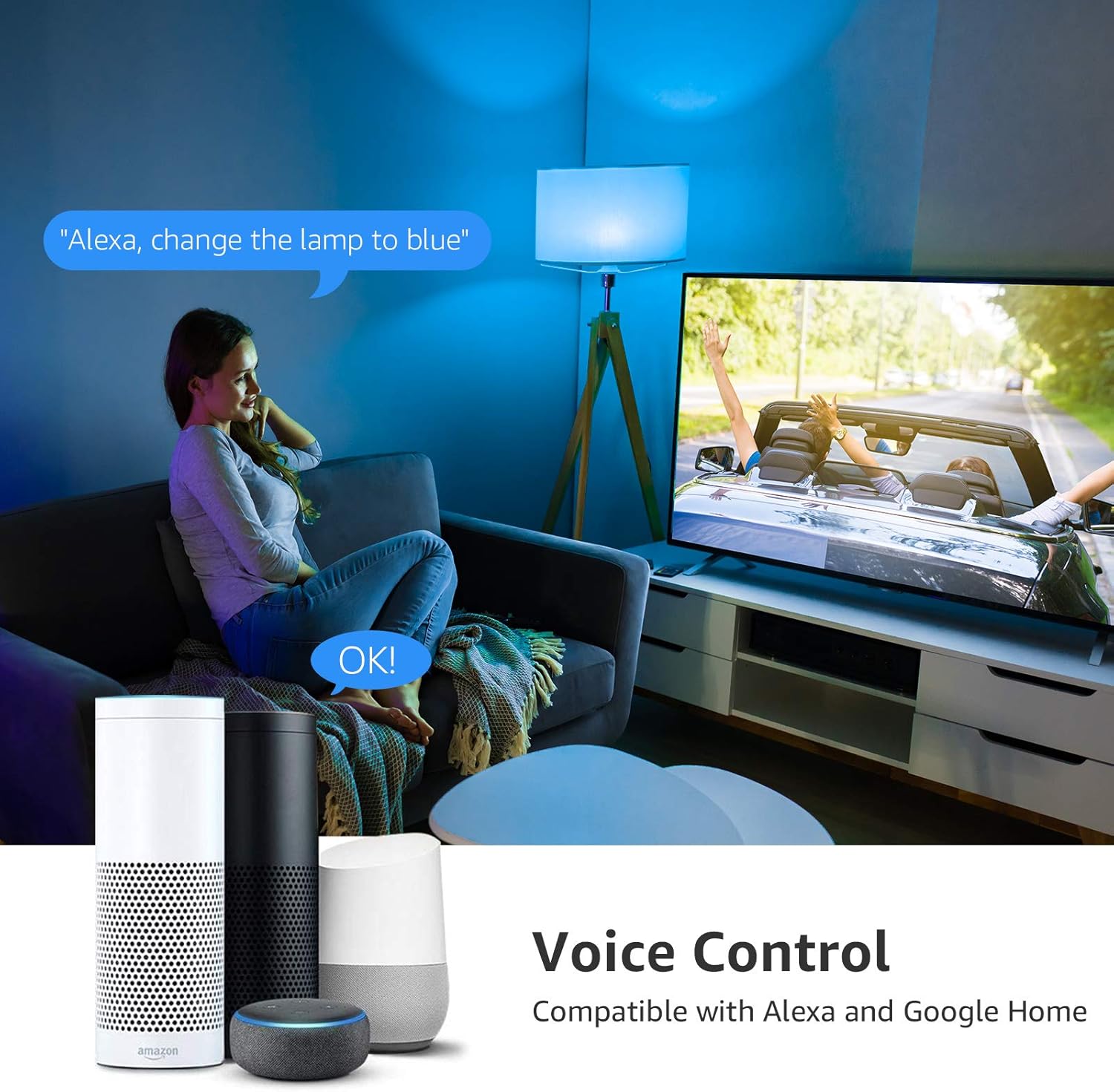
Image: A user interacting with an Alexa device to change the color of a Lepro Smart LED Bulb, demonstrating the voice control feature.
4. Pianificazione e timer
Set schedules to automatically turn your lights on or off at specific times, or create timers for temporary lighting.
- In the app, select your bulb and navigate to the 'Schedule' or 'Timer' section.
- Set desired times for the bulb to turn on or off, and choose specific days of the week for recurring schedules.
- Create countdown timers for the bulb to turn off after a set duration.
5. Scene Modes and Group Control
The app offers various pre-set scene modes for different moods and allows you to group multiple bulbs for synchronized control.
- Modalità scena: Explore the 'Scene' tab to select from various pre-programmed lighting effects (e.g., Reading, Party, Relax).
- Controllo di gruppo: If you have multiple Lepro smart bulbs, you can create groups in the app to control them simultaneously. This is useful for controlling lights in a single room or area.

Image: A collage demonstrating key app features including remote control from outside the home, grouping multiple bulbs, setting schedules, and activating various scene modes.
Manutenzione
- To clean the bulb, ensure it is turned off and cool. Wipe gently with a soft, dry cloth. Do not use liquid cleaners.
- Store the bulb in a cool, dry place when not in use for extended periods.
Risoluzione dei problemi
| Problema | Possibile causa | Soluzione |
|---|---|---|
| La lampadina non si connette al Wi-Fi | Incorrect Wi-Fi band (5 GHz), wrong password, bulb not in pairing mode, weak signal. | Ensure your router is broadcasting a 2.4 GHz network and your phone is connected to it. Double-check Wi-Fi password. Reset the bulb by turning it off/on 3 times until it blinks rapidly. Move closer to the router. |
| Bulb is offline in the app | Potenza fuoritage, Wi-Fi disconnected, bulb turned off physically. | Check power supply to the fixture. Verify your Wi-Fi network is active. Ensure the physical light switch is in the ON position. Re-pair if necessary. |
| Il controllo vocale non funziona | Accounts not linked, device not discovered, incorrect commands. | Ensure your Lepro/Smart Life account is correctly linked to Alexa/Google Home. Ask your voice assistant to "Discover devices." Use the exact commands listed in the app or this manual. |
| Bulb not responding to app commands | App issue, network congestion, bulb firmware issue. | Close and reopen the app. Restart your Wi-Fi router. Try resetting the bulb and re-pairing it. Check for app updates. |
Garanzia e supporto
Lepro products are designed for reliability and performance. For any issues or questions regarding your Lepro Smart LED Bulb, please contact Lepro customer support. While specific warranty details are not provided in this manual, standard consumer rights and return policies apply. Please refer to your purchase documentation or the retailer's websito per informazioni dettagliate sulla garanzia.
For further assistance, visit the official Lepro website or contact their customer service team through the contact information provided on the product packaging or their websito.