
1. Prodotto finitoview
The Cello C2220FSDE is a compact 22-inch Full HD LED television designed for versatile use. It features an integrated DVD player and a triple tuner (DVBT2/S2) for comprehensive signal reception. Its sleek design makes it suitable for various environments, including guest rooms, motorhomes, caravans, trucks, or boats.
Key features include HDMI and USB inputs for connecting external devices like game consoles and hard drives. The USB functionality also supports recording live television and playing stored media. This TV can also function as a monitor for laptops or desktop computers.

Immagine 1.1: The integrated DVD player allows for direct playback of DVDs without additional devices.

Immagine 1.2: Experience clear and detailed images with Full HD 1080p resolution.
2. Configurazione e installazione
2.1 Disimballaggio e contenuto
Rimuovere con cautela tutti i componenti dall'imballaggio. Assicurarsi che siano presenti i seguenti elementi:
- 1 x Cello 22-inch LED TV
- Cavo di alimentazione
- Telecomando
- Guida rapida
- 2 batterie AAA
- Supporto della televisione
2.2 Fissaggio del supporto
Place the TV screen face down on a soft, clean surface to prevent scratches. Align the stand with the mounting holes on the bottom of the TV and secure it using the provided screws.
2.3 Collegamento dell'alimentazione e dell'antenna
- Collegare il cavo di alimentazione all'ingresso di alimentazione del televisore e poi a una presa a muro.
- Connect your TV aerial cable to the 'TV Aerial' input on the back of the TV.
- For satellite reception, connect a satellite dish cable (not supplied) to the 'DVB-S2' input.

Immagine 2.1: Posteriore view of the TV showing power, antenna, and other connectivity ports.
2.4 Collegamenti di dispositivi esterni
Il televisore è dotato di diverse porte per il collegamento di dispositivi esterni:
- HDMI: Collega dispositivi ad alta definizione come lettori Blu-ray, console di gioco o decoder.
- USB: Collegare dispositivi di archiviazione USB per la riproduzione o la registrazione di contenuti multimediali.
- VGA: Collegare un computer da utilizzare come monitor.
- Uscita audio da 3.5 mm: Collegare cuffie o altoparlanti esterni.

Immagine 2.2: Illustration of HDMI and USB ports for connecting various devices.

Immagine 2.3: The integrated satellite tuner allows connection to a satellite dish for satellite TV reception.
3. Istruzioni per l'uso
3.1 Accensione iniziale e scansione dei canali
- Inserire le batterie AAA nel telecomando.
- Premere il pulsante di accensione sul telecomando o sul televisore per accenderlo.
- Follow the on-screen instructions for initial setup, including language selection and automatic channel scanning for DVB-T2 (terrestrial) and DVB-S2 (satellite) signals.
3.2 Funzioni TV di base
- Selezione canale: Use the 'CH+' / 'CH-' buttons or the numeric keypad on the remote control.
- Controllo del volume: Use the 'VOL+' / 'VOL-' buttons.
- Selezione della fonte: Press the 'SOURCE' button to switch between inputs (TV, HDMI, USB, DVD).
- Navigazione nel menu: Use the 'MENU' button to access settings and navigation arrows to browse.
3.3 Integrated DVD Player Operation
- Ensure the TV is powered on and the input source is set to 'DVD'.
- Gently insert a DVD disc into the slot on the side of the TV, label side facing the mirror side (as indicated on the slot).
- The DVD should load automatically. Use the remote control for playback functions (Play, Pause, Stop, Skip).
3.4 USB Recording and Media Playback
- Riproduzione multimediale: Insert a USB storage device into the USB port. Select 'USB' as the input source. Navigate through your files (photos, music, videos) using the remote control.
- USB Recording (PVR): While watching live TV, insert a USB storage device. Press the 'RECORD' button on the remote to start recording. You can also use the 'PAUSE' function for time-shifting live TV.
3.1 video: This video demonstrates the physical controls on the TV and the various input/output ports available on the back and side of the unit, including the DVD slot, USB, HDMI, and antenna connections.
4. Manutenzione
4.1 Pulizia del televisore
- Prima di pulire il televisore, scollegarlo sempre dalla presa di corrente.
- Utilizzare un panno morbido e asciutto per pulire lo schermo e il mobile. Per macchie ostinate, strofinare leggermenteampPulire il panno con acqua o con un detergente per schermi delicato e non abrasivo.
- Non utilizzare alcol, benzene, diluenti o altre sostanze volatili, poiché potrebbero danneggiare lo schermo o la finitura.
4.2 DVD Player Care
- Keep the DVD slot free from dust and debris.
- Only insert clean, undamaged discs.
5. Risoluzione Dei Problemi
If you encounter issues with your Cello TV, refer to the following common problems and solutions:
| Problema | Possibile causa | Soluzione |
|---|---|---|
| Nessun potere | Cavo di alimentazione non collegato; presa di corrente difettosa | Controllare il collegamento del cavo di alimentazione; provare una presa diversa |
| Nessuna immagine, ma l'audio è presente | Sorgente di ingresso selezionata non corretta; collegamento del cavo difettoso | Press 'SOURCE' to select correct input; check HDMI/VGA cable connections |
| Nessun suono, ma l'immagine è presente | Volume too low or muted; external audio device issue | Increase volume; check mute status; ensure external audio devices are connected correctly |
| Poor picture quality (TV channels) | Weak antenna signal; incorrect antenna connection | Adjust antenna position; check antenna cable connection; perform a channel rescan |
| DVD non riprodotto | Disc inserted incorrectly; dirty or damaged disc; incorrect source selected | Re-insert disc correctly; clean or replace disc; select 'DVD' source |
| Il telecomando non funziona | Batteries depleted or inserted incorrectly; obstruction between remote and TV | Replace batteries; ensure correct polarity; remove obstructions; point remote directly at TV sensor |
For further assistance, please refer to the support section or the full instruction manual available online.
6. Specifiche
Below are the detailed technical specifications for the Cello C2220FSDE 22-inch Full HD LED TV:
| Caratteristica | Specificazione |
|---|---|
| Dimensioni dello schermo | 22 pollici (54.6 cm di diagonale) |
| Marca | Violoncello |
| Tecnologia di visualizzazione | GUIDATO |
| Risoluzione | 1080p (Full HD, 1920 x 1080 pixel) |
| Frequenza di aggiornamento | Frequenza 60 Hz |
| Caratteristica speciale | Integrated DVD Player |
| Tecnologia di connettività | HDMI, USB, VGA |
| Proporzioni | 16:9 |
| Dimensioni del prodotto (P x L x A) | 5P x 50.4L x 34.2H cm |
| Peso dell'articolo | 2.55 chilogrammi |
| Rapporto di contrasto | 600:1 |
| Luminosità massima | 180 NIT Coating |
| Supporto HDR | L'HDR10 |
| Tempo di risposta | 10 millisecondi |
| Tipo di sintonizzatore | DVB-C, DVB-S2, DVB-T2 |
| Modalità di uscita audio | Stereo |
| Descrizione dell'altoparlante | 2 x 3 W Pitch Perfect Sound |
| Consumo energetico | 21 kWh |
| Voltage | 230 Volts (100-240 V AC 50-60 Hz) |
| Standard di montaggio VESA | 100 x 100 millimetri |
| Anno del modello | 2023 |
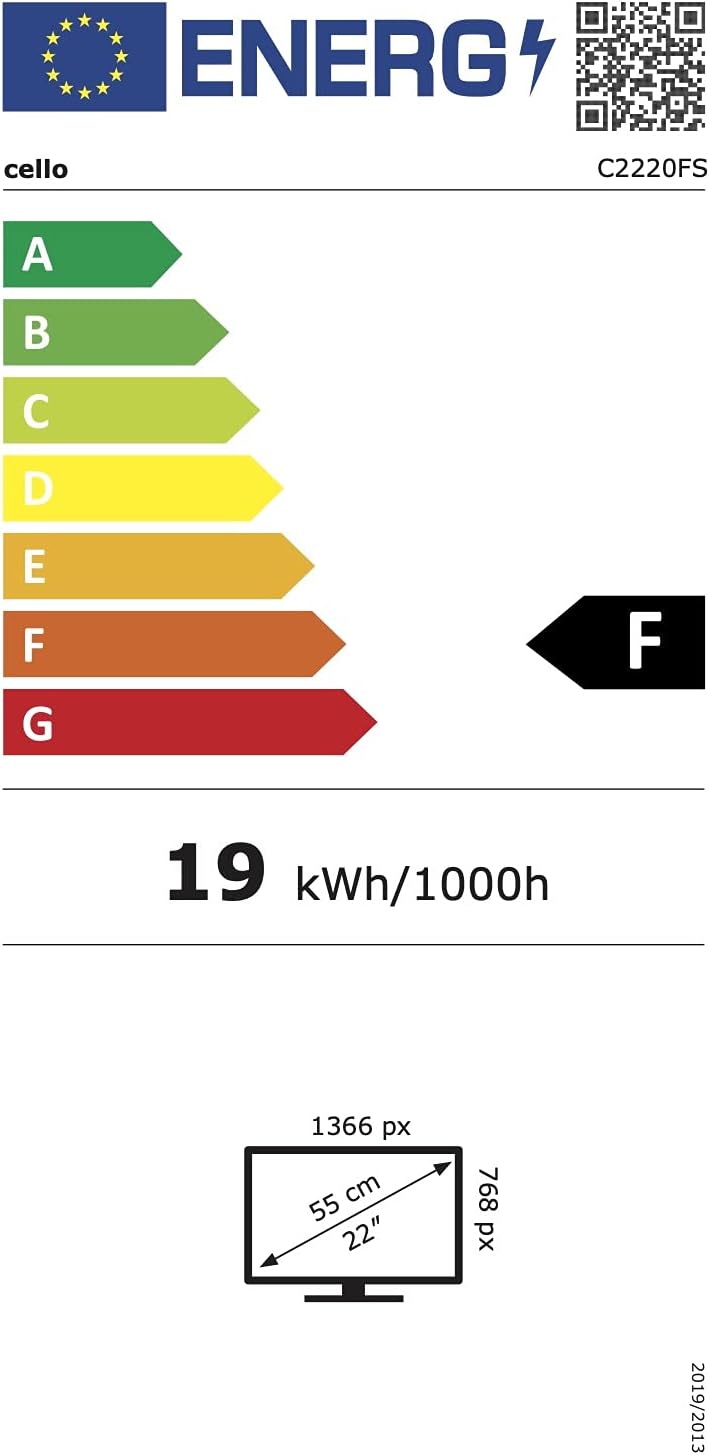
Immagine 6.1: Energy efficiency label for the Cello C2220FSDE TV. For more details, visit Banca dati EPREL.

Immagine 6.2: Detailed product information sheet. For more details, visit Banca dati EPREL.
7. Garanzia e supporto
7.1 Informazioni sulla garanzia
This Cello TV comes with a Garanzia limitata di 1 annoSi prega di conservare la prova d'acquisto per eventuali reclami in garanzia.
7.2 Assistenza clienti
For technical support or customer service, please contact Cello Electronics:
- Websito: www.celloelectronics.de
- E-mail: consumersupport@celloelectronics.com
- Telefono: 03334330312
- Indirizzo: Dovecot Hills, Bishop Auckland, DL14 6XW Durham, United Kingdom
You can also download the full instruction manual for your device in your preferred language from the official Cello websito: https://celloelectronics.de/instruction-books/.