
Introduzione
This manual provides comprehensive instructions for the beyerdynamic FOX Professional USB Studio Microphone and its accompanying Microphone Suspension Boom Scissor Arm. It covers essential information regarding product setup, operation, maintenance, and troubleshooting to ensure optimal performance and longevity of your equipment. Please read this manual thoroughly before using the product.
Informazioni sulla sicurezza
Please observe the following safety instructions to prevent damage to the device, injury to yourself, or damage to other property:
- Do not expose the microphone to moisture, rain, or extreme temperatures.
- Evitare di far cadere il microfono o di sottoporlo a forti urti.
- Non tentare di smontare o modificare il microfono. Per qualsiasi intervento di assistenza, rivolgersi a personale qualificato.
- Keep the microphone and boom arm away from strong magnetic fields.
- Ensure the boom arm is securely clamped to a stable surface to prevent accidental falls.
- Use only the specified power source (USB connection) for the microphone.
Contenuto della confezione
Verifica che tutti gli articoli elencati di seguito siano presenti nel tuo pacco:
- beyerdynamic FOX Professional USB Studio Microphone
- Microphone Suspension Boom Scissor Arm with 3/8-Inch-16 Threading (Black)
- Cavo USB
- Desk Stand (for microphone)
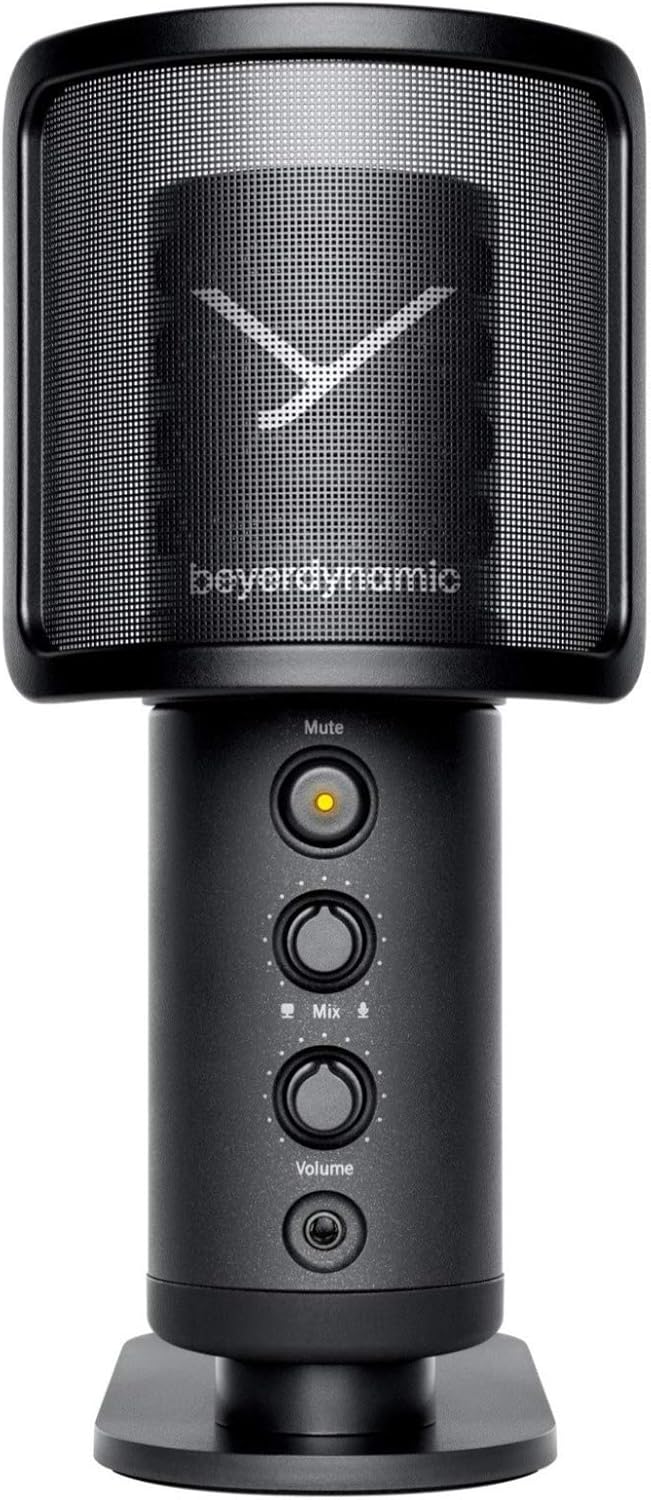
Image: The beyerdynamic FOX USB Studio Microphone and the included boom arm, showcasing il pacchetto completo.
Prodotto finitoview
Caratteristiche principali:
- Audio ad alta risoluzione: 24-bit / 96 kHz studio-grade quality for professional recordings.
- Large Condenser Capsule: Ensures accurate signal conversion and low inherent noise.
- Diagramma polare cardioide: Focuses on sound directly in front of the microphone, reducing unwanted background noise.
- Monitoraggio a latenza zero: Integrated headphone output allows real-time monitoring of your audio.
- Tasto muto: Instantly mutes the microphone for privacy or to prevent unwanted sounds from being recorded.
- Interruttore di guadagno: Adjustable gain for recording various sound sources, including loud instruments.
- Connettività USB: Simple plug-and-play connection to PC, Mac, or compatible smartphones/tablets.
Componenti del microfono:
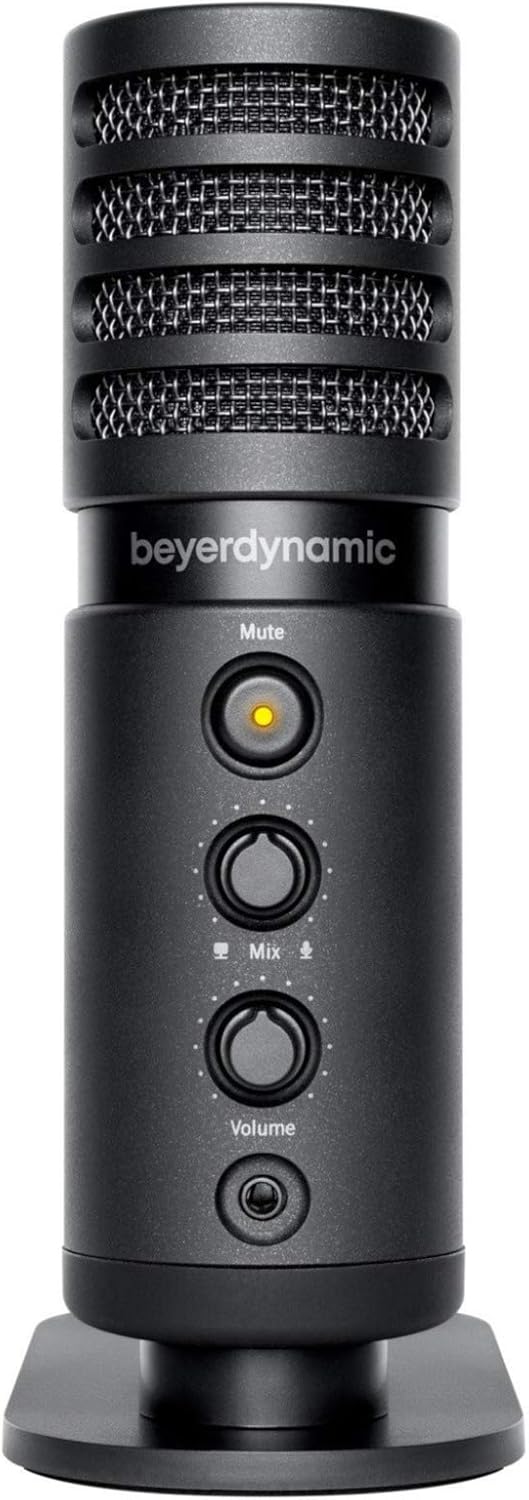
Immagine: Frontale view of the beyerdynamic FOX microphone, highlighting the mute button, mix control, and volume knob.
- Griglia del microfono: Protects the condenser capsule.
- Tasto muto: Press to mute/unmute the microphone. An indicator light will show status.
- Controllo della miscelazione: Adjusts the balance between microphone input and computer playback in your headphones.
- Manopola del volume: Controls the headphone output volume.
- Jack per cuffie (3.5 mm): Per collegare le cuffie di monitoraggio.
- Porta USB-C: For connecting the microphone to your computer or mobile device.
- Montaggio filettato: For attaching to the desk stand or boom arm.
Impostare
1. Assembling the Boom Arm:
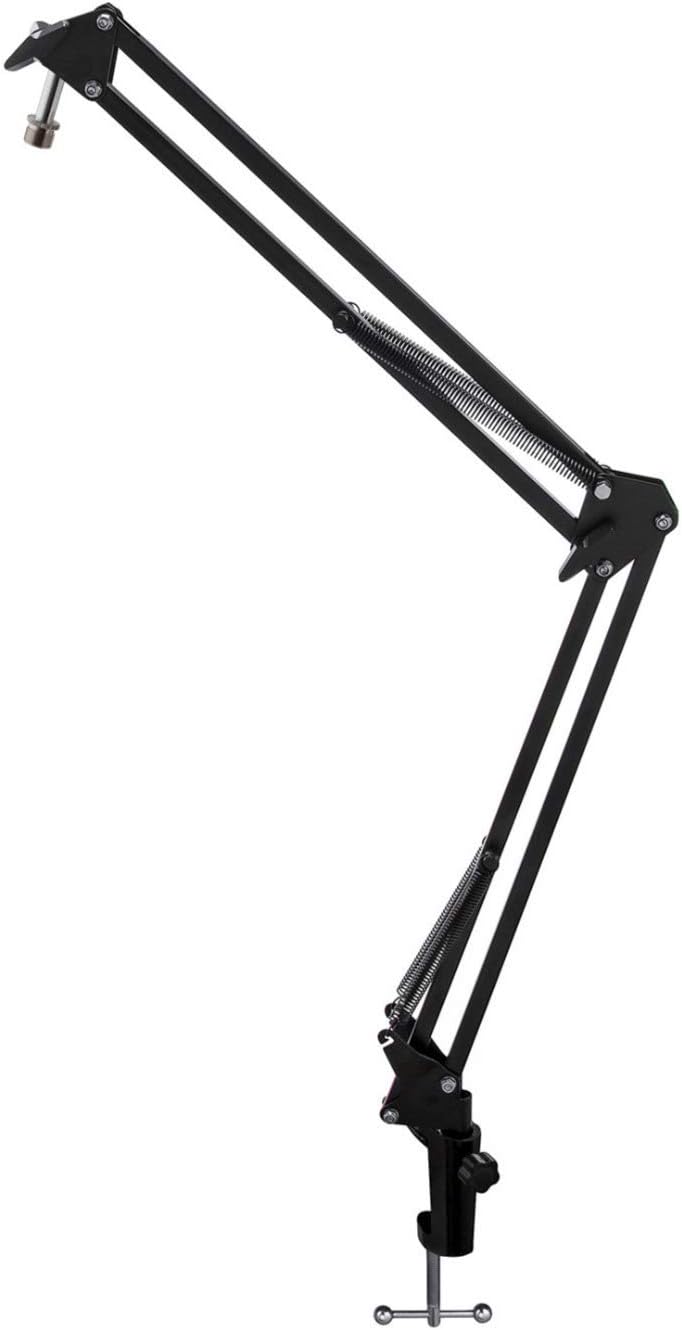
Image: The Microphone Suspension Boom Scissor Arm, showing its adjustable joints and desk clamp.
- Attacca scrivania Clamp: Securely fasten the desk clamp to the edge of a sturdy desk or table. Ensure it is tight to prevent movement.
- Inserire il braccio del braccio: Inserire la base del braccio nel foro sulla scrivaniaamp. Tighten the locking screw on the clamp to hold the arm in place.
- Regola la posizione: Adjust the boom arm to your desired height and reach. The springs will help balance the microphone's weight.
2. Attaching the Microphone:
- To Boom Arm: Screw the beyerdynamic FOX microphone onto the 3/8-inch-16 threaded mount at the end of the boom arm. Ensure it is finger-tight.
- Using Desk Stand (Optional): If not using the boom arm, screw the microphone onto its included desk stand.
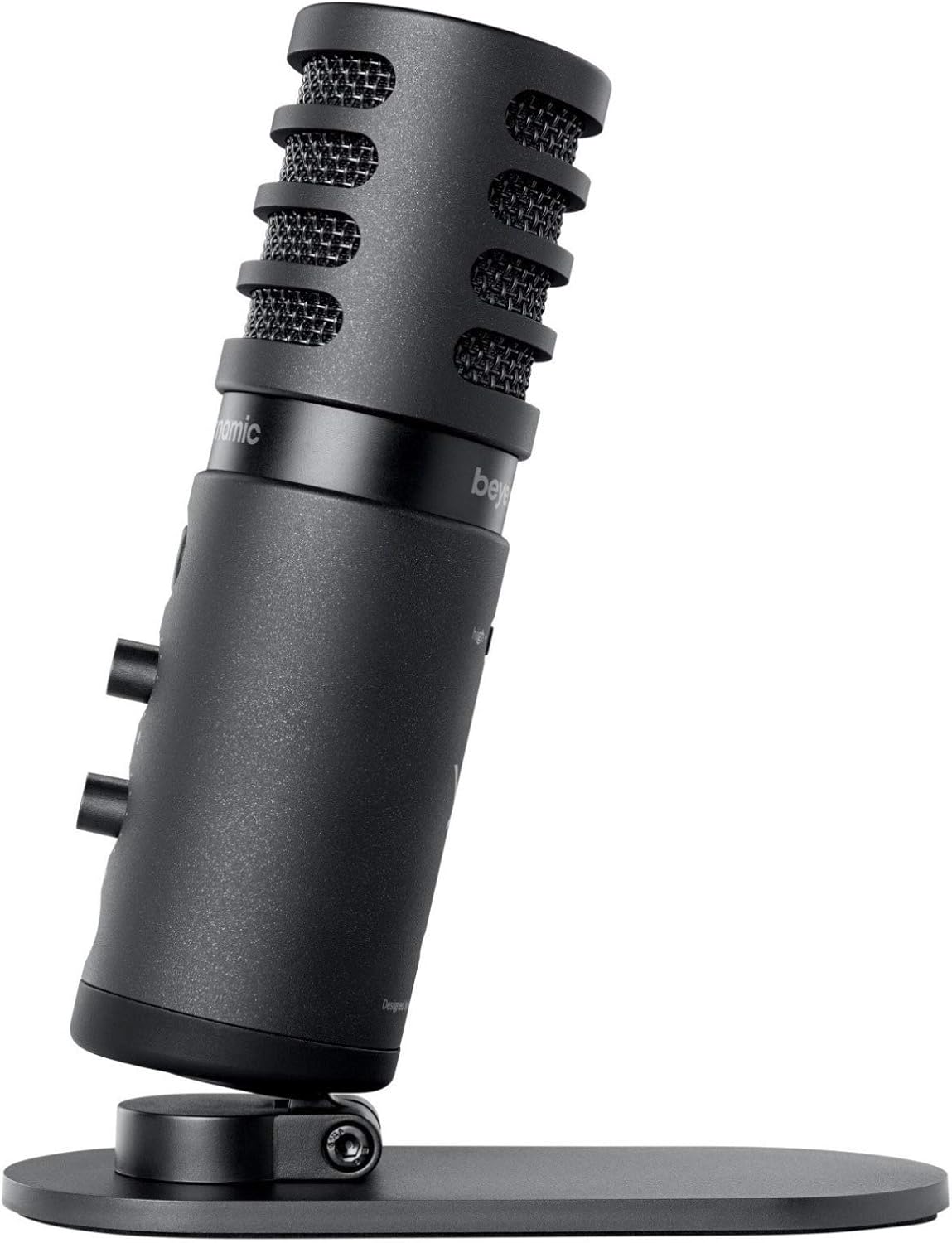
Image: The beyerdynamic FOX microphone mounted on its compact desk stand, ready for use.
3. Connessione al dispositivo:
- Connect the supplied USB cable to the USB-C port on the microphone.
- Connect the other end of the USB cable to an available USB port on your computer (PC/Mac) or compatible smartphone/tablet (adapter may be required for some mobile devices).
- Il microfono è plug-and-play e dovrebbe essere riconosciuto automaticamente dal sistema operativo.
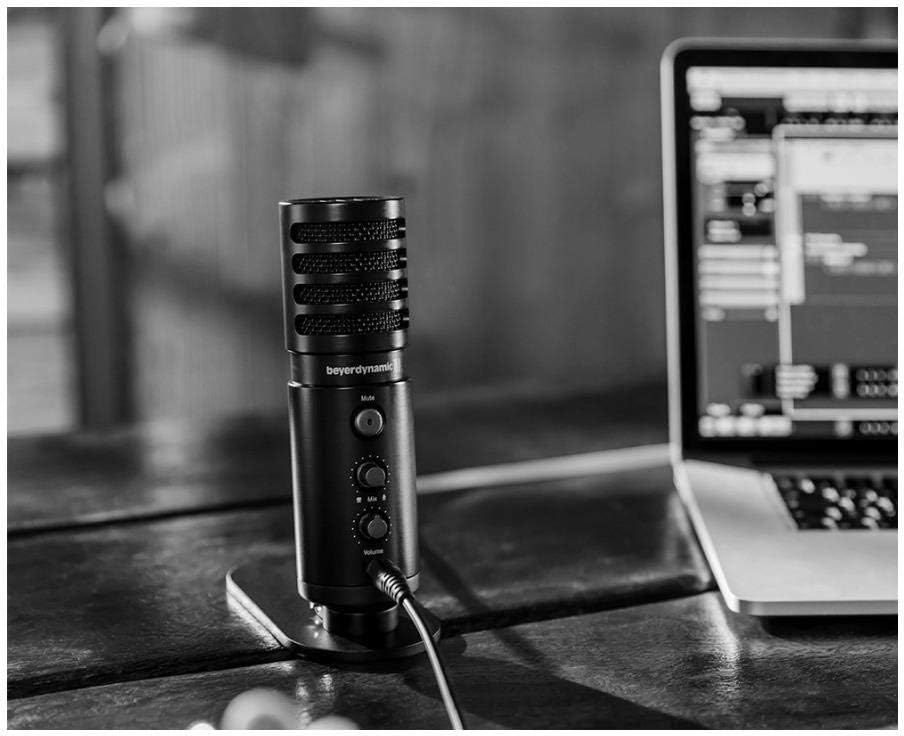
Image: The beyerdynamic FOX microphone in use, connected via USB to a laptop on a wooden desk.
Istruzioni per l'uso
1. System Recognition:
- Once connected, your operating system (Windows, macOS, Android, iOS) should automatically detect the beyerdynamic FOX as an audio input and output device.
- You may need to select "beyerdynamic FOX" as your default input/output device in your system's sound settings or within your recording software.
2. Using the Mute Button:
- Premere il tasto Muto button on the front of the microphone to toggle between active and muted states.
- An indicator light will typically show the microphone's status (e.g., green for active, red/orange for muted).
3. Adjusting Gain (Input Level):
- The FOX microphone features a gain switch (often labeled "Gain" or represented by a symbol like a microphone with a "+" or "-").
- Use this switch to adjust the microphone's sensitivity. For quiet sources (e.g., soft vocals), use a higher gain setting. For loud sources (e.g., instruments, loud speaking), use a lower gain setting to prevent distortion.
- Monitor your recording software's input levels to ensure they are not peaking (clipping).
4. Zero-Latency Monitoring:
- Connect headphones to the 3.5mm headphone jack on the microphone.
- Utilizzare il Volume knob to adjust the headphone listening level.
- IL Mescolare control allows you to blend the microphone's direct input with the audio playback from your computer. Turn towards the microphone icon to hear more of your live input, and towards the speaker icon to hear more of your computer's audio.
- This feature allows you to hear your voice or instrument in real-time without delay, which is crucial for accurate performance.
Manutenzione
- Pulizia: Use a soft, dry cloth to clean the microphone's exterior. Do not use liquid cleaners or solvents.
- Magazzinaggio: When not in use, store the microphone in a dry, dust-free environment.
- Braccio di sollevamento: Periodically check the boom arm's clamps and joints for tightness. Lubricate moving parts if necessary with a small amount of silicone-based lubricant.
- Cura del cavo: Avoid sharp bends or kinks in the USB cable. Store it neatly to prevent damage.
Risoluzione dei problemi
| Problema | Possibile causa | Soluzione |
|---|---|---|
| Nessun suono dal microfono |
|
|
| Suono distorto o tagliato |
|
|
| Nessun suono in cuffia |
|
|
| Il braccio del braccio è instabile |
|
|
Specifiche
| Caratteristica | Dettaglio |
|---|---|
| Numero di modello | FOXUSBMIC_K5 |
| Fattore di forma del microfono | Table Array (with included desk stand) |
| Tecnologia di connettività | USB |
| Tipo di connettore | USB |
| Modello polare | Unidirezionale (cardioide) |
| Risoluzione | 24 bit / 96 kHz |
| Signal-to-Noise Ratio | 78 dB |
| Piattaforma hardware | pc, smartphone |
| Dispositivi compatibili | Headphone, Personal Computer, Smartphone |
| Fonte di alimentazione | Elettrico con cavo (alimentazione tramite USB) |
| Peso dell'articolo (microfono) | 16 once (1 libbra) |
| Dimensioni del prodotto | 16.2 x 8.3 x 6.8 inches (overall bundle dimensions) |
| Colore | Nero |
| Codice UPC | 040962932483 |
Garanzia e supporto
Per informazioni sulla garanzia e supporto tecnico, fare riferimento al sito ufficiale beyerdynamic webo contattare direttamente il servizio clienti. Conservare la prova d'acquisto per eventuali reclami in garanzia.
Ufficiale Websito: www.beyerdynamic.com