
1. Introduzione
Thank you for choosing the iClever GK08 Wireless Keyboard and Mouse Combo. This full-size keyboard with a numeric keypad and a silent mouse offers a stable 2.4 GHz connection, USB-C recharging, and dual-layout compatibility for Mac and Windows systems. This manual provides detailed instructions to help you set up, operate, and maintain your new device.
2. Informazioni sulla sicurezza
- Tenere il dispositivo lontano da acqua, fuoco e temperature elevate.
- Non tentare di smontare o modificare il dispositivo.
- Per la ricarica utilizzare solo il cavo USB-C in dotazione.
- Evitare di far cadere o sottoporre il dispositivo a forti impatti.
- Smaltire le batterie e i componenti elettronici in modo responsabile, nel rispetto delle normative locali.
3. Guida all'installazione
3.1 Contenuto della confezione
- iClever GK08 Wireless Keyboard
- iClever Wireless Mouse
- USB-A Nano Receiver (stored inside the mouse)
- Cavo di ricarica USB-C
- Washable Dust Cover
- Manuale d'uso
3.2 Carica iniziale
Prima del primo utilizzo, assicurarsi che sia la tastiera che il mouse siano completamente carichi.
- Connect the provided USB-C charging cable to the keyboard's USB-C port (located on the top edge).
- Collegare l'altra estremità del cavo a una fonte di alimentazione USB (ad esempio, una porta USB del computer, un adattatore USB da parete).
- La spia di carica sulla tastiera si illuminerà durante la carica e si spegnerà quando la carica sarà completamente completa.
- For the mouse, connect the USB-C cable to its charging port. The mouse also has an indicator light.
- A full charge takes approximately 2 hours and provides up to 45 days of use for the keyboard.
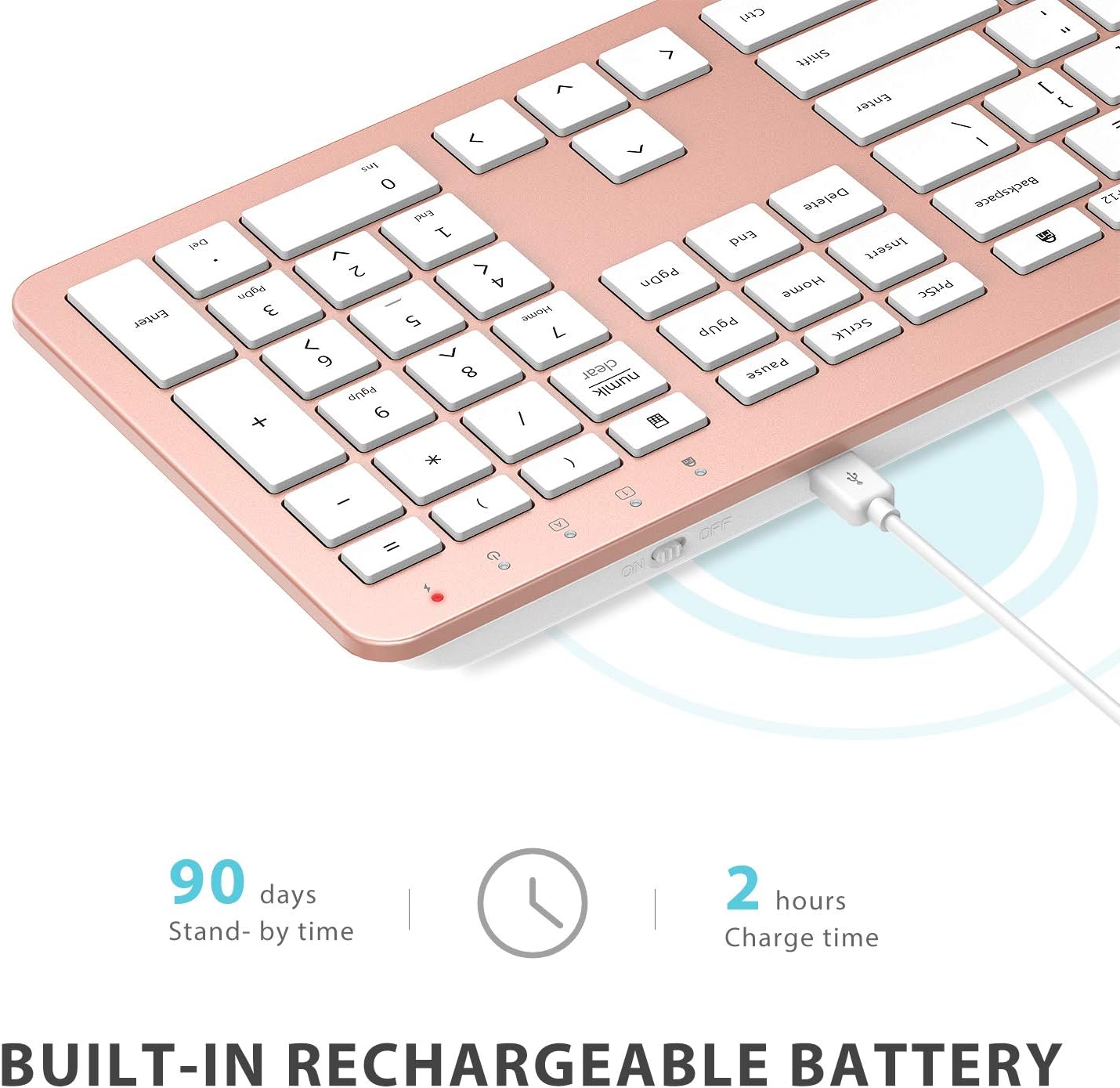
Image: The iClever GK08 keyboard connected to a USB-C charging cable, illustrating the charging process and battery life indicators.
3.3 Connecting to Your Computer (2.4 GHz Wireless)
The keyboard and mouse connect via a single 2.4 GHz USB-A nano receiver.
- Locate the USB-A nano receiver. It is typically stored in a compartment on the underside of the mouse.
- Plug the nano receiver into an available USB-A port on your computer.
- Turn on the keyboard using the ON/OFF switch (usually on the top edge).
- Turn on the mouse using the ON/OFF switch (located on the underside).
- Your computer should automatically detect and install the necessary drivers. The devices are ready for use once recognized.
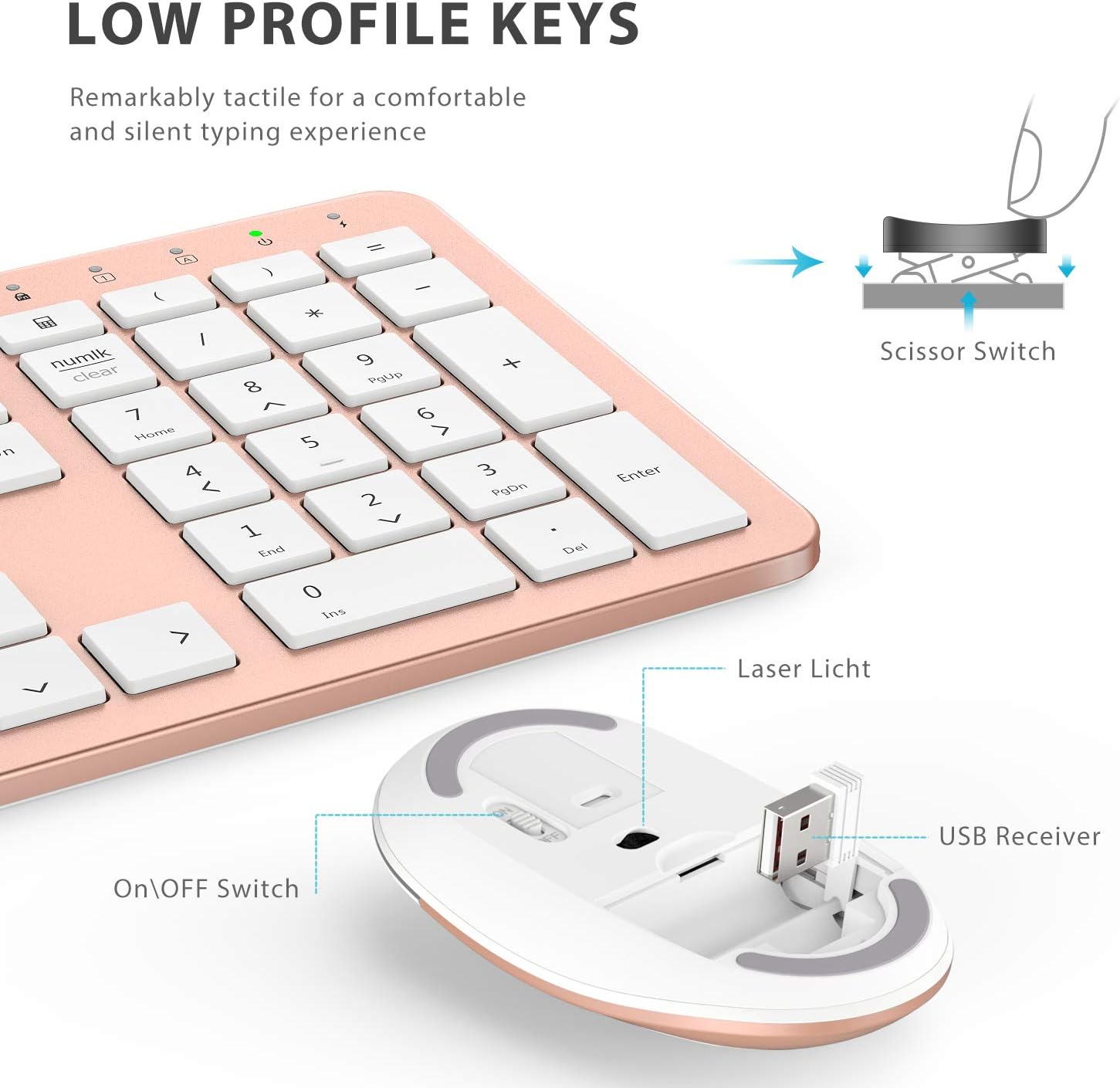
Immagine: un primo piano view of the iClever mouse, highlighting the compartment where the USB nano receiver is stored for convenience.
3.4 Controllo di compatibilità
This combo requires an available USB-A port for the nano receiver. For newer Macs with only USB-C ports, a USB-C to USB-A adapter (not included) is required. It is compatible with:
- Windows 10/11 PC & laptop
- macOS desktops / notebooks with USB-A port (e.g., iMac Retina 4K/5K, MacBook Air/Pro ≤ 2017)
- Sistema operativo Chrome

Image: A visual representation emphasizing the requirement of a USB-A port for the 2.4G wireless receiver, with a note about USB-C adapters for newer devices.
4. Istruzioni per l'uso
4.1 Funzioni della tastiera
- Layout a grandezza naturale: The keyboard features a 110-key layout with a dedicated numeric keypad for efficient data entry.
- Tasti silenziosi a forbice: Enjoy a comfortable and quiet typing experience with low-profile keys that produce less than 50 dB of sound.
- Collegamenti multimediali: Access common media functions directly from the keyboard.
- Dual-Layout Compatibility: The keyboard has clearly printed Mac and PC legends.
Switching Between Mac and Windows Layouts:
- Per Finestre: Premere Fn + W to activate Win, Alt, NumLK functions.
- Per Sistema operativo Mac: Premere Fn + Q to activate Alt (Option), Cmd, Clear functions.

Image: The iClever GK08 keyboard displaying the dual Mac and Windows key legends, with instructions for switching between operating system layouts using the Fn key combinations.
4.2 Funzioni del mouse
- Clic silenzioso: The mouse is designed for quiet operation, minimizing distractions.
- DPI regolabile: The mouse features 3 adjustable DPI levels (800/1200/1600) to customize cursor sensitivity. Press the DPI button (usually located near the scroll wheel) to cycle through the settings.

Image: A visual demonstrating the quiet operation of the iClever mouse and the three adjustable DPI settings (800, 1200, 1600) for varied precision needs.
4.3 Funzione di sospensione automatica
To conserve battery life, both the keyboard and mouse will enter an auto-sleep mode after 10 minutes of inactivity. To wake them up, simply press any key on the keyboard or move the mouse.
Video: A seller-provided video demonstrating the plug-and-play functionality and long battery life of the iClever Wireless Keyboard and Mouse. This video highlights the ease of setup and extended usage between charges.
5. Manutenzione
- Pulizia: Utilizzare un morbido, damp cloth to clean the surfaces of the keyboard and mouse. Avoid harsh chemicals.
- Copertura antipolvere: Utilize the included washable dust cover to protect the keyboard from dust and spills when not in use.
- Magazzinaggio: When not in use for extended periods, turn off both devices to conserve battery. Store the USB receiver inside the mouse.
6. Risoluzione Dei Problemi
- Nessuna connessione:
- Ensure both keyboard and mouse are turned ON.
- Verify the USB nano receiver is securely plugged into a working USB-A port on your computer.
- Prova a collegare il ricevitore a una porta USB-A diversa.
- Check if the devices are charged.
- Connessione ritardata o intermittente:
- Ensure the devices are within the 33 ft / 10 m operating range of the receiver.
- Avoid placing the receiver near strong interference sources (e.g., other wireless devices, large metal objects).
- Re-pair the devices by unplugging and re-plugging the receiver.
- Keyboard Not Typing Correctly (Mac/Windows):
- Assicurati di aver selezionato il layout corretto del sistema operativo utilizzando Fn + W per Windows o Fn + Q per Mac.
- Il cursore del mouse salta o non è preciso:
- Regolare l'impostazione DPI utilizzando il pulsante DPI sul mouse.
- Assicurarsi che il sensore del mouse sia pulito e libero da ostruzioni.
- Utilizzare il mouse su una superficie adatta (non molto riflettente o trasparente).
7. Specifiche
| Caratteristica | Dettaglio |
|---|---|
| Marca | iClever |
| Numero di modello | GK08 |
| Colore | Oro rosa |
| Tecnologia di connettività | 2.4 GHz wireless (USB-A nano receiver) |
| wireless Range | Fino a 33 piedi / 10 m |
| Disposizione della tastiera | QWERTY, Full-size 110-key with Numpad |
| Tipo di chiave | Scissor Switch (Quiet typing < 50 dB) |
| Fonte di alimentazione | Rechargeable Lithium Ion Battery (Keyboard) |
| Porta di ricarica | USB-C |
| Tempo di ricarica | Circa 2 ore |
| Durata della batteria (tastiera) | Fino a 45 giorni (uso tipico) |
| Impostazioni DPI del mouse | 800 / 1200 / 1600 DPI |
| Sistemi operativi compatibili | Windows 8/10/11, macOS, Chrome OS |
| Caratteristiche speciali | Dual Mac/Windows layout, 10-min auto-sleep, Washable dust cover |
8. Garanzia e supporto
iClever products typically come with a standard manufacturer's warranty. Please refer to the warranty card included in your product packaging or visit the official iClever websito per termini e condizioni di garanzia dettagliati.
Per supporto tecnico, assistenza per la risoluzione dei problemi o qualsiasi domanda relativa al prodotto, contattare il servizio clienti iClever tramite il loro sito ufficiale websito o le informazioni di contatto fornite nella documentazione del prodotto.
Supporto online: www.iclever.com/support


