
1. Introduzione
This manual provides essential information for the installation, operation, and maintenance of your ZOTAC Gaming GeForce RTX 3070 Twin Edge OC graphics card. This card is built on the NVIDIA Ampere architecture, featuring 2nd Gen Ray Tracing Cores, 3rd Gen Tensor Cores, and GDDR6 memory for high-fidelity gaming performance.
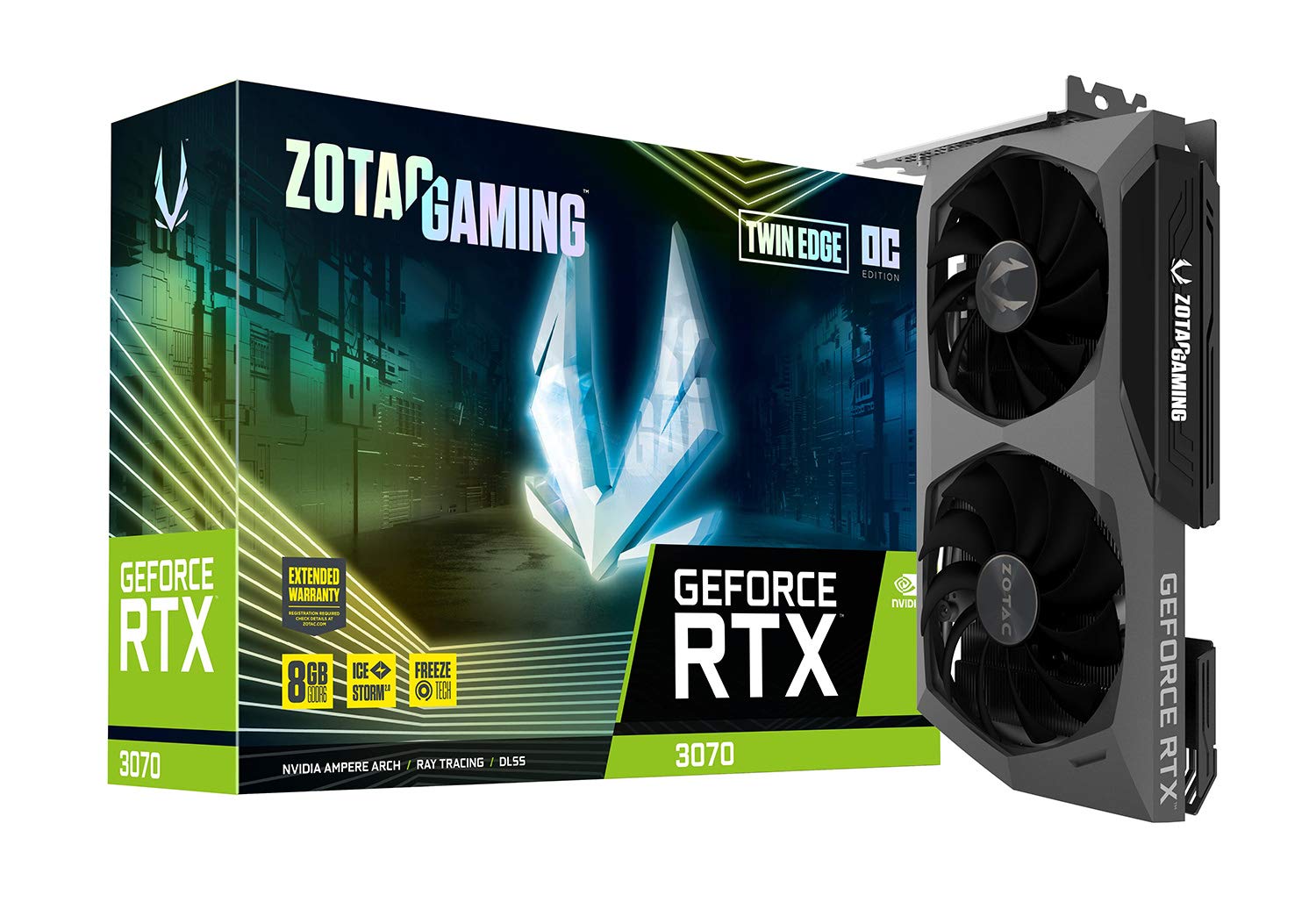
Immagine: Frontale view of the ZOTAC Gaming GeForce RTX 3070 Twin Edge OC graphics card.
2. Cosa c'è nella scatola
Verifica che tutti i seguenti elementi siano inclusi nella confezione del prodotto:
- ZOTAC GAMING GeForce RTX 3070 Twin Edge OC graphics card
- 2x Dual 6-pin to 8-pin adapter
- User Manual (Quick Installation Guide)

Image: Quick Installation Guide and two 6-pin to 8-pin power adapters included with the graphics card.
3. Specifiche
| Caratteristica | Specificazione |
|---|---|
| Coprocessore grafico | Scheda grafica NVIDIA GeForce RTX 3070 |
| Marca | ZOTAC |
| Dimensione RAM grafica | 8 GB |
| Interfaccia di uscita video | 3 DisplayPort 1.4a, 1 HDMI 2.1 |
| Tipo di RAM grafica | Memoria GDDR6 |
| Dispositivi compatibili | computer fisso |
| Interfaccia della scheda grafica | PCI-Express 4.0 x16 |
| Aumenta la velocità di clock | 1755 MHz |
| Maximum Digital Resolution | Risoluzione 7680 x 4320 a 60 Hz |
| Dimensioni dell'articolo (L x P) | 9.1"L x 5.6"W (231.9 mm x 141.3 mm) |
| Numero di modello | ZT-A30700H-10P |
| Peso dell'articolo | 998 grammi |
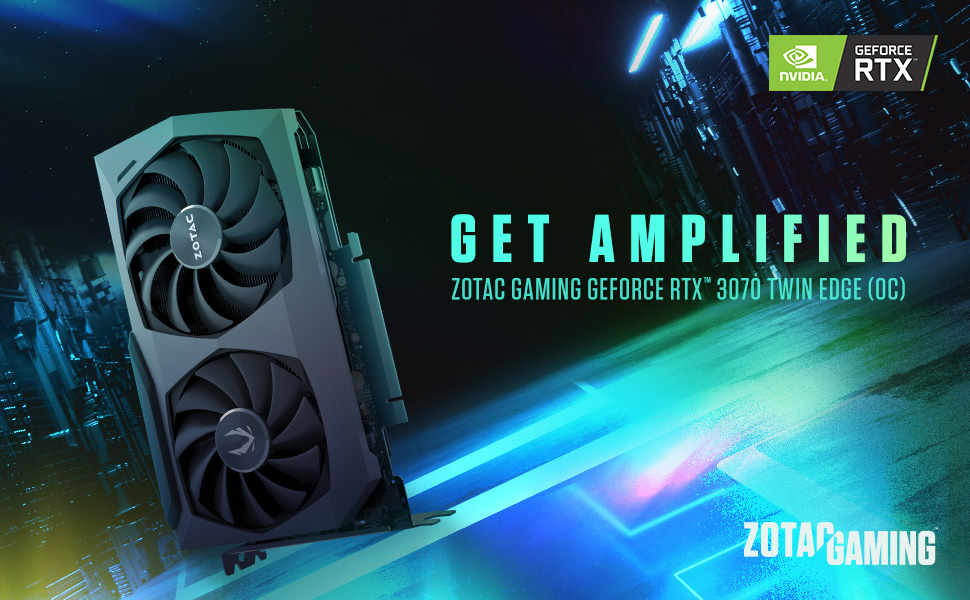
Image: Detailed dimensions and output port configuration (3x DisplayPort 1.4a, 1x HDMI 2.1) of the graphics card.
4. Installazione
- Prepara il tuo sistema: Spegnere il computer e scollegare tutti i cavi. Aprire il case del computer.
- Individuare lo slot PCIe: Identify an available PCI Express 4.0 x16 slot on your motherboard. Remove any expansion slot covers if necessary.
- Inserisci la scheda grafica: Allineare con attenzione la scheda grafica allo slot PCIe e premere con decisione fino a quando non è saldamente inserita. Assicurarsi che la clip di fissaggio si blocchi in posizione.
- Carta sicura: Fasten the graphics card to the computer case using the screw or latch mechanism provided by your case.
- Connetti alimentazione: This graphics card requires two 8-pin PCIe power connectors. Connect the power cables from your power supply unit (PSU) to the corresponding ports on the graphics card. Ensure your PSU can provide sufficient power (minimum 650W recommended). If your PSU only has 6-pin connectors, use the included 6-pin to 8-pin adapters.
- Close Case and Connect Cables: Close your computer case, reconnect all external cables (monitor, power, peripherals), and power on your system.

Immagine: Lato view illustrating the location of the dual 8-pin PCIe power input on the graphics card.
5. Istruzioni per l'uso
5.1 Installazione del driver
After physical installation, you must install the latest NVIDIA graphics drivers. Visit the official NVIDIA webposto (www.nvidia.com/drivers) to download the appropriate drivers for your GeForce RTX 3070 card and operating system. Follow the on-screen instructions for installation.
5.2 Collegamento del display
Connect your monitor(s) to the graphics card using DisplayPort or HDMI cables. This card supports up to four displays simultaneously. Ensure you use Ultra High Speed HDMI cables for 8K/60FPS or 4K/120FPS resolutions.

Image: Rear panel of the graphics card with three DisplayPort and one HDMI output.
5.3 ZOTAC FireStorm Utility
The ZOTAC FireStorm Utility software allows you to monitor your graphics card's performance, adjust fan speeds, and customize LED lighting. Download the utility from the official ZOTAC webposto (www.zotac.com/support).
6. Cooling Features
The ZOTAC Gaming GeForce RTX 3070 Twin Edge OC features the IceStorm 2.0 Advanced Cooling system for optimal thermal management.
- Raffreddamento avanzato IceStorm 2.0: A refined cooling system designed for wider coverage, keeping the GPU cooler and maintaining performance. It includes a wide array aluminum heatsink with up to five copper heat pipes and 11-blade fans for increased airflow.
- FREEZE Fan Stop: This feature automatically stops the fans when the GPU is idle, providing quieter operation and reducing wear on the fan system.
- Controllo attivo della ventola: Users can adjust fan rotations independently using the ZOTAC GAMING FireStorm software, allowing for precise airflow control where and when it is needed.

Immagine: Esploso view of the IceStorm 2.0 cooling system, highlighting the metal backplate, heatsink, and fan design.
Image: Representation of Active Fan Control, demonstrating independent fan speed adjustments.
7. Manutenzione
Per garantire prestazioni ottimali e longevità della scheda grafica, si consiglia una manutenzione regolare:
- Rimozione della polvere: Periodically clean dust from the fans and heatsink using compressed air. Ensure the system is powered off before cleaning.
- Flusso d'aria: Maintain good airflow within your computer case by ensuring proper cable management and clear ventilation paths.
- Aggiornamenti driver: Mantieni aggiornati i driver grafici all'ultima versione di NVIDIA websito per miglioramenti delle prestazioni e correzioni di bug.
8. Risoluzione Dei Problemi
Se riscontri problemi con la scheda grafica, prendi in considerazione i seguenti passaggi comuni per la risoluzione dei problemi:
- Nessuna uscita di visualizzazione:
- Ensure the monitor cables are securely connected to the graphics card.
- Verificare che la scheda grafica sia completamente inserita nello slot PCIe.
- Check that all required PCIe power connectors are properly attached.
- Se possibile, effettuare una prova con un cavo di visualizzazione o un monitor diverso.
- Instabilità/arresti anomali del sistema:
- Ensure your Power Supply Unit (PSU) meets the minimum wattage requirement (650W recommended) and can deliver stable power through separate PCIe power cables, not just daisy-chained connectors from a single PSU output.
- Aggiorna i driver della scheda grafica alla versione più recente.
- Monitor GPU temperatures using the FireStorm Utility to check for overheating.
- Problemi con i driver:
- Perform a clean installation of the graphics drivers. Uninstall existing drivers before installing new ones.
For further assistance, refer to the ZOTAC support page.
9. Garanzia e supporto
Your ZOTAC Gaming GeForce RTX 3070 Twin Edge OC graphics card comes with a Garanzia del produttore di 2 anniSi prega di conservare la prova d'acquisto per eventuali reclami in garanzia.
For customer service, technical support, or general inquiries, please visit the dedicated ZOTAC support page:
Caratteristiche aggiuntive
- White LED Logo Lighting: The card features a white LED illuminated ZOTAC GAMING logo, which can be customized via the FireStorm Utility.
- Piastra posteriore in metallo: A durable metal backplate provides structural protection for the PCB and enhances the overall aesthetic design of the card.
Image: The graphics card showcasing its white LED logo lighting.
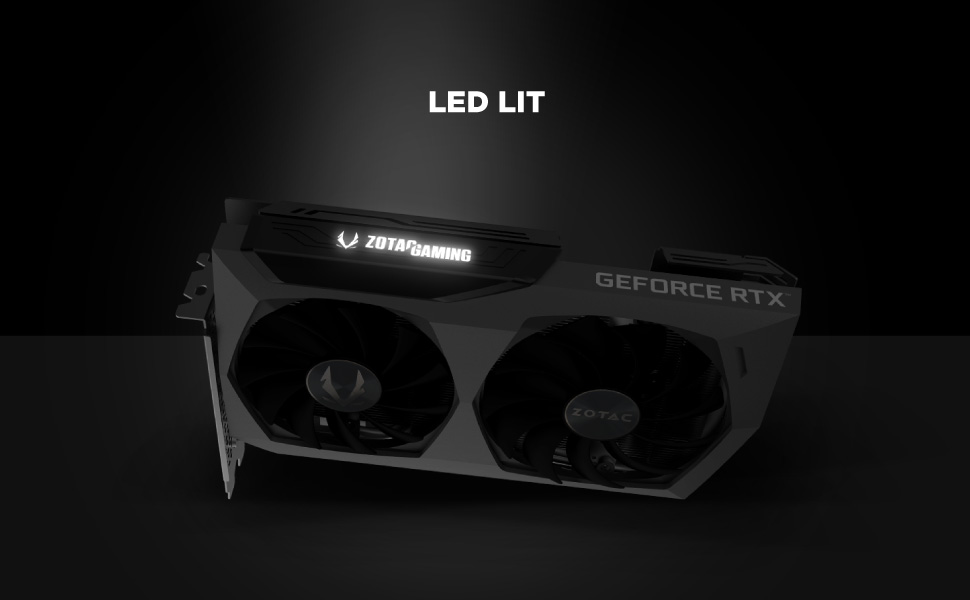
Image: The metal backplate component of the graphics card, providing protection and structural integrity.