
Introduzione
Thank you for choosing the Trio Max Portable Monitor. This 14.1-inch Full HD IPS display is designed to enhance your productivity by providing an additional screen for your laptop. Its plug-and-play functionality and versatile modes make it an ideal solution for professionals and students on the go. This manual provides essential information for setup, operation, maintenance, and troubleshooting to ensure optimal performance of your device.
Cosa c'è nella scatola
- One Trio Max laptop monitor extender display
- One USB-C cable (3ft)
- One USB-C to USB-A cable (3ft)
- Eight magnetic adhesive plates for 3 laptops
- Un manuale utente

Image: The Trio Max Portable Monitor box open, showing the monitor, various cables, magnetic plates, and the user manual neatly arranged inside.
Istruzioni di installazione
1. Collegamento del monitor al laptop
- Clean the back of your laptop screen thoroughly to ensure proper adhesion of the magnetic plates.
- Use the provided magnetic adhesive plates. Apply four plates to the back of your laptop screen, ensuring they are evenly spaced and aligned with the monitor's magnets.
- Align the Trio Max monitor with the magnetic plates on your laptop and gently attach it. The monitor should securely snap into place.
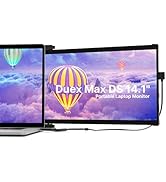
Image: A diagram illustrating the correct placement of four magnetic adhesive plates on the back of a laptop screen to securely attach the Trio Max monitor.
2. Collegamento del monitor
- For USB-C Compatible Laptops: Use the provided USB-C to USB-C cable. Connect one end to the Trio Max monitor's USB-C port and the other end to your laptop's full-featured USB-C port. The monitor should power on automatically.
- For USB-A Compatible Laptops: Use the provided USB-C to USB-A cable. Connect the USB-C end to the Trio Max monitor and the USB-A end to your laptop's USB-A port. An additional power source (e.g., a USB power adapter) may be required for optimal performance if your laptop's USB-A port does not provide sufficient power.
No driver installation is typically required for most operating systems when connecting via USB-C. For specific operating systems or troubleshooting, refer to the user manual or the provided USB disk with display drivers.
Video: A demonstration of the Trio portable monitor being attached to a laptop and connected via a single cable, showcasing its dual-sliding functionality.
Istruzioni per l'uso
Modalità di visualizzazione
The Trio Max monitor offers various display modes to suit your needs:
- Modalità estesa: Espande il desktop su entrambi gli schermi, offrendo più spazio di lavoro.
- Modalità specchio: Duplicates your laptop's display on the Trio Max monitor, ideal for presentations.
- Modalità ritratto: Rotate the monitor vertically for viewing documents, code, or long web pagine.
- Modalità orizzontale: Orientamento orizzontale standard per uso generale.
- Rotazione 270°: Consente flessibilità viewing angles and easy sharing of content.
- 180° Presentation Mode: Rotate the monitor to face an audience for collaborative work.
- Modalità cavalletto: Utilize the optional kickstand to position the monitor independently on a flat surface.

Image: A visual representation of the Trio Max monitor demonstrating its 270-degree rotation, portrait, and landscape modes, as well as its use in presentation and kickstand configurations.
Video: A demonstration of the Trio monitor's 270-degree rotatable screen, highlighting its flexibility for various viewangoli di ripresa e utilizzo collaborativo.
Regolazione delle impostazioni
The Trio Max monitor features touch-sensitive buttons for easy adjustment of various settings:
- Luminosità: Adjust the screen brightness to your preference for optimal viewcomfort.
- Filtro luce blu: Attiva il filtro luce blu per ridurre l'affaticamento degli occhi durante l'uso prolungato.
- Tecnologia antiriflesso: The screen is designed with anti-glare properties to minimize reflections.

Immagine: un primo piano view of the Trio Max monitor's on-screen display, illustrating the options for activating Eye Care Mode (blue light filter) and adjusting brightness levels.
Compatibilità
The Trio Max Portable Monitor is compatible with a wide range of devices and operating systems:
- Sistemi operativi: Windows, Mac, Linux, Chrome, Android.
- Dispositivi: Laptops (13-17 inches), Nintendo Switch, Type-C phones that support full-featured output.
- Nota: Not compatible with Surface PRO devices.
Video: A demonstration showing the Trio monitor successfully working with a Nintendo Switch without requiring a separate dock, highlighting its versatile compatibility.
Manutenzione
To ensure the longevity and optimal performance of your Trio Max Portable Monitor, follow these maintenance guidelines:
- Pulizia: Utilizzare un panno morbido e privo di lanugine leggermente dampcon acqua o una soluzione detergente per schermi. Evitare prodotti chimici aggressivi o materiali abrasivi.
- Gestione: Maneggiare sempre il monitor con cura. Evitare di farlo cadere o di esercitare una pressione eccessiva sullo schermo.
- Magazzinaggio: When not in use, fold the monitor securely and store it in a protective sleeve or bag to prevent scratches and damage.
- Cura del cavo: Evitare di piegare o torcere eccessivamente i cavi per evitare danni interni.
Risoluzione dei problemi
If you encounter issues with your Trio Max Portable Monitor, try the following steps:
- Nessuna visualizzazione: Ensure all cables are securely connected to both the monitor and your laptop. Try using a different USB-C port on your laptop if available.
- Schermo tremolante: Check cable connections. Ensure your laptop's graphics drivers are up to date. Adjust the refresh rate in your display settings.
- Risoluzione errata: Adjust the display resolution in your laptop's operating system settings. The optimal resolution is 1920 x 1080.
- Monitor non rilevato: Restart your laptop. Ensure your laptop's USB-C port supports video output (DisplayPort Alternate Mode). Install or update display drivers if necessary (refer to the provided USB disk).
- Problemi di alimentazione: If the monitor is not powering on or is dim, ensure it is receiving sufficient power. If using USB-A, try connecting an external power source to the monitor's dedicated charging port.
For further assistance, refer to the detailed troubleshooting section in the included user manual or contact customer support.
Specifiche
| Caratteristica | Specificazione |
|---|---|
| Numero di modello | massimo14.1 |
| Dimensioni dello schermo | 14.1 pollici |
| Risoluzione | 1920 x 1080 (FHD 1080p) |
| Tipo di pannello | Schermo IPS |
| Proporzioni | 16:9 |
| Luminosità dell'immagine | 300 cd/m² |
| Superficie dello schermo | Lucido |
| Porte USB totali | 2 (USB di tipo C) |
| Peso dell'articolo | 2 libbre |
| Dimensioni del prodotto | 0.5 x 14 x 9.5 pollici |
| Prima data disponibile | 20 novembre 2020 |
Garanzia e supporto
The Trio Max Portable Monitor comes with a GARANZIA DI UN ANNO dalla data di acquisto. Conservare la prova d'acquisto per eventuali reclami in garanzia.
For technical support, troubleshooting, or warranty inquiries, please refer to the contact information provided in your user manual or visit the official Trio websito.