
Introduzione
This manual provides essential information for setting up, operating, maintaining, and troubleshooting your Google Pixel 4a with 5G smartphone. Designed for ease of use, the Pixel 4a with 5G offers a seamless Android experience with advanced camera capabilities and 5G connectivity. Please read this manual thoroughly to ensure optimal performance and longevity of your device.
Cosa c'è nella scatola
- Google Pixel 4a with 5G Smartphone
- Cavo da USB-C a USB-C
- Adattatore di alimentazione (può variare in base alla regione)
- Guida rapida
- Strumento SIM
Note: Contents may vary based on the specific renewed package.
Prodotto finitoview
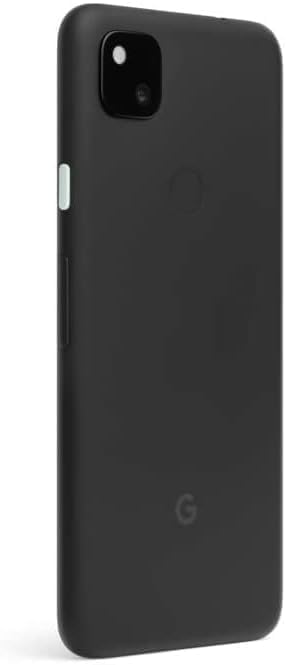
The Google Pixel 4a with 5G features a 6.2-inch display, 128GB of internal storage, and 6GB of RAM, providing a robust platform for daily use and multimedia. It is equipped with a powerful camera system and supports 5G cellular connectivity for faster data speeds.


Impostare
1. Carica del dispositivo
Before first use, fully charge your Pixel 4a with 5G. Connect the USB-C cable to the phone's charging port and the other end to the power adapter. Plug the adapter into a wall outlet. The battery indicator on the screen will show charging progress.
2. Inserimento della scheda SIM
Locate the SIM card tray on the side of the phone. Use the provided SIM tool to gently push into the small hole on the tray to eject it. Place your Nano-SIM card into the tray with the gold contacts facing down and the cut corner aligned. Carefully reinsert the tray into the phone.
3. Accensione e configurazione iniziale
Press and hold the Power button (located on the right side) until the Google logo appears. Follow the on-screen prompts to select your language, connect to Wi-Fi, sign in with your Google account, and transfer data from an old device if desired. Complete the setup wizard to begin using your phone.
Utilizzo del dispositivo
1. Navigazione dello schermo
- Scorrere verso l'alto: Accedi al cassetto delle app.
- Scorri verso il basso: Open the notification shade and quick settings.
- Rubinetto: Seleziona un elemento o apri un'app.
- Premere a lungo: Accedi ai menu contestuali o sposta le icone delle app.
- Pizzica per ingrandire: Zoom in or out on photos, maps, or web pagine.
2. Effettuare chiamate e inviare messaggi
Tap the Phone icon to make calls. Enter the number or select a contact. Tap the Messages icon to send text messages. Select a contact or enter a number, then type your message.
3. Utilizzo della fotocamera
Open the Camera app from your home screen or app drawer. Tap the shutter button to take a photo. Swipe left or right to switch between modes like Portrait, Night Sight, and Video. The Pixel 4a with 5G features advanced computational photography for high-quality images.
4. Internet e connettività
Connect to Wi-Fi networks via Settings > Network & internet > Wi-Fi. Enable mobile data for internet access when Wi-Fi is unavailable (Settings > Network & internet > Mobile network). The device supports 5G for faster data speeds where available.
Manutenzione
- Pulizia: Utilizzare un panno morbido e privo di lanugine per pulire lo schermo e il corpo. Evitare materiali abrasivi o prodotti chimici aggressivi.
- Aggiornamenti software: Regularly check for and install system updates (Settings > System > System update) to ensure your device has the latest features and security patches.
- Cura della batteria: Per prolungare la durata della batteria, evitare temperature estreme. Si consiglia di mantenere la carica della batteria tra il 20% e l'80% per l'uso quotidiano.
- Gestione della memoria: Cancellare periodicamente ciò che non è necessario files and apps to free up storage space and maintain optimal performance (Settings > Storage).
Risoluzione dei problemi
| Problema | Possibile soluzione |
|---|---|
| Il dispositivo non si accende | Assicurati che la batteria sia carica. Tieni premuto il pulsante di accensione per almeno 10 secondi per forzare il riavvio. |
| Le app si bloccano o si bloccano | Chiudi e riapri l'app. Cancella la cache dell'app (Impostazioni > App e notifiche > Informazioni app > [Nome app] > Archiviazione e cache > Cancella cache). Riavvia il telefono. |
| Durata della batteria scarsa | Reduce screen brightness, disable unused features like Bluetooth/GPS, limit background app activity, or use Battery Saver mode. |
| Nessuna connessione di rete | Check if Airplane mode is off. Reinsert the SIM card. Reset network settings (Settings > System > Reset options > Reset Wi-Fi, mobile & Bluetooth). Contact your carrier. |
| Il sensore di impronte digitali non funziona | Ensure your finger is clean and dry. Re-register your fingerprints (Settings > Security > Fingerprint Unlock). |
Ripristino delle impostazioni di fabbrica
Se i problemi persistono, potrebbe essere necessario un ripristino delle impostazioni di fabbrica. Questo cancellerà tutti i dati presenti sul telefono. Esegui il backup dei dati importanti prima di procedere. Vai su Impostazioni > Sistema > Opzioni di ripristino > Cancella tutti i dati (ripristino delle impostazioni di fabbrica).
Specifiche
| Caratteristica | Dettaglio |
|---|---|
| Nome del modello | Pixel 4a with 5G |
| Numero modello articolo | GA02293-US-cr |
| Marca | |
| Sistema operativo | Android |
| Dimensioni dello schermo | 6.2 pollici |
| Risoluzione | 1080x2340 |
| Memoria RAM | 6 GB |
| Capacità di archiviazione della memoria | 128 GB |
| Capacità della batteria | 3885 milioneamp Ore |
| Peso dell'articolo | 5.9 once |
| Dimensioni del prodotto | 6.05 x 2.91 x 0.32 pollici |
| Operatore di telefonia mobile | Sbloccato |
| Tecnologie di connettività | Bluetooth, Wi-Fi, Cellulare (5G) |
| Presa audio | Nessun jack per le cuffie |
Informazioni importanti
Disclaimer legale
Questo prodotto contiene una sostanza chimica nota nello Stato della California come causa di cancro e difetti alla nascita o altri danni riproduttivi. Per maggiori informazioni vai a www.P65warnings.ca.gov
Garanzia e supporto
As a renewed product, your Google Pixel 4a with 5G is typically covered by a limited warranty provided by the seller or refurbisher. Please refer to the specific warranty information provided at the time of purchase for details on coverage duration and terms. For technical support, software updates, and additional resources, please visit the official Google Support websito o contattare direttamente il venditore.
For general Google Pixel support, you can visit: support.google.com/pixelphone