
1. Introduzione
This manual provides detailed instructions for the Symcode Portable Barcode Clip with Bluetooth. This device is designed for efficient and versatile barcode scanning, offering portability and multiple connectivity options. It can be directly clipped to the back of a smartphone, used independently via Bluetooth, or connected via a 2.4G dongle.
Contenuto della confezione:
- 1x 2D Clip-Back Barcode Scanner
- 1x cavo di ricarica
- 1x Manuale utente
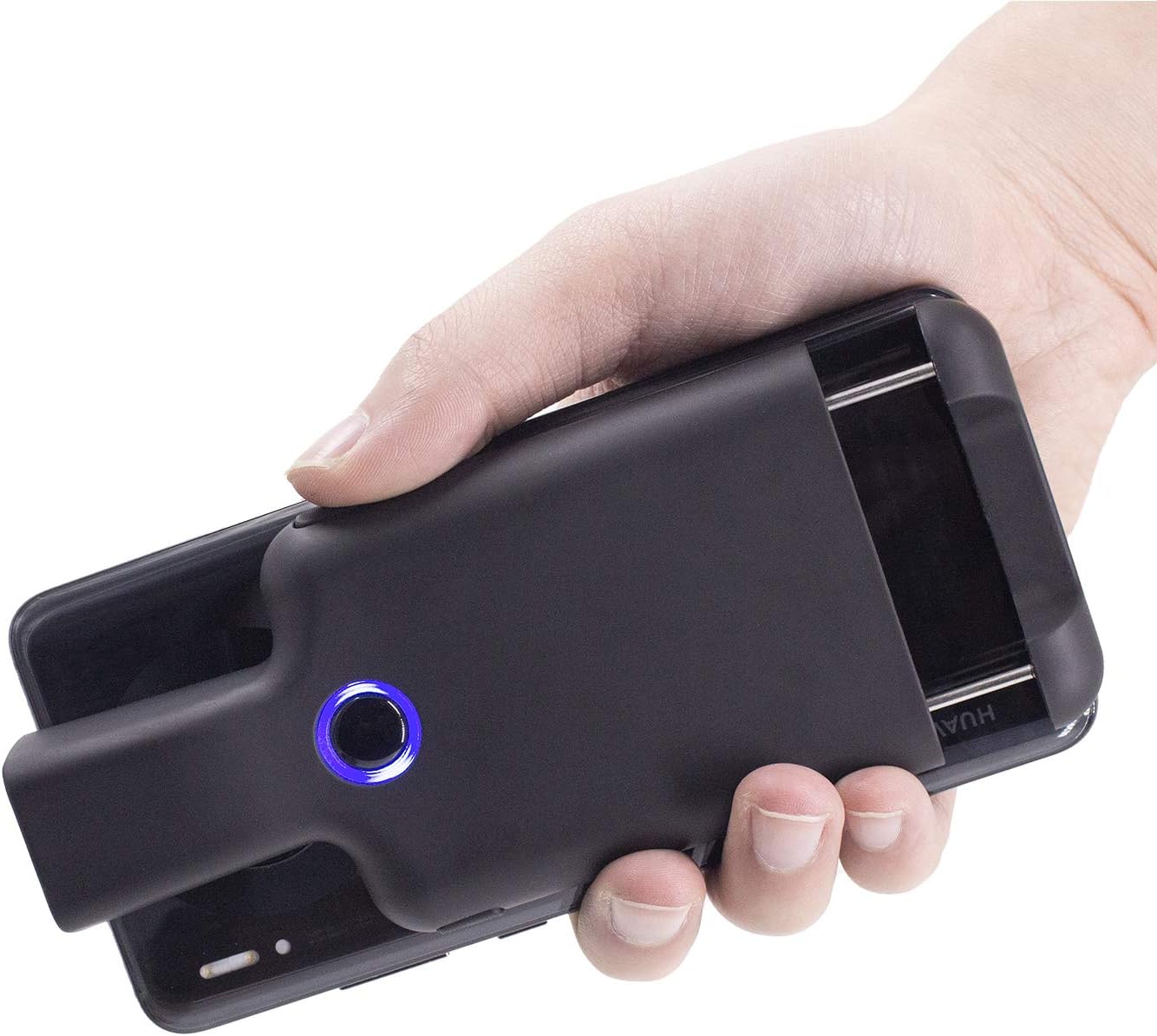
Figure 1.1: Symcode Portable Barcode Clip attached to a smartphone, demonstrating its compact design and ease of handling.
2. Caratteristiche principali
- Direct Phone Attachment: Designed to clip directly onto the back of a smartphone for integrated use. Features protective flannel to prevent scratches.
- Automatic Bluetooth Connection: Bluetooth activates automatically upon powering on, simplifying the connection process.
- Ampia compatibilità: Works with phones, iPads, computers, and is compatible with POS systems, iOS, Android, Windows, Mac OS, and Linux. Supports US/DE/FR/IT/ES keyboard layouts.
- Design leggero: Weighs approximately 90g (3.1oz) for enhanced portability.
- Durata prolungata della batteria: Equipped with a 1600mAh rechargeable battery (some models may feature 1800mAh or 3000mAh), providing up to 7.5 hours of continuous operation or 25,000 scans on a full charge. Charging time is approximately 1.5 hours.
- Comprehensive Barcode Support: Scans most 1D and 2D barcodes, including those displayed on screens.
- Tipi di codici a barre 1D: UPC-A, UPC-E, UPC-E1, EAN-8, EAN-13, EAN-14, EAN-128, UCC128, ISBN/ISSN, CODE11, CODE32, CODE39, CODE39 Full ASCII, CODE93, CODE128, Interleaved 2 of 5, Industrial 2 of 5, Matrix 2 of 5, China Postcode, UK/Plessey, GS1, ecc.
- Tipi di codici a barre 2D: QR, DataMatrix, PDF417, Aztec, Hanxin, Micro PDF417, and others.
- Pulsanti di scansione multipli: Features left, middle, and right scanning buttons for user convenience.
- Risparmio energetico: Automatically shuts down after 5 minutes of inactivity (configurable).
- Optional Phone Charging: Some models feature a built-in 3000mAh battery that can also charge the connected mobile phone.

Figure 2.1: Barcode scanning capabilities, including various 1D and 2D formats and challenging barcode conditions.

Figure 2.2: Physical dimensions and weight of the barcode clip.

Figure 2.3: The scanner's capability to charge a mobile phone, highlighting its built-in 3000 mAh battery.
3. Configurazione iniziale
3.1 Ricarica del dispositivo
Before first use, fully charge the barcode scanner. Connect the provided charge cable to the scanner's charging port and a suitable USB power source. A full charge typically takes approximately 1.5 hours. The indicator light will change to show charging status and completion.
3.2 Accensione/Spegnimento
- Per accendere: Press and hold the middle scanning button until the blue signal light flashes.
- Per spegnere: The scanner will automatically shut down after 5 minutes of no operation by default to conserve power. This setting can be adjusted or canceled.
4. Connettività e associazione
4.1 Associazione Bluetooth
The Symcode barcode clip connects wirelessly via Bluetooth. Follow these steps to pair it with your device:
- Activate Scanner Bluetooth: Press the middle scanning button on the barcode clip. The Bluetooth signal light will flash, indicating it is ready for pairing.
- Open Device Bluetooth Settings: On your phone, tablet, or computer, navigate to the Bluetooth settings menu. Ensure Bluetooth is turned on.
- Cerca e connettiti: Cercare available devices. Locate and click on "FSC-BarcodeScanner" in the list of found devices to initiate the pairing process.
- Conferma: Once connected successfully, you will hear a beep from the scanner, and the blue indicator light on the left side of the scanner will remain solid (always on). The scanner will automatically reconnect to the last paired device upon restart.

Figura 4.1: Guida passo passo per l'associazione Bluetooth.
4.2 Modalità di connessione
The scanner offers flexible connection options:
- Installed with Phone: Clip the scanner directly to the back of your smartphone for a compact, integrated scanning solution.
- Used Alone (Bluetooth): The scanner can be used as a standalone Bluetooth device, transmitting scanned data wirelessly to any compatible Bluetooth-enabled host device.
- Paired with 2.4G Dongle: For devices without Bluetooth or for a dedicated wireless connection, the scanner can be paired with a 2.4G USB dongle (sold separately or included with specific models) for use with laptops or desktop computers.

Figure 4.2: Three primary ways to use the Symcode barcode scanner.
5. Istruzioni per l'uso
5.1 Scansione dei codici a barre
To scan a barcode, point the scanner's window at the barcode you wish to read. Ensure the barcode is within the scanner's field of view. Press one of the scanning buttons to activate the scan engine. A successful scan will typically be indicated by a beep and/or a change in the indicator light.
5.2 Scanning Buttons
The scanner features three distinct scanning buttons for user convenience:
- Pulsante di scansione sinistro: Situato sul lato sinistro dello scanner.
- Pulsante di scansione centrale: Located centrally on the scanner, also used for power on/off and Bluetooth activation.
- Pulsante di scansione destro: Situato sul lato destro dello scanner.
Any of these buttons can be used to trigger a scan.

Figure 5.1: Location and use of the three scanning buttons.
5.3 Opzioni di configurazione
The scanner supports various customizations, which can typically be configured by scanning specific setup barcodes found in the full user manual (not included in this summary). These options may include:
- Automatic sensing mode
- Nascondere i caratteri del codice a barre
- Adding prefixes or suffixes to scanned data
- Regolazione del volume
- Setting or canceling automatic shutdown time
6. Manutenzione
6.1 Pulizia
To maintain optimal performance and appearance, clean the scanner regularly:
- Per pulire la parte esterna del dispositivo, utilizzare un panno morbido, asciutto e privo di lanugine.
- Per la finestra di scansione, utilizzare un panno per la pulizia delle lenti o un panno morbido leggermente dampcon un detergente delicato e non abrasivo. Evitare prodotti chimici aggressivi o materiali abrasivi.
- Assicurarsi che nessun liquido penetri nelle aperture del dispositivo.
6.2 Conservazione
When not in use, store the scanner in a cool, dry place, away from direct sunlight, extreme temperatures, and high humidity. Protect it from physical impact.
7. Risoluzione Dei Problemi
This section addresses common issues you might encounter with your Symcode barcode scanner.
| Problema | Possibile causa | Soluzione |
|---|---|---|
| Lo scanner non si accende. | Batteria scarica; malfunzionamento del dispositivo. | Charge the scanner fully. If issue persists, contact support. |
| Impossibile effettuare l'associazione tramite Bluetooth. | Scanner not in pairing mode; Bluetooth off on host device; Interference; Already paired to another device. | Ensure scanner's blue light is flashing. Turn Bluetooth off/on on host device. Move closer to host device. Disconnect from other devices. |
| Lo scanner non legge i codici a barre. | Barcode damaged/unreadable; Incorrect barcode type setting; Scanning window dirty; Insufficient lighting. | Ensure barcode is clear and flat. Check scanner's configuration for supported barcode types. Clean scanning window. Provide adequate lighting. |
| Scanned data is slow or incorrect. | Bluetooth signal interference; Incorrect keyboard layout setting; Data format issue. | Reduce distance to host device. Ensure no strong interference sources. Check keyboard layout settings (e.g., US/DE/FR). Review data formatting options. |
| Scanner automatically shuts down too quickly. | Impostazione predefinita di risparmio energetico. | Refer to the full manual for instructions on how to adjust or disable the auto-shutdown timer. |
8. Specifiche
| Caratteristica | Dettaglio |
|---|---|
| Modello | B08R78W41N |
| Tecnologia di connettività | Bluetooth (BLE, SPP, HID) |
| Dispositivi compatibili | Smartphone, Tablet, Computer (iOS, Android, Windows, Mac OS, Linux) |
| Fonte di alimentazione | Alimentato a batteria |
| Tipo di batteria | Polimero di litio (incluso) |
| Capacità della batteria | 1600mAh (some models 1800mAh/3000mAh) |
| Tempo di ricarica | Circa 1.5 ore |
| Tempo di lavoro continuo | Up to 7.5 hours / 25,000 scans (on full charge) |
| Risoluzione sensore | 648x488 pixel |
| Campo sensore di View | 66 ° in orizzontale, 50 ° in verticale |
| Resistenza alla luce | 0-10,000 lux |
| Resistenza ai terremoti | 1.2m (4ft) drop on cement surface |
| Peso dell'articolo | 7.8 ounces (approx. 90g / 3.1oz) |
| Dimensioni (circa) | 147mm (5.8in) length, 68mm (2.7in) width, 20.25mm (0.8in) card buckle thickness |
9. Informazioni sulla garanzia
Warranty details for the Symcode Portable Barcode Clip are typically provided with your purchase documentation or can be found on the official Symcode websito. Conservare la prova d'acquisto per eventuali reclami in garanzia.
10. Assistenza clienti
For further assistance, technical support, or inquiries not covered in this manual, please refer to the contact information provided with your product or visit the official Symcode website. You may also find additional resources and FAQs on their support pages.