
1. Introduzione
This manual provides detailed instructions for the installation, operation, and maintenance of your Cestovet 10.1 Inch Android 13 Car Stereo Radio. Designed for Jeep Compass (2010-2016) and Jeep Patriot (2009-2016), this unit features Wireless CarPlay, Android Auto, Bluetooth, WiFi, Steering Wheel Control (SWC), Mirror Link, and GPS navigation. Please read this manual thoroughly before installation and use to ensure optimal performance and safety.
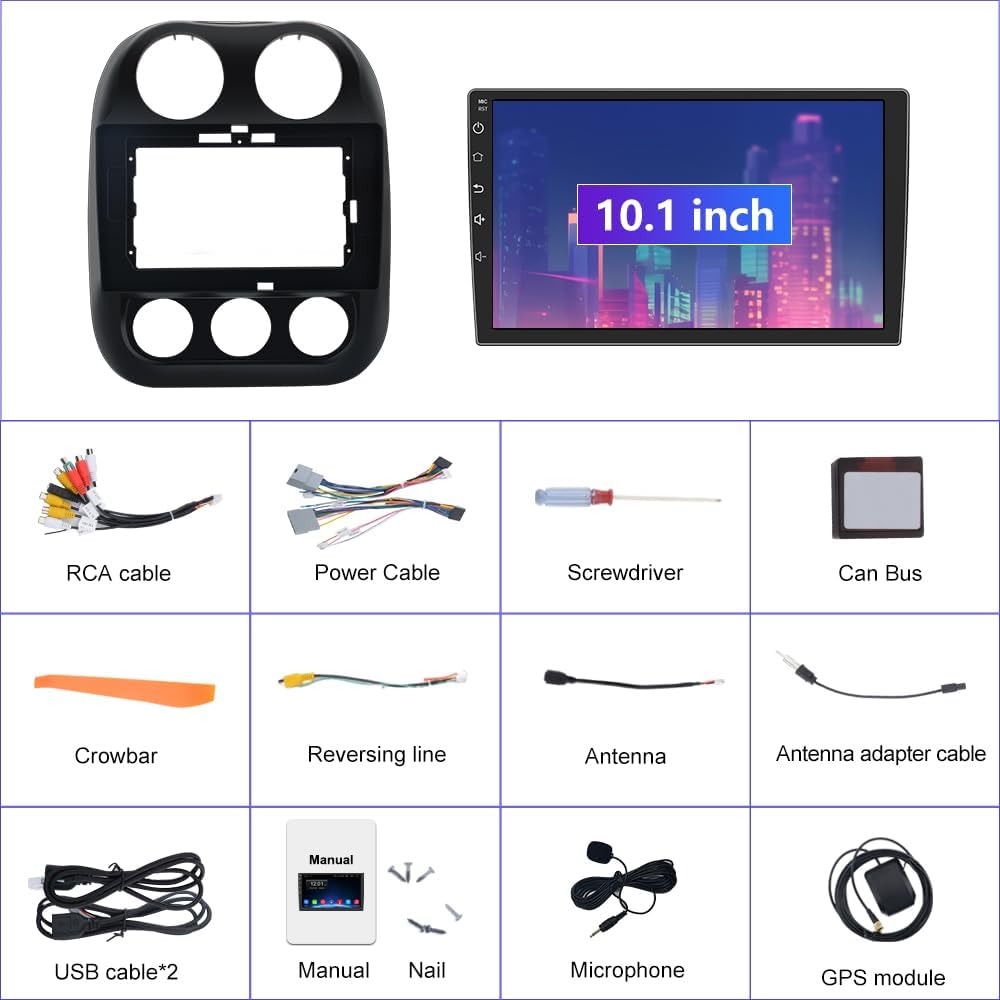
2. Cosa c'è nella scatola
Carefully unpack all items and ensure everything listed below is present:
- 10.1-inch Android 13 Car Stereo Main Unit
- Kit di montaggio e finitura per l'installazione sul cruscotto
- Power Cable with CANBUS Module
- Radio Antenna
- Antenna GPS
- Cavi USB (x2)
- RCA Cable & Backup Microphone Interface
- Microfono di backup
- Telecamera per la retromarcia HD
- Cavo di prolunga per telecamera di retromarcia
- Installation Tool (Crowbar, Screwdriver)
- Manuale d'uso
3. Configurazione e installazione
3.1 Controllo pre-installazione
- Ensure your vehicle is a Jeep Compass (2010-2016) or Jeep Patriot (2009-2016) for compatibility.
- Turn off the vehicle's engine and disconnect the negative terminal of the car battery to prevent electrical shorts.
- Raccogliere tutti gli strumenti necessari, compreso lo strumento di installazione fornito.
3.2 Wiring & Connections
Refer to the wiring diagram and videos for detailed connection instructions. Proper wiring is crucial for functionality.

Importante: If you experience no sound after installation, ensure the white 4-pin or 8-pin connector (depending on your car's amplifier system) is correctly plugged into the main wiring harness. The CANBUS module is essential for power and integrating steering wheel controls.
Video 3.1: Detailed guide on how to install the car stereo unit and its wiring.
3.3 Passaggi generali di installazione
- Using the provided crowbar, carefully pry open and remove the original radio and dash panel.
- Connect the main power harness, ensuring the CANBUS module is correctly integrated.
- Connect the Radio Antenna, GPS Antenna, and USB cables to their respective ports on the new unit.
- If installing a rear camera, connect the reversing video input wire and power the camera from the reverse lamp circuito.
- Mount the 10.1-inch Android 13 Car Stereo into the dash trim kit.
- Carefully re-install the new unit into the dashboard, ensuring all clips and screws are secure.
- Ricollegare la batteria dell'auto e testare tutte le funzioni prima di rimontare completamente il cruscotto.

4. Istruzioni per l'uso
4.1 Power On/Off & Touchscreen Interface
Press the power button on the unit to turn it on or off. The 10.1-inch touchscreen provides intuitive control over all functions. Swipe and tap to navigate through apps and settings.
4.2 Connessione Wi-Fi
To access online features and download apps, connect the unit to a Wi-Fi network:
- Scorri verso il basso dalla parte superiore dello schermo per accedere al pannello delle impostazioni rapide.
- Tap the Wi-Fi icon to turn it on.
- Vai su Impostazioni > Rete e Internet > Wi-Fi.
- Seleziona la rete desiderata e inserisci la password se richiesta.
Video 4.1: Demonstrates Wi-Fi and Hotspot connection steps (0:06-0:25).
4.3 Connettività Bluetooth
Associa il tuo smartphone tramite Bluetooth per chiamate in vivavoce e streaming audio:
- On the car stereo, open the 'Phone' app or go to Settings > Connected devices > Bluetooth.
- Assicurati che il Bluetooth sia abilitato sia sullo stereo che sullo smartphone.
- Cercare available devices on your smartphone and select the stereo's device name (e.g., "BCB-Android845").
- Confermare il codice di associazione su entrambi i dispositivi.
Video 4.2: Shows Bluetooth pairing for calls and music streaming (0:44-0:55).
4.4 CarPlay wireless e Android Auto
Connect your iPhone or Android phone wirelessly for a seamless in-car experience:
- Assicurati che il Bluetooth e il Wi-Fi siano abilitati sullo smartphone e sull'autoradio.
- On the car stereo, open the 'ZLINK5' app (or similar CarPlay/Android Auto app).
- Follow the on-screen prompts to connect your device. For iPhones, ensure CarPlay is enabled in your phone's settings.
Video 4.3: Demonstrates Wireless CarPlay connection and usage (0:56-1:10).
4.5 Navigazione GPS
The unit supports both online and offline GPS navigation. Pre-installed maps for North America are available. To use navigation:
- Open the 'Navigation' or 'Maps' app from the home screen.
- Enter your destination using the search function.
- Follow the voice prompts and on-screen directions.
Video 4.4: Shows GPS navigation features and map interaction (1:01-1:09).
4.6 Radio FM
Access the FM radio tuner for local broadcasts:
- Tap the 'Radio' app icon.
- Use the arrow buttons to manually tune frequencies or the search function to scan for stations.
- Salva le tue stazioni preferite come preimpostate per accedervi rapidamente.
Video 4.5: Demonstrates FM Radio tuning and features (1:45-2:00).
4.7 EQ Settings (Equalizer)
Customize your audio experience with the built-in equalizer:
- Open the 'EQ' app from the app drawer.
- Adjust the frequency bands to fine-tune the sound output.
- Select from various preset sound modes (e.g., Standard, Pop, Rock, Jazz) or create custom settings.
- Adjust the 'Sound Field' to optimize audio for different seating positions in the vehicle.
Video 4.6: Shows how to access and adjust the EQ settings and sound field (1:33-1:44).
4.8 Comandi al volante (SWC)
The unit supports your vehicle's original steering wheel controls for safe and convenient operation. Access the 'SW Learning' app to program or customize button functions.
4.9 Assistenza alla retromarcia
When a rear camera is connected, the display automatically switches to the camera view when the vehicle is put into reverse, providing visual assistance for parking and maneuvering.

5. Manutenzione
- Pulizia dello schermo: Utilizzare un panno morbido e privo di lanugine leggermente dampcon acqua o un detergente per schermi. Evitare prodotti chimici aggressivi o materiali abrasivi.
- Aggiornamenti software: Controllare periodicamente la presenza di aggiornamenti software tramite le impostazioni dell'unità o tramite il sito del produttore websito per garantire prestazioni ottimali e accesso a nuove funzionalità.
- Verifiche della connessione: Controllare regolarmente tutti i collegamenti elettrici per assicurarsi che siano saldi e privi di corrosione.
- Temperatura: Evitare di esporre l'unità a temperature estreme per periodi prolungati.
6. Risoluzione Dei Problemi
| Problema | Possibile causa | Soluzione |
|---|---|---|
| L'unità non si accende | Incorrect power wiring; Blown fuse; Loose battery connection. | Check power cable connections (refer to Section 3.2); Inspect vehicle's fuse box; Ensure battery terminals are secure. |
| Nessuna uscita audio | Incorrect speaker wiring; CANBUS module issue; Volume too low. | Verify speaker connections; Ensure white connector on harness is properly seated (refer to Figure 3.1); Increase volume. |
| Bluetooth/CarPlay/Android Auto non si connettono | Bluetooth/Wi-Fi off; Device not paired; Interference. | Ensure Bluetooth/Wi-Fi is active on both devices; Re-pair the device; Move away from sources of interference. |
| Perdita o imprecisione del segnale GPS | Antenna GPS non installata/collegata correttamente; Ostruzione. | Ensure GPS antenna is securely connected and placed in an unobstructed location (e.g., dashboard); Update map data. |
| I comandi al volante non funzionano | CANBUS module issue; SWC not programmed. | Verify CANBUS connection; Use the 'SW Learning' app to program the controls. |
7. Specifiche
- Nome modello: 2GRAM
- Dimensioni dello schermo: 10 pollici
- Risoluzione: 1024x600
- Sistema operativo: Androide 13
- Memoria: 2GB RAM, ROM 32GB
- Connettività: Bluetooth, cellulare, Wi-Fi
- Caratteristiche speciali: Wireless CarPlay, Android Auto, Touchscreen, Voice Command (via Microphone), Steering Wheel Control, Mirror Link, Reversing Assistance, GPS Navigation (North America maps)
- Tipo di servizio del veicolo: Car (Jeep Patriot/Compass 2010-2016)
- Peso dell'articolo: 5.17 libbre
- Dimensioni del prodotto: 14.96 x 12.99 x 7.09 pollici
- Tipo di montaggio: Montaggio a pannello
- Componenti inclusi: Microfono
8. Garanzia
This Cestovet Car Stereo Radio comes with a 1-year warranty from the date of purchase. Please retain your proof of purchase for any warranty claims. The warranty covers manufacturing defects and malfunctions under normal use. It does not cover damage caused by improper installation, misuse, accidents, or unauthorized modifications.
9. Supporto
For technical assistance, troubleshooting beyond this manual, or warranty claims, please contact Cestovet customer support. Refer to the product packaging or the official Cestovet website for contact information. You may also find additional resources and FAQs on the Cestovet brand store page on Amazon.