
Introduzione
Welcome to the AEEZO Kids Tablet TK701 user manual. This guide provides essential information for setting up, operating, maintaining, and troubleshooting your new tablet. Designed for children, this 7-inch tablet features a Full HD IPS touch screen, Android 10 operating system, and pre-installed Kidoz for a safe and engaging experience.
Prodotto finitoview
Componenti della tavoletta

Descrizione dell'immagine: A detailed diagram of the AEEZO Kids Tablet TK701, highlighting its various ports and buttons. The tablet is shown from the front, side, and top views, with numbers indicating specific components.
- Reset: Piccolo foro per il reset del dispositivo.
- Accensione/spegnimento: Button to turn the tablet on or off.
- Volume+: Pulsante per aumentare il volume.
- Volume-: Pulsante per diminuire il volume.
- Fotocamera frontale: Camera located on the front of the tablet.
- Jack per cuffie: Porta da 3.5 mm per le cuffie.
- Slot per scheda SD: Slot for inserting a microSD card for expanded storage.
- Porta di tipo C: Porta USB Type-C per la ricarica e il trasferimento dati.
- Telecamera posteriore: Camera located on the back of the tablet.
- Oratore: Audio output speaker.
- Microfono: Microfono incorporato.
Caratteristiche principali

Descrizione dell'immagine: An image comparing 1080p FHD image quality (right, showing Red from Angry Birds clearly) with a lower resolution (left, showing a blurry green pig), illustrating the superior display of the AEEZO tablet.
- Display: 7-inch FHD IPS Touch Screen with 1920x1200 resolution, 323 PPI, offering a 178° wide viewangolo di ing.
- Sistema operativo: GMS-certified Android 10.0.
- Processore: 1.6 GHz Quad-Core processor.
- Memoria e archiviazione: 2GB RAM, 32GB ROM (expandable up to 128GB via microSD card, not included).
- Telecamere: Doppia fotocamera (anteriore da 2 MP, posteriore da 5 MP).
- Batteria: 2,600mAh battery, providing approximately 4 hours of average use.
- Connettività: Wifi.
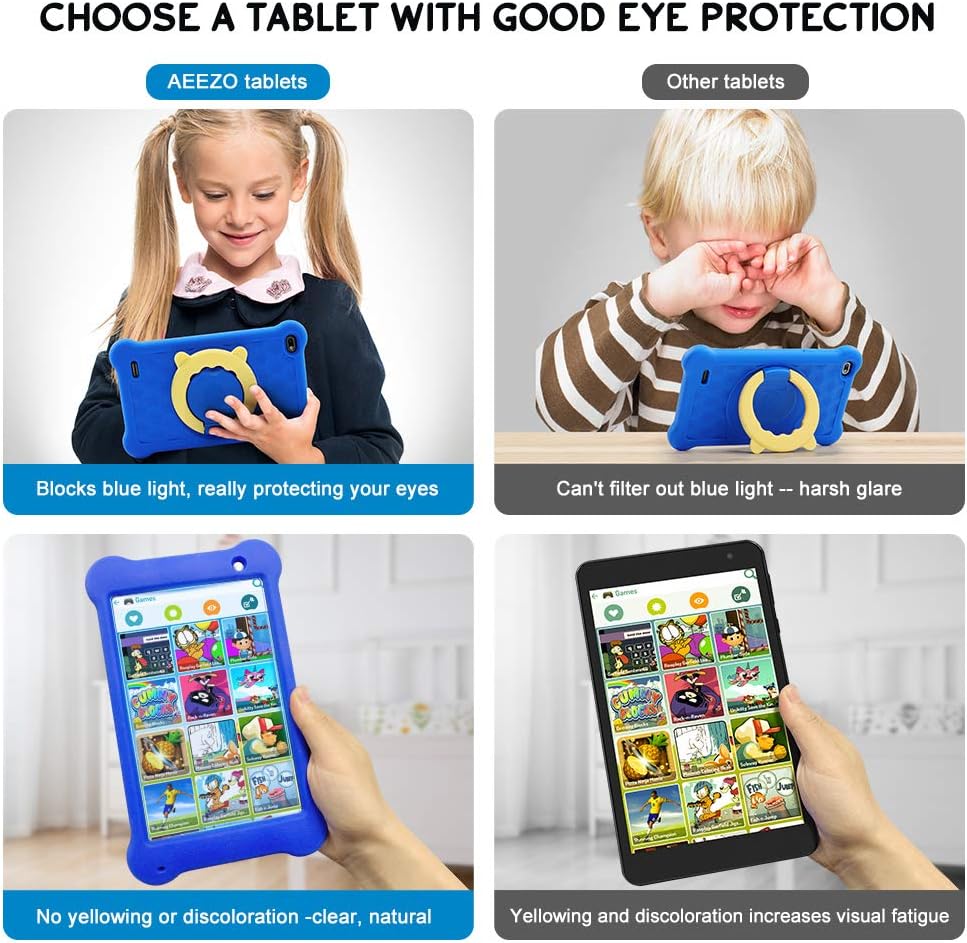
Descrizione dell'immagine: A four-panel image demonstrating the AEEZO tablet's eye protection features. Two top panels show a child comfortably using an AEEZO tablet (blocking blue light) versus a child squinting at another tablet (harsh glare). Two bottom panels show the AEEZO tablet's clear display versus another tablet's yellowed display, highlighting the absence of discoloration.
- Caratteristiche protettive: Food-grade silicone cover designed to prevent damage from falls and collisions, and a pre-applied screen protection film that blocks harmful blue light for eye protection. The cover includes a 360-degree adjustable ring stand.
- Child-Friendly Software: Pre-installed Kidoz app, a COPPA-certified platform for kids, with parental controls.
Impostare
1. Ricarica iniziale
Before first use, fully charge the tablet. Connect the provided USB Type-C cable to the tablet's Type C Port (8) and to a compatible 5V 2A charger (not included). The charging indicator will show the charging status.
2. Accensione/Spegnimento
- Per accendere: Press and hold the Power on/off button (2) until the screen lights up.
- Per spegnere: Press and hold the Power on/off button (2) until a power-off menu appears. Select "Power off" to shut down the device.
3. Installazione guidata iniziale
Upon first power-on, follow the on-screen instructions to complete the initial setup. This includes selecting your language, connecting to a Wi-Fi network, and setting up your Google account.
4. Inserimento di una scheda MicroSD (facoltativo)
To expand storage, insert a microSD card (up to 128GB, not included) into the SD Card Slot (7). Ensure the tablet is powered off before inserting or removing the card.
Istruzioni per l'uso
Navigazione di base
- Schermo tattile: È possibile navigare sul tablet toccando, scorrendo e pizzicando lo schermo.
- Schermata iniziale: Access apps and widgets from the main home screen.
- Notifiche: Scorri verso il basso dalla parte superiore dello schermo a view notifiche e impostazioni rapide.
Using Google Play

Descrizione dell'immagine: A young child smiling next to the AEEZO tablet, surrounded by icons for Google Play, Kidoz, Family Link, and FamilyGroup, indicating the tablet's software capabilities.
The tablet provides full access to Google services, including the Google Play Store. Parents can download a wide range of educational apps, games, and other content suitable for children. Ensure your Google account is set up and parental controls are configured within Google Play for content filtering.
Kidoz App

Descrizione dell'immagine: The AEEZO Kids Tablet, encased in its blue protective cover, displays the colorful Kidoz app interface. Various icons representing kid-friendly games, videos, and creative tools are shown floating above the tablet.
Kidoz is a pre-installed, COPPA-certified application designed for children. It offers a curated selection of age-appropriate content. Navigate through Kidoz to find games, videos, and educational activities.
Controllo genitori

Descrizione dell'immagine: A mother and child are comfortably seated on a sofa, with the child holding the AEEZO Kids Tablet. On the right side of the image, three circular icons represent key parental control features: Child Lock, Content Filter, and Time Limits.
The AEEZO Kids Tablet is equipped with robust parental control features to ensure a safe digital environment for children.
- Kidoz Parental Control: The pre-installed Kidoz app includes an advanced parental control system. Parents can set up a password to manage access to content, filter age-inappropriate material, and monitor usage.
- Filtraggio dei contenuti: Utilize the age filter within Kidoz to ensure children only access content suitable for their age group.
- Limiti di tempo: Set daily time limits for tablet usage to promote healthy screen habits.
- Gestione delle app: Control which applications your child can access.
- Google Family Link: For more comprehensive device management, consider using Google Family Link, which allows parents to manage app downloads, screen time, and device location from their own device.
Manutenzione
- Pulizia: Utilizzare un panno morbido e privo di lanugine per pulire lo schermo e il corpo del tablet. Evitare detergenti abrasivi o solventi.
- Cura della batteria: To prolong battery life, avoid extreme temperatures. Do not allow the battery to fully discharge frequently. Charge the tablet regularly.
- Aggiornamenti software: Controllare periodicamente la presenza di aggiornamenti di sistema nelle impostazioni del tablet per garantire prestazioni e sicurezza ottimali.
- Copertura protettiva: The food-grade silicone cover provides protection against drops and impacts. Keep it clean and ensure it is properly fitted.
- Pellicola protettiva per lo schermo: The pre-applied screen protection film helps block harmful blue light and protects the screen. If it becomes damaged, consider replacing it with a similar eye-protective film.
Risoluzione dei problemi
Il tablet non si accende
- Ensure the tablet is sufficiently charged. Connect it to a power source for at least 30 minutes.
- Press and hold the Power on/off button (2) for 10-15 seconds.
- If unresponsive, use a thin object (like a paperclip) to press the Reset button (1) and then attempt to power on.
Prestazioni lente
- Chiudere le applicazioni non utilizzate in esecuzione in background.
- Cancella i dati della cache per le app utilizzate di frequente.
- Ensure there is sufficient storage space. Uninstall unnecessary apps or move files su una scheda SD.
- Riavviare il tablet.
Problemi di connettività Wi-Fi
- Assicurati che il Wi-Fi sia abilitato nelle impostazioni del tablet.
- Riavvia il router Wi-Fi.
- Dimentica la rete e riconnettiti inserendo nuovamente la password.
- Assicurarsi che il tablet si trovi nel raggio di copertura del segnale Wi-Fi.
La batteria si scarica rapidamente
- Ridurre la luminosità dello schermo.
- Chiudere le app in background e disattivare le notifiche non necessarie.
- Disattivare il Wi-Fi o il Bluetooth quando non vengono utilizzati.
- Check for apps consuming excessive battery in settings.
Specifiche
| Caratteristica | Dettaglio |
|---|---|
| Nome del modello | Modello TK701 |
| Dimensioni dello schermo | 7 pollici |
| Risoluzione dello schermo | 1920 x 1200 (FHD IPS) |
| Processore | 1.6 GHz Quad-Core (ARM) |
| Memoria RAM | 2 GB |
| Memoria interna | 32 GB |
| Archiviazione espandibile | Up to 128 GB (MicroSD, not included) |
| Sistema operativo | Android 10.0 (certificato GMS) |
| Posteriore WebRisoluzione della camma | 5 MP |
| Fotocamera frontale | 2 MP |
| Batteria | 2,600mAh agli ioni di litio |
| Durata media della batteria | Circa 4 ore |
| Connettività | Wifi |
| Peso dell'articolo | 1.43 libbre (circa 648 g) |
| Dimensioni del prodotto | 9.06 x 6.69 x 1.97 pollici |
| Colore | Blu |
Garanzia e supporto
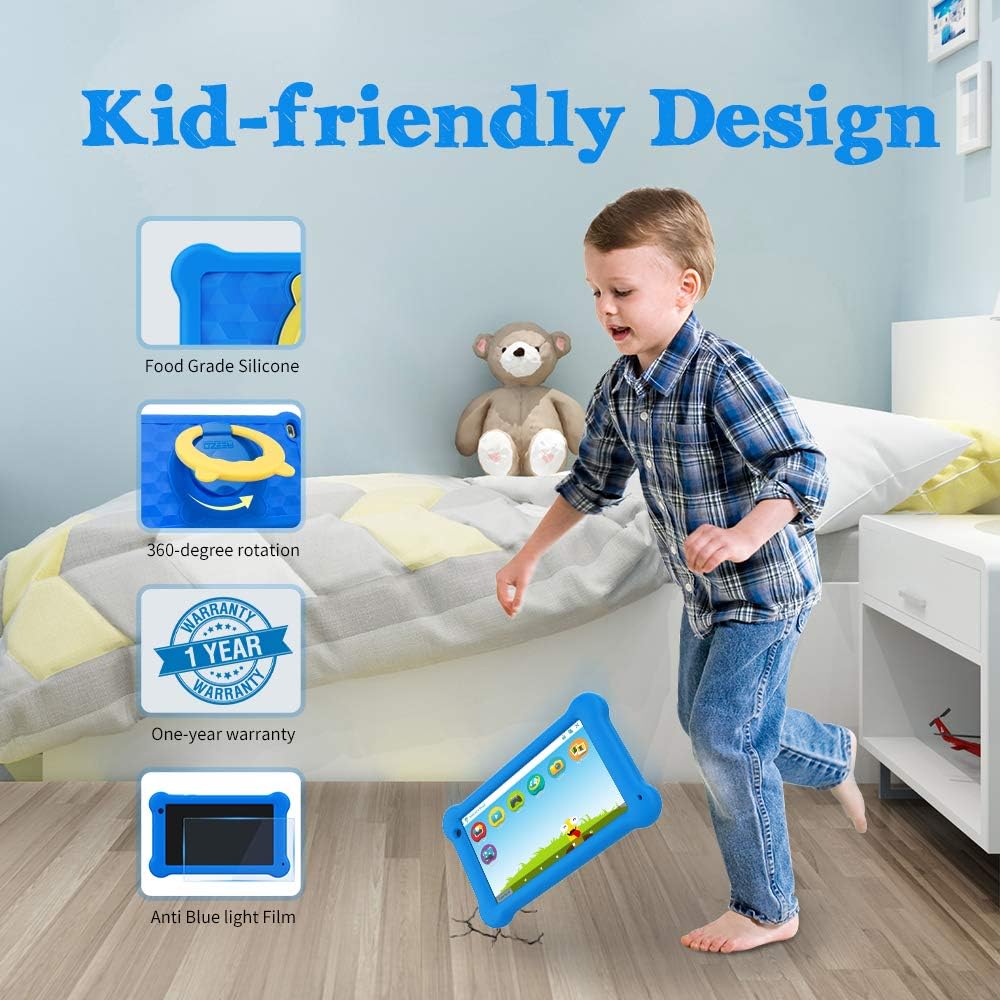
Descrizione dell'immagine: A young boy is shown playing with the AEEZO Kids Tablet, which is protected by a blue silicone case and features a yellow rotating stand. Insets highlight key features: Food Grade Silicone, 360-degree rotation, a "1 Year Warranty" badge, and "Anti Blue Light Film."
The AEEZO Kids Tablet TK701 comes with a Garanzia di 1 anno dalla data di acquisto. La presente garanzia copre i difetti di fabbricazione in condizioni di normale utilizzo. Si prega di conservare la prova d'acquisto per eventuali reclami in garanzia.
For technical support, warranty service, or any questions regarding your tablet, please contact AEEZO customer service through the retailer where you purchased the product or visit the official AEEZO websito per le informazioni di contatto.