
1. Introduzione
Thank you for choosing the BoxWave SlimKeys Bluetooth Keyboard. This portable, backlit keyboard is designed to enhance your typing experience across various devices, including tablets, smartphones, and computers. It connects wirelessly via Bluetooth 3.0, offering a stable and responsive connection. This manual provides essential information on setting up, operating, maintaining, and troubleshooting your keyboard.
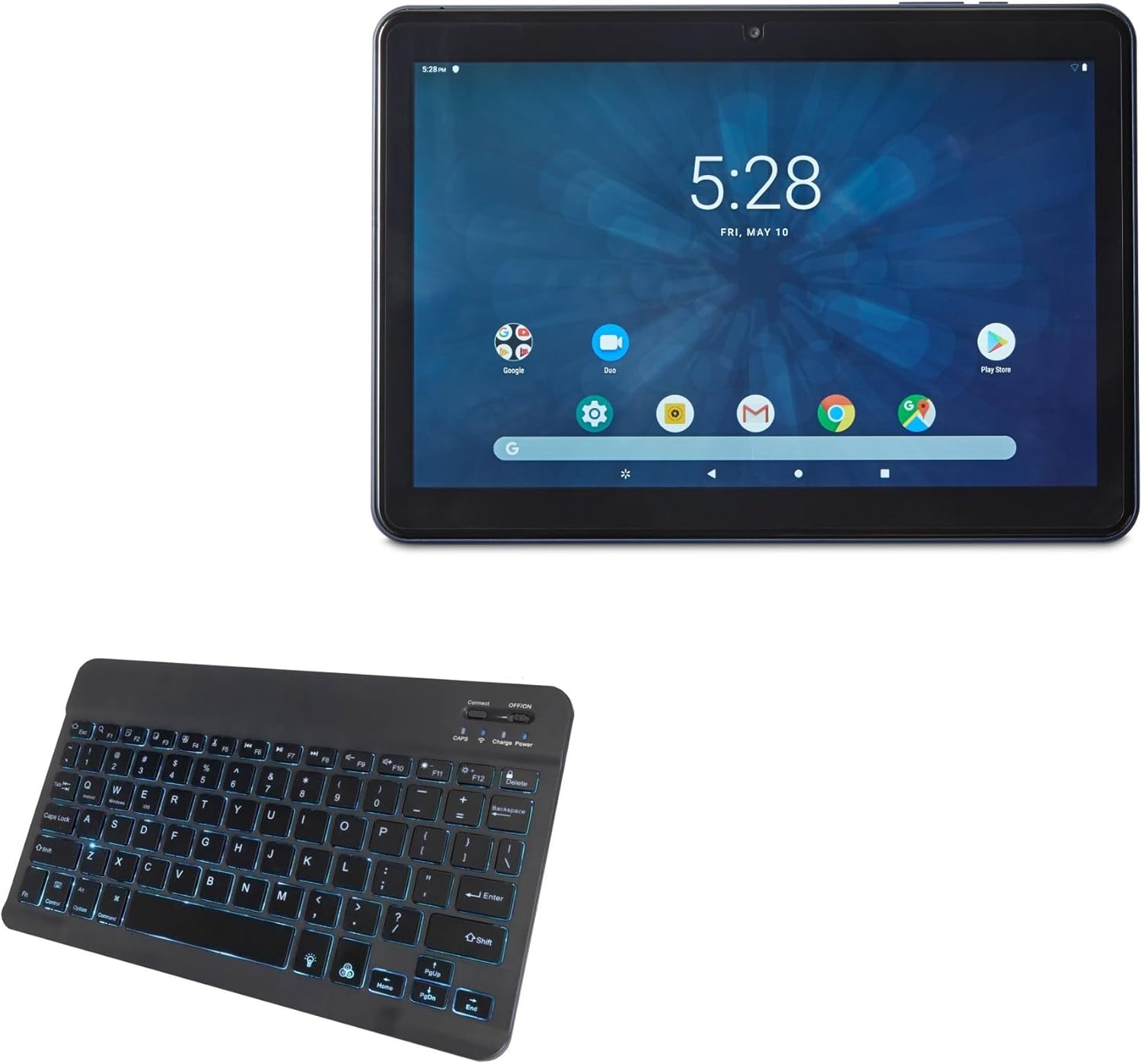
The image shows the BoxWave SlimKeys Bluetooth Keyboard alongside an ONN Tablet, illustrating the product's intended use.
2. Informazioni sulla sicurezza
- Tenere la tastiera lontana dall'acqua e da altri liquidi per evitare danni.
- Non esporre la tastiera a temperature estreme o alla luce solare diretta.
- Evitare di far cadere la tastiera o di sottoporla a forti urti.
- Non tentare di smontare o riparare la tastiera da soli. Rivolgersi a personale qualificato.
- Use only the provided charging cable or a compatible charger to prevent battery damage.
3. Contenuto della confezione
Si prega di controllare la confezione per verificare la presenza dei seguenti elementi:
- BoxWave SlimKeys Bluetooth Keyboard
- Cavo di ricarica USB
- Manuale dell'utente (questo documento)
4. Impostazione
4.1 Accensione/Spegnimento
Locate the dedicated ON/OFF switch on the keyboard. Slide the switch to the 'ON' position to power on the keyboard. Slide it to the 'OFF' position when not in use to conserve battery life.
4.2 Associazione Bluetooth
Follow these steps to pair your BoxWave SlimKeys Bluetooth Keyboard with your device:
- Assicurati che la tastiera sia accesa.
- Premi il pulsante "Connetti" sulla tastiera. La spia Bluetooth inizierà a lampeggiare, indicando che il dispositivo è in modalità di associazione.
- On your device (tablet, smartphone, or computer), go to the Bluetooth settings.
- Abilita il Bluetooth e cerca i dispositivi disponibili.
- Select 'BoxWave SlimKeys Keyboard' (or similar name) from the list of found devices.
- If prompted, enter the pairing code displayed on your device's screen using the keyboard, then press Enter.
- Once paired, the Bluetooth indicator light on the keyboard will stop flashing and remain solid or turn off, depending on the model.
The keyboard connects quickly and easily via Bluetooth 3.0 for a stable, responsive typing experience.
5. Istruzioni per l'uso
5.1 Digitazione generale
The BoxWave SlimKeys Bluetooth Keyboard features a standard QWERTY layout with chiclet-style keys for comfortable and quiet typing. Simply begin typing after successful pairing.
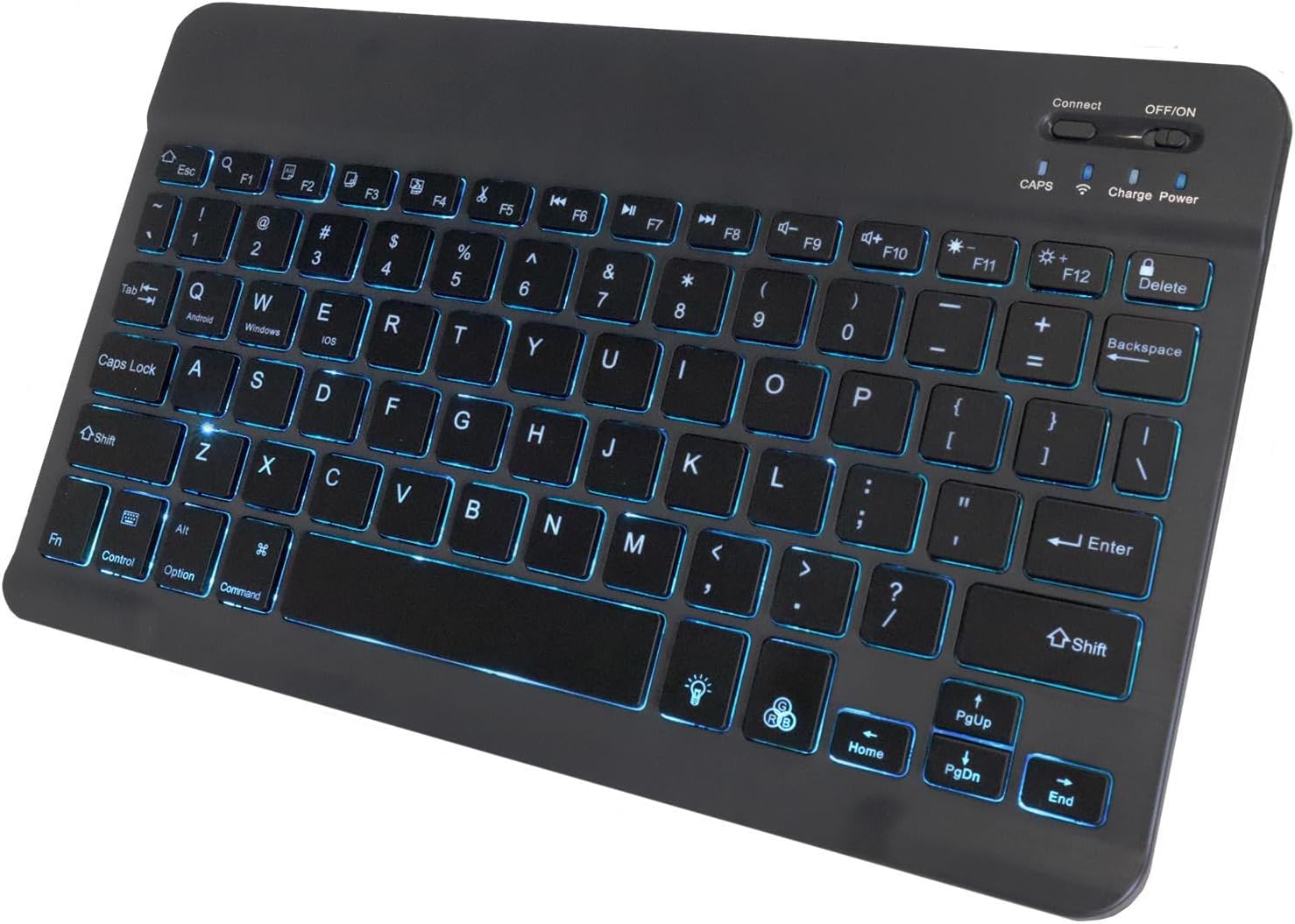
Un dettagliato view of the keyboard highlighting the illuminated keys with a blue backlight, showing the layout and function indicators.
5.2 Specialized Function Keys
The keyboard includes specialized function keys (F1-F12) that provide quick access to various commands. These functions may vary slightly depending on your operating system (Android, Windows, iOS).

This diagram illustrates the various specialized function keys available on the keyboard, including multimedia controls, volume adjustments, and brightness settings.
Le funzioni comuni includono:
- Home (Esc): Torna alla schermata principale.
- Search (F1): Apre la funzione di ricerca.
- Select All (F2): Selects all content.
- Copy (F3): Copies selected content.
- Paste (F4): Pastes copied content.
- Cut (F5): Cuts selected content.
- Skip Back (F6): Passa alla traccia precedente.
- Play/Pause (F7): Riproduce o mette in pausa i contenuti multimediali.
- Skip Forward (F8): Passa alla traccia successiva.
- Volume Down (F9): Diminuisce il volume.
- Volume Up (F10): Aumenta il volume.
- Brightness Down (F11): Diminuisce la luminosità dello schermo.
- Brightness Up (F12): Aumenta la luminosità dello schermo.
- Lock (Delete): Blocca lo schermo del dispositivo.
5.3 Compatibilità multipiattaforma
The SlimKeys Bluetooth Keyboard is compatible with Android, Windows, and iOS operating systems, allowing seamless switching between devices.
6. Personalizzazione della retroilluminazione
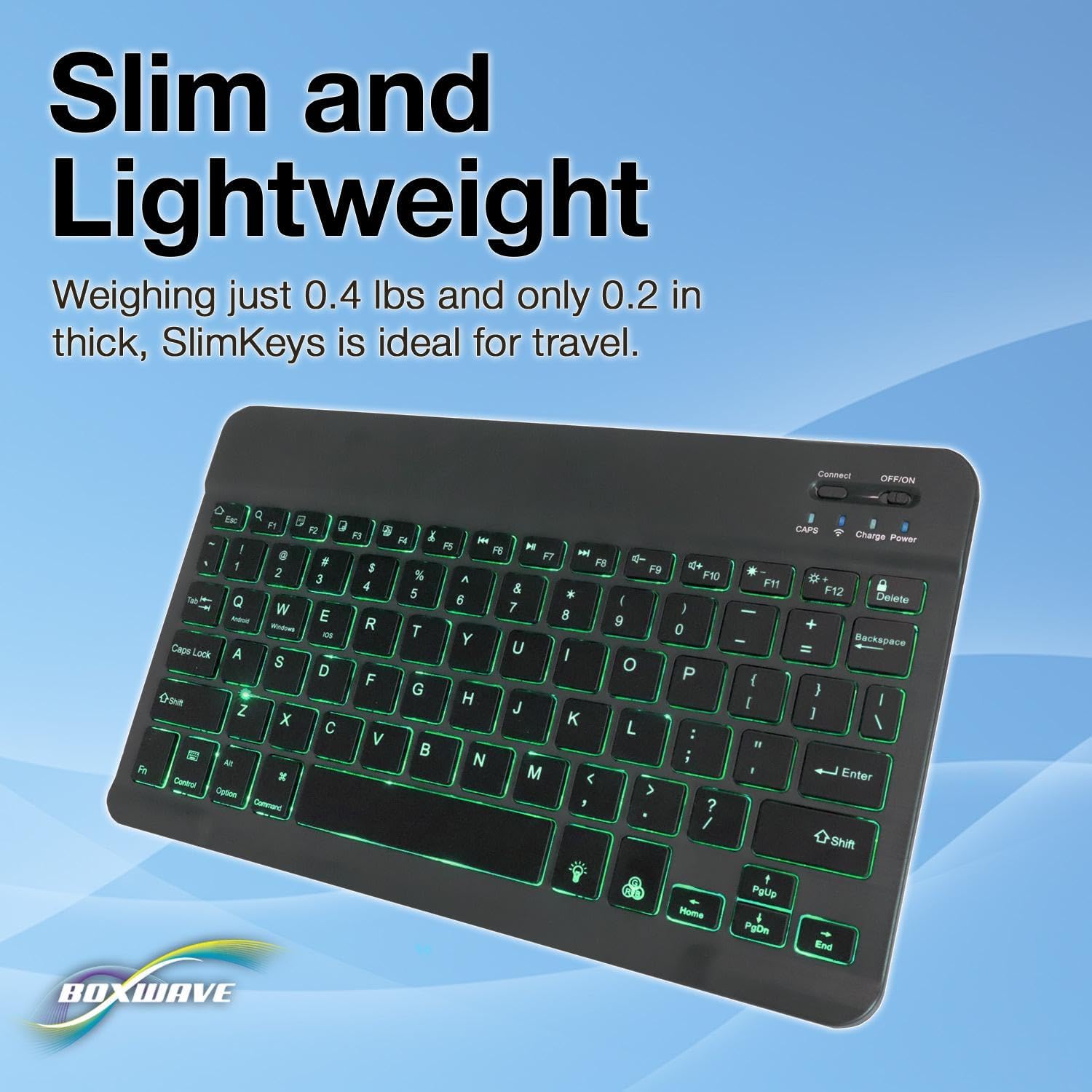
The keyboard features an integrated LED backlight with seven vibrant colors. You can customize the backlight to match your preference or environment.

Un'immagine mostrataasing the keyboard's ability to display seven distinct LED backlight colors, demonstrating the customization options.
Refer to the keyboard's function keys for backlight control, typically involving a dedicated backlight key or a combination with the 'Fn' key to cycle through colors and adjust brightness.
7. Ricarica e batteria
The BoxWave SlimKeys Bluetooth Keyboard is equipped with a long-lasting battery. When fully charged, it can provide up to 30 days of battery life during active use and up to 6 months on standby when powered off.

This image shows the keyboard connected to a charging cable, indicating the charging port location and how to recharge the device.
7.1 Ricarica della tastiera
To charge the keyboard, connect the included USB charging cable to the keyboard's charging port and the other end to a USB power source (e.g., computer USB port, USB wall adapter). The charging indicator light will illuminate during charging and turn off when fully charged.
8. Manutenzione
8.1 Pulizia
Per pulire la tastiera, strofinare delicatamente la superficie con un panno morbido e privo di lanugine. Per lo sporco ostinato, strofinare leggermenteampPulire il panno con acqua o una soluzione detergente delicata. Evitare l'uso di prodotti chimici aggressivi o materiali abrasivi.
8.2 Conservazione
When not in use for extended periods, power off the keyboard and store it in a cool, dry place away from direct sunlight and extreme temperatures. Its slim and portable design makes it easy to store and transport.
9. Risoluzione Dei Problemi
| Problema | Possibile causa | Soluzione |
|---|---|---|
| La tastiera non si accende. | La batteria è scarica. | Caricare la tastiera utilizzando il cavo USB in dotazione. |
| Impossibile associare la tastiera tramite Bluetooth. | Keyboard not in pairing mode; Bluetooth off on device; device already paired with too many devices. | Ensure keyboard is in pairing mode (flashing indicator). Turn on Bluetooth on your device. Forget previous Bluetooth connections on your device and try again. Restart both devices. |
| I tasti non rispondono. | Keyboard is not connected; low battery. | Controllare la connessione Bluetooth. Ricaricare la tastiera. |
| La retroilluminazione non funziona o è scarsa. | Backlight is turned off; low battery. | Press the backlight control key to turn it on or adjust brightness. Recharge the keyboard. |
10. Specifiche
The image provides a visual representation of the keyboard's compact size, with measurements for length, width, and height, emphasizing its slim and portable design.
- Marca: ScatolaWave
- Modello: SlimKeys Bluetooth Keyboard
- Colore: Nero pece
- Tecnologia di connettività: Bluetooth 3.0
- Dispositivi compatibili: Tablets, Smartphones, Computers (Android, Windows, iOS)
- Descrizione della tastiera: Senza fili
- Caratteristica speciale: Backlit (7 colors), Portable, Slim Design
- Numero di pulsanti: 78
- Dimensioni del prodotto (L x P x A): 9.6" x 5.97" x 0.2" (24.4 cm x 15.2 cm x 0.5 cm)
- Peso dell'articolo: 8.6 once (244 grammi)
- Dimensioni della confezione: 11.34 x 6.46 x 0.63 pollici (28.8 cm x 16.4 cm x 1.6 cm)
11. Garanzia e supporto
BoxWave Corporation stands by the quality of its products. For any technical assistance or inquiries regarding your BoxWave SlimKeys Bluetooth Keyboard, please contact BoxWave customer support.
Please note that this product includes limited 3rd party tech support for your device (up to 3 inquiries via messaging). This support is provided by BoxWave and is not affiliated with or endorsed by ONN.
For the most up-to-date warranty information and support options, please visit the official BoxWave websito o fare riferimento alla documentazione relativa all'acquisto.