
MageGee V620
Manuale utente della combinazione tastiera e mouse wireless MageGee V620
Modello: V620
Introduzione
Grazie per l'acquistoasing the MageGee V620 Wireless Keyboard and Mouse Combo. This manual provides detailed instructions on how to set up, operate, maintain, and troubleshoot your new wireless peripheral set. Please read this manual carefully before use to ensure optimal performance and longevity of your product.

Image: The MageGee V620 wireless keyboard and mouse combo, featuring a full-size keyboard with an integrated phone holder and a compact, ergonomic mouse. A smartphone is shown placed in the keyboard's holder.
Contenuto della confezione
- MageGee V620 Wireless Keyboard
- MageGee Wireless Mouse
- Ricevitore USB (conservato nel vano batteria del mouse)
- Manuale dell'utente (questo documento)
- AA Battery (for mouse, pre-installed or included)
Impostare
Follow these steps to set up your MageGee V620 Wireless Keyboard and Mouse Combo:
- Installa le batterie:
- Topo: Open the battery compartment cover on the bottom of the mouse. Insert the provided AA battery, ensuring correct polarity (+/-). Close the cover.
- Tastiera: The keyboard typically uses AAA batteries (not explicitly mentioned in JSON, but common for wireless keyboards). Open the battery compartment on the bottom of the keyboard and insert the required batteries (usually 2x AAA, not included based on JSON).
- Individuare il ricevitore USB: The USB receiver for both the keyboard and mouse is usually stored inside the mouse's battery compartment for safekeeping during transport. Carefully remove it.
- Collegare il ricevitore USB: Plug the USB receiver into an available USB port on your computer (desktop, laptop, PC).
- Accensione:
- Topo: Accendi l'interruttore di alimentazione situato nella parte inferiore del mouse.
- Tastiera: Ensure the keyboard is powered on (some keyboards have a power switch, others activate upon key press).
- Connessione automatica: The keyboard and mouse should automatically connect to your computer within a few seconds. No additional drivers are typically required for Windows, macOS, or Linux systems.

Image: Illustration demonstrating the 2.4GHz wireless connection of the MageGee V620 combo. A USB receiver is shown plugged into a laptop, wirelessly connecting to both the keyboard and mouse, indicating a range of 33 feet.
Istruzioni per l'uso
Caratteristiche della tastiera
- Layout a grandezza naturale: Include un tastierino numerico per un inserimento efficiente dei dati.
- Quiet Crater-Switch Keys: Designed for responsive and quiet typing, reducing noise during use.
- Supporto per telefono integrato: A convenient slot at the top of the keyboard allows you to prop up your smartphone or tablet for easy viewing.
- Tasti di scelta rapida multimediali: Access common functions quickly with dedicated media keys (e.g., volume control, play/pause).
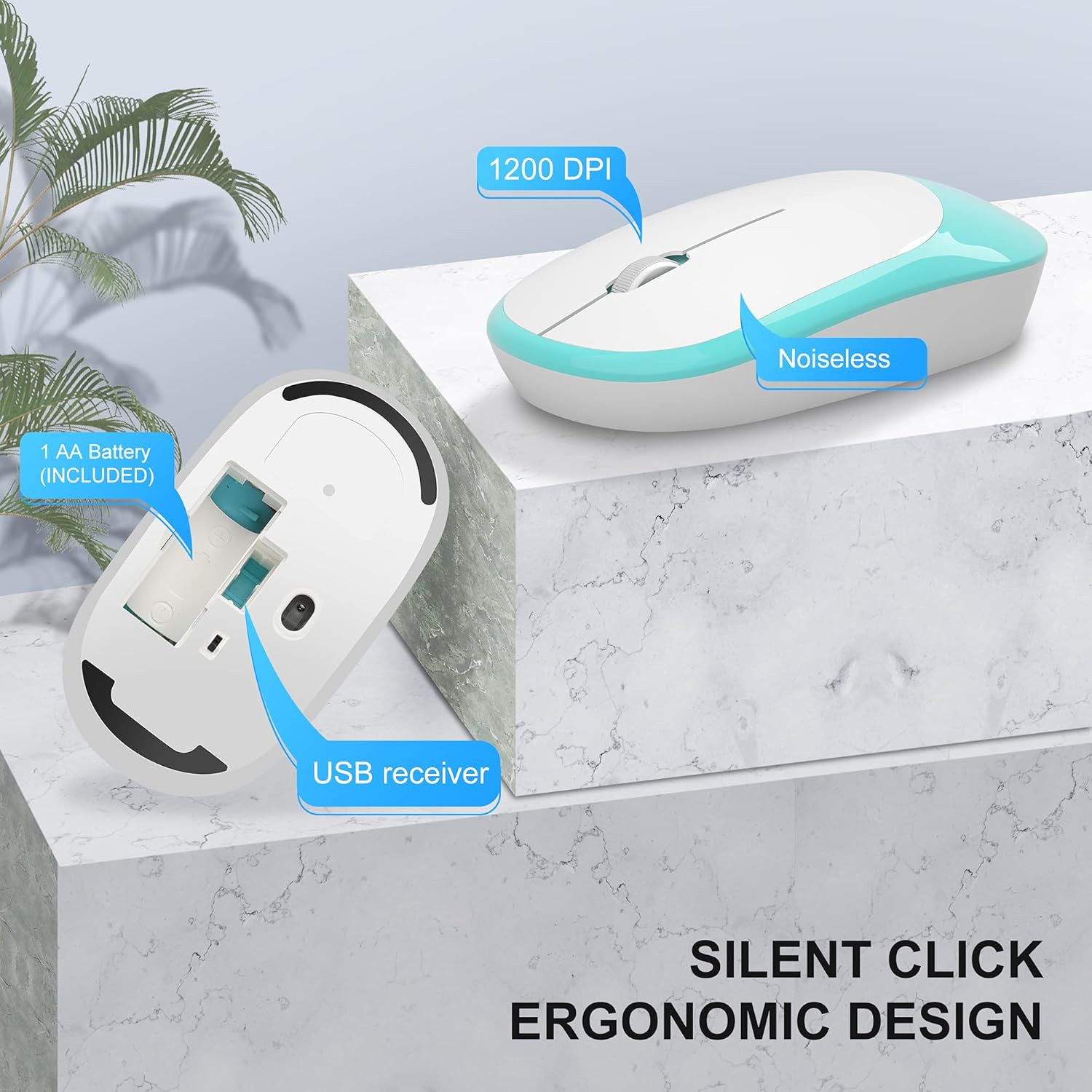
Image: The MageGee V620 wireless keyboard, with highlighted sections indicating the integrated phone holder and the location of 6 media shortcut keys.

Immagine: un primo piano view of the MageGee V620 keyboard keys, emphasizing the responsive and quiet crater-switch design. Icons below indicate anti-scratch, comfortable touch, soft click, and crater switch features.
Caratteristiche del mouse
- Design ergonomico: Shaped for comfortable use over extended periods.
- Clic silenzioso: Reduces click noise, ideal for quiet environments.
- 1200 DPI: Fornisce un controllo del cursore preciso e fluido.
- Memoria del ricevitore USB: The USB receiver can be conveniently stored inside the mouse when not in use, preventing loss.
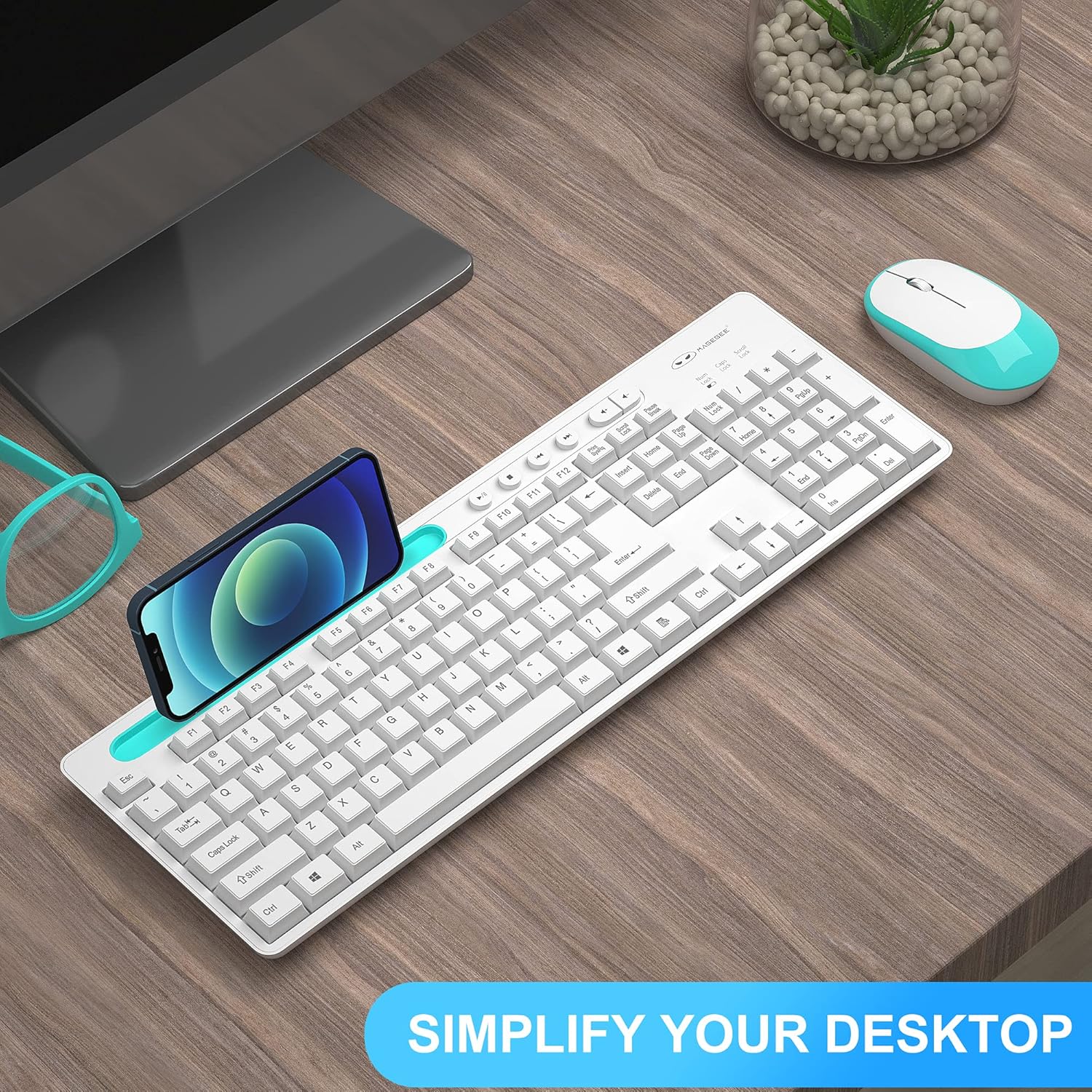
Immagine: Un dettaglio view of the MageGee V620 wireless mouse, pointing out its silent click feature, ergonomic design, 1200 DPI sensitivity, and the location of the AA battery compartment and USB receiver storage.
Manutenzione
- Pulizia: Utilizzare un panno morbido e asciutto per pulire la tastiera e il mouse. Per lo sporco ostinato, utilizzare un panno leggermenteamp È possibile utilizzare un panno imbevuto di sapone neutro, assicurandosi che non penetri liquido nel dispositivo. Non utilizzare prodotti chimici aggressivi o detergenti abrasivi.
- Sostituzione della batteria:
- When the keyboard or mouse becomes unresponsive or experiences lag, it may be time to replace the batteries.
- Refer to the "Setup" section for instructions on opening battery compartments and inserting new batteries.
- Smaltire le vecchie batterie in modo responsabile secondo le normative locali.
- Magazzinaggio: When not in use for extended periods, turn off the mouse to conserve battery life. Store the USB receiver inside the mouse's compartment to prevent loss.
Risoluzione dei problemi
If you encounter issues with your MageGee V620 combo, try the following solutions:
- No Connection / Unresponsive:
- Assicurarsi che il ricevitore USB sia collegato saldamente a una porta USB funzionante del computer.
- Controllare che il mouse e la tastiera siano accesi.
- Sostituisci le batterie sia della tastiera che del mouse.
- Prova a collegare il ricevitore USB a un'altra porta USB.
- Avvicinare la tastiera e il mouse al ricevitore USB per escludere problemi di portata.
- Riavvia il computer.
- Connessione lenta o intermittente:
- Ensure there are no large metal objects or other electronic devices (like Wi-Fi routers, other wireless devices) between the keyboard/mouse and the receiver that might cause interference.
- Try using a USB extension cable to position the receiver closer to the keyboard and mouse, away from potential interference sources.
- Controllare i livelli della batteria.
- Keys Not Working / Mouse Cursor Not Moving:
- Clean any debris from around the affected keys or the mouse sensor.
- Ensure the Num Lock or Caps Lock indicators are functioning correctly (for keyboard).
- Re-establish connection by unplugging and re-plugging the USB receiver.
Specifiche
| Caratteristica | Dettaglio |
|---|---|
| Marca | MageGee |
| Modello | V620 |
| Tecnologia di connettività | Wireless a 2.4 GHz (ricevitore USB) |
| Dispositivi compatibili | Gaming Console, Laptop, Personal Computer (Windows, PC) |
| Caratteristica speciale | Ergonomic Design, Quiet Keys, Phone Holder |
| DPI del mouse | 1200 DPI |
| Descrizione della tastiera | Dimensioni standard con tastierino numerico |
| Peso dell'articolo | 1.44 libbre (circa 0.65 kg) |
| Dimensioni del pacco | 17.48 x 8.62 x 1.5 pollici (circa 44.4 x 21.9 x 3.8 cm) |

Image: Technical drawing showing the dimensions of the MageGee V620 wireless keyboard: approximately 440mm (length), 145mm (width), and 27mm (height).

Image: Technical drawing showing the dimensions of the MageGee V620 wireless mouse: approximately 108mm (length), 60mm (width), and 26mm (height).
Garanzia e supporto
MageGee products are designed for reliability and performance. For warranty information or technical support, please refer to the contact details provided with your purchase or visit the official MageGee websito. Conservare la ricevuta d'acquisto come prova d'acquisto per eventuali reclami in garanzia.
For further assistance, you may contact MageGee customer service through their official channels. You can often find support information on the Negozio MageGee su Amazon.
Ask a question about this manual
Ask about setup, troubleshooting, compatibility, parts, safety, or missing instructions. Manuals+ will review the question and use this page’s manual context to help answer it.