
1. Introduzione
This manual provides comprehensive instructions for the installation, operation, maintenance, and troubleshooting of your XPG DDR4 D50 RGB Desktop Memory Kit. This high-performance memory kit is designed to enhance your system's speed and responsiveness, featuring customizable RGB lighting and support for advanced overclocking profiles.
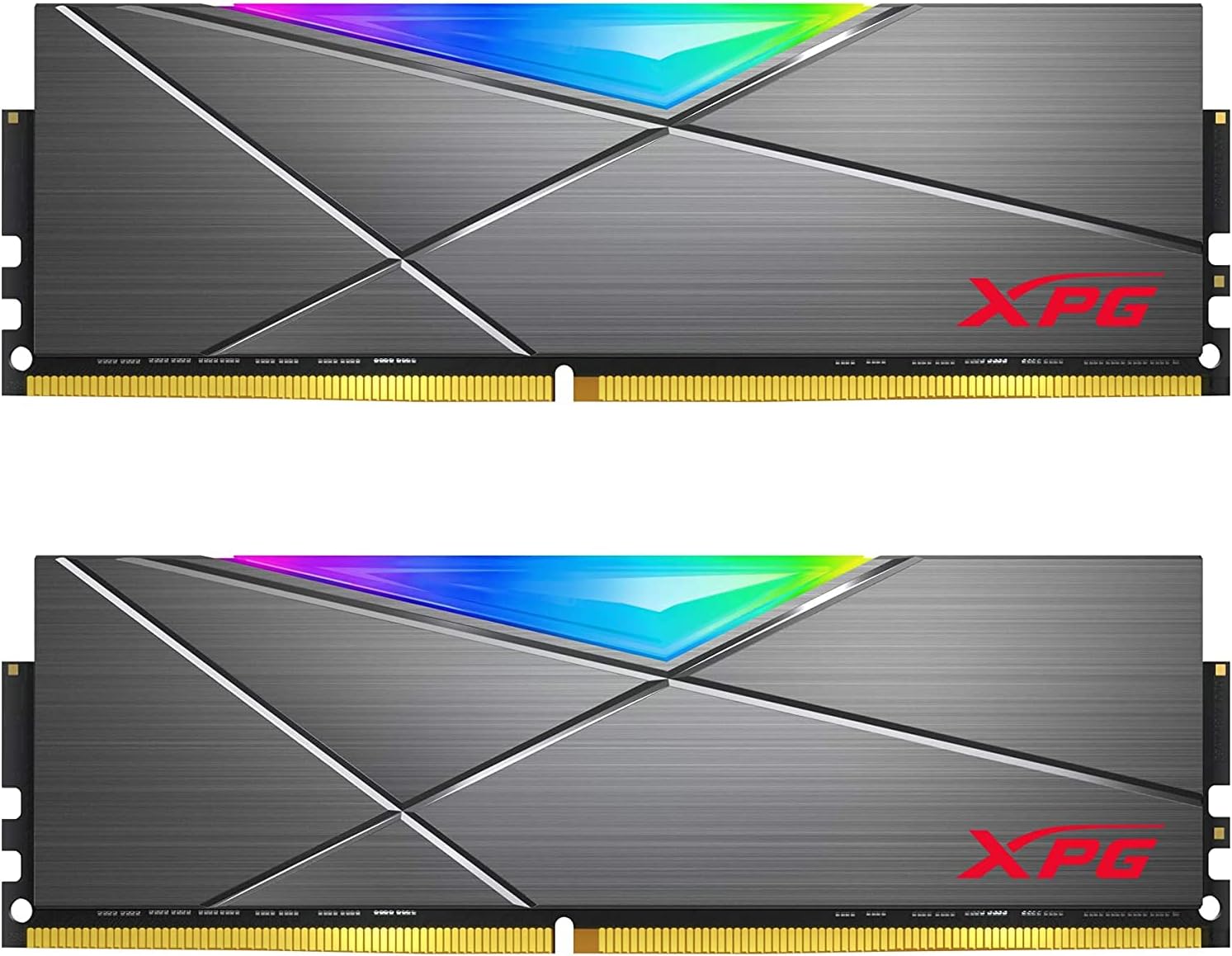
Figure 1.1: XPG DDR4 D50 RGB Memory Modules
The image displays two XPG DDR4 D50 RGB memory modules, showcasing their sleek grey heatsink design and the vibrant RGB light bar along the top edge.
2. Configurazione e installazione
Before installing the memory modules, ensure your computer is powered off and unplugged from the wall outlet. It is recommended to wear an anti-static wrist strap to prevent electrostatic discharge (ESD) damage to your components.
2.1 Compatibilità del sistema
This DDR4 288-Pins U-DIMM memory kit is compatible with most desktop PC motherboards. It specifically supports new Intel X299 platforms and AMD X570 chipsets. Always refer to your motherboard's manual for specific memory slot configurations and maximum supported memory capacity.
2.2 Installazione fisica
- Prepara il tuo sistema: Power down your computer and disconnect all cables. Open your computer case.
- Individuare gli slot di memoria: Identify the DDR4 memory slots on your motherboard. These are typically long slots with clips on either end.
- Clip aperte: Gently push the clips on both ends of the memory slot outwards to open them.
- Allinea modulo di memoria: Allineare la tacca sul bordo inferiore del modulo di memoria con la chiave nello slot di memoria. Assicurarsi che il modulo sia orientato correttamente.
- Inserisci modulo: Place the module into the slot and press down firmly on both ends simultaneously until the clips snap into place, securing the module.
- Ripetere per i moduli aggiuntivi: If installing multiple modules, repeat the process for the remaining slots, following your motherboard's dual-channel or quad-channel configuration guidelines.
- Chiudere la custodia e accendere: Chiudere il case del computer, ricollegare tutti i cavi e accendere il sistema.

Figure 2.1: XPG DDR4 D50 RGB Memory Kit
This image shows an angled perspective of two XPG DDR4 D50 RGB memory modules, highlighting their metallic heatsinks and the XPG branding.
3. Istruzioni per l'uso
3.1 Enabling XMP (Extreme Memory Profile)
To achieve the advertised speeds of your XPG DDR4 D50 RGB memory, you must enable the Extreme Memory Profile (XMP) in your system's BIOS. By default, newly installed RAM kits operate at JEDEC standard speeds, which are lower than the advertised XMP speeds.

Figure 3.1: Extreme Memory Profile (XMP)
This graphic emphasizes the "Extreme Memory Profile XMP" feature, showing multiple XPG RGB RAM sticks glowing with various colors installed in a motherboard.
Steps to Enable XMP in BIOS:
- Accedi al BIOS/UEFI: Restart your computer and repeatedly press the designated key (commonly Del, F2, F10, or F12) during startup to enter the BIOS or UEFI settings. The specific key varies by motherboard manufacturer.
- Locate OC Settings: Navigate to the "OC" (Overclocking) or "Advanced Memory Settings" section within the BIOS.
- Enable XMP Profile: Find the "Extreme Memory Profile (XMP)" option. It might be labeled as "A-XMP" for AMD systems or simply "XMP Profile". Select "Enabled" or choose the desired XMP profile (e.g., Profile 1 o Profile 2 if multiple are available).
- Salva ed esci: Save your changes and exit the BIOS. Your system will then reboot.
- Verify Speed: After rebooting, you can re-enter the BIOS or use system information software within your operating system to confirm that the memory is now running at the advertised XMP speed (e.g., 3600MHz or higher, depending on the profile).
Video 3.1: How to Set Up XMP Profile nel BIOS
This video from XPG (ADATA) provides a step-by-step guide on how to enable the XMP (Extreme Memory Profile) in your computer's BIOS to achieve optimal memory speeds. It demonstrates the process using an MSI motherboard, showing how to navigate to the OC settings, enable XMP, and verify the increased DDR speed after rebooting.
3.2 Personalizzazione dell'illuminazione RGB
The XPG D50 RGB memory features customizable RGB lighting effects. You can control these effects using the XPG RGB Sync App or compatible RGB software from major motherboard manufacturers (e.g., ASUS Aura Sync, MSI Mystic Light Sync, GIGABYTE RGB Fusion, ASRock Polychrome Sync).

Figura 3.2: Illuminazione RGB personalizzabile
A close-up shot of the XPG DDR4 D50 RGB memory modules, highlighting the bright and colorful illumination from the RGB light bar, showcasing gli effetti di luce personalizzabili.
4. Manutenzione
XPG DDR4 D50 RGB memory modules are designed for durability and require minimal maintenance.
- Gestione: Always handle memory modules by their edges to avoid touching the gold contacts or the integrated circuits.
- Pulizia: If necessary, gently clean the heatsinks with a soft, dry, lint-free cloth. Do not use liquid cleaners or abrasive materials.
- Ambiente: Ensure your computer case has adequate airflow to prevent excessive heat buildup, which can affect memory performance and longevity.

Figure 4.1: Solid Heatsink Construction
This image highlights the robust "Solid Heatsink Construction" of the XPG DDR4 D50 RGB memory module, designed for effective heat dissipation and enhanced durability.
5. Risoluzione Dei Problemi
If you encounter issues with your XPG DDR4 D50 RGB memory, refer to the following common troubleshooting steps:
- Il sistema non si avvia / Nessuna visualizzazione:
- Assicurarsi che i moduli di memoria siano completamente inseriti nei rispettivi slot. Reinserirli saldamente.
- Verify that the memory modules are installed in the correct slots according to your motherboard's manual for optimal configuration.
- Test modules individually if you have multiple, to identify a potentially faulty stick.
- Advertised RAM Speed Not Showing (e.g., 3600MHz):
- By default, newly installed RAM kits operate at JEDEC standard speeds. To run at the advertised speed, you must enable and change your XMP profile in BIOS. Refer to Section 3.1 for detailed instructions.
- Instabilità del sistema/arresti anomali:
- Ensure your motherboard BIOS is updated to the latest version, as this can improve memory compatibility and stability.
- If XMP is enabled, try disabling it to see if stability improves. If it does, your system might require manual tuning or a different XMP profile.
- Check for proper cooling within your PC case to prevent overheating of components.
6. Specifiche
Below are the key specifications for the XPG DDR4 D50 RGB 16GB (2x8GB) 3600MHz Memory Kit:
| Caratteristica | Specificazione |
|---|---|
| Capacità RAM | 16 GB (2x8 GB) |
| Tipo di RAM | DDR4 U-DIMM |
| Velocità di memoria | Frequenza di clock 3600 MHz (PC4-28800) |
| Latenza CAS | Codice articolo: CL18-22-22 |
| Voltage | 1.2 Volts (Standard) |
| Spilli | 288 pin |
| Colore | Grey Heatsink RGB |
| Dimensioni (LxWxH) | 5.25 x 1.57 x 0.31 pollici |
| Dispositivi compatibili | PC desktop |
7. Garanzia e supporto
7.1 Informazioni sulla garanzia
XPG provides a Garanzia a vita limitata for the DDR4 D50 RGB memory modules. This warranty covers defects in material and workmanship under normal use. Please retain your proof of purchase for warranty claims. For full warranty terms and conditions, please visit the official XPG websito.
7.2 Assistenza clienti
For technical assistance, troubleshooting beyond this manual, or warranty inquiries, please contact XPG customer support through their official website. You may find FAQs, drivers, and contact information on their support pages.