
Introduzione
This manual provides essential information for setting up, operating, maintaining, and troubleshooting your CyberpowerPC Gamer Xtreme Gaming PC. This system is designed for high-performance gaming and multitasking, featuring an AMD Ryzen 7 3700X processor, NVIDIA GeForce RTX 3060 graphics, 16GB DDR4 RAM, and a combination of SSD and HDD storage, running on Windows 10 Home 64-Bit.
1. Impostazione
1.1 Disimballaggio
Carefully remove the PC from its packaging. Ensure all accessories, including the power cable, keyboard, and mouse, are present. Retain the original packaging for future transport or service needs.

Figura 1: Fronte view of the CyberpowerPC Gamer Xtreme, highlighting its design and RGB lighting.
1.2 Collegamento delle periferiche
Collega il monitor, la tastiera, il mouse e le altre periferiche alle porte appropriate sul retro e sulla parte superiore del PC. Assicurati che tutti i collegamenti siano ben saldi.
- Monitorare: Connect your monitor to the graphics card's HDMI or DisplayPort output.
- Tastiera e mouse: Connect to any available USB ports (USB 2.0 or USB 3.0).
- Energia: Collegare il cavo di alimentazione all'alimentatore (PSU) del PC e quindi a una presa elettrica dotata di messa a terra.
- Rete: Per la connessione internet cablata, collegare un cavo Ethernet alla porta LAN. Per la connessione wireless, assicurarsi che l'antenna Wi-Fi (se inclusa) sia collegata.

Figura 2: Angolato view of the CyberpowerPC Gamer Xtreme, highlighting the front panel design and side ventilation.

Figura 3: in alto view of the PC, illustrating the accessible front I/O ports and top ventilation.
1.3 Accensione iniziale e configurazione di Windows
Press the power button located on the top panel of the PC. The system will boot up. Follow the on-screen instructions to complete the Windows 10 Home setup, including language selection, network connection, and user account creation.
2. Istruzioni per l'uso
2.1 Accensione/spegnimento
- Per accendere: Press the power button on the top panel.
- Spegnere: Fare clic sul pulsante Start in Windows, quindi selezionare Arresta il sistema > Arresta il sistema.
- Ricominciare: Fare clic sul pulsante Start, quindi selezionare Arresta > Riavvia.
- Per dormire: Fare clic sul pulsante Start, quindi selezionare Alimentazione > Sospensione.
2.2 Connessione a una rete
Your PC supports both wired (Ethernet) and wireless (Wi-Fi) network connections.
- Wired: Connect an Ethernet cable from your router/modem to the LAN port on the rear of the PC.
- Senza fili: In Windows, click the network icon in the taskbar, select your Wi-Fi network, enter the password, and click Connect.
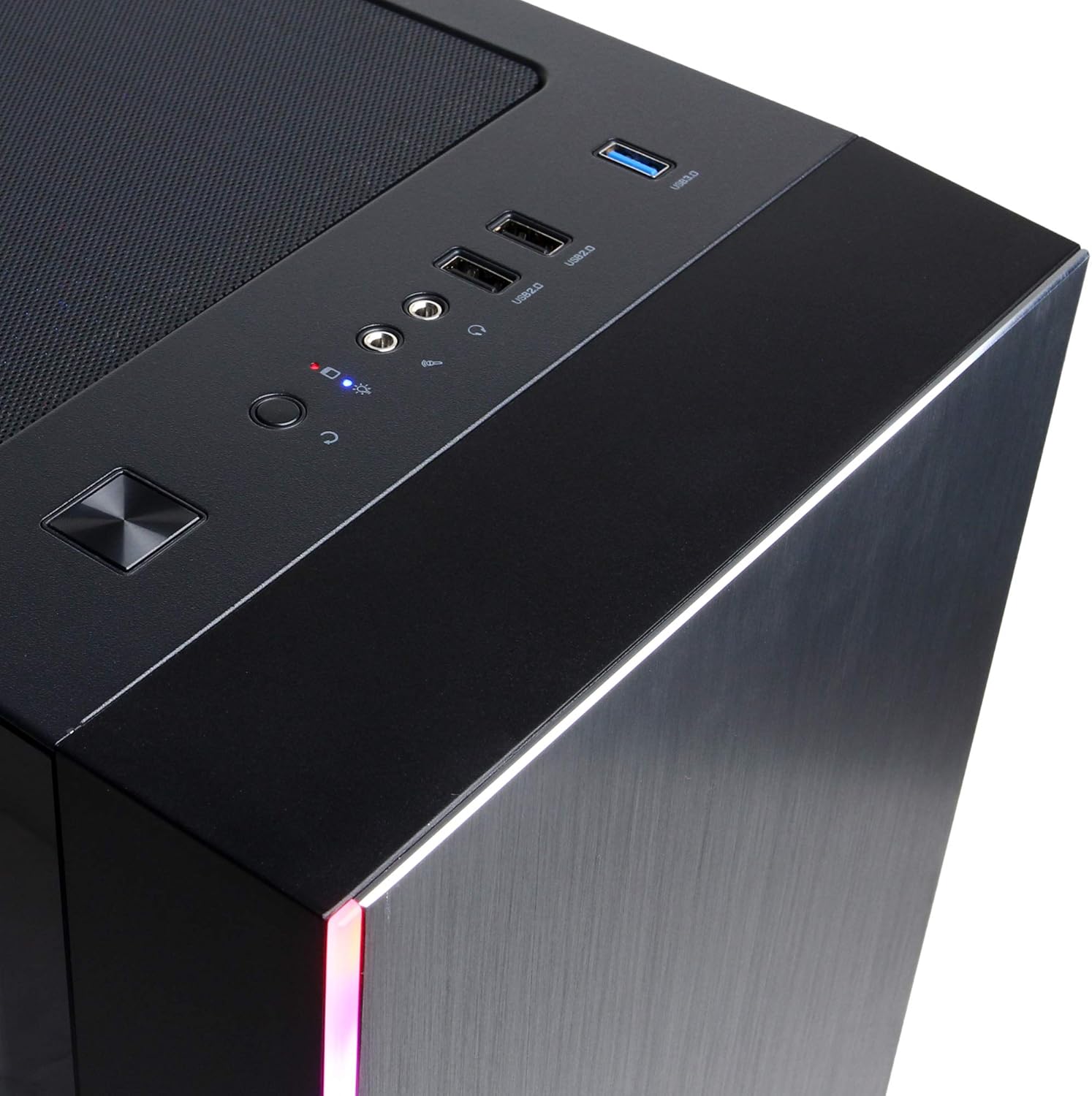
Figure 4: Detail of the top I/O panel, providing easy access to USB and audio connections.
3. Manutenzione
3.1 Pulizia
Una pulizia regolare aiuta a mantenere prestazioni ottimali e prolunga la durata del PC.
- Esterno: Utilizzare un morbido, damp panno per pulire l'esterno. Evitare prodotti chimici aggressivi.
- Polvere: Utilizzare periodicamente aria compressa per rimuovere la polvere dalle griglie di ventilazione e dai componenti interni. Assicurarsi che il PC sia spento e scollegato prima di pulirlo.
3.2 Aggiornamenti software
Keep your operating system, drivers, and applications updated to ensure security, stability, and performance.
- Aggiornamenti di Windows: Vai su Impostazioni > Aggiornamento e sicurezza > Windows Update.
- Driver grafici: Download the latest drivers directly from NVIDIA's official websito.
4. Risoluzione Dei Problemi
4.1 Nessun potere
- Assicurarsi che il cavo di alimentazione sia collegato saldamente sia al PC sia alla presa a muro.
- Verificare che la presa a muro funzioni collegandovi un altro dispositivo.
- Check the power switch on the PSU (if present) is in the 'On' position.
4.2 Nessuna visualizzazione
- Verificare che il monitor sia acceso e collegato all'uscita della scheda grafica e non alle porte grafiche integrate della scheda madre (se applicabile).
- Se disponibile, provare un cavo di visualizzazione o un monitor diverso.
- Assicurarsi che la sorgente di input del monitor sia selezionata correttamente.
4.3 Rallentamento o blocco del sistema
- Check Task Manager (Ctrl+Shift+Esc) for high CPU, RAM, or disk usage by specific applications.
- Assicurarsi che Windows e i driver siano aggiornati.
- Esegui una scansione antivirus e antimalware.
- Ensure adequate ventilation and check for excessive dust buildup.
5. Specifiche
| Caratteristica | Dettaglio |
|---|---|
| Marca | CyberpowerPC |
| Nome del modello | Gamer Xtreme |
| Sistema operativo | Windows 10 Casa |
| Modello CPU | Processore AMD Ryzen 7 3700X |
| Velocità della CPU | 3.6 GHz (base) |
| Coprocessore grafico | Scheda grafica NVIDIA GeForce RTX 3060 |
| RAM della scheda grafica | 12 GB GDDR6 |
| Memoria RAM installata | 16 GB DDR4 |
| Magazzinaggio | 240 GB SSD, 1 TB HDD |
| Connettività | HDMI, Wi-Fi (802.11ab), USB 2.0, USB 3.0 |
| Dimensioni articolo (LxPxA) | 18.6 x 17.4 x 8.9 pollici |
| Metodo di raffreddamento | Aria |
| Codice UPC | 811842073769 |
6. Informazioni sulla garanzia
Your CyberpowerPC Gamer Xtreme Gaming PC is covered by a manufacturer's limited warranty. Specific terms and conditions, including warranty duration and coverage details, are typically provided with your purchase documentation or can be found on the official CyberpowerPC websito. Conservare la prova d'acquisto per eventuali reclami in garanzia.
7. Supporto
For technical assistance, troubleshooting, or further inquiries, please visit the official CyberpowerPC support website or contact their customer service. You may need your product model number (GMA3088W) and serial number for support.
- Ufficiale Websito: www.cyberpowerpc.com
- Sezione di supporto: Look for a "Support" or "Contact Us" link on their websito.