
Introduzione
Thank you for choosing the seenda MMO Gaming Mouse Vanguard S. This high-performance gaming mouse is designed to enhance your gaming experience with its customizable features and ergonomic design. It offers a smooth and precise gaming experience with up to 10000 DPI, programmable macros, and interchangeable side plates to suit various gaming styles.
Please read this manual carefully to ensure proper setup, operation, and maintenance of your new gaming mouse.
Contenuto della confezione
- Mouse da gioco RGB x 1
- Side Plates Packet x 1 (includes various side plates)
- Manuale utente x 1
- Scatola di imballaggio x 1

Figure 1: Package Contents of the seenda Vanguard S Gaming Mouse.
Impostare
1. Collegamento del mouse
- Unpack the seenda MMO Gaming Mouse Vanguard S from its packaging.
- Connect the USB cable of the mouse to an available USB port on your computer.
- The mouse should be automatically recognized by your operating system (Windows 7, XP, Vista, or newer).
2. Installazione del software
To unlock the full customization potential of your Vanguard S mouse, including programmable macros, DPI settings, and RGB lighting, you need to install the official seenda software.
- Visit the official seenda website to download the latest software for the Vanguard S gaming mouse.
- Seguire le istruzioni sullo schermo per completare l'installazione.
- Una volta installato, avvia il software per configurare le impostazioni del mouse.
Istruzioni per l'uso
1. Funzioni di base del mouse
- Clic sinistro: Azione primaria.
- Clic destro: Menu contestuale/azione secondaria.
- Rotella di scorrimento: Scorri verso l'alto/verso il basso, fai clic con il tasto centrale.
- Pulsanti DPI +/-: Adjust DPI sensitivity on the fly.
2. Interchangeable Side Plates
The Vanguard S mouse comes with multiple interchangeable side plates, allowing you to customize the mouse's grip and button layout for different game types (MMO, MOBA, FPS) or personal preference. The side plates attach magnetically for easy swapping.
- Gently pull the currently attached side plate away from the mouse body to detach it.
- Select your desired side plate from the packet.
- Align the new side plate with the magnetic connectors on the mouse body and gently push until it snaps into place.

Figure 2: Swapping Interchangeable Side Plates.
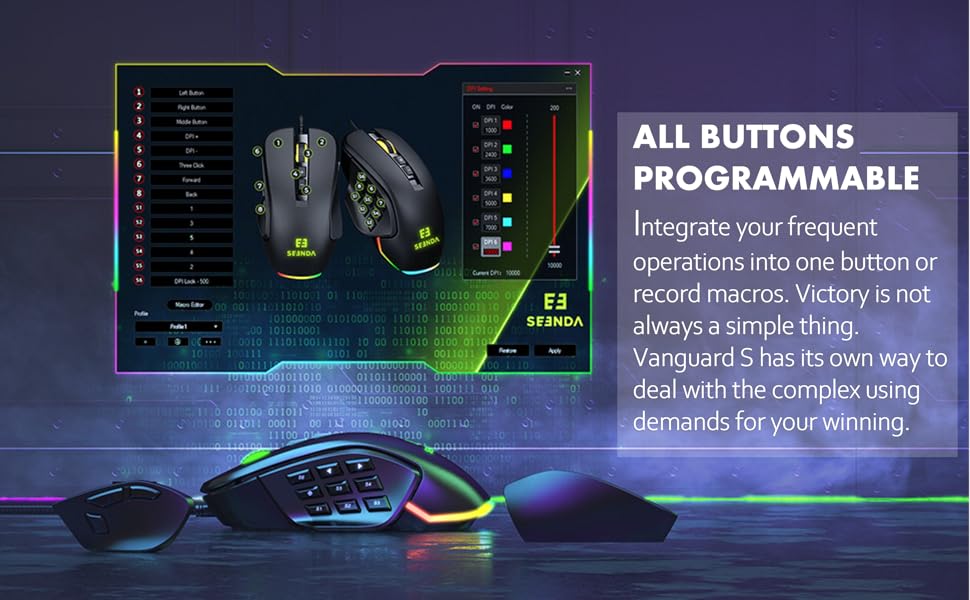
Figure 3: Different Side Plate Configurations.
3. Regolazione DPI
The mouse features a high-precision optical sensor with up to 10000 DPI. You can adjust the DPI sensitivity using the dedicated DPI +/- buttons located on the top of the mouse. Each DPI level can be associated with a specific RGB lighting color for quick visual identification.
- Premere il tasto DPI+ pulsante per aumentare la sensibilità.
- Premere il tasto DPI- pulsante per diminuire la sensibilità.
- Default DPI steps and their corresponding colors are typically: 1000 (Red), 2400 (Green), 3600 (Blue), 5000 (Yellow), 7000 (Cyan), 10000 (Pink). These can be customized via software.
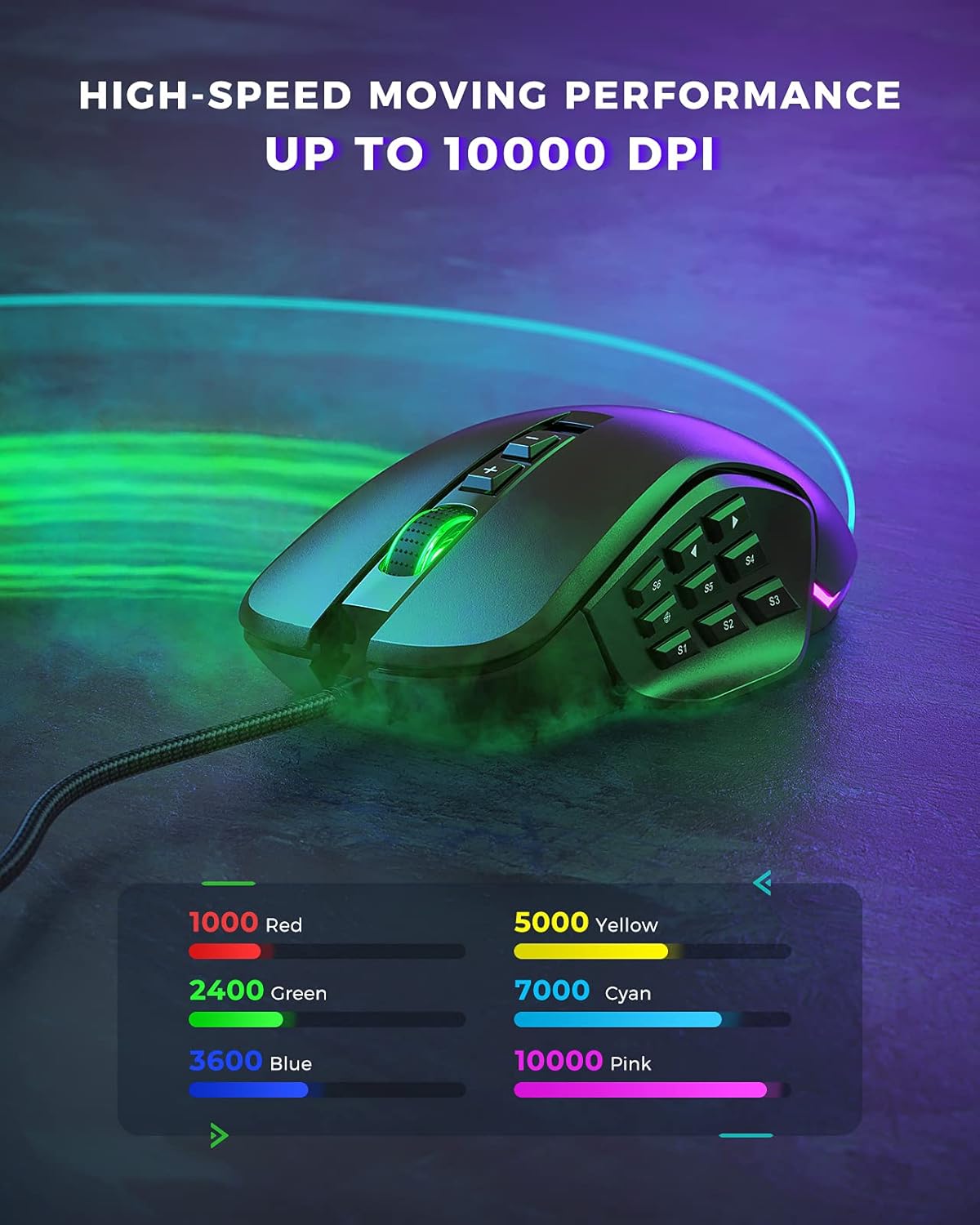
Figure 4: DPI Levels and Corresponding RGB Colors.
Personalizzazione
The seenda Vanguard S offers extensive customization options through its dedicated software. This allows you to tailor the mouse to your specific gaming and productivity needs.
1. Pulsanti e macro programmabili
The mouse features multiple programmable buttons, including side buttons, which can be assigned to various functions, key presses, or complex macros. This is particularly useful for MMO and MOBA games.
- Launch the seenda gaming software.
- Navigate to the "Button Settings" or "Macro Editor" section.
- Selezionare il pulsante che si desidera programmare.
- Choose from predefined functions, assign a single key, or record a macro sequence.
- Save your changes to the mouse profile.

Figure 5: Software Interface for Button Programming.
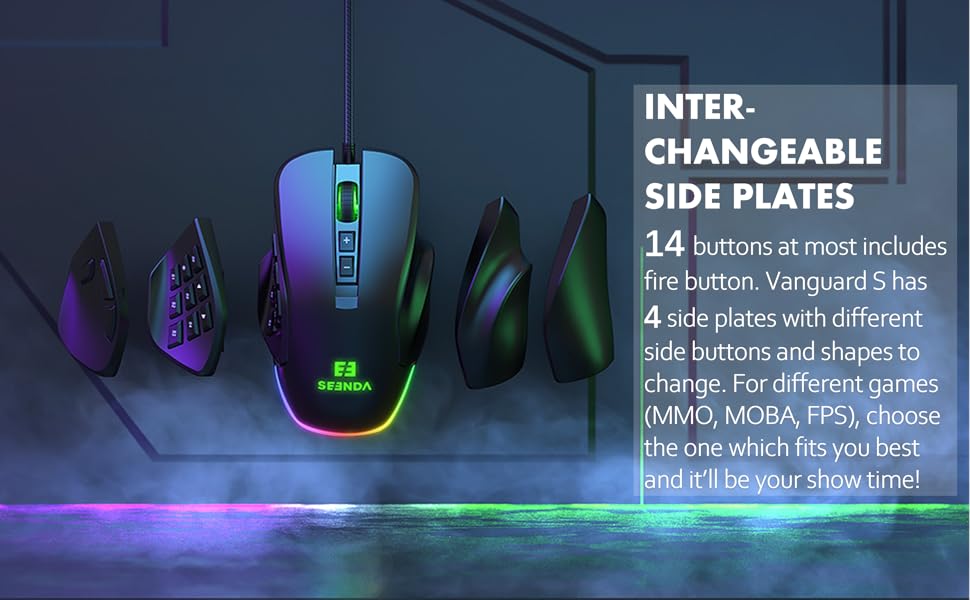
Figure 6: Macro and Button Assignment in Software.
2. Personalizzazione della retroilluminazione RGB
Personalize your gaming setup with customizable RGB backlighting. The software allows you to choose from various lighting effects, colors, and brightness levels for different DPI steps.
- In the seenda gaming software, navigate to the "RGB Settings" or "Lighting" section.
- Select your preferred lighting mode (e.g., Colorful Streaming, Steady, Breathing, Neon).
- Adjust colors for each DPI level or choose a dynamic effect.
- Apply the settings to your mouse.

Figure 7: RGB Lighting Customization Options.

Figure 8: Various RGB Backlight Styles.
Manutenzione
1. Pulizia del mouse
- Scollegare il mouse dal computer prima di pulirlo.
- Utilizzare un panno morbido e privo di lanugine leggermente dampPulire la superficie del mouse con acqua o una soluzione detergente delicata.
- Evitare l'uso di prodotti chimici aggressivi, detergenti abrasivi o solventi.
- Utilizzare una spazzola morbida o aria compressa per pulire la polvere e i detriti attorno ai pulsanti e alla rotellina di scorrimento.
- Assicurarsi che il mouse sia completamente asciutto prima di ricollegarlo al computer.
2. Assistenza generale
- Avoid dropping the mouse, especially when side plates are attached, as they may detach.
- Non esporre il mouse a temperature o umidità estreme.
- Tenere il mouse lontano dai liquidi.
Risoluzione dei problemi
| Problema | Possibile causa | Soluzione |
|---|---|---|
| Il mouse non risponde | Connessione USB allentata, porta USB difettosa, problema con il driver. |
|
| Buttons not working/incorrectly mapped | Software configuration error, software not installed. |
|
| DPI non cambia | Conflitto software, malfunzionamento dei pulsanti. |
|
| L'illuminazione RGB non funziona | Impostazione software, problema di alimentazione. |
|
Specifiche
| Caratteristica | Dettaglio |
|---|---|
| Numero di modello | YC-YJ101 |
| DPI | Fino a 10000 DPI |
| Pulsanti programmabili | Up to 5 programmable buttons (customizable via software) |
| Piastre laterali | Interchangeable (3 included) |
| Progetto | Ergonomic, Ambidextrous (with appropriate side plates) |
| Connettività | USB cablato |
| Rilevamento del movimento | Ottico |
| Sistema operativo compatibile | Windows 7, Windows XP, Windows Vista, and newer USB-compatible systems |
| Peso dell'articolo | 3.97 once |
| Dimensioni del pacco | 5.59 x 4.57 x 2.13 pollici |
Garanzia e supporto
Informazioni sulla garanzia
seenda products undergo rigorous testing. If you encounter any issues with your Vanguard S gaming mouse, please do not hesitate to contact seenda customer support. We are committed to ensuring a positive experience with our products.
Assistenza clienti
For technical assistance, troubleshooting, or warranty claims, please visit the official seenda website for contact information or support resources. You can also find the latest software and firmware updates there.