
Introduzione
This manual provides comprehensive instructions for the setup, operation, maintenance, and troubleshooting of your BESTEASY G42S Thermal Label Printer. Designed for high-speed, direct thermal printing, this printer is compatible with various operating systems and major e-commerce platforms and couriers, making it an ideal solution for small businesses requiring efficient label printing.

Image: The BESTEASY G42S Thermal Label Printer, a compact and efficient device for printing shipping labels.
Cosa c'è nella scatola
Dopo aver disimballato il prodotto, assicurarsi che siano presenti tutti i seguenti componenti:
- BESTEASY G42S Thermal Label Printer
- Adattatore di alimentazione
- Cavo USB
- USB Flash Drive (containing drivers and video manuals)
- Sample Etichette

Image: An 8GB USB flash drive, included with the printer, containing necessary drivers, how-to videos, and the user manual.
Guida all'installazione
- Collegare la stampante: Connect the power adapter to the printer and a power outlet. Connect the printer to your computer using the provided USB cable.
- Installa i driver: Insert the included USB flash drive into your computer. Locate and install the printer drivers compatible with your operating system (Windows or Mac). The USB drive also contains video manuals for a quick setup.
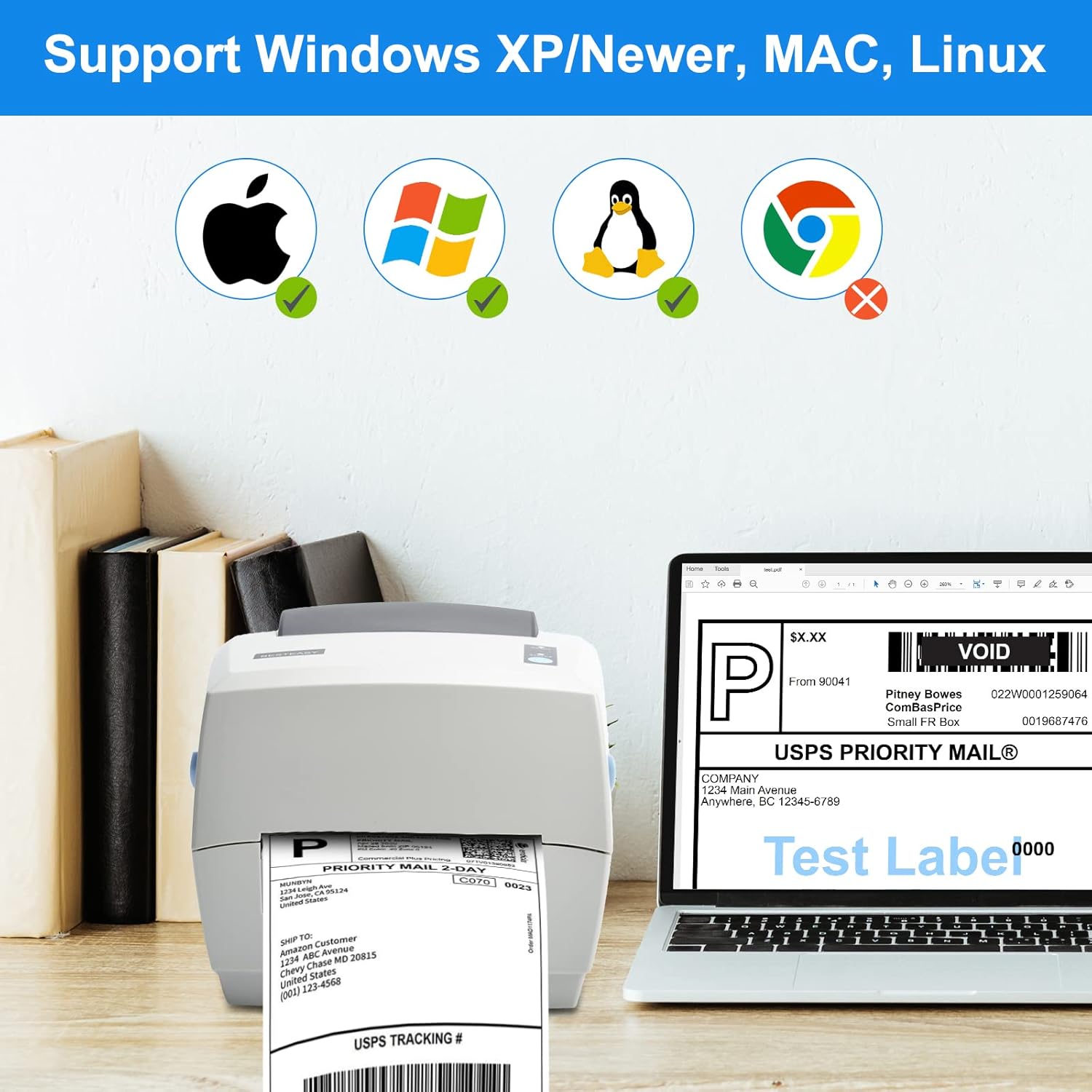
Image: Visual representation of the printer's compatibility with Windows, Mac, and Linux operating systems. Note: ChromeOS is not supported.
- Carica etichette:
- Press the button on the side of the printer to open the top cover.
- Insert your roll or fanfold labels into the label compartment. Ensure the labels are facing up and feed smoothly through the guides.
- Adjust the movable guides to fit the width of your labels snugly, without creasing loro.
- Chiudere saldamente il coperchio superiore.
- Calibrazione delle etichette: After loading labels, the printer may automatically calibrate. If not, press and hold the feed button until the printer feeds a few blank labels and stops, indicating successful calibration.
Istruzioni per l'uso
The BESTEASY G42S printer functions like a standard thermal printer, allowing you to print labels directly from various applications.
- Compatibilità: This printer is compatible with Windows, Mac, and Linux systems. It integrates seamlessly with major sales platforms such as Shopify, Etsy, PayPal, eBay, Amazon, Bigcommerce, and Poshmark. It also supports major couriers including USPS, UPS, FedEx, DHL, Shippo, and ShipStation.

Image: The BESTEASY G42S printer is a reliable work partner, compatible with major e-commerce platforms like Amazon, eBay, Shopify, Etsy, PayPal, and shipping carriers such as FedEx, UPS, and USPS.
- Stampa: Once drivers are installed and labels are loaded, you can print directly from your preferred shipping software or e-commerce platform. Select the BESTEASY G42S as your printer and ensure the label size matches your document settings.
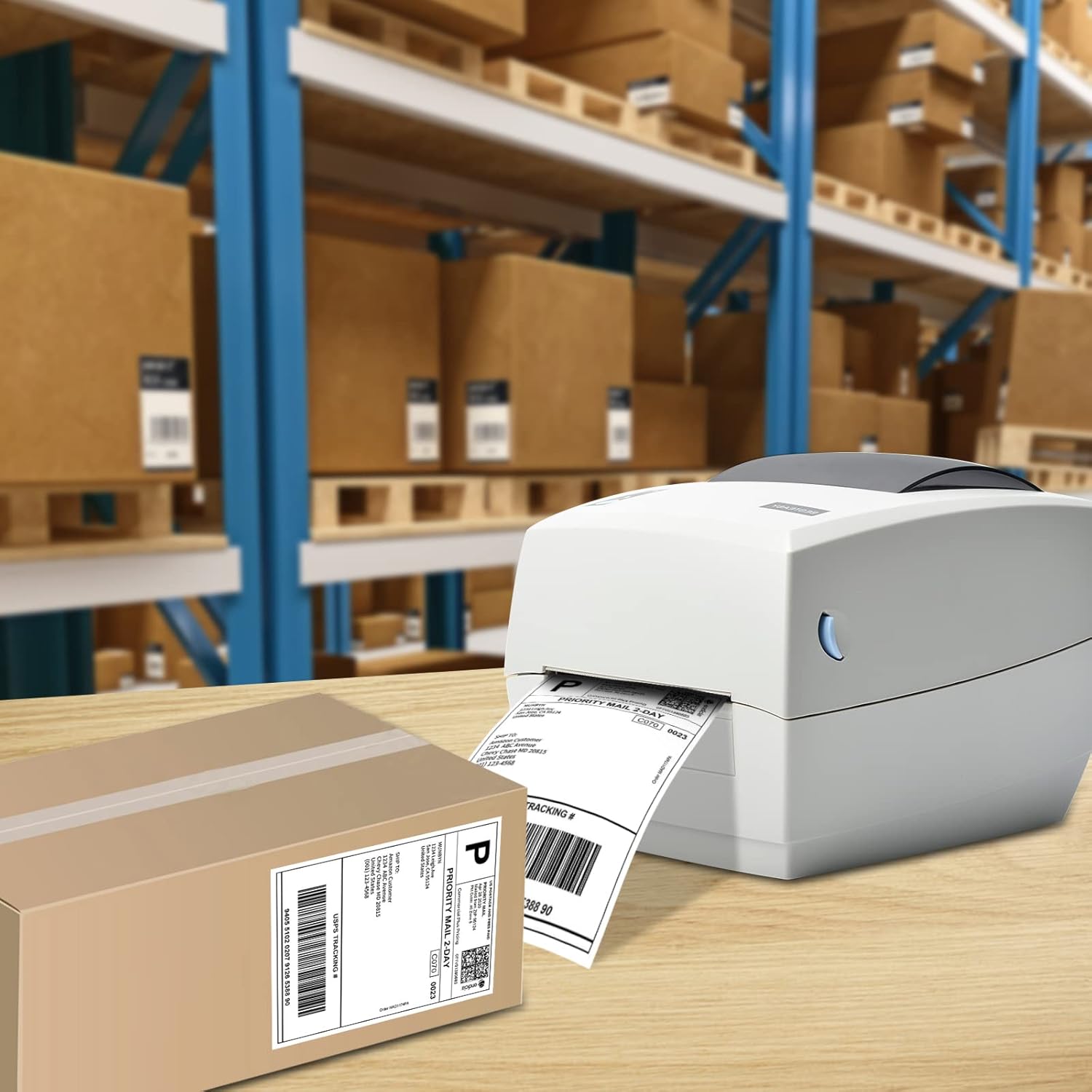
Image: The BESTEASY G42S printer actively printing a shipping label in a warehouse environment, demonstrating its use for commercial applications.
- Supported Label Sizes: The printer supports label widths from 1 to 4.6 inches and lengths from 1 to 11.81 inches. This includes common sizes like 2'' x 1'', 2'' x 2'', 3'' x 2'', 4'' x 4'', and 4'' x 6''. It is suitable for shipping labels, barcodes, QR codes, Amazon FBA labels, and bulk mailing labels.

Image: Illustration showing the BESTEASY G42S printer's ability to print various label sizes, including 4"x6", 4"x3", 4"x2", 3"x2", and 2"x1.25".
Specifiche
| Caratteristica | Dettaglio |
|---|---|
| Marca | MIGLIOREFACILE |
| Nome del modello | G42S |
| Tecnologia di stampa | Termico |
| Tecnologia di connettività | USB |
| Dimensione massima del supporto | 4 pollici x 6 pollici |
| Risoluzione massima di stampa in bianco e nero | 203 dpi |
| Peso dell'articolo | 5.39 libbre |
| Dimensioni del prodotto | 1.97 x 1.97 x 1.97 pollici |
| Dispositivi compatibili | PC (Windows, Mac, Linux) |
| Caratteristica speciale | Portatile |
Manutenzione
Regular maintenance ensures optimal performance and extends the lifespan of your thermal label printer.
- Pulizia della testina di stampa: Use an alcohol wipe or a specialized thermal print head cleaning pen to gently clean the print head. Do this periodically, especially if print quality degrades or lines appear on labels. Ensure the printer is off and cooled down before cleaning.
- Pulizia del rullo di stampa: Wipe the platen roller (the rubber roller that feeds the labels) with an alcohol wipe to remove any adhesive residue or dust.
- Rimozione della polvere: Keep the printer free from dust and debris. Use a soft, dry cloth to wipe the exterior. Avoid using abrasive cleaners.
- Conservazione delle etichette: Store thermal labels in a cool, dry place away from direct sunlight and heat to prevent premature discoloration or degradation of the thermal coating.
Risoluzione dei problemi
If you encounter issues with your BESTEASY G42S printer, refer to the common problems and solutions below. For further assistance, please contact customer support.
| Problema | Possibile causa/soluzione |
|---|---|
| Printer Not Responding / Not Printing |
|
| Blank Pages or Faint Prints |
|
| Labels Not Feeding Correctly / Jamming |
|
| Print Misalignment |
|
| Printer Shuts Down Randomly |
|
Garanzia e supporto
BESTEASY offers a lifetime customer support team dedicated to resolving any issues you may encounter with your thermal label printer. Support is available via phone call, email, and even remote desktop operation to provide prompt and professional assistance.
For support inquiries, please refer to the contact information provided with your product packaging or visit the official BESTEASY websito.