
Introduzione
This manual provides detailed instructions for the SSK Aluminum Dual Bay USB 3.0 to SATA Hard Drive Docking Station. This device allows for easy connection of 2.5-inch and 3.5-inch SATA HDDs and SSDs to your computer via USB 3.0, and features an offline cloning function for disk duplication without a computer connection.
Contenuto della confezione
- SSK Dual Bay Hard Drive Docking Station
- Cavo USB 3.0 da tipo B a tipo A
- Adattatore di alimentazione 12V/3A
- Manuale d'uso
Caratteristiche del prodotto
- Design a doppia baia: Supporta contemporaneamente due HDD/SSD SATA I/II/III da 2.5 pollici o 3.5 pollici.
- Supporto ad alta capacità: Each bay supports up to 20TB drives, for a total of 40TB.
- USB 3.0 with UASP: Provides fast data transfer speeds up to 5Gbps, enhanced by UASP for improved performance.
- Funzione di clonazione offline: Duplicate hard drives without connecting to a computer.
- Installazione senza attrezzi: Easy plug-and-play setup for hard drives.
- Ampia compatibilità: Compatibile con i sistemi operativi Windows, macOS e Linux.
- Costruzione durevole: Features an aluminum alloy shell for heat dissipation and durability.
- Operating Status Indicators: LED lights indicate power, activity, and cloning progress.

Immagine: Oltreview of the SSK Dual Bay Docking Station, highlighting its compatibility with various drive sizes and operating systems. A laptop screen shows a file transfer in progress, demonstrating its use as an external drive reader.

Immagine: dettagliata views of the SSK docking station's physical features, including its aluminum alloy casing, LED indicator, rear interface with USB 3.0 and power input, and the anti-skid footpad for stability.
Impostare
- Connetti alimentazione: Connect the provided 12V/3A power adapter to the DC-12V port on the back of the docking station and then plug it into a power outlet. The power LED will illuminate.
- Inserire i dischi rigidi: Gently insert your 2.5-inch or 3.5-inch SATA HDD/SSD into the drive slots (Slot A and Slot B) until they are securely seated. Ensure the SATA connectors align correctly.
- Connect to Computer (for Data Transfer): If you intend to use the docking station for data transfer, connect the USB 3.0 cable from the Micro USB 3.0 port on the docking station to an available USB 3.0 port on your computer.
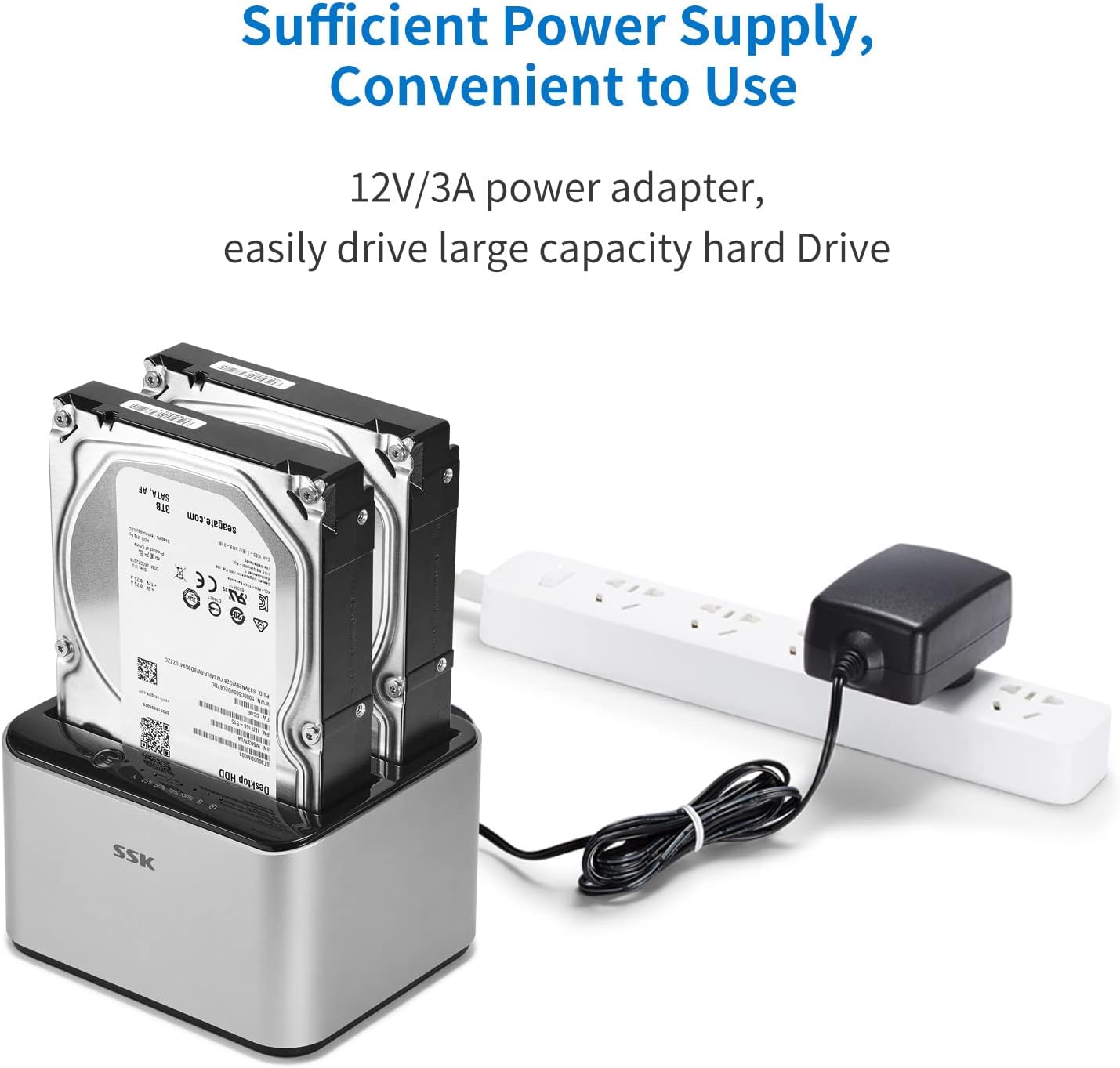
Image: The SSK docking station with two hard drives installed, demonstrating the connection of the 12V/3A power adapter to a power strip, ensuring sufficient power for large capacity drives.
Istruzioni per l'uso
A. Data Transfer Mode
- Assicurarsi che la docking station sia accesa e collegata al computer tramite il cavo USB 3.0.
- Insert the SATA HDD/SSD into the desired slot(s).
- Your computer's operating system should automatically detect the drives. You may need to initialize and format new drives via Disk Management (Windows) or Disk Utility (macOS) before use.
- Access the drives as external storage devices to transfer files.

Image: A visual representation of the speed advantage of USB 3.0 with UASP compared to traditional USB 3.0, illustrating faster data transfer rates for both reading and writing, with a hard drive docked in the station.
B. Offline Cloning Mode
The offline cloning function allows you to duplicate a source hard drive to a target hard drive without a computer connection. Warning: All data on the target disk will be erased during the cloning process. Ensure you have backed up any important data from the target disk before proceeding.
- Disconnetti dal computer: Ensure the USB cable is disconnected from the docking station and your computer. The docking station should only be connected to its power adapter.
- Insert Source Disk: Insert the Source Disk (the disk you want to copy FROM) into Slot A (Source).
- Insert Target Disk: Insert the Target Disk (the disk you want to copy TO) into Slot B (Target). The Target Disk must have a capacity equal to or greater than the Source Disk.
- Avviare la clonazione: Press and hold the 'Clone' button (usually located on the back or top panel) for approximately 3-5 seconds until the cloning progress LEDs begin to flash.
- Monitorare i progressi: The LED indicators (e.g., 25%, 50%, 75%, 100%) will illuminate sequentially to show the cloning progress. When all LEDs are solid, the cloning process is complete.
- Completamento: Once cloning is complete, power off the docking station and safely remove the drives.

Image: The SSK docking station in offline cloning mode, illustrating the placement of the Source Disk in Slot A and the Target Disk in Slot B. The progress LEDs on the right indicate the cloning status, from 25% to 100% completion.
Manutenzione
- Pulizia: Utilizzare un panno morbido e asciutto per pulire l'esterno della docking station. Non utilizzare detergenti liquidi o solventi.
- Magazzinaggio: Conservare la docking station in un luogo fresco e asciutto, lontano dalla luce solare diretta e da temperature estreme.
- Drive Handling: Always handle hard drives with care. Avoid dropping or subjecting them to physical shock.
- Rimozione sicura: When connected to a computer, always use the 'Safely Remove Hardware' option (Windows) or 'Eject' function (macOS) before disconnecting the USB cable or powering off the docking station to prevent data corruption.
Risoluzione dei problemi
- Unità non riconosciuta:
- Assicurarsi che l'adattatore di alimentazione sia collegato saldamente e che la docking station sia accesa.
- Verify the USB 3.0 cable is firmly connected to both the docking station and your computer.
- Check if the hard drive is properly seated in the slot.
- Per le nuove unità, assicurati che siano inizializzate e formattate nell'utilità di gestione del disco del tuo sistema operativo.
- Try connecting the docking station to a different USB port on your computer or a different computer.
- La clonazione non riesce o non si avvia:
- Assicurarsi che il cavo USB sia scollegato dal computer durante la clonazione offline.
- Verify the Source Disk is in Slot A and the Target Disk is in Slot B.
- Confirm the Target Disk's capacity is equal to or greater than the Source Disk's capacity.
- Ensure both drives are securely inserted.
- Try powering off and on the docking station before initiating cloning.
- Velocità di trasferimento dati lenta:
- Assicurati di essere collegato a una porta USB 3.0 del tuo computer. Le porte USB 2.0 funzioneranno a velocità inferiori.
- Verifica che il tuo sistema operativo e i tuoi driver supportino UASP.
- La velocità del disco rigido stesso può essere un fattore limitante.
Specifiche
| Marca | SSK |
| Modello | B098CWGYSR |
| Interfaccia Hardware | USB, USB 3.0 |
| Tipi di unità compatibili | HDD/SSD SATA I/II/III da 2.5 pollici e 3.5 pollici |
| Supported Drive Quantity | 2 |
| Capacità massima per vano | 20 TB |
| Velocità di trasferimento dati | Fino a 5 Gbps (USB 3.0) |
| Piattaforma hardware | Windows, macOS, Linux |
| Materiale | Alluminio |
| Peso dell'articolo | 0.47 chilogrammi |
| Alimentazione elettrica | Adattatore di alimentazione 12V/3A |
Informazioni sulla sicurezza
- Non esporre il dispositivo ad acqua, umidità o temperature estreme.
- Evitare di far cadere o di sottoporre il dispositivo a urti violenti.
- Non tentare di smontare o modificare il dispositivo. Ciò invaliderà la garanzia.
- Utilizzare solo l'adattatore di alimentazione fornito. L'utilizzo di un adattatore non corretto potrebbe danneggiare il dispositivo.
- Ensure proper ventilation around the docking station during operation.
Garanzia e supporto
SSK products are designed for reliability and performance. For warranty information or technical support, please refer to the warranty card included with your product or visit the official SSK website. If you encounter any issues not covered in this manual, please contact SSK customer service for assistance.