
Codice articolo: 920-010389
Manuale utente di Logitech MX Keys Mini per Mac
Modello: 920-010389
Marca: Logitech
Introduzione
The Logitech MX Keys Mini for Mac is a minimalist wireless keyboard optimized for macOS, iPadOS, and iOS. It is designed to provide a comfortable and precise typing experience, featuring backlit keys, USB-C charging, and multi-device connectivity. This manual will guide you through the setup, operation, and maintenance of your MX Keys Mini for Mac.

Image: The Logitech MX Keys Mini for Mac keyboard, showcasing its compact design and pale grey finish.
Cosa c'è nella scatola
- Tastiera Logitech MX Keys Mini per Mac
- USB-C Charging Cable (USB-C to USB-C)
- Documentazione utente

Image: The keyboard, its USB-C charging cable, and packaging, illustrating the items included in the product box.
Impostare
1. Ricarica iniziale
Before first use, it is recommended to fully charge your MX Keys Mini for Mac. Connect the provided USB-C charging cable to the keyboard's USB-C port and the other end to a power source (e.g., computer USB port or USB wall adapter).
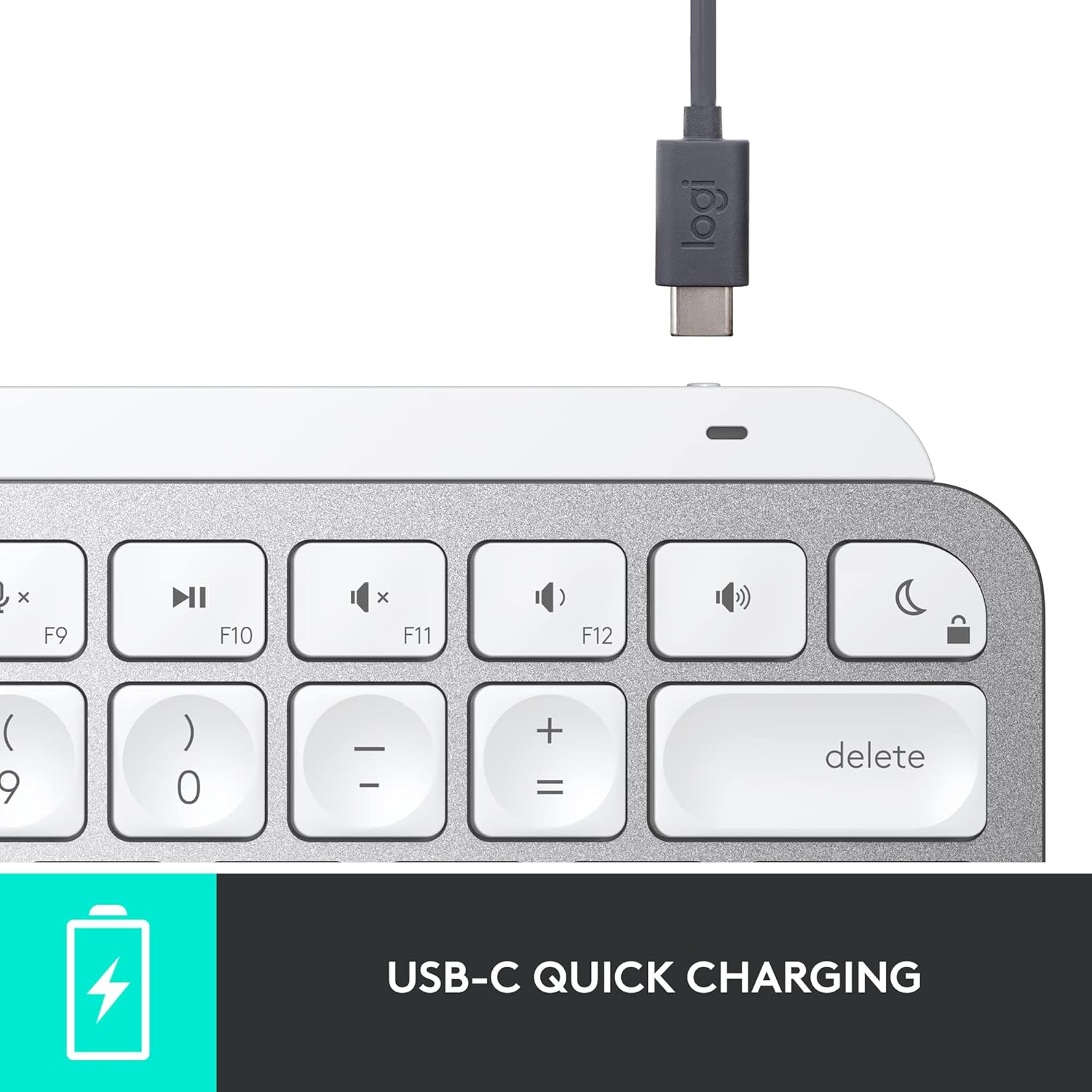
Immagine: un primo piano view of the USB-C charging port on the keyboard, with the charging cable connected.
2. Associazione con il tuo dispositivo
The MX Keys Mini for Mac connects via Bluetooth Low Energy. It can be paired with up to three Apple devices (macOS, iOS, iPadOS).
- Turn on the keyboard using the power switch located on the right side.
- Press and hold one of the Easy-Switch keys (F1, F2, or F3) for three seconds until the LED indicator above the key starts blinking rapidly. This indicates the keyboard is in pairing mode.
- On your Mac, iPad, or iPhone, go to Impostazioni di sistema (O Preferenze di sistema) > Bluetooth.
- Select 'MX Keys Mini for Mac' from the list of available devices and follow the on-screen prompts to complete the pairing.
- Once paired, the LED indicator will glow solid for 5 seconds and then turn off.
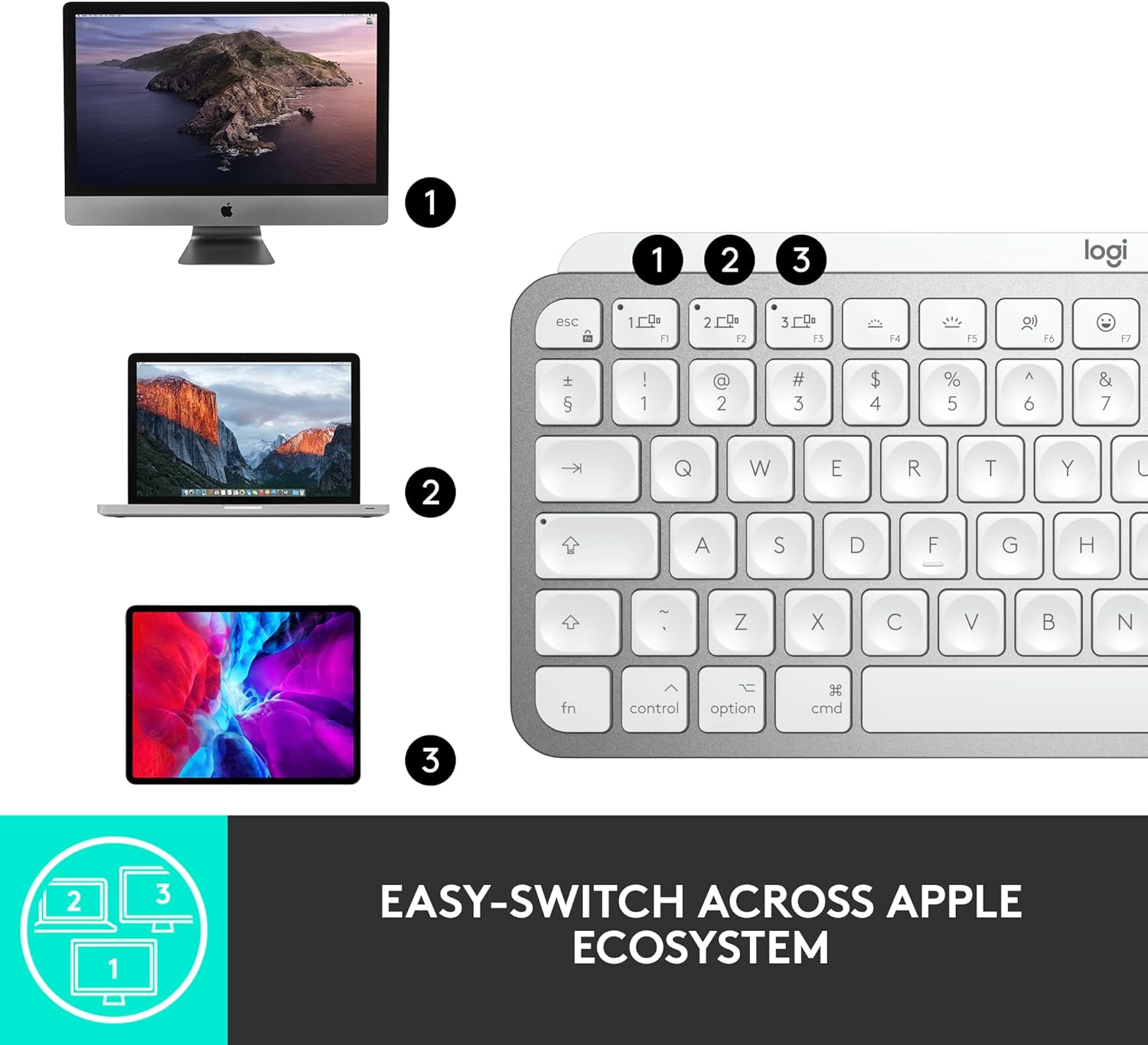
Image: The keyboard shown with an iMac, MacBook, and iPad, demonstrating its multi-device connectivity.
3. Installing Logitech Options Software (Optional but Recommended)
For full customization of Smart Keys and other advanced features, download and install the Logitech Options software from the official Logitech website. This software is available for macOS.
Utilizzo della tastiera
Perfect Stroke Keys
The MX Keys Mini for Mac features spherically-dished keys designed to match the shape of your fingertips, providing a fluid, efficient, and responsive typing experience.

Immagine: Un dettaglio view of the keyboard's keys, highlighting their unique concave design for comfortable typing.
Chiavi intelligenti
The keyboard includes dedicated Smart Keys to enhance your workflow:
- Dictation Key: Press to activate talk-to-text functionality.
- Emoji Key: Instantly opens your emoji window.
- Mic Mute/Unmute Key: For seamless control during video calls.
Smart Illumination (Backlighting)
The keys light up the moment your hands approach and automatically adjust to suit changing lighting conditions, conserving battery life. You can manually adjust backlight brightness using the dedicated keys (F5 and F6).
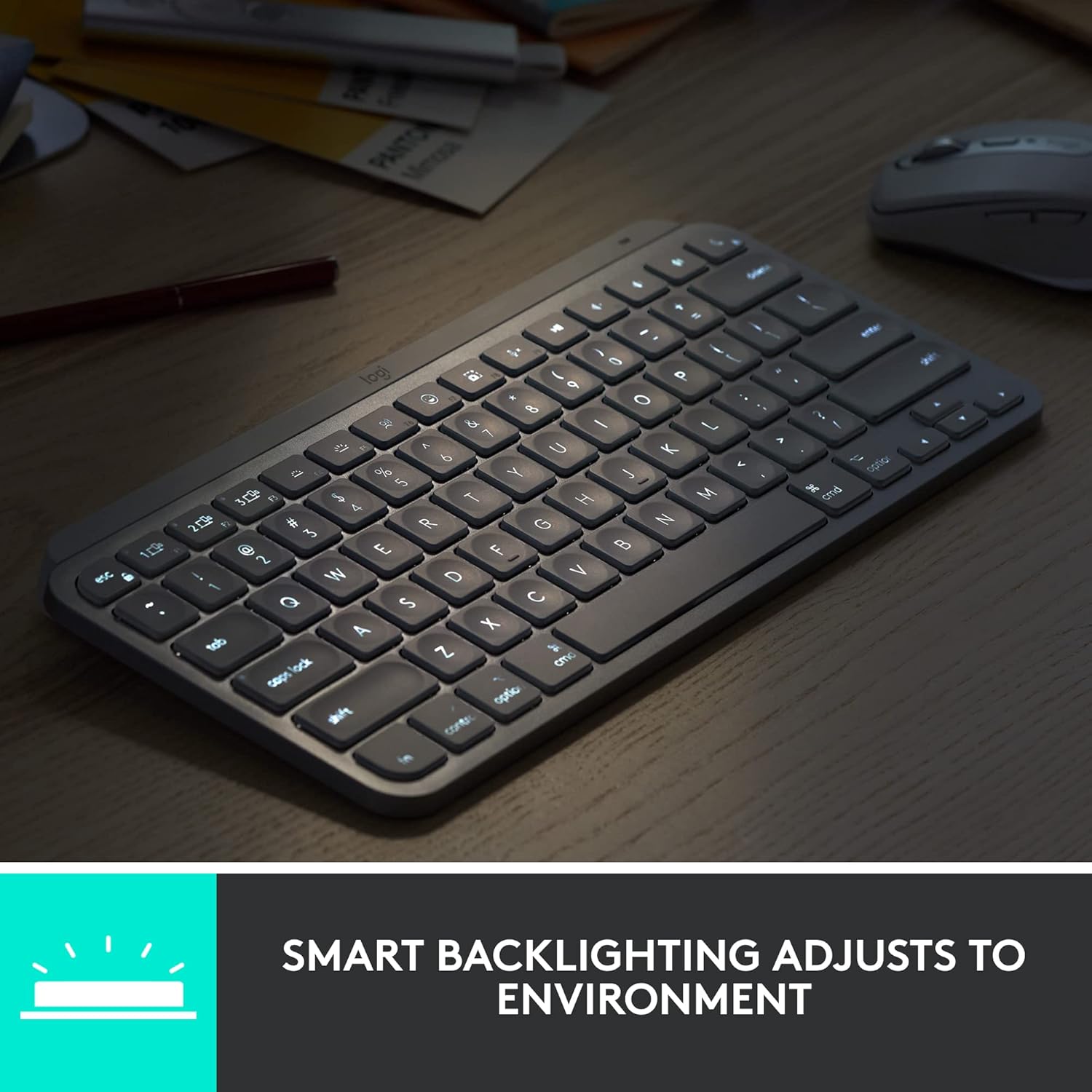
Image: The keyboard with its smart backlighting illuminated, demonstrating its visibility in low-light conditions.
Commutazione multi-dispositivo
Easily switch between up to three paired devices by pressing the F1, F2, or F3 Easy-Switch keys. The keyboard will instantly connect to the selected device.
Compatibilità con Logitech Flow
When paired with a Flow-enabled Logitech mouse (e.g., MX Master 3 for Mac or MX Anywhere 3 for Mac), you can type on multiple devices in one fluid workflow. This allows you to transfer files, documents, and images across Apple devices by simply moving your cursor from one screen to another.

Image: A user at a desk with the keyboard and mouse, illustrating a seamless multi-device creative workflow.
Manutenzione
Pulizia
Per pulire la tastiera, utilizzare un panno morbido e privo di lanugine. Per lo sporco ostinato, utilizzare un panno leggermenteampLavare il panno con acqua o con un detergente delicato e non abrasivo. Evitare l'eccessiva umidità e sostanze chimiche aggressive.
Cura della batteria
The MX Keys Mini for Mac is equipped with a LiPo rechargeable battery. Battery life can last up to 10 days on a full charge with backlighting enabled, or up to 5 months with backlighting turned off. To prolong battery life, avoid extreme temperatures and store the keyboard in a cool, dry place when not in use for extended periods.
Risoluzione dei problemi
La tastiera non si connette tramite Bluetooth
- Assicurarsi che la tastiera sia accesa e completamente carica.
- Verifica che il Bluetooth sia abilitato sul tuo dispositivo.
- Try re-pairing the keyboard by holding an Easy-Switch key until it blinks, then re-selecting it in your device's Bluetooth settings.
- Move the keyboard closer to your device to rule out range issues.
- Riavvia sia la tastiera che il dispositivo.
Retroilluminazione non funzionante o scarsa
- Check the battery level; low battery can disable backlighting.
- Assicurarsi che il sensore di luce ambientale non sia ostruito.
- Manually adjust the brightness using the F5 (dimmer) and F6 (brighter) keys.
I tasti non rispondono
- Assicurarsi che la tastiera sia collegata al dispositivo corretto (controllare l'indicatore del tasto Easy-Switch).
- Pulisci la zona circostante i tasti interessati per rimuovere eventuali detriti.
- Riavviare la tastiera e il dispositivo collegato.
Specifiche
| Caratteristica | Dettaglio |
|---|---|
| Numero di modello | 920-010389 |
| Tecnologia di connettività | Bluetooth a basso consumo energetico |
| Dispositivi compatibili | MacBook Pro, MacBook Air, iMac, iPad (macOS, iOS, iPadOS) |
| Descrizione della tastiera | Membrana |
| Numero di chiavi | 64 |
| Retroilluminazione | Smart Illumination (Single Color) |
| Fonte di alimentazione | Alimentato a batteria (1 batteria ai polimeri di litio, inclusa) |
| Durata della batteria | Up to 10 days (with backlighting), up to 5 months (without backlighting) |
| Porta di ricarica | USB-C |
| Dimensioni (LxWxH) | 5.19 x 7.72 x 0.83 pollici (131.95 x 295.99 x 20.97 mm) |
| Peso dell'articolo | 1.5 libbre (506.4 g) |
| Colore | Grigio pallido |
| Materiale | Plastic parts include certified post-consumer recycled plastic (Pale Gray: 12%) |
Garanzia e supporto
Logitech products are manufactured to high quality standards and are subject to a limited hardware warranty. Specific warranty details, including duration and terms, are typically provided in the user documentation included with your product or can be found on the official Logitech support websito.
For technical support, FAQs, and additional resources, please visit the Logitech support website. You can also find downloadable user manuals and software updates there.
Supporto online: support.logi.com
Ask a question about this manual
Ask about setup, troubleshooting, compatibility, parts, safety, or missing instructions. Manuals+ will review the question and use this page’s manual context to help answer it.