
1. Introduzione
Thank you for choosing the DIGITNOW PCIe Capture Card 4Kp60 (Model K801). This device is designed for high-quality video capture and streaming, supporting up to 4K 60Hz input and capturing in 4K30Hz or 1080P 120FPS resolution. It features an ultra-low latency HDMI pass-through, making it ideal for gamers, streamers, and content creators. This manual provides detailed instructions for installation, operation, and troubleshooting to ensure you get the most out of your capture card.

Figure 1: DIGITNOW PCIe Capture Card 4Kp60
2. Cosa c'è nella scatola
- DIGITNOW PCIe Capture Card (Model K801)
- Guida all'installazione
3. Requisiti di sistema
Per prestazioni ottimali, assicurati che il tuo sistema soddisfi i seguenti requisiti minimi:

Figure 2: Detailed System Requirements
Requisiti hardware:
- Interfaccia: PCIe x1
- Ingresso: Play Station 4, Xbox One, Nintendo Switch (unencrypted HDMI) up to 4K 60Hz
- Produzione: HDMI (pass-through) up to 2160p30 (4K30)
- Risoluzioni di acquisizione: 2160p30, 1080p60, 720p, etc.
Sistema operativo:
- Finestre 11 / 10 / 8 / 7
Recommended PC Specifications:
- Desktop CPU: Intel Core i5-6XXX or higher
- Desktop Graphics Card: NVIDIA GeForce GTX 1060 or higher
- Desktop RAM: 8GB (Dual Channels)
- Laptop CPU: Intel Core i7-7700HQ o superiore
- Laptop Graphics Card: NVIDIA GeForce GTX 1050 Ti or higher
- Laptop RAM: 8GB (Dual Channels)
4. Configurazione e installazione
The DIGITNOW PCIe Capture Card is an internal component designed to be installed directly into your computer's motherboard. Follow these steps for proper installation and connection:
4.1 Installazione fisica
- Spegni il computer e scollega tutti i cavi.
- Apri il case del computer.
- Individua uno slot PCIe x1 disponibile sulla scheda madre.
- Carefully insert the DIGITNOW PCIe Capture Card into the slot until it is firmly seated.
- Secure the card with the appropriate bracket (full height for ATX, low profile for Micro ATX, if applicable).
- Chiudi il case del computer e ricollega tutti i cavi.
- Accendi il computer.
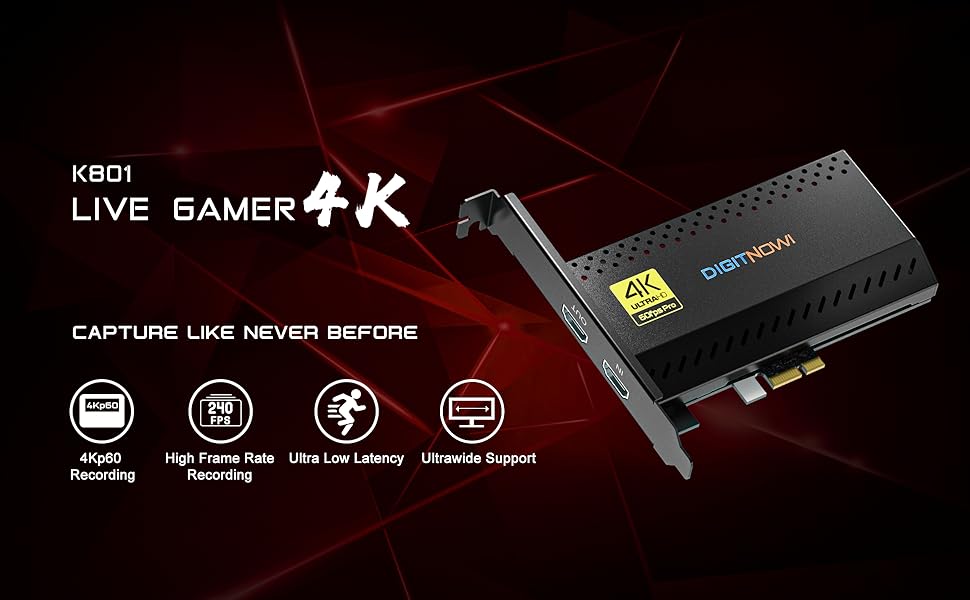
Figure 3: PCIe Capture Card installed in a desktop PC for streaming and recording.
4.2 Collegamento dei dispositivi
Once the card is installed, connect your gaming console or other HDMI source and monitor:
- Connect an HDMI cable from your gaming console (e.g., Nintendo Switch, PS5, Xbox Series X/S) to the HDMI IN porta sulla scheda di acquisizione.
- Collegare un altro cavo HDMI dal Uscita HDMI port on the capture card to your monitor or TV for zero-lag pass-through.
- Your computer should automatically detect the capture card.
Video 1: Demonstration of connecting a capture card to a device and setting up in OBS. This video shows the physical connections for HDMI input/output and USB to the computer.
5. Istruzioni per l'uso
To begin capturing or streaming, you will need compatible software. OBS Studio is a popular free option.
5.1 Software Setup (OBS Studio)
- Scarica e installa OBS Studio dal sito ufficiale webposto (obsproject.com).
- Avvia OBS Studio.
- In the 'Sources' box, click the '+' icon and select 'Video Capture Device'.
- Create a new source or select an existing one, then click 'OK'.
- In the properties window, select 'DIGITNOW PCIe Capture Card' (or similar name) from the 'Device' dropdown.
- Adjust resolution, FPS, and other settings as desired. Ensure the resolution matches your input source for best quality.
- Click 'OK' to add the source. Your console's video feed should now appear in OBS.
- To add audio, click the '+' icon in 'Sources' again and select 'Audio Input Capture'. Choose the capture card's audio device.
- You can now start recording or streaming using the controls in OBS Studio.
5.2 Optimizing Settings
- For ultra-low latency, ensure your monitor is connected to the HDMI OUT port for direct pass-through.
- Experiment with different resolutions and frame rates in OBS to find the best balance for your system and streaming platform.
- Check your console's video output settings to ensure they are compatible with the capture card's input capabilities (e.g., 4K 60Hz).
6 Caratteristiche
- 4K Capture & HDMI Pass-through: Supports input max resolution 4K 60Hz and captures in 4K30Hz or 1080P 120FPS resolution.
- PCIe High-speed Interface: Installed internally, directly to your motherboard, ensuring high-speed data transfer.
- Ampia compatibilità: Compatible with Nintendo Switch, PS5, PS4, Xbox Series X/S, Xbox One X, Wii U, and various streaming platforms like Twitch and YouTube.
- Latenza ultra bassa: Designed for zero-lag pass-through and high refresh rates for a seamless gaming and streaming experience.
- 5.1/7.1 Surround Sound Support: Records stereo audio at 5.1 or 7.1 surround sound, enhancing your PC setup.
- Ultrawide Recording: Not only captures 4Kp60, but also supports capturing the entire screen at ultrawide resolution.
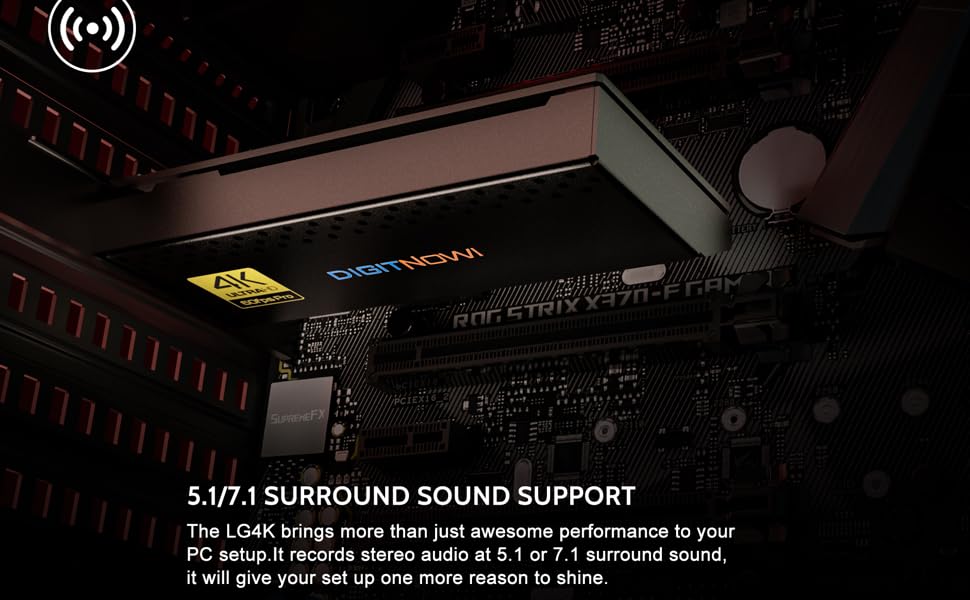
Figure 4: High-resolution capture and pass-through capabilities.
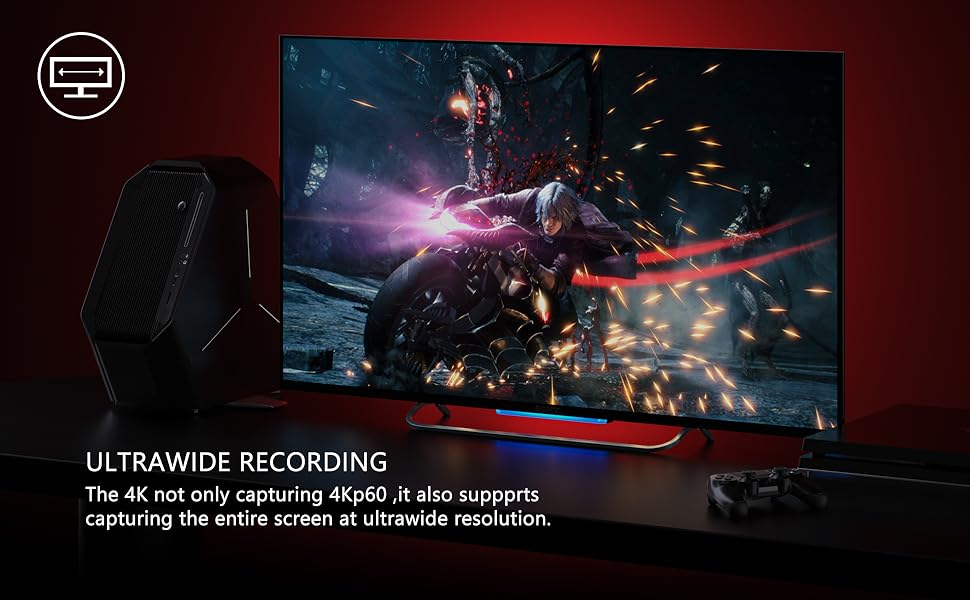
Figure 5: Advanced features for versatile streaming and recording.
7. Risoluzione Dei Problemi
If you encounter issues with your DIGITNOW PCIe Capture Card, consider the following:
- Nessun segnale/schermo nero:
- Assicurarsi che tutti i cavi HDMI siano collegati saldamente alle porte IN/OUT corrette.
- Verify your gaming console's video output settings are compatible with the capture card's input (e.g., disable HDCP if necessary, adjust resolution).
- Check if the capture card drivers are correctly installed and updated.
- Prova un cavo HDMI diverso.
- Nessun audio:
- Ensure audio input is correctly configured in your streaming software (e.g., OBS).
- Check your console's audio output settings.
- Verify that the correct audio device is selected in your computer's sound settings.
- Ritardo/balbuzie:
- Ensure your PC meets the recommended system requirements.
- Close unnecessary background applications to free up CPU/GPU resources.
- Riduci la risoluzione di acquisizione o la frequenza dei fotogrammi nel tuo software di streaming.
- Aggiorna i driver della scheda grafica.
- Il software non rileva la scheda:
- Reinstall the capture card drivers.
- Prova a riavviare il computer.
- Ensure the card is properly seated in the PCIe slot.
8. Specifiche
| Caratteristica | Dettaglio |
|---|---|
| Dimensioni del prodotto | 3.98 x 2.28 x 0.59 pollici |
| Peso dell'articolo | 14.4 once |
| Numero modello articolo | K801 |
| Interfaccia Hardware | HDMI, PCIE x 1 |
| Risoluzione di acquisizione video | 1080p (up to 4K30Hz capture) |
| Sistema operativo | Finestre 11/10/8/7 |
| Produttore | DIGITNOW |
| Data prima disponibilità | 12 luglio 2021 |
9. Garanzia e supporto
The DIGITNOW PCIe Capture Card comes with a 1-year warranty. For any questions, technical assistance, or warranty claims, please contact our customer service. We offer 24-hour customer service to assist you with any issues.
For further support, please refer to the official DIGITNOW websito o contattare direttamente il servizio clienti.