
Introduzione
This manual provides detailed instructions for setting up, operating, maintaining, and troubleshooting your ASUS TUF Gaming VG247Q1A 24-inch 1080P Monitor. Please read this manual thoroughly before using the monitor to ensure proper operation and to prevent damage.

Image: ASUS TUF Gaming VG247Q1A Monitor, front view.
Impostare
Contenuto della confezione
Prima di procedere con l'installazione, verificare che tutti gli elementi siano presenti nella confezione.
- VG247Q1A Monitor
- Cavo di alimentazione
- Scheda di garanzia
- Guida rapida (QSG)
- Cavo HDMI
- Cavo DisplayPort

Image: Illustration of the items included in the monitor package, including the monitor, cables, and documentation.
Monitorare l'Assemblea
- Estrarre con cautela il monitor e i suoi componenti dall'imballaggio.
- Attach the stand base to the stand neck, then secure it to the monitor panel. Refer to the Quick Start Guide for specific instructions and diagrams.
- Posizionare il monitor assemblato su una superficie stabile e piana.
Collegamento del monitor
Collegare il monitor al computer o ad altri dispositivi utilizzando i cavi appropriati.
- Collegamento elettrico: Collegare il cavo di alimentazione all'ingresso di alimentazione del monitor e quindi a una presa di corrente.
- Collegamento video:
- For optimal performance, use the included DisplayPort cable to connect the monitor to your graphics card's DisplayPort output.
- Alternatively, use an HDMI cable to connect to an HDMI port on your device. The monitor has two HDMI (v1.4) ports.
- Connessione audio: Se lo si desidera, collegare le cuffie o gli altoparlanti esterni al jack per auricolari da 3.5 mm sul monitor.

Immagine: Posteriore view of the monitor highlighting the DisplayPort, HDMI (x2), and earphone jack connections.
The monitor also supports VESA mount (100x100mm) for alternative mounting solutions.
Istruzioni per l'uso
Accensione/spegnimento
Premere il pulsante di accensione situato sul monitor per accenderlo o spegnerlo. La spia di accensione si accende quando il monitor è attivo.
Menu OSD (On-Screen Display)
Access the OSD menu using the joystick or buttons on the back/bottom of the monitor to adjust various settings.
- Navigazione: Use the joystick to navigate through menu options.
- Selezione: Press the joystick or corresponding button to select an option.
- Uscita: Use the designated button or move the joystick to exit the menu.
Caratteristiche e impostazioni principali
- Frequenza di aggiornamento (165 Hz): The monitor supports a high refresh rate of 165Hz for smoother motion. Ensure your graphics card settings are configured to utilize this refresh rate.
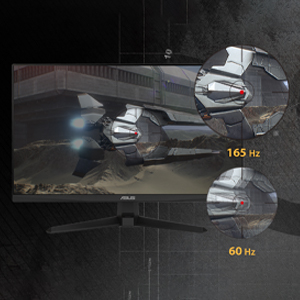
Immagine: Confronto visivo che dimostra la fluidità della frequenza di aggiornamento di 165 Hz rispetto a quella di 60 Hz.
- ASUS Extreme Low Motion Blur (ELMB): This technology provides a 1ms Moving Picture Response Time (MPRT) to reduce motion blur. Activate it through the OSD menu for clearer fast-paced visuals.
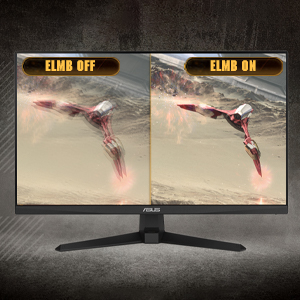
Image: Side-by-side comparison of ELMB off and ELMB on, showing reduced motion blur with ELMB active.
- AMD FreeSync™ Premium: This technology synchronizes the monitor's refresh rate with your AMD graphics card's frame rate to eliminate screen tearing and stuttering. Ensure it is enabled in both the monitor OSD and your graphics card software.
Image: Comparison of screen tearing with FreeSync Premium off versus smooth gameplay with FreeSync Premium on.
- Potenziamento ombra: Enhances image details in dark areas without over-exposing bright areas, providing better visibility in dimly lit game scenes.
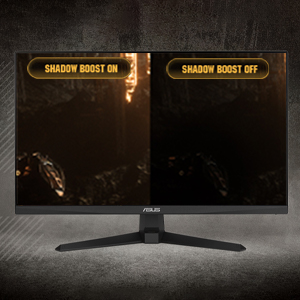
Image: Side-by-side comparison of a dark game scene with Shadow Boost off and Shadow Boost on, showing improved visibility in dark areas.
- Caratteristiche della cura degli occhi:
- Ultra-Low Blue Light: Riduce le emissioni di luce blu dannose per proteggere i tuoi occhi durante le lunghe viewing sessions. Adjust the blue light filter level in the OSD menu.

Image: Graphic illustrating the effect of Ultra-Low Blue Light technology on screen output.
- Tecnologia senza sfarfallio: Eliminates screen flickering to minimize eye strain. This feature is always active.

Image: Side-by-side comparison of a screen with and without flicker-free technology, demonstrating reduced flickering.
- Ultra-Low Blue Light: Riduce le emissioni di luce blu dannose per proteggere i tuoi occhi durante le lunghe viewing sessions. Adjust the blue light filter level in the OSD menu.
- Gioco Plus: Provides in-game enhancements such as crosshairs, timers, FPS counters, and display alignment tools. Access these features via the OSD menu.
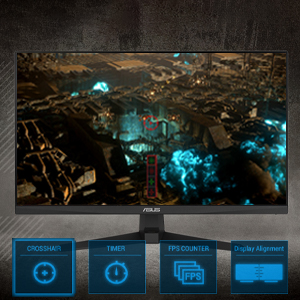
Image: Monitor screen displaying various GamePlus overlays like crosshair, timer, and FPS counter.
- Gioco visivo: Offers several preset display modes optimized for different content types (e.g., Scenery, Racing, Cinema, RTS/RPG, FPS, sRGB, MOBA). Select the appropriate mode for your current activity.

Image: Side-by-side comparison of a game scene with GameVisual off and GameVisual on, showing optimized visual settings.
Manutenzione
Una corretta manutenzione garantisce la longevità e le prestazioni ottimali del monitor.
- Pulizia dello schermo:
- Spegnere il monitor e scollegare il cavo di alimentazione.
- Utilizzare leggermente un panno morbido e privo di lanugine dampcon acqua o con un detergente per schermi non abrasivo.
- Wipe the screen gently. Avoid applying pressure or using harsh chemicals.
- Pulizia del Casing:
- Utilizzare un panno morbido e asciutto per pulire il monitor casing.
- Evitare l'uso di detergenti o solventi abrasivi che potrebbero danneggiare la finitura.
- Magazzinaggio:
- If storing the monitor for an extended period, unplug all cables and pack it in its original packaging if possible.
- Conservare in un luogo fresco e asciutto, lontano dalla luce solare diretta e dalle temperature estreme.
Risoluzione dei problemi
If you encounter issues with your monitor, refer to the following common solutions.
| Problema | Possibile soluzione |
|---|---|
| Nessuna immagine sullo schermo |
|
| L'immagine è sfocata o distorta |
|
| Nessun suono dagli altoparlanti/cuffie |
|
| Screen tearing o stuttering durante il gioco |
|
Se il problema persiste dopo aver provato queste soluzioni, contattare l'assistenza clienti ASUS.
Specifiche
| Caratteristica | Dettaglio |
|---|---|
| Marca | Asus |
| Numero di modello | VG247Q1A |
| Dimensioni dello schermo | 24 pollici |
| Risoluzione | FHD 1080p (1920 x 1080 pixel) |
| Proporzioni | 16:9 |
| Frequenza di aggiornamento | Frequenza 165 Hz |
| Tempo di risposta | 1 Milliseconds (MPRT) |
| Tipo di visualizzazione | LCD |
| Tipo di pannello | VA (Note: Not explicitly stated, but common for these specifications) |
| Viewangolo di ing | 170 gradi |
| Luminosità | 350 candele al metro quadrato |
| Rapporto di contrasto | 1000:1 |
| Screen Finish | Lucido |
| Connettività | 2x HDMI (v1.4), 1x DisplayPort (v1.2), 1x Earphone Jack |
| Tecnologia di sincronizzazione adattiva | Freesync premium |
| Caratteristiche speciali | ASUS Extreme Low Motion Blur (ELMB), Shadow Boost, Blue Light Filter, Built-In Speakers, Flicker-Free, GamePlus, GameVisual |
| Dimensioni dell'articolo (P x L x A) | 15.53"P x 21.3"L x 6.85"A |
| Peso dell'articolo | 7.3 libbre |
| Montaggio VESA | 100x100mm compatible (Mount not included) |
| Consumo energetico | 14.52 Watt |
| Voltage | 240 Volt |
Garanzia e supporto
Your ASUS TUF Gaming VG247Q1A monitor comes with a manufacturer's warranty.
- Tipo di garanzia: 3 anni di garanzia del produttore
- Descrizione della garanzia: 3 Year Warranty with ARR (Advanced Replacement Service)
For technical support, warranty claims, or further assistance, please visit the official ASUS support website or contact their customer service. Refer to the warranty card included in your package for specific contact details and terms.