
1. Introduzione
Thank you for choosing the PINKCAT Wireless Keyboard and Mouse Combo, Model KF002. This product provides a reliable 2.4G wireless connection, offering a full-size, compact keyboard and a quiet, ergonomic mouse. This manual will guide you through the setup, operation, maintenance, and troubleshooting of your new device.

Image 1.1: The PINKCAT Wireless Keyboard and Mouse Combo, featuring the full-size keyboard, ergonomic mouse, and the compact USB receiver.
2. Contenuto della confezione
- Wireless Keyboard (Model KF002)
- Mouse senza fili
- USB 2.4G Receiver (typically stored in the mouse or keyboard battery compartment)
- Manuale dell'utente (questo documento)
Nota: 2x AAA batteries for the keyboard and 1x AA battery for the mouse are required and not included in the package.
3. Istruzioni per l'installazione
3.1 Installazione della batteria
- Per la tastiera: Locate the battery compartment on the underside of the keyboard. Open the cover and insert two (2) AAA batteries, ensuring correct polarity (+/-). Close the cover.
- Per il topo: Locate the battery compartment on the underside of the mouse. Open the cover and insert one (1) AA battery, ensuring correct polarity (+/-). Close the cover.
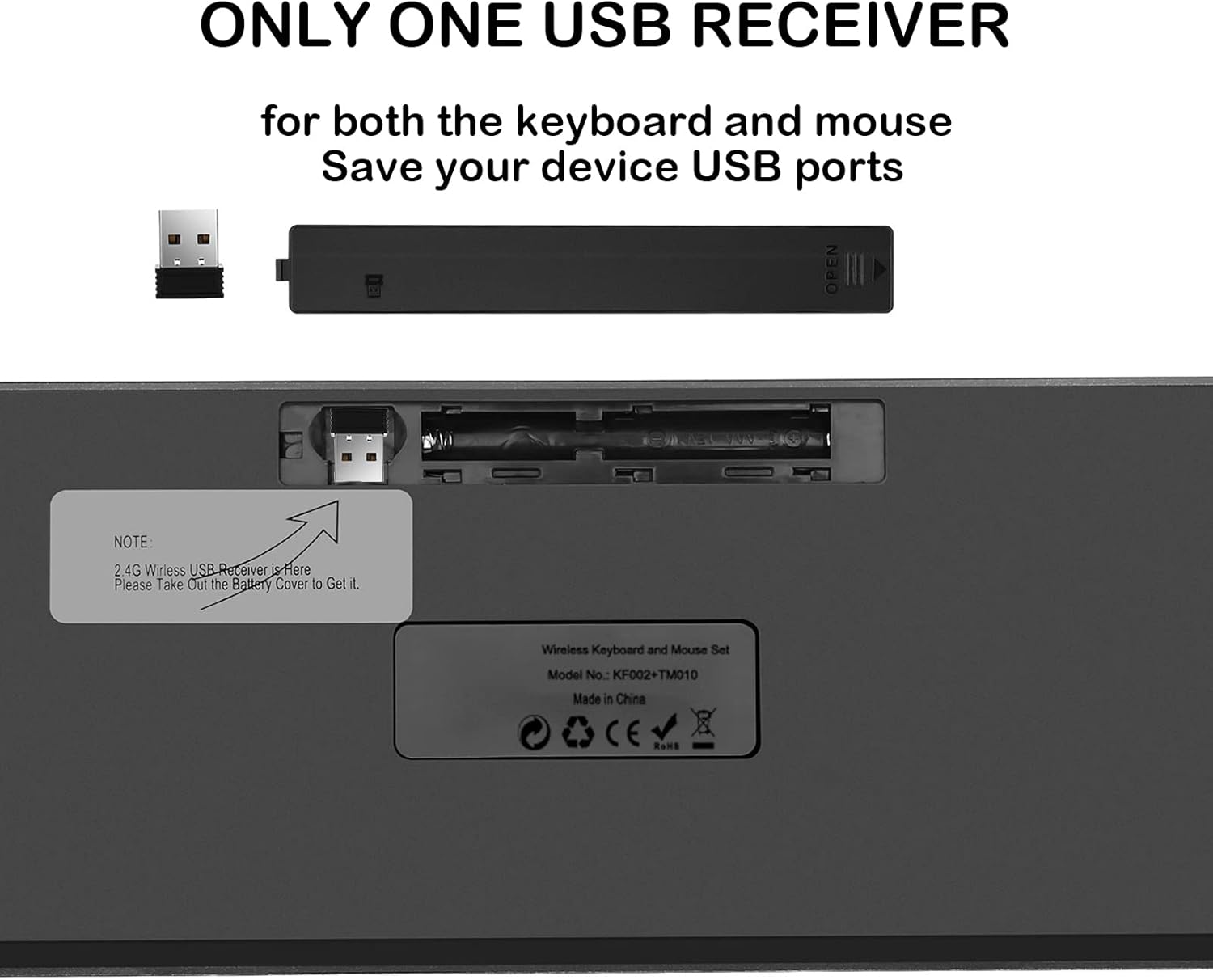
Image 3.1: The underside of the keyboard showing the battery compartment and the storage slot for the USB receiver.
3.2 Collegamento del ricevitore USB
- The 2.4G USB receiver is typically stored in the battery compartment of the keyboard or mouse for safe transport. Gently remove it.
- Insert the USB receiver into an available USB port on your computer, laptop, or compatible device.
- Turn on the keyboard and mouse using their respective power switches. The power switch for the keyboard is located on the top right edge. The mouse typically has a switch on its underside.
- Your operating system should automatically detect and install the necessary drivers. The keyboard and mouse are designed for plug-and-play functionality.
The mouse and keyboard share a single USB receiver, conserving USB ports on your device.
4. Istruzioni per l'uso
4.1 Funzioni della tastiera
- Layout a grandezza naturale: The keyboard features a 99-key US QWERTY layout, including a numeric keypad for efficient data entry.
- Tasti a forbice: Designed for a softer, quieter, and more responsive typing experience.
- Luci di segnalazione: The keyboard includes indicators for NUM Lock, CAPS Lock, and Power status, located above the numeric keypad.
- Collegamenti multimediali: Accedi rapidamente a varie funzioni utilizzando Fn tasto in combinazione con i tasti F1-F12.

Image 4.1: Illustration of the keyboard's multimedia shortcut keys (Fn + F1-F12) for quick access to functions like volume control, media playback, and email.
| Combinazione di tasti | Funzione |
|---|---|
| Tasto F1 | Muto |
| Tasto F2 | Abbassa il volume |
| Tasto F3 | Alza il volume |
| Tasto F4 | Traccia precedente |
| Tasto F5 | Riproduci/Pausa |
| Tasto F6 | Traccia successiva |
| Tasto F7 | Pagina iniziale |
| Tasto F8 | Cerca |
| Tasto F9 | |
| Tasto F10 | Il mio computer |
| Tasto F11 | Schermata di blocco |
| Tasto F12 | Calcolatrice |
4.2 Funzioni del mouse
- Clic silenziosi: The mouse is designed to produce minimal click noise, suitable for quiet environments.
- DPI regolabile: Cycle through three DPI levels (800/1200/1600) by pressing the DPI button, usually located behind the scroll wheel. This allows you to adjust cursor sensitivity to your preference.
- Design ergonomico: The mouse features a contoured shape for comfortable use over extended periods.

Immagine 4.2: Primo piano view highlighting the scissor-switch mechanism of the keyboard keys and the silent click feature of the mouse.
4.3 Modalità di sospensione intelligente
To conserve battery life, both the keyboard and mouse will automatically enter a sleep mode after 10-15 minutes of inactivity. To reactivate the devices, simply press any key on the keyboard or move/click the mouse. They will wake up within 3 seconds.
4.4 Compatibilità
The PINKCAT Wireless Keyboard and Mouse Combo is compatible with a wide range of operating systems, including:
- Windows (PC, desktop, laptop)
- macOS (Mac, Notebook)
- Linux
- iOS
- Android
5. Manutenzione
5.1 Pulizia
- Prima di procedere alla pulizia, assicurarsi che entrambi i dispositivi siano spenti.
- Utilizzare un panno morbido e privo di lanugine leggermente dampcon acqua o una soluzione detergente delicata e non abrasiva.
- Evitare di spruzzare liquidi direttamente sui dispositivi.
- For keyboard keys, use compressed air to remove dust and debris from between the keys.
5.2 Sostituzione della batteria
When the devices become unresponsive or the power indicator light (on the keyboard) flashes, it is time to replace the batteries. Follow the battery installation steps in Section 3.1. Always use fresh, high-quality batteries for optimal performance.
5.3 Conservazione
When not in use for extended periods, turn off both the keyboard and mouse to conserve battery life. Store the USB receiver in its designated slot within the battery compartment to prevent loss. Store the devices in a cool, dry place away from direct sunlight and extreme temperatures.
6. Risoluzione Dei Problemi
If you encounter issues with your PINKCAT Wireless Keyboard and Mouse Combo, please refer to the following common solutions:
- Dispositivi non rispondono:
- Assicurarsi che sia la tastiera che il mouse siano accesi.
- Controllare che le batterie siano installate correttamente e abbiano una carica sufficiente. Sostituirle se necessario.
- Verifica che il ricevitore USB sia collegato saldamente a una porta USB funzionante del computer. Prova una porta USB diversa.
- Move the keyboard and mouse closer to the USB receiver to rule out range issues (maximum range is 10 meters / 33 feet).
- Riavvia il computer.
- Mouse Lags or Jumps:
- Assicurarsi che il mouse sia posizionato su una superficie pulita e non riflettente.
- Adjust the DPI setting of the mouse (see Section 4.2).
- Verificare la presenza di interferenze da altri dispositivi wireless.
- Sostituisci la batteria del mouse.
- Tasti specifici non funzionanti:
- Pulisci la zona circostante i tasti interessati per rimuovere eventuali detriti.
- Assicurarsi che la batteria della tastiera sia sufficientemente carica.
- If the issue persists, try reconnecting the USB receiver.
If these steps do not resolve the issue, please contact PINKCAT customer service for further assistance.
7. Specifiche
| Caratteristica | Dettaglio |
|---|---|
| Numero di modello | KF002 |
| Connettività | Wireless 2.4G (ricevitore USB) |
| wireless Range | Fino a 10 metri (33 piedi) |
| Disposizione della tastiera | 99-key US QWERTY Full Size |
| Dimensioni della tastiera | 14.5 x 5.8 x 0.2 inches (thinnest part) / 17.3 x 5.3 x 0.98 inches (overall) |
| Batteria della tastiera | 2 x AAA (non incluso) |
| Livelli DPI del mouse | 800/1200/1600 |
| Dimensioni del mouse | 4.3 x 2.4 x 1 pollici |
| Batteria del mouse | 1 x AA (non inclusa) |
| Peso dell'articolo | 1.36 libbre (totale) |
| Caratteristiche speciali | Ergonomic design, Silent clicks, Smart sleep mode, Multimedia shortcuts |
| Compatibilità | Windows, MacOS, Linux, iOS, Android |
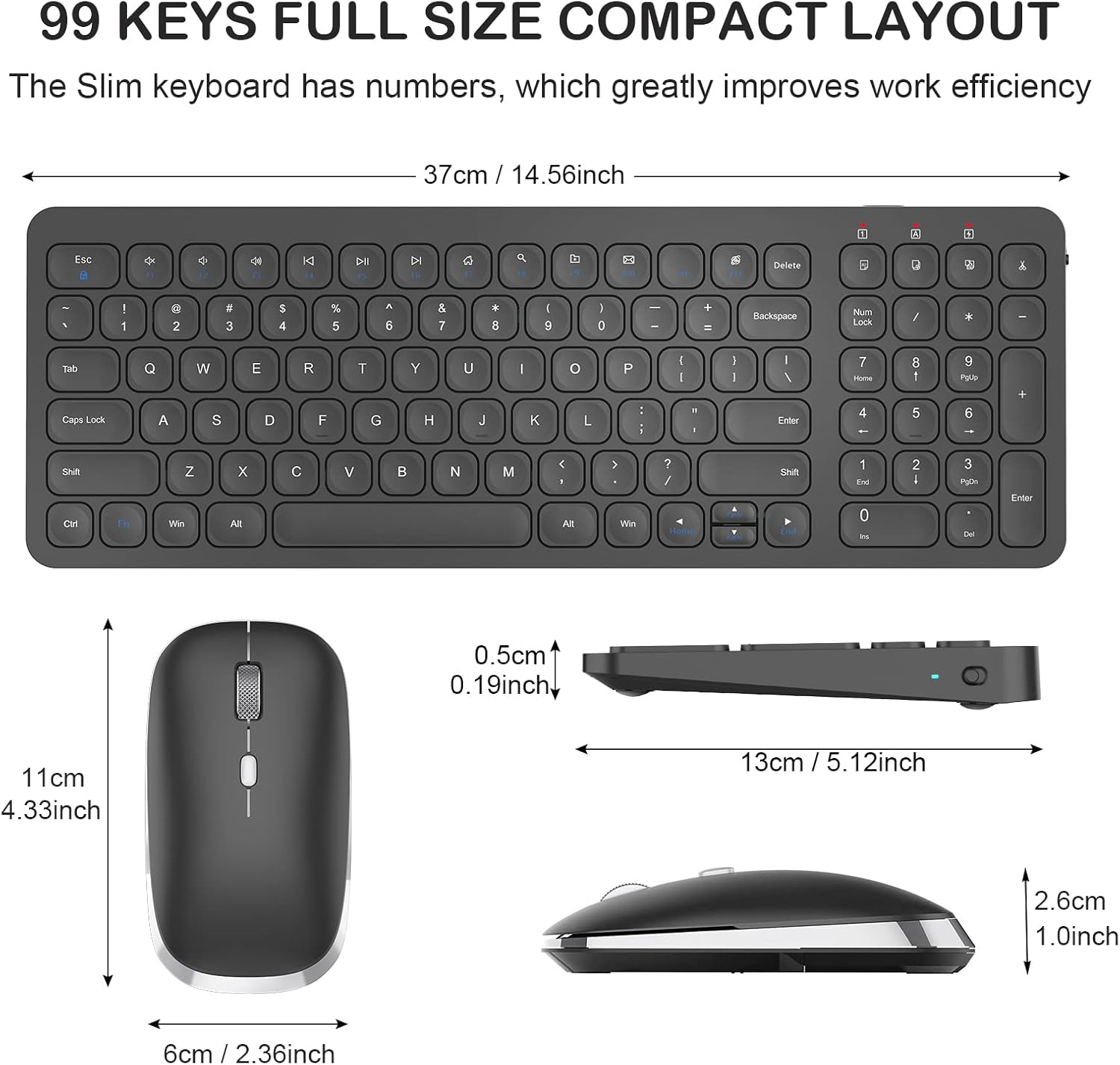
Image 7.1: Detailed dimensions of the PINKCAT KF002 keyboard and mouse.
8. Garanzia e supporto
PINKCAT provides professional customer service. If you encounter any problems during the use of your Wireless Keyboard and Mouse Combo, please contact us directly via Amazon email. Our support team is available to provide a satisfactory solution.
Per i termini e le condizioni di garanzia specifici, fare riferimento alla documentazione di acquisto.