
ABS V-380 Robot Camera (RBC02)
ABS V-380 Mini IP Smart Wireless WiFi 1080P 360-Degree Robot Camera (Model RBC02) User Manual
Introduzione
The ABS V-380 Mini IP Smart Wireless WiFi 1080P 360-Degree Robot Camera (Model RBC02) is designed for comprehensive home monitoring. It serves as an ideal solution for keeping an eye on your home, children, or pets. This camera offers a full 360-degree viewing range with high-definition 1080P resolution, enhanced by electronic Pan-Tilt-Zoom (PTZ) technology for remote control via your mobile device. Its compact design supports both Wi-Fi connectivity and smart Wi-Fi configuration, making it a versatile addition to any smart home setup.
Key features include two-way audio communication, live video streaming to your smartphone, motion detection alerts, and night vision capabilities. The camera supports continuous recording to a local TF card (up to 64GB, not included) or event-based recording upon motion detection, allowing for up to one month of footage stoccaggio.
Contenuto della confezione
Before proceeding with installation, please ensure all items are present in the package:
- 1 x ABS V-380 Robot Camera
- 1 x adattatore di alimentazione
- 1 x cavo di alimentazione USB
- Staffa di montaggio 1 x
- Viti di montaggio e tasselli
- Manuale d'uso

Image: The ABS V-380 Robot Camera shown with its included accessories: power adapter, USB cable, mounting bracket, screws, and the user manual.
Impostare
1. Accensione della fotocamera
- Connect the provided USB power cable to the camera's power input port.
- Collega l'altra estremità del cavo USB all'alimentatore.
- Collega l'alimentatore a una presa elettrica standard.
- The camera will power on automatically. Wait for the LED indicator to begin flashing, indicating it is ready for configuration.
2. Stato dell'indicatore LED
- Rapid Flashing (approx. 0.5 seconds interval): STA Pairing Mode (ready to connect to your Wi-Fi network).
- Slow Flashing (approx. 2 seconds interval): AP Mode (Access Point mode, for direct connection to the camera).
- Luce fissa: Successfully configured and connected to the network.
3. Mobile App Installation and Wi-Fi Configuration
The camera requires a mobile application for initial setup and remote control. This process is designed for simple installation without additional hardware.
- Download the official V-380 application from your smartphone's app store (available for Android and iOS devices).
- Apri l'app e segui le istruzioni sullo schermo per creare un account o accedere.
- Add your camera to the app. This typically involves scanning a QR code on the camera or manually adding the device.
- Follow the app's prompts to connect the camera to your home Wi-Fi network. Ensure your Wi-Fi router is within range.
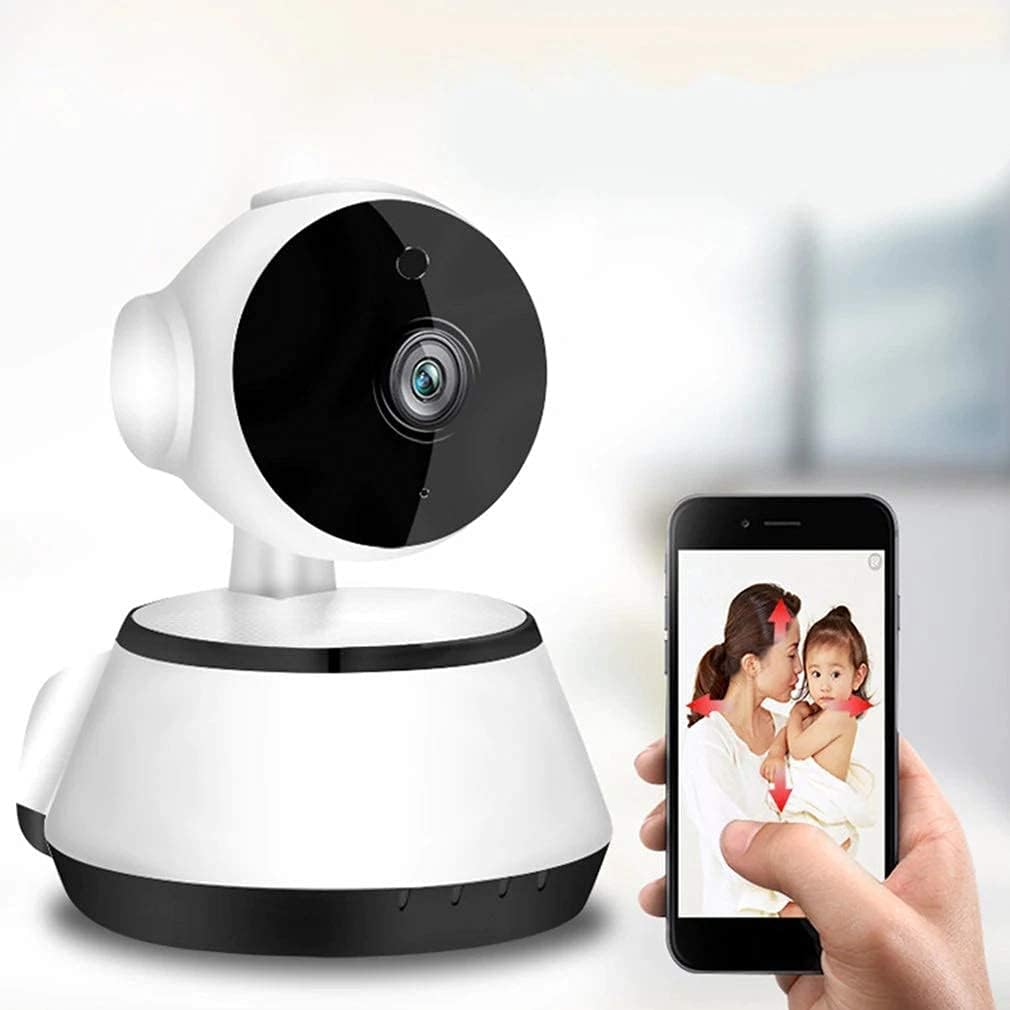
Image: The ABS V-380 Robot Camera being controlled and viewed via a smartphone application, demonstrating network monitoring and mobile control.
4. Montaggio della fotocamera
The camera offers flexible installation options, including wall mounting, surface mounting, or hoisting (ceiling mount).
- Wall/Surface Mount: Use the provided mounting bracket as a template to mark screw holes. Drill pilot holes, insert wall plugs if necessary, and secure the bracket with screws. Attach the camera to the bracket.
- Posizionamento sul tavolo: The camera can also be placed on any flat surface without mounting.
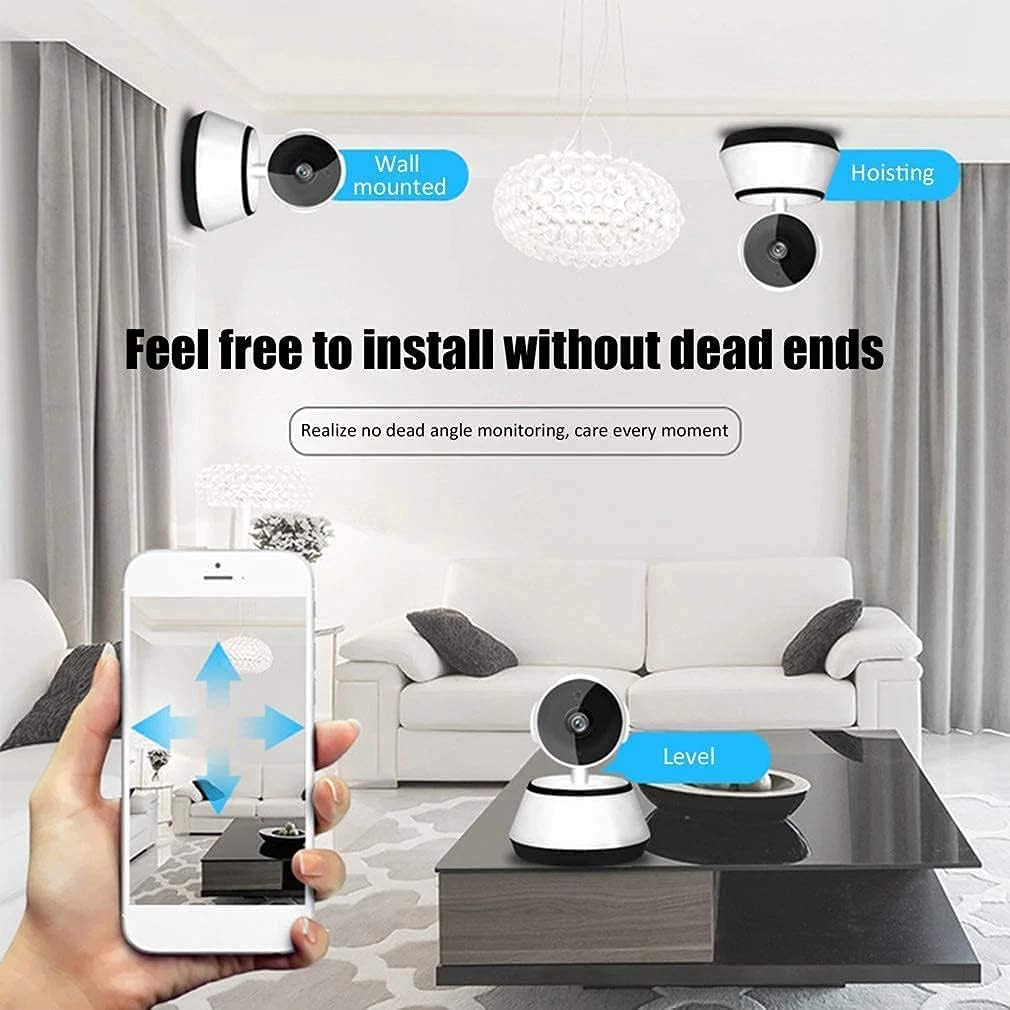
Image: Illustration of the camera's versatile installation options, including wall, ceiling (hoisting), and tabletop placement, allowing for monitoring without blind spots.
Istruzioni per l'uso
1. Monitoraggio e controllo remoto
Once connected, you can access the camera's features through the mobile app:
- Vivere View: View real-time video feed from your camera.
- Pan & Tilt: Control the camera's 360-degree horizontal (pan) and 90-degree vertical (tilt) movement directly from the app to adjust the viewangolo di ing.
- Zoom elettronico: Zoom in on details within the live feed.
- Cattura foto/video: Take snapshots or record video clips directly to your phone.

Image: A smartphone displaying the remote control interface for the camera, illustrating how to adjust the pan (355 degrees horizontal) and tilt (90 degrees vertical) angles.

Image: The camera's smooth pan and tilt monitoring capabilities, allowing a sweeping view of the entire house via the app.
2. Comunicazione audio bidirezionale
The camera features a built-in anti-noise filter for clear two-way audio. This allows you to communicate with individuals near the camera.
- Modalità interfono: Speak through your phone and have your voice broadcast through the camera's speaker.
- Modalità vivavoce: Ascolta l'audio proveniente dall'ambiente circostante la telecamera tramite il tuo telefono.

Image: Demonstrates the high-fidelity two-way audio feature, enabling real-time communication with individuals in the camera's vicinity, such as a baby or family member.
3. Opzioni di registrazione
The camera supports video recording in two primary modes:
- Registrazione continua 24 ore su 24, 7 giorni su 7: Registra video in modo continuo, sovrascrivendo i vecchi videotage quando la scheda di memoria è piena.
- Registrazione di rilevamento del movimento: Registra solo quando viene rilevato un movimento, risparmiando spazio di archiviazione.
The camera supports local storage via a TF (microSD) card up to 64GB (memory card not included). With a 64GB card, it can store up to one month of footage depending on recording settings.

Image: The camera's memory card slot, highlighting its support for 8-64GB TF cards for secure, automatic loop recording and 24-hour monitoring.
4. Visione notturna
Equipped with infrared light source, the camera automatically switches between day and night vision modes, ensuring clear video recording even in low-light or complete darkness.
5. Alarm Push Notifications
When motion is detected, the camera can send alarm push notifications to your smartphone, alerting you to activity in the monitored area.
Manutenzione
- Pulizia: Pulisci delicatamente l'obiettivo e il corpo della fotocamera con un panno morbido e asciutto. Evita di utilizzare prodotti chimici aggressivi o detergenti abrasivi.
- Aggiornamenti del firmware: Controllare periodicamente l'app mobile per verificare la disponibilità di aggiornamenti del firmware, per garantire prestazioni e sicurezza ottimali.
- Gestione della memoria: If using a TF card for recording, regularly review e fai il backup di informazioni importantitage. The camera supports automatic loop recording, which will overwrite the oldest files quando la carta è piena.
- Alimentazione elettrica: Ensure the camera is connected to a stable power source. Unplug the camera during electrical storms or when not in use for extended periods.
Risoluzione dei problemi
| Problema | Possibile causa | Soluzione |
|---|---|---|
| La fotocamera non si accende. | Power cable or adapter issue; power outlet problem. | Check power connections. Try a different power outlet. Ensure the adapter is functioning. |
| Impossibile connettersi al Wi-Fi. | Incorrect Wi-Fi password; camera too far from router; router settings. | Double-check Wi-Fi password. Move camera closer to the router. Ensure your router is broadcasting a 2.4GHz Wi-Fi signal (5GHz is not supported). Reset the camera and try setup again. |
| No video recording or playback issues. | No TF card inserted; TF card full or corrupted; camera not powered on during recording period. | Insert a compatible TF card (8-64GB). Format the TF card via the app. Ensure the camera remains powered on for continuous recording. Check app settings for recording schedule. |
| Avvisi di rilevamento del movimento non ricevuti. | Motion detection disabled in app; app notifications blocked; network issues. | Enable motion detection and push notifications in the camera app. Check your phone's notification settings for the app. Ensure stable internet connection. |
| Camera disconnects frequently. | Segnale Wi-Fi debole; interferenza di rete. | Relocate the camera closer to the Wi-Fi router or use a Wi-Fi extender. Minimize interference from other wireless devices. |
| No reset button found / unable to reset. | Some models may have an internal or less obvious reset mechanism. | Refer to the specific instructions provided with your camera model for reset procedures. If no physical button is apparent, check the app for a software reset option or contact support. |
Specifiche
| Caratteristica | Dettaglio |
|---|---|
| Marca | addominali |
| Nome del modello | ABS V-380 |
| Numero modello articolo | ROBOT CAMERA (RBC02) |
| Numero di parte | EV-ROBOT CAMERA-02 |
| Colore | Bianco/Nero |
| Fattore di forma | Cupola |
| Materiale | Plastica |
| Risoluzione di acquisizione video | Formato: 1080p |
| Numero di canali | 2 |
| Tecnologia di connettività | Senza fili (Wi-Fi) |
| Tecnologia di comunicazione wireless | Wifi |
| Dispositivi compatibili | Smartphone (Android, iOS) |
| Tipo di controllore | Android |
| Fonte di alimentazione | AC Current (5 Watts) |
| Tipo di montaggio | Montaggio a parete, montaggio su superficie |
| Tipo di installazione | Incorporato |
| Usi specifici | Indoor Use (also suitable for covered outdoor areas) |
| Caratteristiche speciali | Night Vision, High Definition, Motion Sensor, Two-Way Audio |
| Tipo di sorgente luminosa | Infrarossi |
| Livello di resistenza all'acqua | Non resistente all'acqua |
| Sono necessarie batterie? | NO |
| Peso dell'articolo | 270 grammi |
| Dimensioni del pacco | Dimensioni: 13.6 x 10.8 x 10 cm |
| Data prima disponibilità | 28 novembre 2021 |
Informazioni sulla garanzia
Specific warranty details for the ABS V-380 Robot Camera (Model RBC02) were not provided in the product data. Please refer to the retailer's return policy or contact the manufacturer directly for information regarding product warranty and guarantees.
Supporto
For further assistance, technical support, or inquiries regarding your ABS V-380 Robot Camera, please:
- Consult the official V-380 mobile application for in-app support or FAQs.
- Contatta il rivenditore da cui hai acquistato il prodotto.
- Visit the manufacturer's official website (if available) for support resources.
Ask a question about this manual
Ask about setup, troubleshooting, compatibility, parts, safety, or missing instructions. Manuals+ will review the question and use this page’s manual context to help answer it.