
Introduzione
This manual provides detailed instructions for the BINIZE Portable Carplay Screen Navigation system. It covers setup, operation, and maintenance to ensure optimal performance and user experience.
Informazioni sulla sicurezza
- Assicurarsi che il dispositivo sia montato saldamente e non ostruisca il view o interferire con i comandi del veicolo.
- Connect the power cord only to a 12V cigarette lighter port.
- Non tentare di smontare o modificare il dispositivo.
- Dai sempre priorità alla guida sicura. Non utilizzare il dispositivo in modo da distrarti dalla strada.
Contenuto della confezione
Verificare che tutti gli articoli siano presenti nel pacco:
- BINIZE Portable Carplay Screen Navigation Unit
- Cavo di alimentazione per accendisigari
- Cavo di prolunga USB
- Cavo di uscita audio (RCA)
- Mounting Bracket with 3M Adhesive
- Telecomando
- Manuale dell'utente (questo documento)
Impostare
1. Montaggio del dispositivo
Scegli una posizione adatta sul cruscotto che non ostruisca il tuo view o comandi del veicolo.

The base of the mounting bracket comes with 3M adhesive. Clean the dashboard surface thoroughly before attaching the base. Securely attach the unit to the bracket.

Regola l'angolazione dello schermo per una visualizzazione ottimale viewing.
2. Collegamento elettrico
Connect the cigarette lighter power cable to the device and insert it into your vehicle's 12V cigarette lighter port. The device will power on automatically.

Ensure the vehicle's voltage è compreso tra 12 V e 14 V.
This video demonstrates the initial power-up sequence of the BINIZE Portable Carplay Screen Navigation unit by connecting it to a cigarette lighter port. It shows the "welcome" screen appearing upon successful power-on.
Istruzioni per l'uso
1. Configurazione iniziale e selezione della lingua
Upon first power-on, the device will display the home screen. Navigate to the "Settings" menu to select your preferred language.

2. Opzioni di uscita audio
The monitor itself does not have internal speakers. Sound is routed through your original car audio system.
Trasmettitore FM
To use the FM transmitter, set the device's FM frequency to match an unused FM channel on your car's stereo.

Ensure both the device and your car stereo are tuned to the same FM frequency for audio output.
Uscita audio RCA
For additional audio requirements, such as connecting to a subwoofer or amplifier, use the two RCA ports (White: Audio Out Left, Red: Audio Out Right).
3. Connessione Apple CarPlay
To use Apple CarPlay, connect your iPhone to the device using an original Apple data cable via the USB port on the right side of the player.
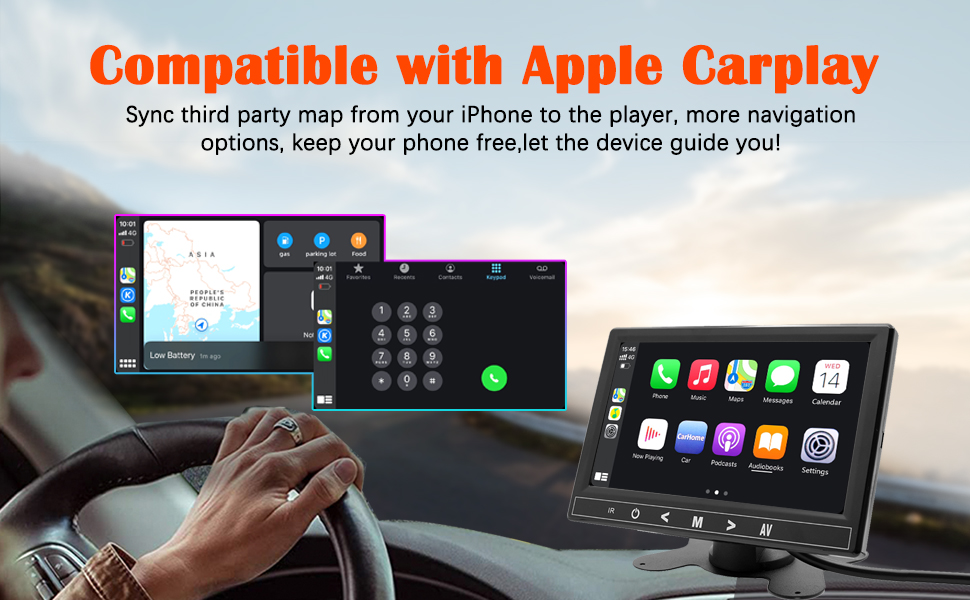
Select "i-Play" in the device settings. Grant any necessary permissions on your iPhone.
This video demonstrates how to connect an iPhone to the BINIZE Portable Carplay Screen Navigation for Apple CarPlay functionality. It shows the steps to select "i-Play" in settings and connect the original data cable.
4. Connessione Android Auto
To use Android Auto, connect your Android phone to the device using an original data cable via the USB port on the right side of the player.

Select "A-Auto" in the device settings. Grant any necessary permissions on your Android phone.
This video illustrates the process of connecting an Android phone to the BINIZE Portable Carplay Screen Navigation for Android Auto. It guides the user to select "A-Auto" in settings and connect the data cable.
5. MirrorLink (iPhone)
To mirror your iPhone screen, connect your iPhone to the device using an original Apple data cable via the USB port on the right side of the player.
Select "i-Mirror" in the device settings. Grant permissions on your iPhone. The iPhone screen will be projected onto the player's screen.
This video demonstrates the MirrorLink function for iPhone, showing how to connect the device and mirror the phone's display.
6. MirrorLink (Android Phone)
To mirror your Android phone screen, connect your Android phone to the device using an original data cable via the USB port on the right side of the player.
Select "A-Link" in the device settings. Grant permissions on your Android phone. The Android phone screen will be projected onto the player's screen.
This video demonstrates the MirrorLink function for Android phones, showing how to connect the device and mirror the phone's display.
7. USB Flash Drive Reading
Insert a USB flash drive into the USB extension cable to play music or videos. The device supports various media formats.
8. Ricarica del telefono
The USB extension cable can also be used to charge your mobile phone.
Manutenzione
- Mantenere pulito lo schermo utilizzando un panno morbido e asciutto. Evitare detergenti abrasivi.
- Assicurarsi che tutti i collegamenti dei cavi siano sicuri.
- Evitare di esporre il dispositivo a temperature estreme o alla luce solare diretta per periodi prolungati.
Risoluzione dei problemi
| Problema | Possibile causa | Soluzione |
|---|---|---|
| Il dispositivo non si accende. | Nessuna alimentazione dall'accendisigari. | Check vehicle's 12V port. Ensure power cable is securely connected. |
| Nessuna uscita audio. | FM frequency not synchronized or incorrect RCA connection. | Match FM frequency on device and car stereo. Verify RCA cable connections. |
| CarPlay/Android Auto non si connette. | Non-original data cable, incorrect settings, or phone permissions. | Use original data cable. Check "i-Play" or "A-Auto" settings. Grant all necessary phone permissions. |
| MirrorLink not working. | Incorrect settings or phone permissions. | Check "i-Mirror" or "A-Link" settings. Grant all necessary phone permissions. |
| Lo schermo si blocca o non risponde. | Problema temporaneo del software. | Riavviare il dispositivo scollegando e ricollegando il cavo di alimentazione. |
For further assistance, please contact BINIZE customer support.
Specifiche
| Caratteristica | Dettaglio |
|---|---|
| Marca | BINIZE |
| Numero di modello | B09DSMJ59X |
| Tecnologia di connettività | Bluetooth, RCA, USB |
| Tipo di controllore | Android, Assistente Google |
| Caratteristica speciale | Schermo tattile |
| Dispositivi compatibili | Smartphone |
| Modalità di uscita audio | Stereo |
| Numero di canali | 4 |
| Codifica video | H.264, H.265/HEVC |
| Metodo di controllo | Tocco |
| Tecnologia senza fili | Bluetooth |
| Potenza in ingresso | 12V (tramite accendisigari) |
Nota: le specifiche sono soggette a modifiche senza preavviso.
Garanzia e supporto
BINIZE products come with a standard manufacturer's warranty. Please refer to the warranty card included in your package for specific terms and conditions.
For technical support, warranty claims, or any other inquiries, please visit the official BINIZE websito o contattare il loro servizio clienti.