Introduzione
This manual provides detailed instructions for the HXSJ L300 104-Key Wired Mechanical Gaming Keyboard. Please read this manual thoroughly before using the product to ensure proper operation and to maximize your user experience.
The HXSJ L300 keyboard is designed to offer responsive operational capabilities and an immersive gaming experience. Its sensitive, tactile keys provide good resistance, aiding in precise typing. The keyboard features multiple lighting effects and durable keycaps made with double-shot injection molding technology to prevent fading and wear. It is compatible with various operating systems, including Win Me/2000/XP/7/8/10/Vista.
Contenuto della confezione
- 1 x HXSJ L300 Mechanical Gaming Keyboard
- 1 x Manuale utente
Specifiche
| Caratteristica | Dettaglio |
|---|---|
| Marca | Goshyda (HXSJ) |
| Modello | L300 |
| Materiale | addominali |
| Colore | Nero |
| Quantità chiave | 104 Chiavi |
| Tipo di interruttore | Clicky Mechanical Switches |
| Interfaccia | USB cablato |
| Lunghezza del cavo | Circa 168 cm (66 pollici) |
| Durata della vita della chiave | 50 milioni di sequenze di tasti |
| Effetto retroilluminazione | Color Backlight (RGB) |
| Sistemi compatibili | Win Me/2000/XP/7/8/10/Vista |
| Tecnologia di connettività | USB |
| Dispositivi compatibili | PC, laptop |

Immagine: dall'alto verso il basso view of the HXSJ L300 mechanical keyboard, showcasing its full 104-key layout, black keycaps, and the attached USB cable with its connector.
Impostare
- Disimballare la tastiera: Carefully remove the HXSJ L300 keyboard from its packaging.
- Connessione al computer: Locate an available USB port on your PC or laptop. Insert the USB connector of the keyboard cable into the USB port.
- Installazione del driver (automatica): The keyboard is plug-and-play. Your operating system (Windows Me/2000/XP/7/8/10/Vista) should automatically detect and install the necessary drivers. No manual driver installation is typically required.
- Verifica funzionalità: Once connected, the keyboard's backlight should illuminate. Test typing and key responsiveness to ensure proper function.

Image: The HXSJ L300 mechanical keyboard in use, connected to a laptop. The keyboard's RGB backlighting is visible, and a mouse and pen are also on the wooden desk, illustrating a typical setup.
Istruzioni per l'uso
Multimedia Key Combinations (FN Key Functions)
The HXSJ L300 keyboard features a Function (FN) key that, when combined with specific F-keys, provides quick access to multimedia and system controls. Press and hold the FN key, then press the desired F-key.
- FN+F1: Open Computer / My Computer
- FN+F2: Cerca
- FN+F3: Apri Calcolatrice
- FN+F4: Open CD Player / Media Player
- FN+F5: Traccia precedente
- FN+F6: Traccia successiva
- FN+F7: Riproduci/Pausa
- FN+F8: Fermata CD
- FN+F9: Disattiva audio
- FN+F10: Abbassa il volume
- FN+F11: Alza il volume
- FN+F12: Blocca tutte le chiavi
- VINCI + L: Lock Windows and Applications
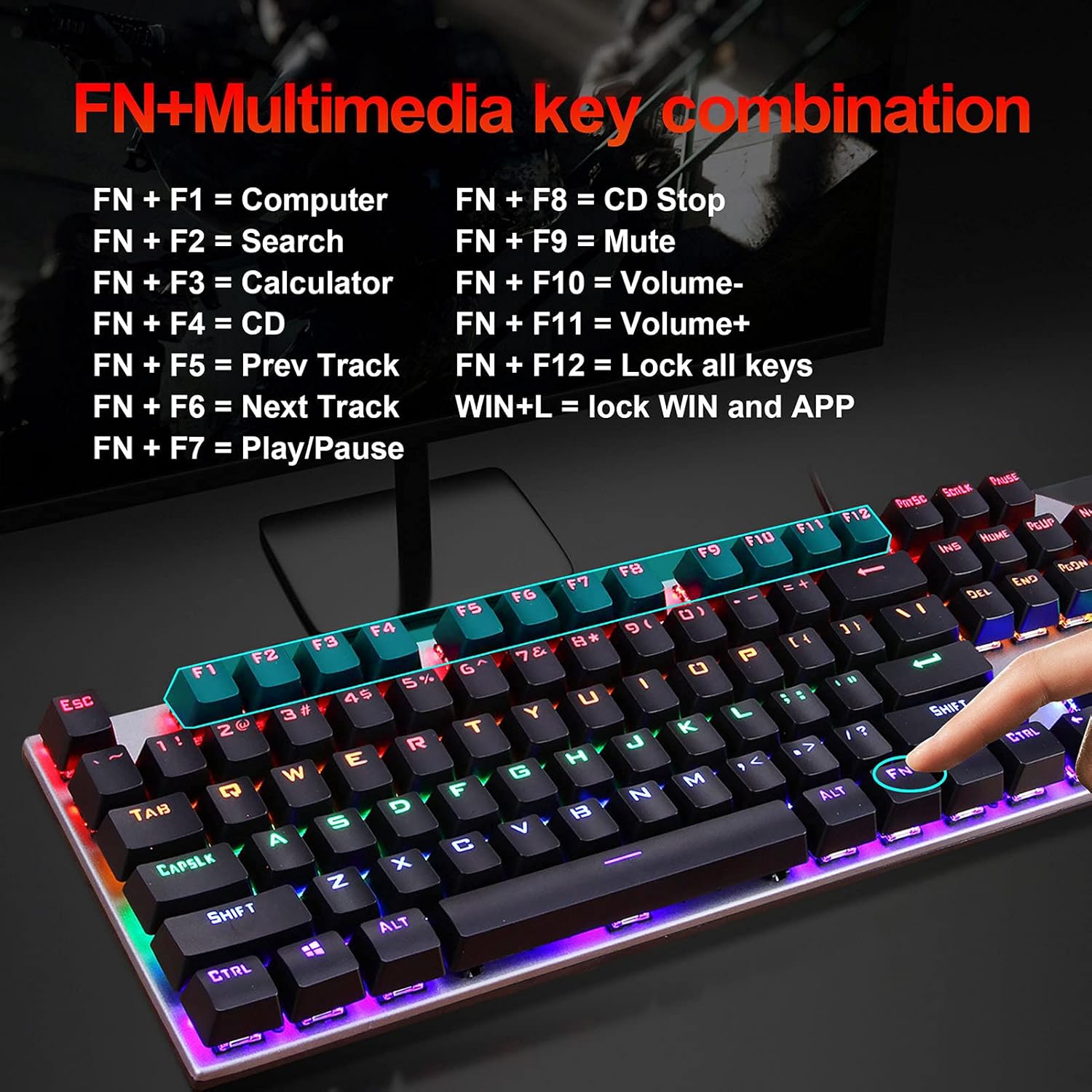
Image: A visual guide to the FN+Multimedia key combinations available on the HXSJ L300 keyboard, detailing functions like opening applications, media control, and volume adjustment.
Controllo della retroilluminazione
The keyboard features various RGB backlight effects. You can adjust these effects using specific key combinations:
- FN+INS: Scorri tra diverse modalità/effetti di retroilluminazione.
- FN + "↑" (Up Arrow): Aumenta la luminosità della retroilluminazione (6 livelli).
- FN + "↓" (Down Arrow): Ridurre la luminosità della retroilluminazione (6 livelli).
- FN + "←" (Left Arrow): Decrease backlight effect speed (5 levels).
- FN + "→" (Right Arrow): Increase backlight effect speed (5 levels).

Image: A visual representation of the RGB backlight control functions, showing how to adjust brightness and speed of lighting effects using FN key combinations.

Image: The HXSJ L300 mechanical keyboard illuminated with vibrant RGB backlighting, showcasing its aesthetic appeal and customizable lighting options.
Manutenzione
- Pulizia: Use a soft, dry cloth to wipe the surface of the keyboard. For deeper cleaning, you may use a can of compressed air to remove dust and debris from between the keycaps. Avoid using liquid cleaners directly on the keyboard.
- Rimozione dei tasti (facoltativa): If necessary, keycaps can be carefully removed for thorough cleaning of the switches. Use a keycap puller tool (not included) to avoid damage. Reinstall keycaps by aligning them with the switch stem and pressing down gently.
- Magazzinaggio: Quando non si utilizza la tastiera per lunghi periodi, conservarla in un ambiente asciutto e privo di polvere.
- Evitare i liquidi: Do not expose the keyboard to liquids, as this can cause damage to the internal components.

Immagine: Un dettaglio view of the HXSJ L300 keyboard's keycaps and mechanical switches. This image illustrates the two-color injection molding process for durable key legends and the structure of the mechanical switches, which have a lifespan of 50 million keystrokes.

Image: An exploded diagram of a mechanical keyboard switch, detailing its various components such as the stem, spring, and housing. This illustrates the "automated shaft exchange real machinery" aspect of the keyboard's design, contributing to its 50 million keystroke lifespan.
Risoluzione dei problemi
- La tastiera non risponde:
- Assicurarsi che il cavo USB sia collegato saldamente sia alla tastiera sia alla porta USB del computer.
- Prova a collegare la tastiera a una porta USB diversa del computer.
- Riavvia il computer.
- Prova la tastiera su un altro computer per determinare se il problema riguarda la tastiera o il computer.
- Retroilluminazione non funzionante o errata:
- Check if the backlight is turned off or set to the lowest brightness. Use FN + "↑" per aumentare la luminosità.
- Scorrere le modalità di retroilluminazione utilizzando FN+INS per vedere se il problema viene risolto.
- Tasti non registrati o digitati due volte:
- Clean the affected key(s) using compressed air to remove any debris that might be obstructing the switch.
- If comfortable, carefully remove the keycap and inspect the switch for any visible damage or obstruction.
- Tasti multimediali non funzionanti:
- Assicurati di premere il tasto FN tasto contemporaneamente al tasto F desiderato.
- Some multimedia functions may require specific software or drivers on your operating system. Ensure your system is up to date.
Garanzia e supporto
Information regarding specific warranty terms and customer support for the HXSJ L300 keyboard is not provided in the product details. For warranty claims or technical assistance, please refer to the retailer where the product was purchased or contact the manufacturer directly if contact information is available on the product packaging or official websito.
Ergonomics and Keycap Design
The HXSJ L300 keyboard features a floating high and low keycap layout designed for ergonomics, aiming to fit fingers comfortably and provide a pleasant typing experience.
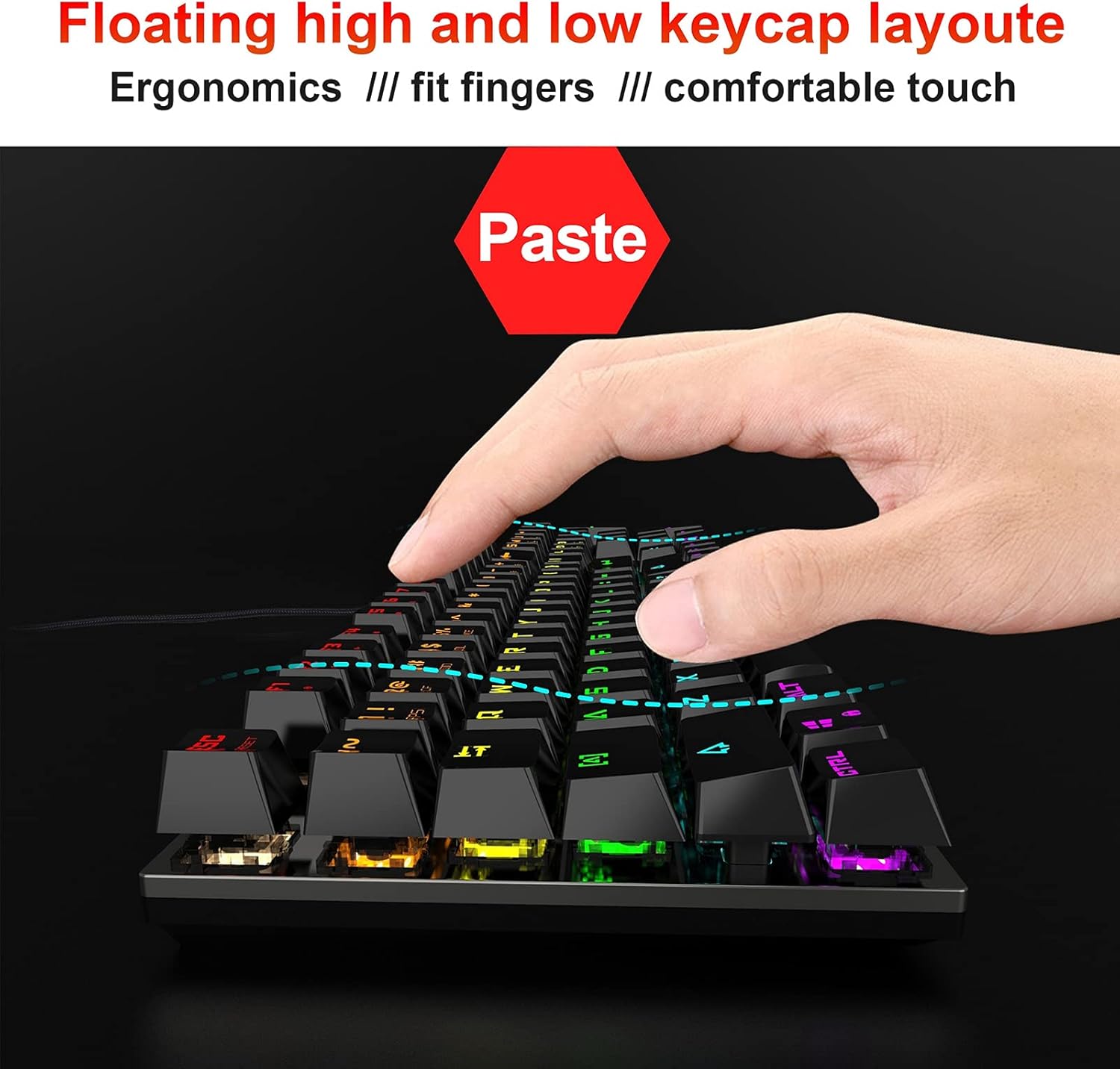
Image: A hand positioned over the HXSJ L300 keyboard, demonstrating the ergonomic "floating high and low keycap layout" which is designed to provide a comfortable and natural typing or gaming posture.