
Rosewill BLITZ K50 RGB
Rosewill Blitz K50 RGB Gaming Mechanical Keyboard User Manual
Model: BLITZ K50 RGB
Introduzione
Welcome to the user manual for the Rosewill Blitz K50 RGB Wired Gaming Mechanical Keyboard. This manual provides detailed instructions for setting up, operating, and maintaining your new keyboard. The Blitz K50 RGB is designed for gamers, featuring durable Outemu Blue mechanical switches, customizable RGB backlighting, dedicated macro keys, and convenient media controls, all engineered for a responsive and immersive gaming experience.

Image: The Rosewill Blitz K50 RGB Gaming Mechanical Keyboard, showcasing its full layout with active RGB backlighting.
Cosa c'è nella scatola
Verifica che tutti i seguenti componenti siano inclusi nel pacchetto:
- Rosewill Blitz K50 RGB Mechanical Gaming Keyboard
- Cavo USB integrato
- Estrattore per tasti
- Poggiapolsi staccabile
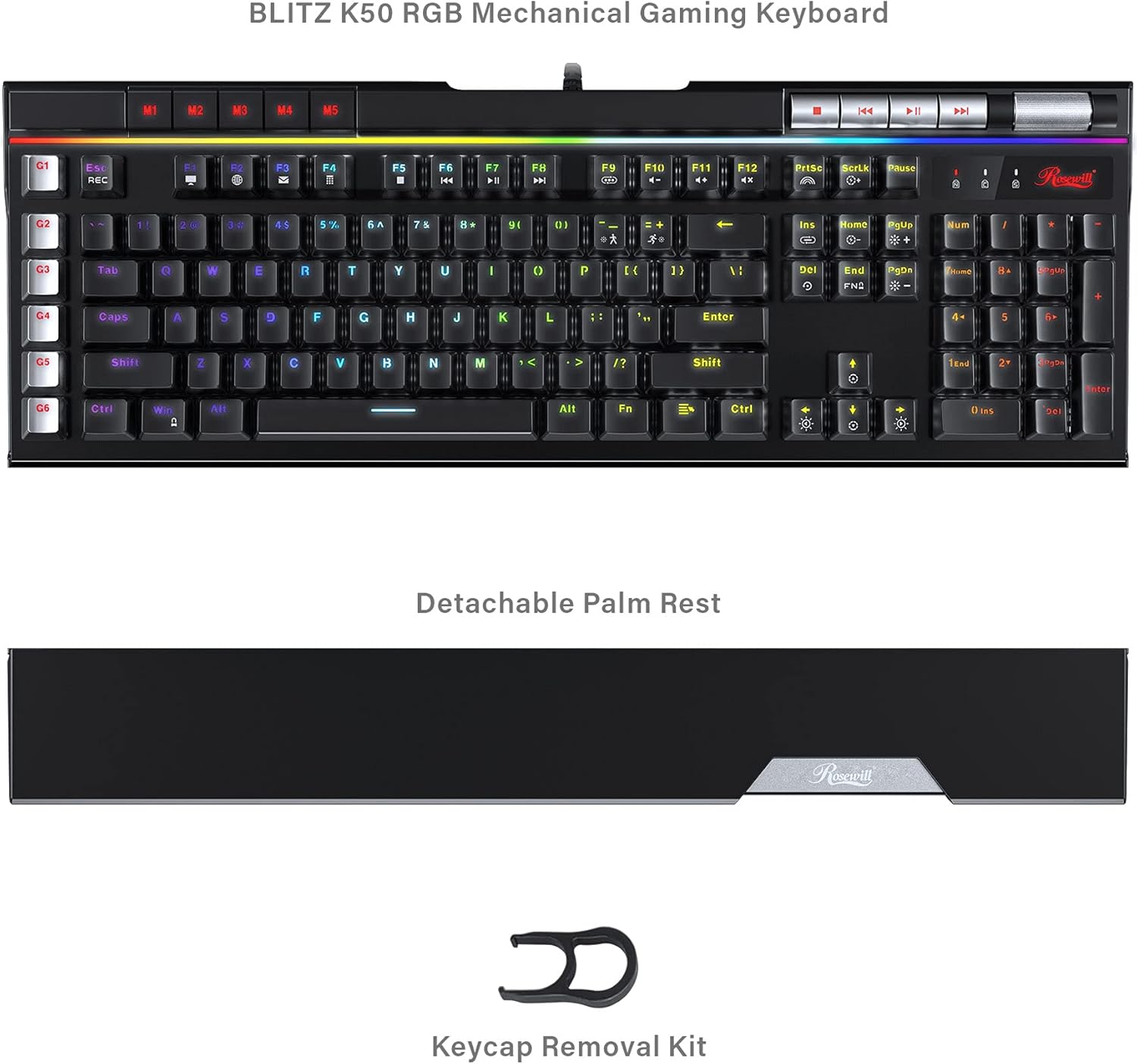
Image: The Rosewill Blitz K50 RGB keyboard displayed with its detachable palm rest and the included keycap puller, illustrating the package contents.
Impostare
1. Connect the Keyboard:
Plug the integrated USB cable from the Rosewill Blitz K50 RGB keyboard into an available USB port on your computer. The keyboard is designed for plug-and-play functionality and should be automatically recognized by Windows XP / Vista / 7 / 8 / 10 and above operating systems.
2. Attach the Palm Rest (Optional):
Align the detachable palm rest with the bottom edge of the keyboard and gently push to secure it in place. This accessory provides ergonomic support, enhancing comfort during prolonged use.
3. Install Software (Optional):
For advanced customization of RGB lighting effects and macro key programming, download the official Rosewill Blitz K50 RGB software suite from the Rosewill websito. Seguire le istruzioni sullo schermo per l'installazione.
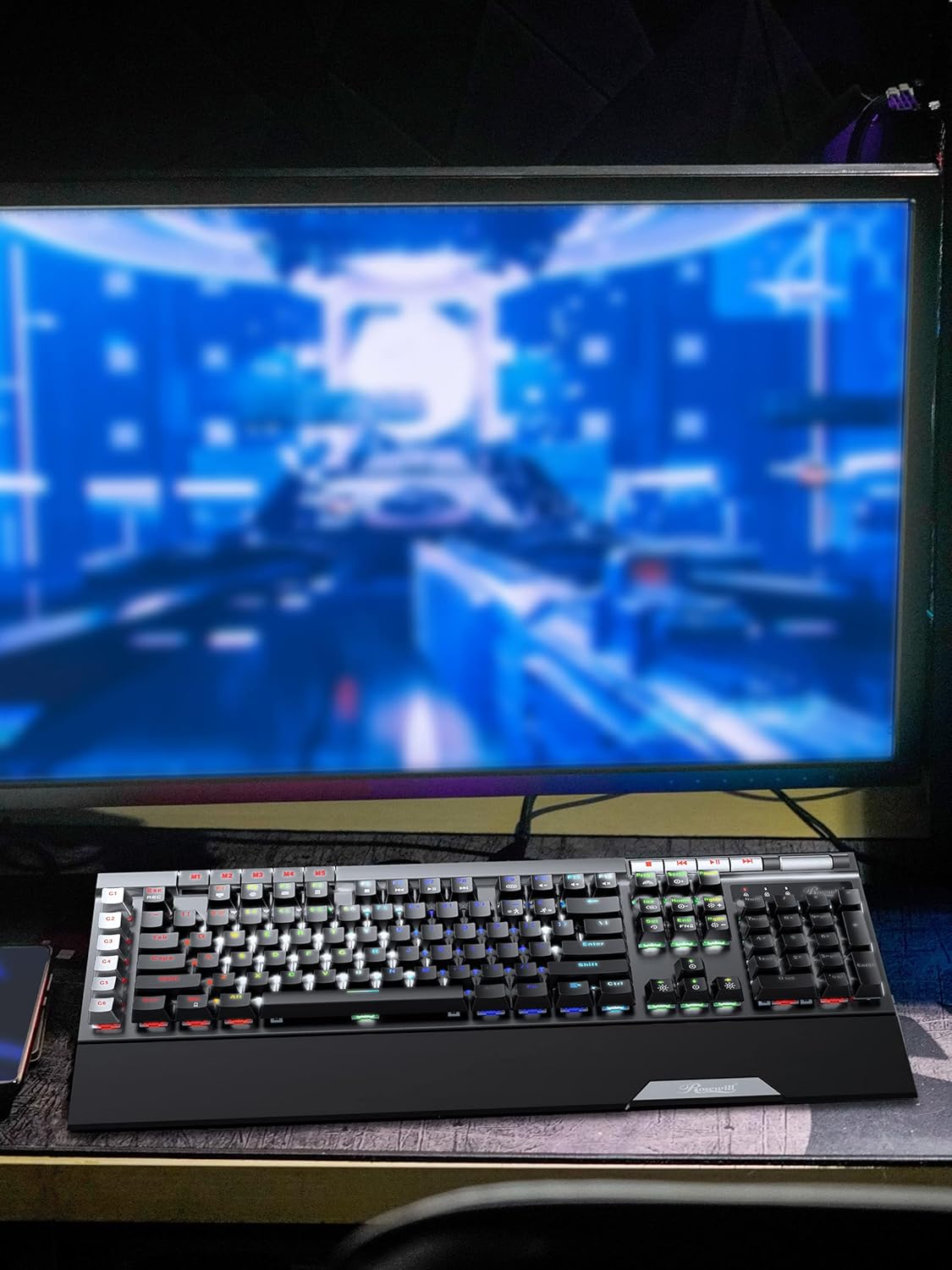
Image: The Rosewill Blitz K50 RGB keyboard positioned on a desk, connected to a computer monitor, illustrating a typical setup.
Istruzioni per l'uso
Effetti di retroilluminazione RGB
The Blitz K50 RGB offers 5 customizable RGB modes and 14 pre-programmed backlighting effects. These can be easily cycled through using the function keys or fine-tuned via the dedicated software.
- Utilizzo FN + Inserisci to cycle through the various pre-programmed lighting effects.
- Utilizzo FN + Casa to activate and switch between custom RGB modes.
- Regola la luminosità con FN + Freccia su (aumento) e FN + Freccia giù (diminuire).
- Adjust effect speed with FN + Freccia sinistra (più lento) e FN + Freccia destra (faster).

Image: A screenshot of the Rosewill Blitz K50 RGB software interface, displaying options for light modes, brightness, speed, and color customization.
Tasti macro dedicati (G1-G6)
The keyboard is equipped with 6 dedicated macro keys (G1-G6) positioned on the left side, enabling you to record and execute complex command sequences with a single key press. Macros can be programmed directly on the keyboard or through the comprehensive software suite.
- To record a macro on the keyboard: Press FN + REC, quindi premere il tasto desiderato G-key (G1-G6). Type your sequence of keys, then press FN + REC di nuovo per salvare la macro.
- For advanced macro programming, editing, and saving up to 3 distinct profiles, utilize the Rosewill Blitz K50 RGB software.

Immagine: un primo piano view highlighting the G1-G6 macro keys and the visible Outemu Blue mechanical switches on the Rosewill Blitz K50 RGB keyboard.
Controlli multimediali dedicati
Convenient media controls are strategically placed on the top right section of the keyboard, providing quick and intuitive access to playback functions and volume adjustments without interrupting your workflow or game.
- Fermare pulsante
- Traccia precedente pulsante
- Riproduci/Pausa pulsante
- Traccia successiva pulsante
- Rullo del volume: Roll upwards to increase volume, roll downwards to decrease volume.

Immagine: Un dettaglio view of the dedicated media control buttons and the tactile volume roller located on the Rosewill Blitz K50 RGB keyboard.
USB Passthrough Ports
The keyboard integrates two built-in USB 2.0 passthrough ports, offering convenient connectivity for additional peripherals such as a gaming mouse, headset, or USB storage device directly through the keyboard, simplifying cable management.

Image: A close-up of the two USB passthrough ports situated on the Rosewill Blitz K50 RGB keyboard, with a USB cable inserted into one of the ports.
N-Key Rollover and Anti-Ghosting
The Blitz K50 RGB features full N-Key Rollover (NKRO) and anti-ghosting capabilities. This ensures that every single key press is registered accurately and simultaneously, even during rapid, complex key combinations, which is essential for competitive gaming and efficient typing.
Manutenzione
Una corretta manutenzione prolungherà la durata e le prestazioni della tastiera:
- Pulizia: Use a soft, dry cloth to gently wipe down the keyboard surface. For removing dust and debris from between the keycaps, use compressed air.
- Rimozione dei tasti: The provided keycap puller can be used to carefully remove keycaps for thorough cleaning or replacement. Always pull keycaps straight up to prevent damage to the underlying switch.
- Evitare i liquidi: Do not expose the keyboard to liquids. In the event of a spill, immediately disconnect the keyboard from your computer and allow it to dry completely before attempting to reconnect it.
- Magazzinaggio: When not in active use, store the keyboard in a clean, dry environment, away from direct sunlight and extreme temperatures.
Risoluzione dei problemi
This section addresses common issues you might encounter with your Rosewill Blitz K50 RGB keyboard.
| Problema | Possibile soluzione |
|---|---|
| La tastiera non risponde. |
|
| L'illuminazione RGB non funziona o è errata. |
|
| Macro keys not functioning. |
|
| I tasti sono bloccati o non rispondono. |
|
Specifiche
Detailed technical specifications for the Rosewill Blitz K50 RGB Gaming Mechanical Keyboard:
| Caratteristica | Dettaglio |
|---|---|
| Modello | BLITZ K50 RGB |
| Tipo di interruttore | Outemu Blue Mechanical Switches |
| Connettività | USB 2.0 cablato |
| Numero di chiavi | 104 |
| Retroilluminazione | RGB (5 customizable modes, 14 pre-programmed effects) |
| Tasti macro | 6 Dedicated (G1-G6) |
| Anti-ghosting | Rollover N-chiave (NKRO) |
| Passthrough USB | 2 porte USB 2.0 |
| Controlli multimediali | Dedicated buttons and volume roller |
| Compatibilità del sistema operativo | Windows XP / Vista / 7 / 8 / 10 and above |
| Dimensioni (LxWxH) | 18.74 x 8.97 x 1.53 pollici (47.6 x 22.8 x 3.9 cm) |
| Peso | 2.58 libbre (1.17 kg) |
| Colore | Nero |

Immagine: una vista dall'alto view of the Rosewill Blitz K50 RGB keyboard with its key dimensions (length, width, and height) clearly indicated for reference.
Garanzia e supporto
For comprehensive warranty information, technical assistance, and customer support, please refer to the official Rosewill website or contact Rosewill customer service directly. It is recommended to retain your purchase receipt as proof of purchase for any warranty claims.
Official Rosewill Websito: www.rosewill.com
Ask a question about this manual
Ask about setup, troubleshooting, compatibility, parts, safety, or missing instructions. Manuals+ will review the question and use this page’s manual context to help answer it.