
1. Introduzione
The eero Max 7 mesh WiFi system is designed to provide high-speed, reliable internet connectivity throughout your home or office. Utilizing advanced Wi-Fi 7 technology, it supports internet plans up to 10 Gbps, offers extensive coverage, and can connect hundreds of devices simultaneously. This manual will guide you through the setup, operation, maintenance, and troubleshooting of your eero Max 7 system.

Immagine 1.1: Fronte e retro view of the eero Max 7 mesh WiFi system, showcasing its sleek design and port configuration.
2. Guida all'installazione
Setting up your eero Max 7 system is a straightforward process primarily managed through the eero mobile application. Ensure you have a compatible iOS or Android device and an active internet service.
2.1 Cosa c'è nella scatola
- eero Max 7 router(s)
- 45W USB-C power adapter(s)
- CAT6a Ethernet cable(s)
2.2 Initial Installation Steps
- Scarica l'app eero: Cercare 'eero' in your device's app store and download the official eero application.
- Collega il tuo primo eero:
- Unplug your modem (if applicable).
- Connect one of your eero Max 7 units to your modem using the provided Ethernet cable. Use one of the 10 GbE ports for the primary internet connection.
- Plug in the eero Max 7 power adapter and connect it to a power outlet.
- Plug your modem back in.
- Segui le istruzioni nell'app: Open the eero app and follow the on-screen prompts to create your eero account, set up your first eero, and add additional eero units to expand your mesh network. The app will guide you through optimal placement for maximum coverage.
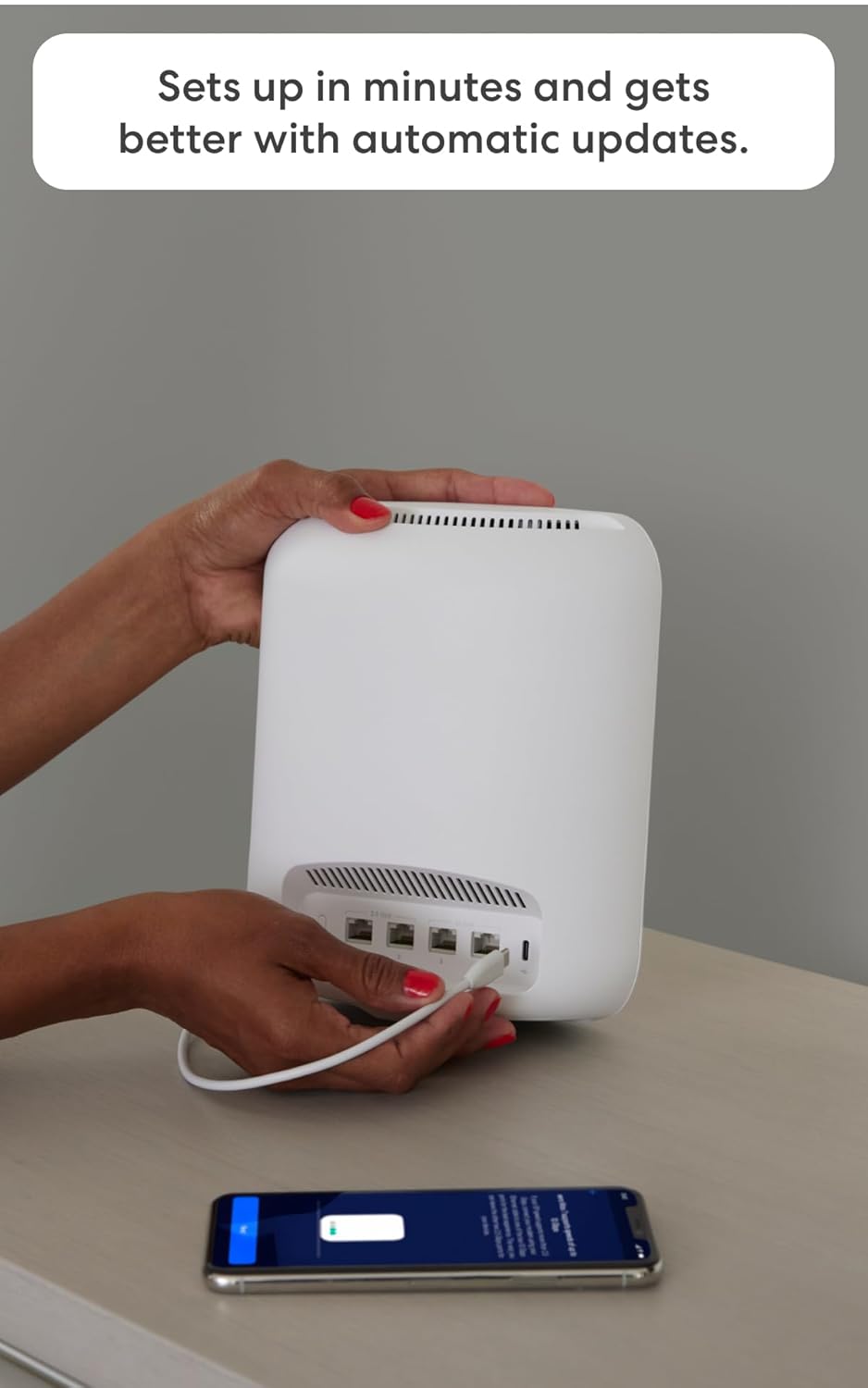
Image 2.1: A user connecting an Ethernet cable to the eero Max 7, with the eero app visible on a smartphone, illustrating the setup process.

Immagine 2.2: Dettagliata view of the eero Max 7's connectivity options, featuring two 2.5 GbE ports and two 10 GbE ports for versatile wired connections.
3. Operating Your eero Max 7 System
The eero app serves as your central control panel for managing your mesh WiFi network.
3.1 Gestione della rete
- Pannello di controllo: View your network status, connected devices, and internet speed.
- Accesso ospiti: Easily create a separate guest network with a unique password for visitors.
- Controllo del dispositivo: Metti in pausa l'accesso a Internet per dispositivi o professionisti specificifiles, manage bandwidth, and prioritize devices for critical tasks like gaming or streaming.
- Impostazioni avanzate: Access advanced network configurations such as port forwarding, DNS settings, and IP reservations.
3.2 Smart Home Hub Functionality
The eero Max 7 acts as a smart home hub, allowing you to connect and control various smart devices directly from your network.
- Filo: Supports Thread devices for a more robust and responsive smart home network.
- Importa: Functions as a Matter controller, enabling seamless integration with Matter-certified devices.
- Zigbee: Operates as a Zigbee controller, allowing you to connect compatible Zigbee devices.
- Funziona con Alexa: Integrate with Alexa devices to manage network access and other functions using voice commands.

Image 3.1: The eero Max 7 supporting high-performance applications like gaming, demonstrating its capability for demanding network activities.

Image 3.2: The eero Max 7 seamlessly integrated into a modern living space, providing Wi-Fi 7 connectivity for entertainment and smart home devices.
4. Manutenzione
The eero Max 7 system is designed for minimal maintenance, with several features ensuring optimal performance without constant user intervention.
4.1 Automatic Software Updates
eero devices automatically receive software updates to improve performance, add new features, and enhance security. Ensure your eero devices remain connected to the internet to receive these updates.
4.2 Cura generale
- Keep your eero devices in well-ventilated areas to prevent overheating.
- Avoid placing eero devices near large metal objects, thick walls, or other electronics that may cause interference.
- Clean the exterior of your eero devices with a soft, dry cloth as needed. Do not use liquid cleaners.
5. Risoluzione Dei Problemi
If you encounter issues with your eero Max 7 system, try the following troubleshooting steps before contacting support.
5.1 Problemi comuni e soluzioni
- Nessuna connessione internet:
- Controlla se il tuo modem funziona correttamente.
- Ensure all Ethernet cables are securely connected to your eero and modem.
- Restart your modem and then your eero devices by unplugging them for 30 seconds and plugging them back in.
- Velocità basse:
- Run a speed test through the eero app to verify your internet speed.
- Ensure your eero devices are optimally placed and not too far apart.
- Check for any devices consuming excessive bandwidth and consider pausing them temporarily.
- Dispositivo non connesso:
- Ensure the device's Wi-Fi is enabled and it is within range of an eero unit.
- Riavviare il dispositivo problematico.
- Verificare che la password Wi-Fi inserita sia corretta.
5.2 eero App Diagnostics
The eero app provides diagnostic tools and network insights that can help identify and resolve issues. Check the app for alerts or recommendations.
6. Specifiche
Detailed technical specifications for the eero Max 7 mesh WiFi system:
| Caratteristica | Dettaglio |
|---|---|
| Wifi standards | Wi-Fi 7 (IEEE802.11a/b/g/n/ac/ax/be) |
| Number of radios | 3; tri-band |
| Canali supportati | 2.4 GHz: 1-13; 5 GHz: 36-64, 100-144, 149-165; 6 GHz: 1-233 |
| MIMO | 2x2/4x4/4x4 MU/SU-MIMO |
| Flussi spaziali | 10 |
| Larghezza del canale | 20, 40, 80, 160, 240, 320 MHz |
| Sicurezza e servizi di rete | Modalità di transizione WPA2-PSK, WPA3-Personal |
| Other Wi-Fi features | WMM, Tx Beamforming, OFDMA |
| BE rating | BE20800 |
| Selezione del canale | Selezione automatica del canale |
| Sterzo della banda | SÌ |
| Device/profile pausa | SÌ |
| Easy password sharing for guest and home network | SÌ |
| Hub per la casa intelligente | SÌ |
| Filo | SÌ |
| Bluetooth | Bluetooth Low Energy 5.0 |
| Zigbee | Yes (as a controller only) |
| Funziona con Alexa | Yes: With eero Max 7 and an Alexa device (not included), you can easily manage wifi access for family profiles. |
| Questione | Yes (controller only) |
| Antenna | 2.4 GHz: 2x2, 5 GHz: 4x4, 6 GHz: 4x4 |
| Bande di frequenza | ISM (2.4-2.484 GHz), UNII 1: 5.15 - 5.25 GHz, UNII 2A: 5.25 - 5.35 GHz, UNII 2C: 5.47 - 5.725 GHz, UNII 3: 5.725 - 5.850 GHz, UNII 5: 5.925 - 6.425 GHz, UNII 6: 6.425 - 6.525 GHz, UNII 7: 6.525 - 6.875 GHz, UNII 8: 6.875 - 7.125 GHz |
| Types of modulation | Ordine alfabetico |
| Etereo | Two auto-sensing 10 GbE ports and two auto-sensing 2.5 GbE ports for WAN and/or LAN connectivity |
| Processore | Processore quad-core A73 |
| Memoria | 2 GB di RAM |
| Magazzinaggio | 4 GB di memoria flash |
| Misurare | 7.24 x 8.73 x 3.54 pollici (183.90 x 221.89 x 89.90 mm) |
| Temperatura di esercizio | 32°F-104°F (0°C-40°C) |
| Requisiti elettrici | 100-240 V CA, 50/60 Hz |
| Alimentazione AC | 45W external USB-PD |
| OS support for eero app | App iOS/Android |
| Necessario per l'installazione | Supported iOS or Android device and internet service (with cable, DSL, or fiber ONT modem, if required). |
7. Garanzia e supporto
eero provides comprehensive support and warranty coverage for your Max 7 mesh WiFi system.
7.1 Informazioni sulla garanzia
The eero Max 7 comes with a Garanzia limitata di 3 anno. For detailed warranty information, privacy policy, terms of service, and trial/subscription terms, please visit eero.com/legal.
7.2 Assistenza clienti
If you require assistance with setup, troubleshooting, or any other issues, the eero support team is available to help.
- Supporto via e-mail: support@eero.com
- Supporto telefonico: +1-877-659-2347


