
Kobo N418-KU-BK-K-EP
Kobo Libra 2 eReader User Manual
Model: N418-KU-BK-K-EP
Brand: Kobo
1. Introduzione
About Your Kobo Libra 2
The Kobo Libra 2 is an advanced eReader designed for an optimal reading experience. It combines cutting-edge display technology with user-friendly features to provide comfort and convenience for avid readers.
Caratteristiche principali:
- Glare-Free & Improved Screen: Features a 7" HD E Ink Carta 1200 touchscreen for faster display, quicker page turns, and deeper contrast. Designed to be glare-free, unlike typical screens.
- ComfortLight PRO: Adjustable brightness and blue light reduction technology to minimize eyestrain and support comfortable reading at any time, including night. Includes a Dark Mode option for white text on a black background.
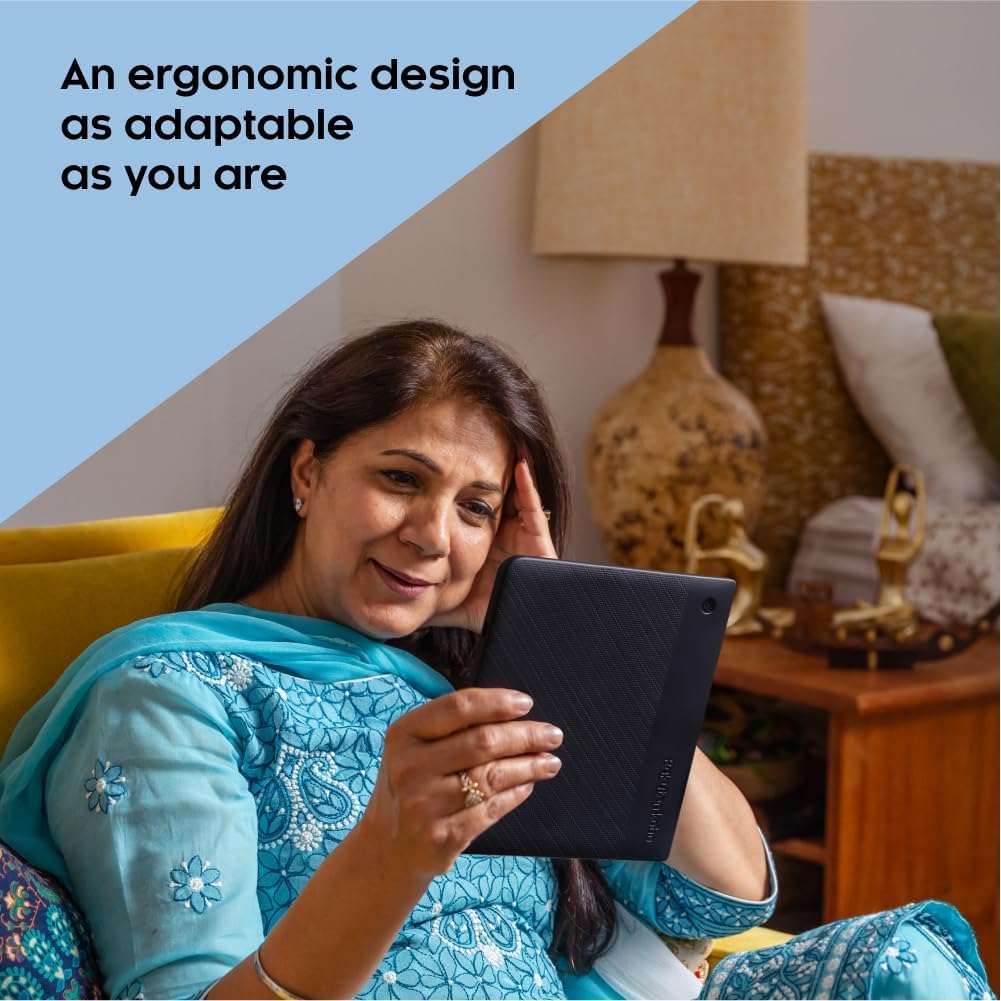
- Adaptive Ergonomic Design: Ergonomically designed for comfortable holding, with options to swipe the touchscreen or use physical page-turn buttons. Supports landscape reading mode.
- Supporto audiolibri: Compatible with Kobo Audiobooks via Bluetooth wireless technology. (Bluetooth headphones or speaker required; audiobooks available in select countries).
- Full Waterproof Protection: Meets IPX8 rating requirements, allowing submersion in up to 2 meters of water for up to 60 minutes.
- AmpMemorizzazione: Equipped with 32GB of internal storage, capable of holding up to 24,000 eBooks or 150 Kobo Audiobooks, or a combination of both.

The Kobo Libra 2 eReader, showcasing its clear E Ink display.
2. Impostazione
Accensione iniziale
To power on your Kobo Libra 2 for the first time, locate the power button on the back of the device. Press and hold it until the screen activates. The device will guide you through the initial setup process.

The power button is conveniently located on the back of the device.
Connessione al Wi-Fi
During the setup wizard, you will be prompted to connect to a Wi-Fi network. Select your desired network from the list and enter the password if required. A stable Wi-Fi connection is essential for downloading content and updates.
Registrazione del dispositivo
Follow the on-screen instructions to register your Kobo Libra 2 with your Kobo account. If you do not have an account, you will be prompted to create one. Registration links your device to your Kobo library and enables access to the Kobo Store.
3. Operating Your Kobo Libra 2
Navigazione nell'interfaccia
The Kobo Libra 2 features an intuitive touchscreen interface. The main navigation bar at the bottom of the screen provides quick access to:
- Casa: Your personalized homepage with recently read books and recommendations.
- I miei libri: Your complete library, organized by various categories.
- Scoprire: Access to the Kobo Store for purchasing eBooks and Audiobooks.
- Di più: Additional settings, beta features, and help options.

The main interface of the Kobo Libra 2, designed for easy navigation.
Leggere eBook
To turn pages, you can either swipe across the touchscreen or use the physical page-turn buttons located on the side of the device. The buttons offer a tactile feedback for convenient reading, especially when holding the device with one hand.
Adjust brightness and natural light settings by tapping the sun icon in the top menu. You can manually adjust the brightness slider or enable 'Auto' for automatic adjustments based on ambient light and time of day. The natural light filter reduces blue light, making it easier on your eyes for extended reading sessions, particularly in low-light conditions.

Dark Mode provides a comfortable reading experience in low light.
The standard reading mode offers clear contrast for daytime reading.
Managing Your Library
In the "My Books" section, you can filter and sort your content by various criteria such as author, series, or collections. The Kobo Libra 2 also offers direct integration with OverDrive, allowing you to borrow eBooks from your local public library directly from your device.

Organize and access your entire book collection with ease.
Ascoltare audiolibri
The Kobo Libra 2 supports Kobo Audiobooks. You can connect Bluetooth wireless headphones or speakers to your device to listen to audiobooks hands-free. This feature is ideal for multitasking or when you prefer to listen rather than read.

Enjoy your audiobooks wirelessly with Bluetooth connectivity.
Rotazione dello schermo
The device supports automatic screen rotation, allowing you to read in portrait or landscape mode. This adaptability ensures comfortable reading regardless of your preferred holding style or content format.

The screen automatically adjusts to your preferred orientation.
4. Manutenzione
Impermeabilizzazione
The Kobo Libra 2 is designed to be fully waterproof with an IPX8 rating. This means it can be submerged in up to 2 meters of water for up to 60 minutes. While it offers robust protection, it is recommended to avoid prolonged submersion and ensure the charging port is dry before connecting any cables.

Enjoy reading by the pool or in the bath without worry.
Pulizia
To clean your Kobo Libra 2, use a soft, lint-free cloth. For smudges or fingerprints, a slightly damp cloth can be used. Avoid abrasive materials or harsh chemicals that could damage the screen or casing.
Durata della batteria e ricarica
The Kobo Libra 2 offers an impressive battery life of approximately 21 hours of continuous reading. To charge the device, use the provided USB-C cable and connect it to a compatible power source (e.g., computer USB port or wall adapter). A full charge typically takes a few hours.
5. Risoluzione Dei Problemi
Blocco del dispositivo
If your Kobo Libra 2 becomes unresponsive or freezes, press and hold the power button for about 15-20 seconds to perform a hard reset. This should restart the device and resolve most freezing issues.
Screen Blinking/Lag
E Ink screens periodically refresh, which may cause a brief blink or flash. This is normal behavior for E Ink technology and helps maintain optimal display quality. Minor lag when navigating menus or loading new content is also typical due to the nature of the display.
OverDrive Issues
If you experience issues with OverDrive, such as books not downloading or progress being lost, ensure your device has a stable Wi-Fi connection. Sometimes, returning and re-borrowing a book can resolve synchronization problems. Kobo automatically downloads "preview" copies when library books are returned; these can be manually removed from your library if not desired.
6. Specifiche
| Caratteristica | Dettaglio |
|---|---|
| Dimensioni del prodotto | 7.01 x 7.64 x 1.18 pollici |
| Peso dell'articolo | 7.6 once (215 grammi) |
| Dimensioni dello schermo | 7 pollici |
| Risoluzione dello schermo | 1264x1680 |
| Tecnologia di visualizzazione | Inchiostro elettronico (E Ink Carta 1200) |
| Capacità di archiviazione della memoria | 32 GB |
| Durata della batteria | Up to 21 Hours (approx. 6 weeks at 30 mins/day) |
| Tecnologia di connettività | Wifi bluetooth |
| Grado di impermeabilità | IPX8 (up to 60 minutes in 2 meters of water) |
| Colore | Nero |
7. Garanzia e supporto
For detailed warranty information and technical support, please refer to the official Kobo website or contact Kobo customer service.
You can also download the comprehensive User Guide in PDF format for more in-depth information:
Ask a question about this manual
Ask about setup, troubleshooting, compatibility, parts, safety, or missing instructions. Manuals+ will review the question and use this page’s manual context to help answer it.