
iZEEKER GD850
iZEEKER 4K Dual Dash Cam User Manual
Modello: GD850
1. Introduzione
The iZEEKER GD850 4K Dual Dash Cam is designed to provide comprehensive vehicle recording with advanced features for enhanced safety and convenience. This manual provides detailed instructions for setting up, operating, maintaining, and troubleshooting your dash cam.
Caratteristiche principali:
- Registrazione anteriore 4K e posteriore 1080P: Captures clear, high-resolution video from both front and rear perspectives.
- 3'' IPS Touch Screen: Offers intuitive and responsive control for easy navigation.
- Sony Starvis Sensor & WDR: Ensures superior night vision and balanced exposure in various lighting conditions.
- Wi-Fi e GPS integrati: Allows for easy video management via mobile app and accurate location/speed tracking.
- Registrazione in loop e sensore G: Sovrascrive automaticamente il vecchio footage and locks important video segments upon impact.
- Monitoraggio del parcheggio: Provides surveillance when the vehicle is parked (requires hardwire kit).

Figure 1.1: iZEEKER GD850 4K Dual Dash Cam and Rear Camera.
This image displays the primary components of the iZEEKER GD850 dash cam system, including the main front camera unit with its large display and the compact rear camera.
2. Componenti del prodotto
Prima dell'installazione, verificare che tutti i componenti siano presenti nella confezione:
- Main Dash Cam Unit (Front Camera)
- Telecamera posteriore
- Power Cable with Integrated GPS Module
- Cavo di collegamento della telecamera posteriore
- Mounting Options (Suction Cup Mount, Adhesive Mount)
- USB Card Reader
- Manuale d'uso
- Wiring Tools (e.g., pry tool)

Figure 2.1: Included Components of the GD850 Dash Cam System.
This image illustrates the various items included in the product package, such as the main dash cam, rear camera, GPS module, and a 64GB memory card with a USB card reader.
3. Configurazione e installazione
3.1 Inserimento della scheda Micro SD
Insert a high-speed (Class 10 or higher) Micro SD card (up to 256GB, not included) into the designated slot on the dash cam. Ensure the card is inserted correctly until it clicks into place.
3.2 Montaggio della Dash Cam anteriore
Scegli una posizione adatta sul parabrezza, preferibilmente dietro la parte posterioreview specchio, per evitare di ostruire il tuo view. Clean the area thoroughly before applying the mount.
- Supporto a ventosa: Premere saldamente la ventosa contro il parabrezza e ruotare la leva per fissarla.
- Supporto adesivo: Peel off the protective film from the adhesive pad and firmly press the mount onto the windshield for at least 30 seconds.

Figure 3.1: Strap-on Installation Method for the Dash Cam.
This image demonstrates the easy strap-on installation method, allowing the dash cam to be securely attached to the vehicle's rearview specchio.
3.3 Installazione della telecamera posteriore
Mount the rear camera on the rear windshield or license plate area. Connect the rear camera to the main dash cam unit using the provided rear camera cable. Ensure the cable is routed neatly and securely.

Figure 3.2: Rear Camera with Guide Function and Waterproof Design.
This image highlights the rear camera's design, featuring a guide function for parking assistance and a waterproof construction for reliable performance in various weather conditions.
3.4 Collegamento di alimentazione
Connect the power cable (with integrated GPS module) to the dash cam and plug the other end into your vehicle's 12V power outlet (cigarette lighter socket). Route the cable along the windshield trim to keep it tidy and out of the way.
4. Istruzioni per l'uso
4.1 Funzionamento di base
- Accensione/spegnimento: La dash cam si accenderà automaticamente e inizierà a registrare all'avvio del veicolo. Si spegnerà quando il veicolo verrà spento.
- Controllo touch screen: Use the 3-inch IPS touch screen to navigate menus, adjust settings, and review pippotage.
- Indicatore di registrazione: A white light under the screen indicates that the camera is recording.
4.2 Funzioni di registrazione
- Registrazione in loop: The dash cam records video in continuous loops (e.g., 1, 3, or 5-minute segments). When the memory card is full, the oldest unlocked footage sarà sovrascritto.
- Registrazione di emergenza (G-Sensor): In caso di impatto o collisione improvvisa, il sensore G integrato rileverà automaticamente l'evento e bloccherà il segmento video corrente, impedendone la sovrascrittura.
- Registrazione manuale di emergenza: Touch the triangle icon on the touchscreen to manually lock the current recording.

Figure 4.1: Front 4K Ultra HD and Rear 1080P Full HD Recording.
This image illustrates the high-definition recording capabilities of the dash cam, with the front camera capturing in 4K Ultra HD and the rear camera in 1080P Full HD.

Figure 4.2: 64GB TF Card and Loop Recording Feature.
This image explains the loop recording functionality, showing how the dash cam continuously records and manages storage using a 64GB TF card and an included card reader for easy file trasferimento.
4.3 Funzionalità avanzate
- Connettività WiFi: Download the "Lucky Cam" or "OK cam" app on your smartphone (Android/iOS). Connect your phone to the dash cam's WiFi network to view cibo vivotage, riprodurre registrazioni e scaricare files directly to your device.
- Funzionalità GPS: The integrated GPS module records your driving route, speed, and coordinates, which can be viewed using dedicated player software on a computer.
- Monitoraggio del parcheggio: When enabled (requires a hardwire kit, sold separately), the dash cam will automatically power on and record a short video if a collision is detected while your vehicle is parked.
- Traffic Signal Detection: Supports recognition of traffic signals to enhance driving awareness.

Figure 4.3: Parking Monitor, Traffic Signal Detection, and GPS Features.
This image visually represents the advanced functionalities of the dash cam, including the parking monitor (requiring a hardwire kit), traffic signal detection for improved safety, and reliable GPS for location tracking.
4.4 Ricarica rapida di tipo C
The dash cam utilizes a Type-C port for power, offering stable and efficient charging. This modern connection is reversible, preventing incorrect insertion.
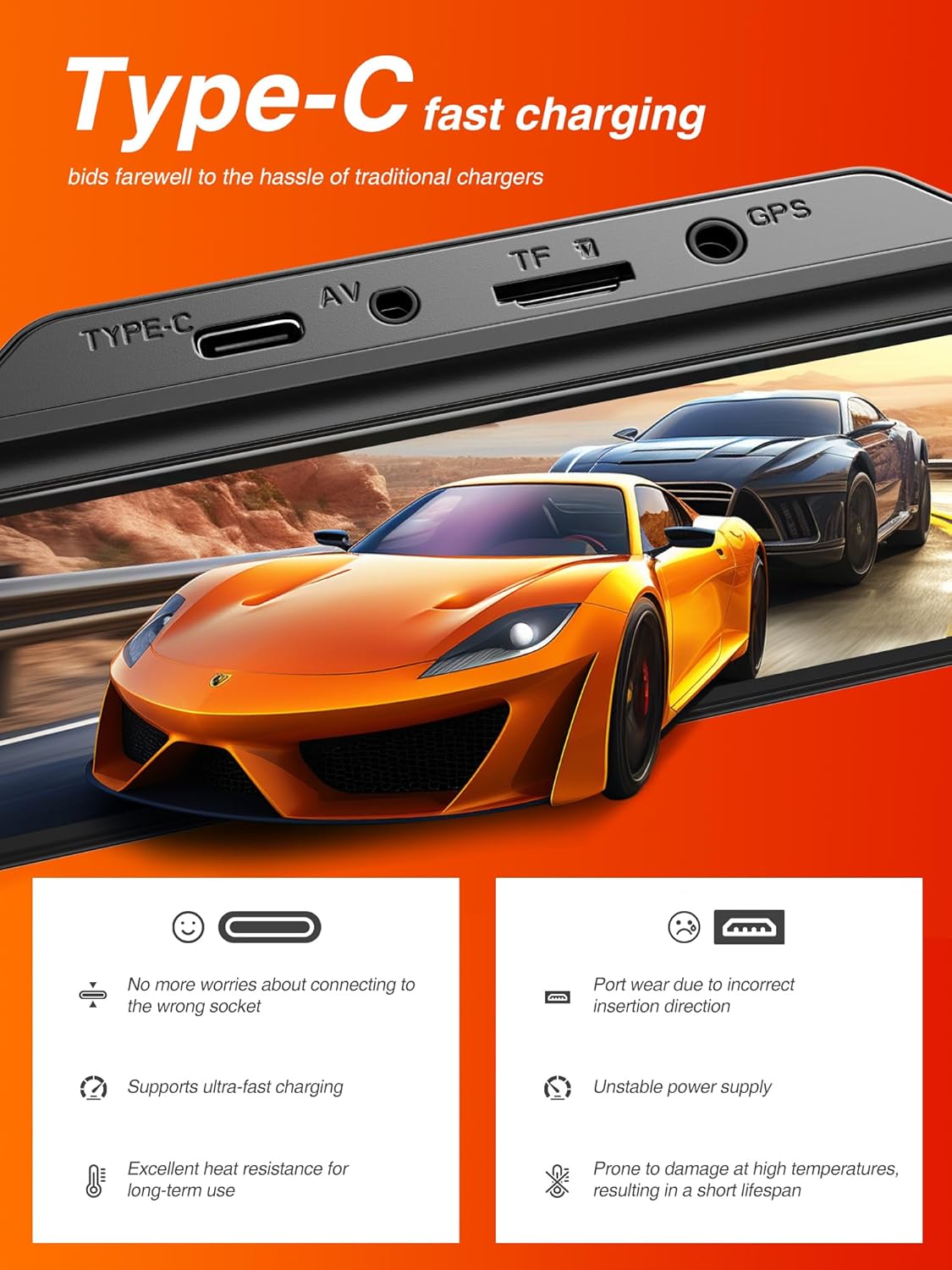
Figura 4.4: Porta di ricarica rapida di tipo C.
This image highlights the Type-C charging port on the dash cam, emphasizing its benefits such as ease of connection and support for ultra-fast charging.
5. Manutenzione
5.1 Formattazione della scheda Micro SD
It is recommended to format the Micro SD card regularly (e.g., once a month) to ensure optimal performance and prevent data corruption. This can typically be done through the dash cam's settings menu.
5.2 Pulizia del dispositivo
Use a soft, dry cloth to clean the dash cam's screen and lenses. Avoid using abrasive cleaners or solvents that could damage the device.
5.3 Aggiornamenti firmware
Check the iZEEKER official website periodically for any available firmware updates. Updating the firmware can improve performance, add new features, or fix bugs.
6. Risoluzione Dei Problemi
If you encounter issues with your iZEEKER GD850 dash cam, refer to the following common problems and solutions:
| Problema | Possibile causa/soluzione |
|---|---|
| Dash cam turns on/off randomly. |
|
| Il sensore G è troppo sensibile o non abbastanza sensibile. |
|
| "SD Card Full" error or not recording. |
|
| Problemi di connessione WiFi. |
|
| Videos not saving or missing segments. |
|
If the problem persists after trying these solutions, please contact iZEEKER customer support for further assistance.
7. Specifiche
| Caratteristica | Dettaglio |
|---|---|
| Marca | iZEEKER |
| Nome del modello | iZEEKER GD850 |
| Dimensioni del prodotto | 3.53 x 2.54 x 1.31 pollici |
| Peso dell'articolo | 4.2 once |
| Risoluzione di acquisizione video | Anteriore: 4K, Posteriore: 1080P |
| Display | Schermo touch IPS da 3'' |
| Tecnologia di connettività | Wifi |
| Caratteristiche speciali | Loop Recording, Emergency Recording, GPS, Parking Monitor, Night Vision (Sony Starvis Sensor, WDR) |
| Tipo di montaggio | Supporto adesivo, supporto a ventosa |
| Supporto massimo per schede SD | 256 GB |
| Fonte di alimentazione | 1 Lithium Ion battery required (internal), Vehicle 12V power outlet (external) |
| Colore | Nero |
8. Garanzia e supporto
8.1 Informazioni sulla garanzia
The iZEEKER GD850 Dash Cam comes with a Garanzia di 24 mesi from the date of purchase. This warranty covers manufacturing defects and ensures the product's quality and performance under normal use. Please retain your proof of purchase for warranty claims.
8.2 Assistenza clienti
For technical assistance, troubleshooting, or warranty inquiries, please contact iZEEKER customer support:
- E-mail: support@izeeker.co
- Produttore: iZEEKER (Accion Innovations LLC)
- Indirizzo: 17928 Rowland St, City of Industry, CA 91748, USA

Figure 8.1: Warranty and Support Contact Details.
This image provides information regarding the 24-month warranty and the official contact email for customer support, along with the manufacturer's address.
Ask a question about this manual
Ask about setup, troubleshooting, compatibility, parts, safety, or missing instructions. Manuals+ will review the question and use this page’s manual context to help answer it.