
1. Introduzione
This manual provides essential information for the proper setup, operation, and maintenance of your DTEN Me Pro 27. Please read these instructions carefully before using the device to ensure optimal performance and safety. The DTEN Me Pro 27 is an all-in-one desktop device designed for enhanced video conferencing and collaboration.
2. Impostazione
2.1 Disimballaggio e ispezione
Carefully remove the DTEN Me Pro 27 from its packaging. Inspect the device and all accessories for any signs of damage. If any components are missing or damaged, contact DTEN support immediately.
2.2 Connessioni fisiche
- Collegamento elettrico: Connect the power adapter to the device's power input port and then plug it into a standard electrical outlet.
- Connessione di rete: For optimal performance, connect an Ethernet cable from your network router or switch to the device's Ethernet port. Wi-Fi connectivity is also available and can be configured during initial setup.
- Dispositivi esterni (opzionali): If using the DTEN Me Pro 27 as a secondary display or connecting external peripherals, use the appropriate USB or HDMI ports.
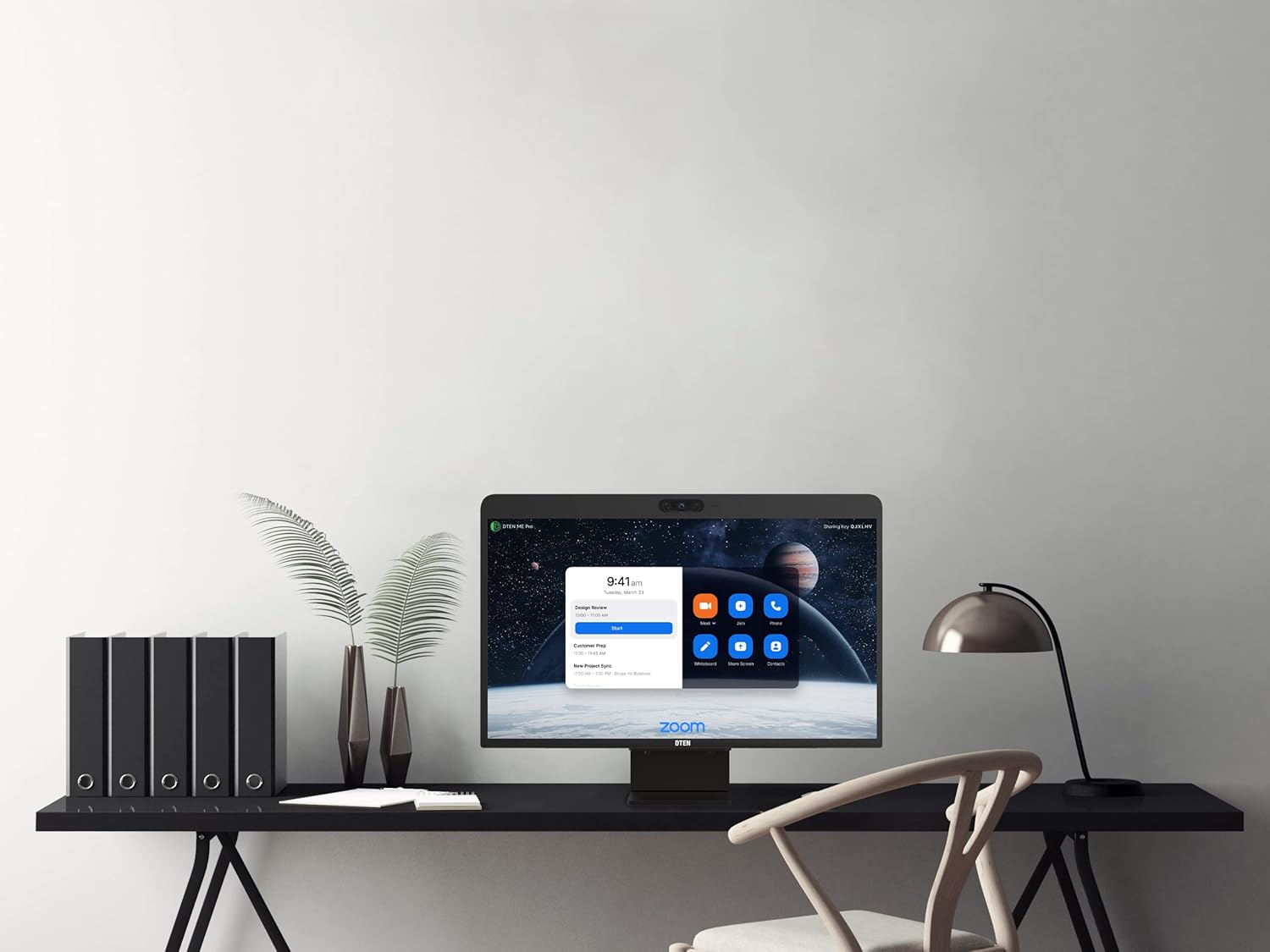
Figure 2.2.1: DTEN Me Pro 27 positioned on a desk, ready for connection.
2.3 Accensione iniziale
Press the power button, typically located on the back or side of the device. The DTEN Me Pro 27 will boot up and guide you through the initial setup process, which includes network configuration, time zone settings, and Zoom account login.

Figure 2.3.1: The DTEN Me Pro 27 demonstrating Smart Connect functionality with a connected laptop.
3. Istruzioni per l'uso
3.1 Navigazione dell'interfaccia utente
The DTEN Me Pro 27 features a capacitive touch screen display. Navigate the interface by tapping, swiping, and pinching gestures similar to a tablet device. The main screen typically displays your meeting schedule and quick access icons for common functions like 'Meet', 'Join', 'Whiteboard', and 'Share Screen'.

Figure 3.1.1: The DTEN Me Pro 27 display showing the primary Zoom interface with meeting details and interaction options.
3.2 Joining and Starting Meetings
- To Join a Meeting: Tap the 'Join' icon and enter the meeting ID and passcode.
- To Start a Meeting: Tap the 'Meet' icon to initiate an instant meeting or select a scheduled meeting from your calendar and tap 'Start'.
3.3 Using Whiteboard and Annotation
The integrated whiteboard feature allows for real-time collaboration. Tap the 'Whiteboard' icon to begin. You can draw, write, and annotate directly on the screen using your finger or a compatible stylus. During a screen share, you can also use annotation tools to highlight or mark up content.
3.4 Audio and Video Controls
During a meeting, controls for microphone mute/unmute, camera on/off, and volume adjustment are typically accessible on the screen. The device features an 8-microphone array and a high-resolution camera for clear communication.

Figure 3.4.1: A user engaging in a video conference using the DTEN Me Pro 27, highlighting its audio and video capabilities.
4. Manutenzione
4.1 Istruzioni per la pulizia
Per pulire lo schermo, strofinarlo delicatamente con un panno morbido e privo di lanugine. Per le macchie ostinate, strofinare leggermenteampen the cloth with water or a screen-safe cleaning solution. Avoid using harsh chemicals, abrasive materials, or excessive moisture. For the device body, use a dry, soft cloth.
4.2 Aggiornamenti software
The DTEN Me Pro 27 receives regular software updates to improve performance and add new features. Ensure your device is connected to the internet to receive these updates. Updates are typically managed automatically or prompted through the device's settings.
4.3 Linee guida per la sicurezza
- Non ostruire le aperture di ventilazione.
- Tenere il dispositivo lontano dalla luce solare diretta, da fonti di calore e da liquidi.
- Utilizzare esclusivamente l'adattatore di alimentazione fornito.
- Evitare di far cadere o sottoporre il dispositivo a forti impatti.
5. Risoluzione Dei Problemi
If you encounter issues with your DTEN Me Pro 27, refer to the following common troubleshooting steps:
- Nessun potere: Ensure the power cable is securely connected to both the device and the power outlet. Try a different outlet.
- Nessuna visualizzazione: Check power connection. If connected to an external source, ensure the correct input is selected.
- Audio/Video Issues: Verify microphone and camera settings within the meeting application. Check internet connection stability.
- Touchscreen non reattivo: Restart the device. Ensure the screen is clean and free from obstructions.
- Problemi di connettività di rete: Check Ethernet cable connection or Wi-Fi settings. Restart your router if necessary.
For persistent issues, consult the DTEN support websito o contattare il loro team di supporto tecnico.
6. Specifiche
| Caratteristica | Dettaglio |
|---|---|
| Numero di modello | DBA0027EA-S1 |
| Dimensioni del prodotto | 24.25 x 15.4 x 4.1 pollici |
| Peso dell'articolo | 19.8 libbre |
| Dimensioni di visualizzazione dello schermo in piedi | 27 pollici |
| Risoluzione | 2560 x 1440 (QHD Wide 1440p) |
| Proporzioni | 16:9 |
| Descrizione della superficie dello schermo | Capacitive Touch Screen Display |
| Porte USB totali | 1 |
| Produttore | DTEN |
7. Garanzia e supporto
7.1 Informazioni sulla garanzia
The DTEN Me Pro 27 comes with a standard manufacturer's warranty. For detailed information regarding warranty terms, coverage, and duration, please refer to the warranty card included with your product or visit the official DTEN websito.
7.2 Supporto tecnico
For technical assistance, product inquiries, or to report issues, please visit the official DTEN support portal or contact their customer service. Support resources often include FAQs, knowledge bases, and contact options for direct assistance.