
SUPVAN E10 Black
Macchina per etichette Bluetooth SUPVAN E10
Manuale d'uso
Introduzione
The SUPVAN E10 Bluetooth Label Maker Machine is a versatile and inkless labeler designed for efficient organization in various environments, including home, kitchen, school, and office. This compact device connects wirelessly via Bluetooth to your smartphone, allowing you to create customized labels using a dedicated mobile application. Its thermal printing technology eliminates the need for ink or toner, offering a cost-effective and convenient labeling solution. The E10 supports both continuous and fixed-size label tapes, providing flexibility for different labeling needs.

Cosa c'è nella scatola
Upon unboxing your SUPVAN E10 Label Maker, please ensure all the following components are present:
- Stampante per etichette
- White Continuous Label * 1
- Cavo USB-C
- Manuale

Impostare
1. Carica del dispositivo
Before initial use, fully charge your SUPVAN E10 Label Maker using the provided USB-C cable. A full charge can provide approximately one month of standby time, ensuring readiness for your labeling tasks.

2. Installazione del nastro per etichette
The SUPVAN E10 supports both continuous and fixed-size label tapes. To install, open the label compartment, insert the tape roll with the label side facing up, and feed the leading edge of the tape through the output slot. Ensure the tape is properly aligned for optimal printing.

3. Download e connessione dell'app
The SUPVAN E10 operates via the "Katasymbol" mobile application, available for both Android and iOS devices. There are no fees or registration required to use the app.
- Scarica l'App: Scan the QR code on the product packaging or search for "Katasymbol" in your device's app store.
- Abilita Bluetooth: Assicurati che il Bluetooth sia abilitato sul tuo smartphone.
- Connetti alla stampante: Open the Katasymbol app. The app will guide you to connect to your E10 label maker via Bluetooth. Select "E10" from the list of available devices.

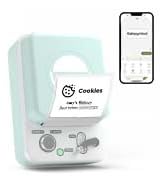
Video: This video demonstrates the process of connecting the SUPVAN E10 Label Maker to its mobile application via Bluetooth.
Istruzioni per l'uso
1. Creazione e modifica delle etichette
Once connected, use the Katasymbol app to design your labels. The app offers extensive customization options:
- Testo: Input your desired text.
- Caratteri: Choose from over 40 available fonts.
- Icone e simboli: Access over 1000 icons and 450+ symbols to enhance your labels.
- Cornici: Select from 30 frames to add decorative borders.
- Altre caratteristiche: The app also supports QR codes, barcodes, and integration with Excel for batch printing.


Video: This video demonstrates how to create and customize labels using the E10 label maker and its app.
2. Stampa di etichette
After designing your label, tap the "Print" button in the app. The E10 will quickly print your label using thermal technology. The built-in cutter allows for a precise and clean cut of the label tape.
3. Esempio di applicazioneamples
The SUPVAN E10 is suitable for a wide range of labeling applications:
- Organizzazione della casa: Label storage boxes, spice jars, food containers, and personal items.
- Ufficio e scuola: Organizzare files, label office supplies, and create name tags.
- Gestione dei cavi: Identify cables and wires for electronic devices.
- Cucina e bagno: Labels are waterproof, oil-proof, anti-scratch, and heat-resistant, making them ideal for these environments. They leave no residue upon removal.


Manutenzione
To ensure the longevity and optimal performance of your SUPVAN E10 Label Maker, follow these maintenance guidelines:
- Pulizia: Periodically wipe the exterior of the device with a soft, dry cloth. If print quality degrades, gently clean the print head with a cotton swab lightly dampened with rubbing alcohol. Ensure the device is powered off before cleaning.
- Sostituzione del nastro: Replace label tape rolls as needed. Always use genuine SUPVAN label tapes for best results.
- Magazzinaggio: Conservare l'etichettatrice in un luogo fresco e asciutto, lontano dalla luce solare diretta e da temperature estreme.
Risoluzione dei problemi
If you encounter issues with your SUPVAN E10 Label Maker, refer to the following common solutions:
| Problema | Possibile causa | Soluzione |
|---|---|---|
| Il dispositivo non si accende | Batteria scarica o scarica. | Connect the device to a power source using the USB-C cable and charge it fully. |
| Impossibile connettersi all'app | Il Bluetooth è disattivato, il dispositivo è fuori portata o c'è un problema con l'app. | Ensure Bluetooth is enabled on your phone. Move the device closer to your phone. Restart the app and the label maker. |
| Scarsa qualità di stampa / Etichette sbiadite | Print head is dirty or tape is improperly installed. | Clean the print head. Reinstall the label tape, ensuring it is correctly aligned. |
| Il nastro dell'etichetta non viene alimentato | Tape jam or incorrect installation. | Open the compartment and check for any obstructions. Reinstall the tape correctly. |
Specifiche
| Caratteristica | Dettaglio |
|---|---|
| Marca | SUPVANO |
| Nome del modello | E10 |
| Dimensioni del prodotto | 1.1"P x 3.07"L x 5.12"A |
| Peso dell'articolo | 5.9 once (167 grammi) |
| Tecnologia di connettività | Bluetooth |
| Tecnologia di stampa | Termico |
| Dimensioni massime del supporto di stampa | 0.59in x 19.68ft (Continuous) |
| Risoluzione | 203 DPI |
| Metodo di controllo | App (Android / iOS) |
| Caratteristiche speciali | Waterproof, Lightweight, High Clarity, Works with continuous & fixed-size labels, Inkless |
| Componenti inclusi | USB-C Cable, Label Printer, Manual, White Continuous Label * 1 |
| Fonte di alimentazione | Rechargeable Battery (1 A battery required) |
Garanzia e supporto
For detailed warranty information and further support, please refer to the official user guide provided with your product or visit the SUPVAN official website. You can also download the comprehensive User Guide in PDF format:
Scarica la Guida per l'utente (PDF)
For direct assistance, please contact SUPVAN customer support through their official channels.
Ask a question about this manual
Ask about setup, troubleshooting, compatibility, parts, safety, or missing instructions. Manuals+ will review the question and use this page’s manual context to help answer it.