
Codice articolo: 910-006265
Manuale utente del mouse wireless Logitech Signature M650 L
Model: M650 L (910-006265)
Introduzione
The Logitech Signature M650 L is a wireless computer mouse designed for enhanced comfort and productivity, particularly suited for users with larger hands. It features an adaptive SmartWheel for precise and fast scrolling, customizable side buttons, and SilentTouch technology for quiet clicks. This manual provides detailed instructions for setting up, operating, maintaining, and troubleshooting your M650 L mouse.
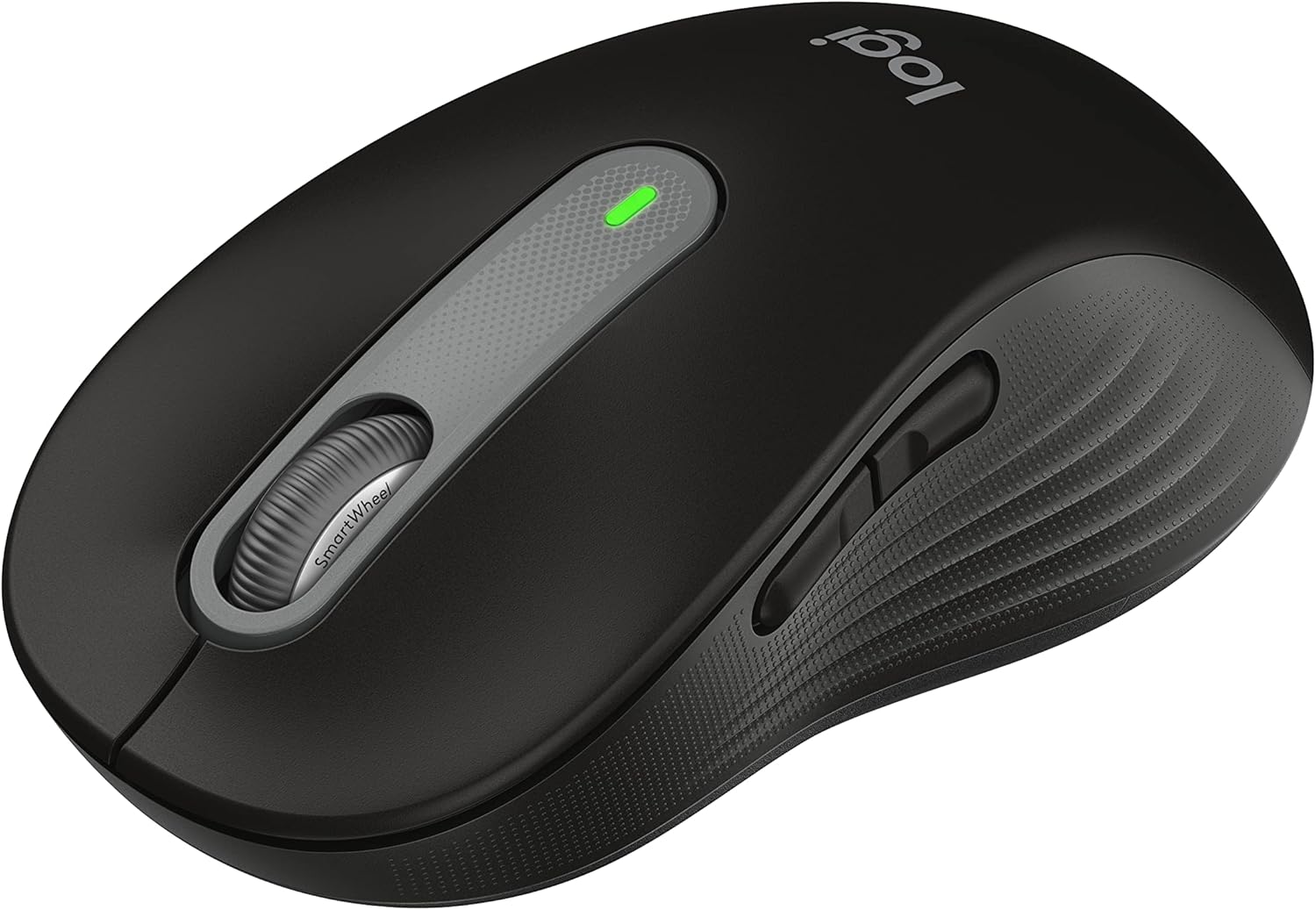
Figure 1: Logitech Signature M650 L Wireless Mouse
Impostare
1. Installazione della batteria
The Signature M650 L mouse operates on a single AA battery, providing up to 24 months of battery life. The battery compartment is located on the underside of the mouse.
- Gently slide open the battery compartment cover on the bottom of the mouse.
- Inserire una batteria AA, assicurandosi della corretta polarità (+/-).
- Chiudere il coperchio del vano batteria finché non scatta saldamente in posizione.
2. Collegamento del mouse
The M650 L offers two connectivity options: Bluetooth Low Energy or the Logi Bolt USB receiver.

Figure 2: Connectivity Options (Bluetooth and Logi Bolt USB Receiver)
Opzione A: Ricevitore USB Logi Bolt
- Locate the Logi Bolt USB receiver inside the battery compartment of your mouse.
- Rimuovere il ricevitore e collegarlo a una porta USB disponibile sul computer.
- Accendere il mouse utilizzando l'interruttore di alimentazione nella parte inferiore. Il mouse dovrebbe connettersi automaticamente.
Opzione B: Bluetooth Low Energy
- Accendi il mouse utilizzando l'interruttore di alimentazione in basso.
- Press and hold the connection button on the bottom of the mouse until the LED light starts blinking rapidly. This indicates pairing mode.
- Sul tuo computer, apri le impostazioni Bluetooth:
- Finestre: Go to Settings > Devices > Bluetooth & other devices > Add Bluetooth or other device.
- Mac OS: Go to System Preferences > Bluetooth.
- Chrome OS/Linux: Access Bluetooth settings through your system tray or settings menu.
- Select "Signature M650 L" from the list of available devices to complete the pairing process.
Utilizzo del mouse
Scorrimento SmartWheel
The Signature M650 L features an adaptive SmartWheel that provides two modes of scrolling:
- Precisione riga per riga: For detailed navigation in documents and spreadsheets.
- Super-Fast Free Spin: For quickly scrolling through long web pages or documents. The wheel automatically switches to this mode with a flick of your finger.

Figure 3: SmartWheel for Precision and Speed Scrolling
Pulsanti laterali personalizzabili
The two side buttons on the M650 L mouse can be customized to perform your favorite shortcuts, such as back/forward navigation, copy/paste, or other functions. Customization is done through the Logitech Options+ software.

Figure 4: Customizing Buttons with Logitech Options+ Software
Silent Clicks (SilentTouch Technology)
The M650 L incorporates Logitech's SilentTouch technology, which reduces click noise by 90% compared to traditional mice. This feature allows for a quieter working environment, minimizing distractions for you and those around you.

Figure 5: Silent Clicks for a Quieter Workspace
Comfort ed Ergonomia
The mouse is designed with a comfortable shape, a soft thumb area, and rubber side grips to ensure a secure and pleasant feel during long hours of use. The M650 L is specifically sized for larger hands, providing optimal ergonomic support.

Figure 6: Comfort Shape and Rubber Side Grips

Figure 7: M650 and M650 L Size Comparison
Compatibilità
The Logitech Signature M650 L mouse is compatible with a wide range of operating systems, ensuring versatile use across different devices.
- PC (Windows 10, 11 or later)
- Mac (macOS 10.15 or later)
- Linux
- Il libro cromato

Figure 8: Windows 11 Compatibility
Manutenzione
Sostituzione della batteria
When the mouse's performance degrades or the indicator light signals low battery, it's time to replace the AA battery. Follow the battery installation steps outlined in the Setup section.
Pulizia
Per mantenere prestazioni e igiene ottimali, pulisci regolarmente il mouse:
- Utilizzare un panno morbido e privo di lanugine leggermente dampcon acqua o una soluzione detergente adatta ai dispositivi elettronici.
- Wipe the surface of the mouse, paying attention to the scroll wheel and side grips.
- Evitare l'uso di prodotti chimici aggressivi o materiali abrasivi che potrebbero danneggiare la finitura del mouse.
Risoluzione dei problemi
Problemi di connessione
- Il mouse non risponde: Ensure the mouse is powered on and the battery is not depleted. Replace the battery if necessary.
- Connessione Bluetooth instabile: Move the mouse closer to your computer. Ensure no other devices are causing interference. Try re-pairing the mouse with your computer.
- Logi Bolt receiver not detected: Try plugging the receiver into a different USB port. Ensure the receiver is fully inserted.
- Switching between connections: If you switch between Bluetooth and the Logi Bolt receiver, you may need to re-pair or re-establish the connection each time.
Problemi di prestazioni
- Movimento irregolare del cursore: Clean the optical sensor on the bottom of the mouse. Ensure you are using the mouse on a suitable surface (non-reflective, non-glass).
- Scroll wheel not working correctly: Ensure the scroll wheel is free of debris. If using Logitech Options+ software, check scroll settings.
- I pulsanti non rispondono: Check if the buttons are physically obstructed. If using Logitech Options+ software, ensure button assignments are correct.
Specifiche
| Caratteristica | Dettaglio |
|---|---|
| Modello | Firma M650 L |
| Numero di modello | 910-006265 |
| Connettività | Ricevitore USB Logi Bolt a basso consumo energetico |
| Tecnologia | Ottico |
| Tipo di batteria | 1 batteria AA |
| Durata della batteria | Fino a 24 mesi (può variare in base all'utilizzo) |
| Caratteristiche speciali | SmartWheel, SilentTouch Technology, Customizable Side Buttons |
| Dimensioni (LxWxH) | 4.65 x 2.58 x 0.1 pollici (11.8 x 6.55 x 0.25 cm) |
| Peso | 3.92 once (111 grammi) |
| Piattaforme compatibili | PC, Linux, Mac (Windows 10/11+, macOS 10.15+, Chrome OS) |
Supporto e risorse aggiuntive
Per ulteriore assistenza o documentazione dettagliata, fare riferimento alle seguenti risorse:
- Manuale utente ufficiale (PDF): Scarica il manuale utente
- Istruzioni per l'uso (IFU) (PDF): Scarica le istruzioni per l'uso
- Supporto Logitech Websito: Visit the official Logitech support page for FAQs, drivers, and software downloads.
- Logitech Options+ Software: Download the software to customize your mouse buttons and settings.
Ask a question about this manual
Ask about setup, troubleshooting, compatibility, parts, safety, or missing instructions. Manuals+ will review the question and use this page’s manual context to help answer it.