
1. Introduzione
This manual provides detailed instructions for the installation, operation, and maintenance of your VEIKK VK1560 Pro Drawing Monitor. Please read this manual thoroughly before using the device to ensure proper functionality and to maximize your creative experience. The VK1560 Pro is a 15.6-inch full-laminated pen display designed for digital artists, designers, and educators, offering a high-definition display and precise pen input.
2. Contenuto della confezione
Verifica che tutti gli articoli elencati di seguito siano presenti nel tuo pacco:
- VEIKK VK1560 Pro Drawing Monitor
- Battery-Free Stylus (Digital Pen)
- Supporto regolabile
- Detachable Pen Holder
- USB-C to USB-C Cable (for Android device connection)
- Adattatore di alimentazione
- Cavo HDMI
- Cavo USB
- Pen Nibs and Nib Remover
- Panno per la pulizia
- Guida rapida

Image: Contents of the VEIKK VK1560 Pro package, including the monitor, stylus, stand, and various cables.
3. Guida all'installazione
3.1 Connecting the Monitor to Your Computer
Follow these steps to connect your VK1560 Pro to your computer:
- Connetti alimentazione: Plug the power adapter into the monitor's power port and then into a wall outlet.
- Collega video: Connect one end of the HDMI cable to the monitor's HDMI port and the other end to your computer's HDMI port. If your computer does not have an HDMI port, you may need an adapter (not included).
- Connetti USB: Connect one end of the USB cable to the monitor's USB port and the other end to an available USB port on your computer. This connection enables pen input and data transfer.
- Accensione: Press the power button on the side of the monitor to turn it on.
- Installa il driver: Visit the official VEIKK website to download and install the latest driver for your operating system (Windows or macOS). Ensure any previous tablet drivers are uninstalled before installing the VEIKK driver.
- Configura le impostazioni di visualizzazione: After driver installation, configure your display settings (e.g., extend or duplicate display) and pen calibration through your operating system's display settings and the VEIKK driver software.

Image: Diagram illustrating how to connect the VEIKK VK1560 Pro to a computer using HDMI, USB, and power cables.
3.2 Connessione ai dispositivi Android
The VK1560 Pro can be connected to compatible Android devices using the included full-featured USB-C to USB-C cable. Ensure your Android device supports display output via USB-C.
- Collegare un'estremità del cavo USB-C a USB-C alla porta USB-C del monitor.
- Connect the other end of the USB-C to USB-C cable to your Android device's USB-C port.
- The monitor should automatically detect and display content from your Android device.
3.3 Adjustable Stand Installation
Attach the adjustable stand to the back of the VK1560 Pro for comfortable viewing and drawing angles. The stand allows for various tilt adjustments.
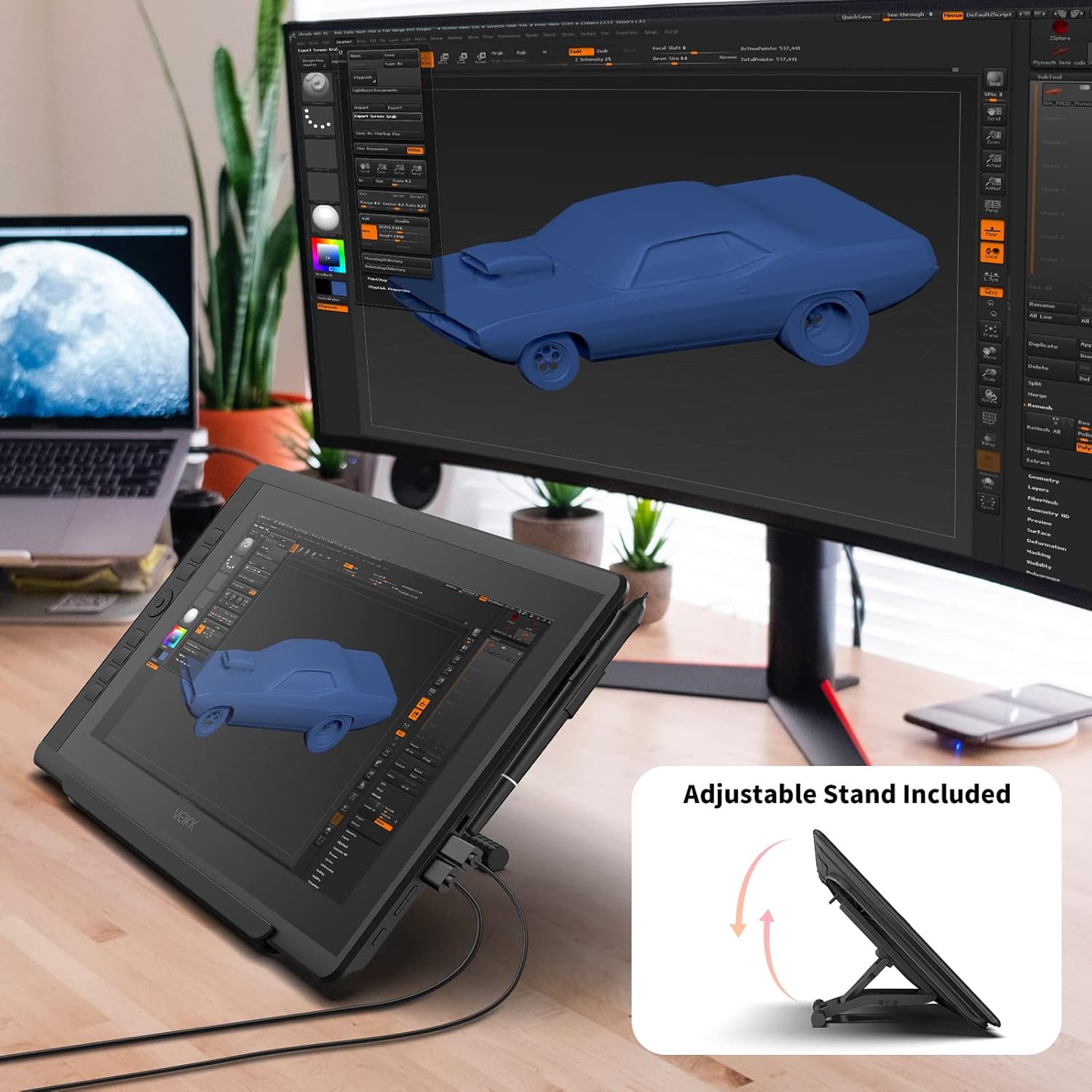
Image: The VEIKK VK1560 Pro drawing monitor shown with its adjustable stand, demonstrating various viewangoli di inclinazione.
4. Funzionamento
4.1 Using the Battery-Free Stylus
The VK1560 Pro comes with a battery-free stylus that offers 8192 levels of pressure sensitivity and tilt support for a natural drawing experience.
- Disegno: Use the stylus directly on the monitor's screen to draw, paint, and edit.
- Pulsanti: The stylus features programmable buttons. Customize their functions (e.g., right-click, eraser) through the VEIKK driver software.
- Portapenne: Store the stylus in the detachable pen holder when not in use to prevent loss or damage.
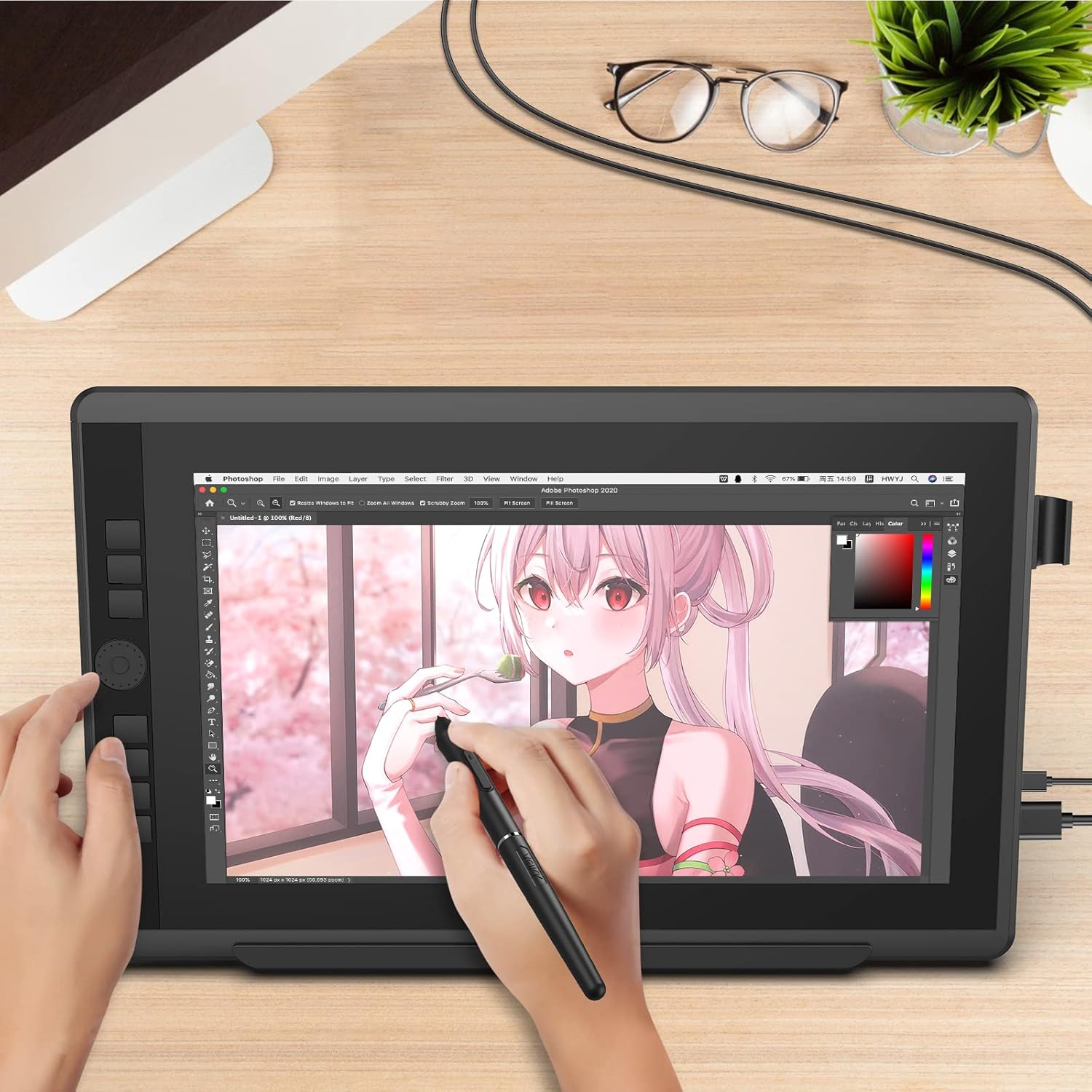
Image: A user actively drawing on the VEIKK VK1560 Pro screen using the battery-free stylus, demonstrating its use in creative applications.
4.2 Using the Quick Dial and Shortcut Keys
The VK1560 Pro features an upgraded Quick Dial and customizable shortcut keys for efficient workflow.
- Personalizzazione: Access the VEIKK driver software to assign specific functions (e.g., zoom, brush size, undo) to the Quick Dial and shortcut keys.
- Efficienza: Utilize these features to quickly access frequently used tools and commands, reducing reliance on keyboard shortcuts.

Immagine: un primo piano view of the VEIKK VK1560 Pro's Quick Dial and programmable shortcut keys, highlighting their ergonomic placement for workflow customization.
4.3 Funzionalità di visualizzazione
The 15.6-inch Full HD IPS display offers a vibrant visual experience:
- Risoluzione: 1920x1080 Full HD for clear and detailed visuals.
- Precisione del colore: Supports 16.7 million display colors and 92% NTSC color gamut for accurate color reproduction.
- Antiriflesso: The anti-glare film reduces reflections and provides a paper-like drawing surface.
- Viewangolo di ing: Ampio 178° viewing angles ensure consistent image quality from various perspectives.

Image: The VEIKK VK1560 Pro screen showcasing its 1920x1080 FHD IPS display, 92% NTSC color gamut, and 16.7 million colors.
5. Manutenzione
5.1 Pulizia del monitor
- Prima di pulire il monitor, spegnerlo e scollegarlo sempre.
- Use a soft, lint-free cloth (preferably the included cleaning cloth) to gently wipe the screen and body.
- Per macchie ostinate, applicare leggermenteampPulire il panno con acqua o con una soluzione detergente adatta allo schermo. Non spruzzare il liquido direttamente sullo schermo.
- Evitare l'uso di prodotti chimici aggressivi, detergenti abrasivi o soluzioni a base di alcol, poiché potrebbero danneggiare la superficie dello schermo.
5.2 Sostituzione del pennino dello stilo
Over time, the stylus nib may wear down. Replace it when it becomes too short or feels rough.
- Utilizzare lo strumento per la rimozione della punta per estrarre delicatamente la vecchia punta dallo stilo.
- Inserire saldamente una nuova punta nello stilo finché non scatta in posizione.
5.3 Conservazione
- Conservare il monitor in un luogo fresco e asciutto, lontano dalla luce solare diretta e da temperature estreme.
- Protect the screen from scratches by using a soft cover or returning it to its original packaging when transporting.
6. Risoluzione Dei Problemi
| Problema | Possibile causa | Soluzione |
|---|---|---|
| Nessuna visualizzazione sul monitor |
|
|
| Pen not working or no pressure sensitivity |
|
|
| Cursor offset or inaccurate |
|
|
| Quick Dial or shortcut keys not responding |
|
|
7. Specifiche
| Caratteristica | Dettaglio |
|---|---|
| Marca | VEIKK |
| Numero di modello | VK1560 Pro |
| Dimensioni dello schermo | 15.6 pollici |
| Risoluzione nativa | 1920x1080 (Full HD) |
| Tipo di visualizzazione | IPS LCD with Anti-Glare Film |
| Supporto colore | 16.7 Million Colors, 92% NTSC Color Gamut |
| Tecnologia della penna | Stilo senza batteria |
| Livelli di pressione della penna | 8192 |
| Supporto inclinazione | SÌ |
| Connettività | USB, HDMI, USB-C |
| Compatibilità del sistema operativo | Windows 7 or later, MacOS 10.12 or later, Android (via USB-C) |
| Media integrati | Digital Pen, Stand, Stylus |
| Colore | Nero |
| Usi specifici | Designing, Drawing, Online Education |
8. Prodotto finitoview Video
Video: Un funzionario sopraview of the VEIKK VK1560 Pro drawing tablet, showcasing its features, design, and functionality. This video demonstrates the product's components, setup, and usage in various creative tasks.
9. Garanzia e supporto
The VEIKK VK1560 Pro Drawing Monitor comes with a Garanzia di 1 anno from the date of purchase. VEIKK also provides supporto tecnico a vita per questo prodotto.
For technical assistance, driver downloads, or warranty claims, please visit the official VEIKK webo contattare direttamente l'assistenza clienti. Conservare la ricevuta d'acquisto come prova d'acquisto per i servizi in garanzia.
Official VEIKK Websito: www.veikk.com