
1. Introduzione
Thank you for choosing the ACT AC5105 Wireless Optical Mouse. This device is designed for comfortable and efficient use at home, in the office, or while traveling. It features a compact Nano USB receiver and an intelligent power-saving mode to extend battery life. This manual provides detailed instructions for setup, operation, and maintenance of your new wireless mouse.
2. Contenuto della confezione
- ACT AC5105 Wireless Optical Mouse
- Ricevitore Nano USB
- 1 batteria AA (inclusa)
3. Guida all'installazione
- Inserire la batteria:
Open the battery compartment cover located on the underside of the mouse. Insert the included AA battery, ensuring correct polarity (+/-). Close the battery compartment cover securely.

Figure 3.1: Battery and Nano Receiver Storage
This image illustrates the underside of the mouse with the battery compartment open, showing where to insert the AA battery and store the Nano USB receiver. The on/off switch is also visible.
- Connect the Nano USB Receiver:
Remove the Nano USB receiver from its storage slot inside the battery compartment. Plug the receiver into an available USB-A port on your computer. Your operating system will automatically detect and install the necessary drivers.
- Accendere il mouse:
Locate the On/Off switch on the underside of the mouse and slide it to the "ON" position. The mouse is now ready for use.
4. Istruzioni per l'uso
4.1 Funzioni di base
- Clic sinistro: Primary function, typically for selecting items or opening links.
- Clic destro: Funzione secondaria, in genere per aprire i menu contestuali.
- Rotella di scorrimento: Scorrere verso l'alto o verso il basso i documenti e web pagine. È anche possibile premere la rotellina di scorrimento per ottenere la funzione di clic centrale.

Figure 4.1: Mouse Features Overview
This diagram highlights key features such as silent click buttons, the scroll wheel, the USB-A wireless receiver, the 1600 DPI optical sensor, and the use of recycled materials in its construction.
4.2 Regolazione DPI
The ACT AC5105 mouse features an adjustable DPI (Dots Per Inch) setting, allowing you to change the cursor speed and sensitivity. You can cycle through 800, 1200, and 1600 DPI settings by pressing the DPI switch button located behind the scroll wheel.
- 800 DPI: Slower cursor movement, suitable for precise tasks.
- 1200 DPI: Movimento del cursore standard, adatto all'uso generale.
- 1600 DPI: Faster cursor movement, suitable for quick navigation across large screens.
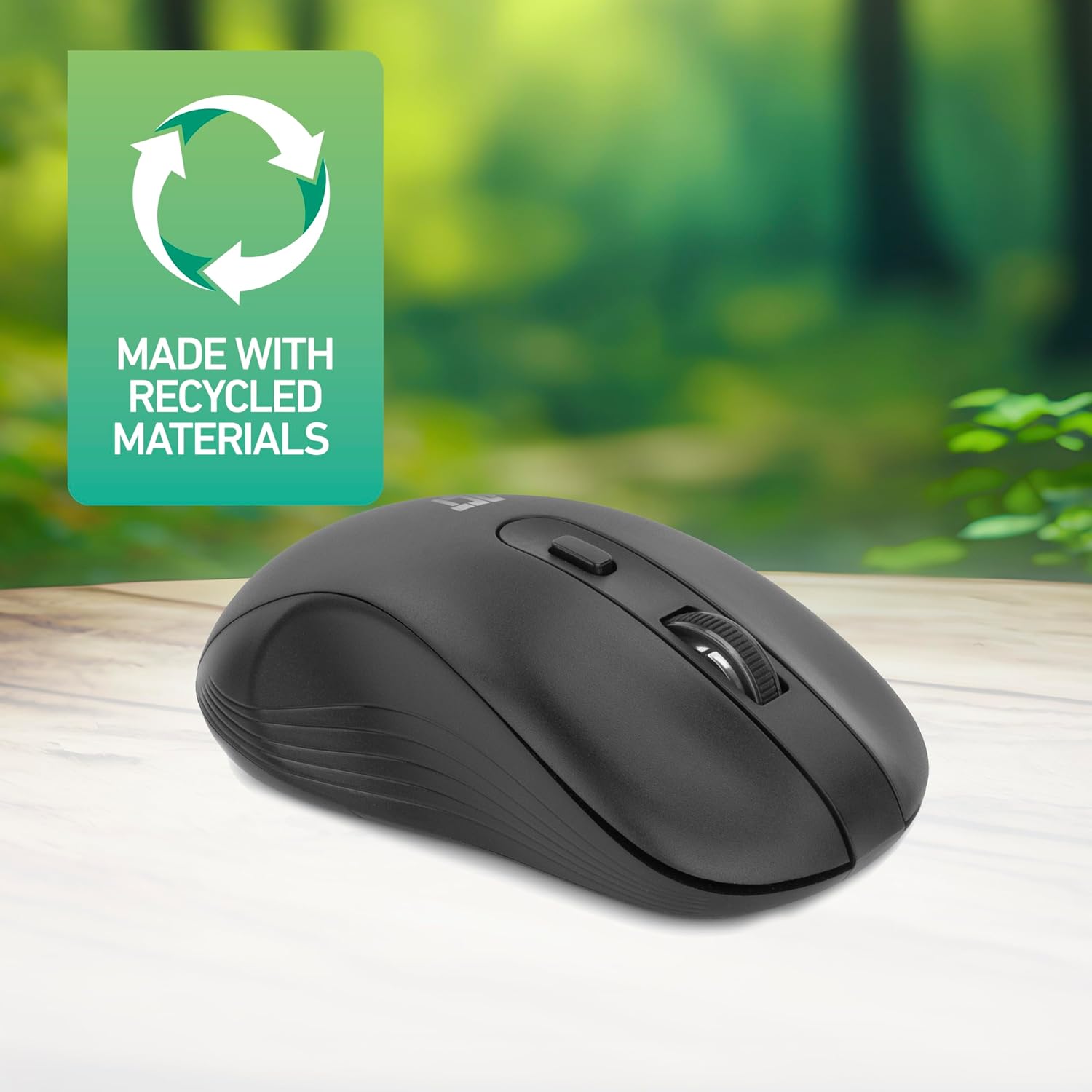
Figure 4.2: DPI Switch Location
This image shows the mouse in use on a desk, highlighting the DPI switch button for adjusting sensitivity between 800, 1200, and 1600 DPI.
4.3 Modalità risparmio energetico
The mouse is equipped with an intelligent power-saving feature. If the mouse is inactive for a period, it will automatically enter standby mode to conserve battery power. To wake the mouse, simply move it or click any button.
For extended periods of non-use, it is recommended to switch the mouse off using the On/Off switch on the underside of the device.
5. Manutenzione
- Pulizia: Per pulire il mouse, utilizzare un panno morbido e asciutto. Evitare l'uso di prodotti chimici aggressivi o materiali abrasivi.
- Sostituzione della batteria: When the mouse performance degrades or it stops responding, replace the AA battery with a new one. Follow the steps in Section 3.1.
- Magazzinaggio: When not in use, especially during travel, you can store the Nano USB receiver inside the mouse's battery compartment to prevent loss.
6. Risoluzione Dei Problemi
| Problema | Soluzione |
|---|---|
| Il mouse non risponde |
|
| Il movimento del cursore è irregolare o lento |
|
| Problemi di connessione wireless |
|
7. Specifiche
| Caratteristica | Dettaglio |
|---|---|
| Numero di modello | AC5105 |
| Tecnologia di connettività | Radiofrequenza wireless a 2.4 GHz |
| wireless Range | Fino a 10 metri |
| Tecnologia di rilevamento del movimento | Ottico |
| Impostazioni DPI | 800 / 1200 / 1600 DPI (regolabile) |
| Numero di pulsanti | 4 (Left, Right, Scroll Wheel Click, DPI Switch) |
| Orientamento della mano | Ambidestro (adatto sia per utenti mancini che destrimani) |
| Fonte di alimentazione | 1x batteria AA |
| Dimensioni del prodotto (L x P x A) | Dimensioni: 10.5 x 6.5 x 3.5 cm |
| Peso | 60 grammi |
| Dispositivi compatibili | PC |
| Sistema operativo | ChromeOS, Linux Mint 22 (minimum required version) |
| Caratteristiche speciali | Wireless, Intelligent Power Saving, Silent Click |

Figura 7.1: Dimensioni del mouse
Questa immagine fornisce una vista dall'alto verso il basso e laterale view of the mouse, clearly indicating its physical dimensions: 105mm in length, 65mm in width, and 35mm in height.
8. Garanzia e supporto
ACT products are manufactured to high quality standards. This product comes with a 2-year warranty from the date of purchase against defects in materials and workmanship.
For technical support, warranty claims, or further assistance, please refer to the official ACT websito o contattare il rivenditore locale.
Si prega di conservare la prova d'acquisto ai fini della garanzia.


