
Introduzione
Welcome to the AMOCAM Wireless WiFi Access Control Keypad. This manual provides essential information for the proper installation, operation, and maintenance of your new access control system. Please read thoroughly before use to ensure safe and efficient functionality.
Caratteristiche del prodotto
- Wireless Smartphone App Operation: Control the keypad remotely using the free TUYA App, available for iOS and Android. Manage passwords, ID cards, and view door opening records from anywhere.
- Capacità multiutente: Supports up to 2000 users, allowing for flexible access management.
- Metodi di accesso multipli: Unlock the door using an ID card, a password, or directly through the TUYA App.
- Tastiera retroilluminata: Features a backlight design for clear visibility and operation in dark locations or at night. Red, yellow, and green LEDs indicate different working statuses.
- Wiegand 26 Support: Compatible with Wiegand 26 input or output for integration with other access control devices.
- Supporto per dispositivi esterni: Supports connection to an external doorbell and exit switch for enhanced functionality.

AMOCAM Wireless WiFi Access Control Keypad with included ID keychains and smartphone app interface.
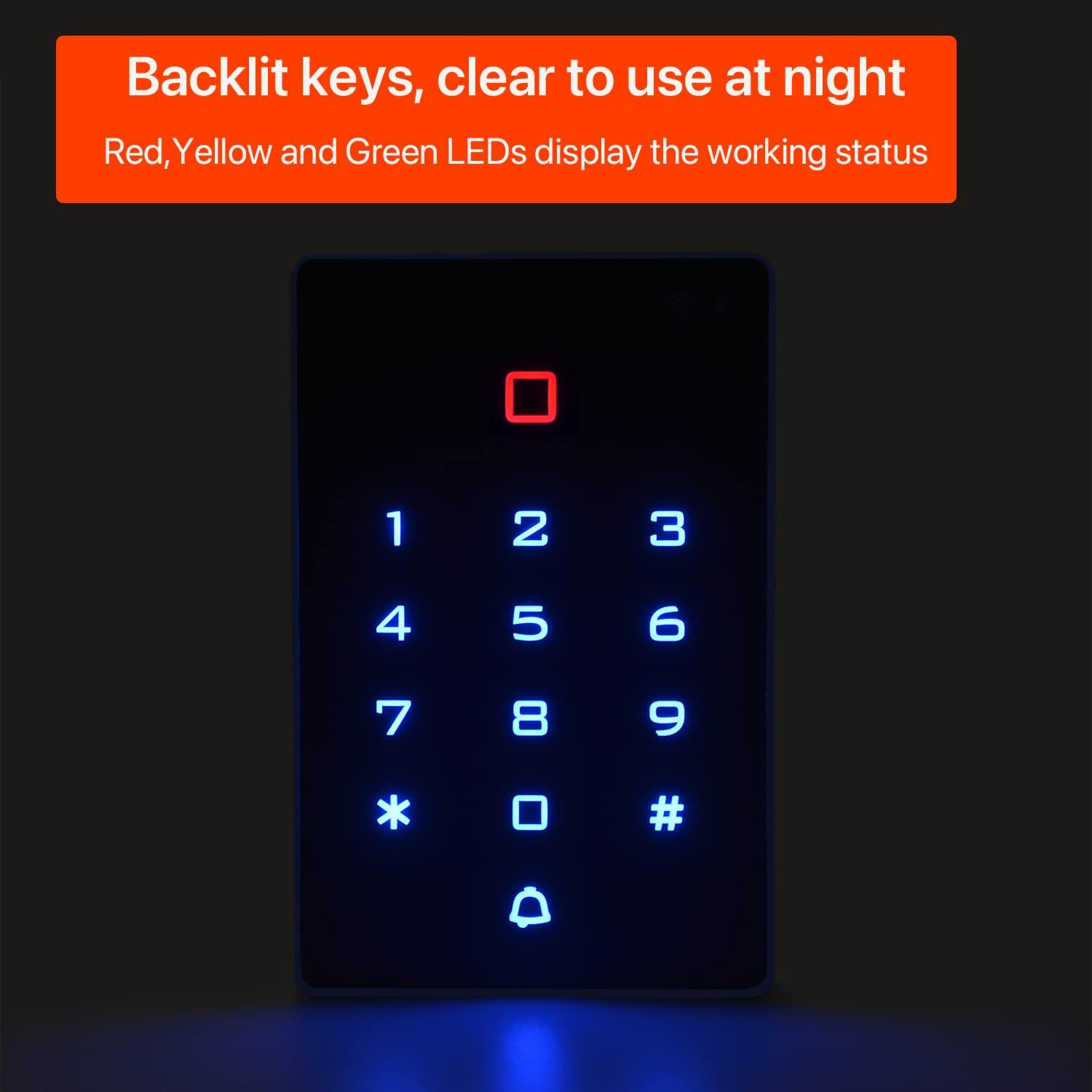
The keypad features backlit keys for clear visibility and operation in dark environments.
Contenuto della confezione
Verifica che tutti gli articoli elencati di seguito siano inclusi nel tuo pacchetto:
- Wireless WiFi Access Control Keypad
- 5 x ID Keychains
- Hardware di montaggio (viti)
- Cablaggio elettrico
- User Manuals (Keypad Access Control User Manual, Tuya App Manual)

Contents of the AMOCAM Wireless WiFi Access Control Keypad package, including the keypad, ID keychains, and documentation.
Linee guida per l'installazione
Proper installation is crucial for optimal performance and security. Ensure all power is disconnected before beginning installation.
Montaggio della tastiera
The keypad should be mounted in a secure location. If installed outdoors, ensure it is protected from direct weather exposure to prolong its lifespan. Refer to the product dimensions for appropriate placement.

Dimensions of the AMOCAM Wireless WiFi Access Control Keypad, measuring 4.53 inches in length, 2.95 inches in width, and 0.63 inches in height.
Schema elettrico
Connect the access control keypad to the power supply and electric lock according to the following diagram. Ensure correct polarity and secure connections for safe operation.
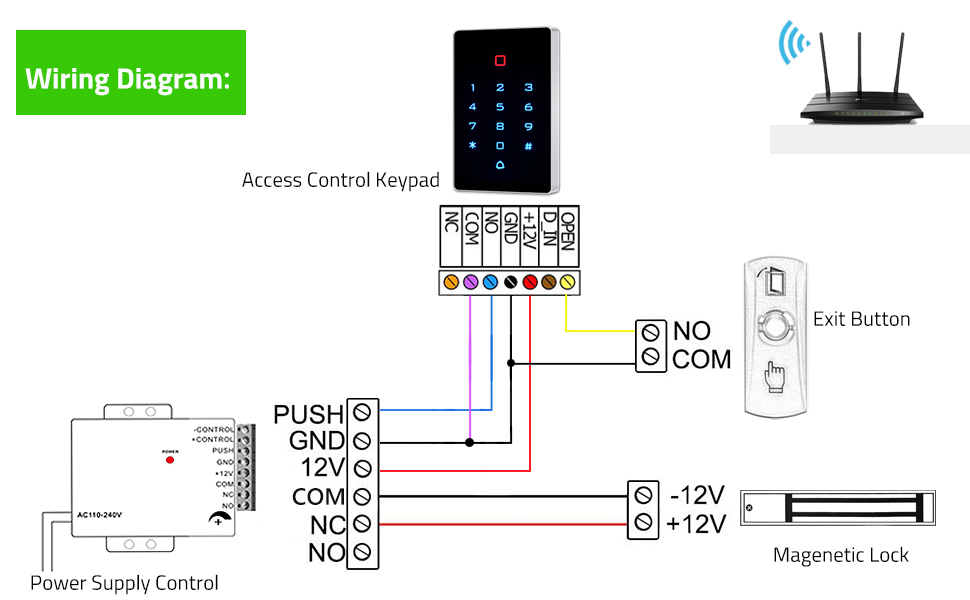
Detailed wiring diagram for connecting the AMOCAM Access Control Keypad to a power supply, electric lock, and exit button.
Istruzioni per l'uso
Initial Setup and App Connection
- Connect the access controller to a 12V power supply and the electric lock.
- Sulla tastiera, inserisci * 999999 # 73 # to activate wireless pairing mode. The default master code is 999999.
- Scarica il App TUYA from the App Store (iOS) or Google Play (Android).
- Open the TUYA App, click "Add Device", and allow it to automatically search for the access control keypad.
- Seleziona la tua rete Wi-Fi a 2.4 GHz e inserisci la password. Ensure your smartphone is connected to the same 2.4 GHz network.
- Once added, click "Done" to complete the setup.
This video demonstrates the process of adding the AMOCAM Access Control Keypad to the Tuya smartphone application, including entering pairing mode and connecting to Wi-Fi.
Remote Unlocking via App
The TUYA App allows for remote unlocking of the connected door.
- In the app, navigate to settings and enable "Remote unlock setting".
- Press the unlock icon in the app to remotely unlock the door.
Adding Temporary Codes
Temporary access codes can be generated and managed through the TUYA App for guest access or limited-time entry.
- In the app, select the option to add a temporary code.
- Enter the desired temporary code and set its effective time (start and end dates/times).
- Click "Save" to finalize the temporary code.
User Management (Adding ID Cards)
The keypad supports adding up to 2000 users, including ID cards, for convenient access.
- Dalla modalità standby, premere *999999# (default master code) to enter management mode. The red light will flash, then turn green upon correct entry.
- Premere 1 to enter the "Add User Card" mode.
- Swipe the ID card(s) you wish to add over the keypad. Multiple cards can be added consecutively.
- Premere # to confirm the additions.
- Premere * to exit management mode.
This video illustrates how to add user ID cards to the AMOCAM Access Control Keypad, demonstrating the steps to enter management mode and register new cards.
Checking Door Opening Records
The TUYA App provides a detailed log of door opening events, allowing you to monitor access history.
- Open the TUYA App and navigate to the history or log section for the access control keypad.
- View the records of door openings, including temporary code usage and timestamps.
Manutenzione
Regular maintenance helps ensure the longevity and reliable operation of your access control keypad.
- Pulizia: Regularly clean the keypad surface with a soft, dry cloth. Avoid using abrasive cleaners, solvents, or harsh chemicals, as these can damage the finish or internal components.
- Protezione ambientale: Ensure the keypad is protected from extreme temperatures, direct sunlight, and excessive moisture. While designed for durability, prolonged exposure to harsh conditions can affect performance.
- Verifica della connessione: Periodically inspect all wiring connections to ensure they are secure and free from corrosion or damage. Loose connections can lead to intermittent operation.
Risoluzione dei problemi
If you encounter issues with your AMOCAM Wireless WiFi Access Control Keypad, refer to the following common problems and solutions.
La tastiera non risponde
- Alimentazione elettrica: Check all power supply connections. Ensure the keypad is receiving adequate power (12 Volts).
- Cablaggio: Verify that all wiring is correctly connected according to the installation diagram.
Problemi di connessione Wi-Fi
- Frequenza di rete: Confirm your Wi-Fi network is 2.4 GHz. The keypad does not support 5 GHz networks.
- Potenza del segnale: Ensure the keypad is within effective range of your 2.4 GHz Wi-Fi router. Obstacles like thick walls can reduce signal strength.
- Riassociazione: If issues persist, re-attempt the app connection process as described in the "Initial Setup and App Connection" section.
Card or Code Not Unlocking
- Registrazione Utente: Confirm that the ID card or access code has been correctly added and registered in the system.
- Temporary Code Expiry: For temporary codes, check if the effective time has expired in the TUYA App.
- Electric Lock Functionality: Ensure the connected electric lock is functioning correctly and receiving the unlock signal from the keypad.
Specifiche del prodotto
| Caratteristica | Dettaglio |
|---|---|
| Marca | AMOCAM |
| Modello | B09LLH9SWM |
| Colore | Nero |
| Materiale | Acrilonitrile Butadiene Stirene (ABS) |
| Voltage | 12 Volt |
| Dimensioni del prodotto (L x P x A) | 4.53" x 2.95" x 0.63" |
| Peso dell'articolo | 0.16 chilogrammi |
| Capacità dell'utente | 2000 |
| Frequenza Wi-Fi | 2.4 GHz |
| Supporto Wiegand | Wiegand 26 |
| Temperatura di esercizio | Fino a 60 gradi Celsius |
For any additional detailed specifications, please refer to the product packaging or the official AMOCAM websito.
Garanzia e assistenza clienti
AMOCAM products typically come with a standard manufacturer's warranty. For specific warranty details, including coverage period and terms, please refer to the documentation included with your product or contact AMOCAM customer support directly.
For technical assistance, troubleshooting guidance, or any further inquiries regarding your Wireless WiFi Access Control Keypad, please visit the official AMOCAM website or contact their dedicated support team. You can also find more information and products by visiting the Negozio AMOCAM su Amazon.