
1. Impostazione
1.1 Contenuto della confezione
Verifica che i seguenti elementi siano inclusi nel tuo pacchetto:
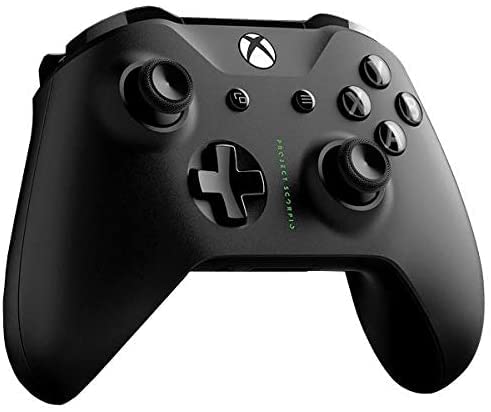
- Microsoft Xbox Wireless Controller - Project Scorpio Edition
- AA Batteries (may be included depending on retailer)
1.2 Installazione delle batterie
To power your controller:
- Aprire il coperchio del vano batteria sul retro del controller.
- Inserire due batterie AA, assicurandosi della corretta polarità (+ e -).
- Chiudere saldamente il coperchio del vano batterie.
1.3 Connessione a Xbox One
To connect your controller wirelessly to an Xbox One console:
- Accendi la tua console Xbox One.
- Premere e tenere premuto il tasto Pulsante Xbox
 on your controller to turn it on. The Xbox button will flash.
 - Premere il tasto Pulsante di accoppiamento on your Xbox One console (located on the front or side, depending on the model).
- Entro 20 secondi, tieni premuto il tasto Pulsante di accoppiamento
 on the top edge of your controller (next to the USB port). The Xbox button on the controller will flash more rapidly.
 - Once the Xbox button on the controller glows solid, it is connected.
1.4 Connecting to Windows 10 PC via Bluetooth
To connect your controller to a Windows 10 PC using Bluetooth:
- Ensure your Windows 10 PC has Bluetooth enabled.
- Premere e tenere premuto il tasto Pulsante Xbox on your controller to turn it on.
- Premere e tenere premuto il tasto Pulsante di accoppiamento on the top edge of your controller for three seconds. The Xbox button will flash rapidly.
- Sul tuo PC, vai a Impostazioni > Dispositivi > Bluetooth e altri dispositivi.
- Selezionare Aggiungi Bluetooth o altro dispositivo > Bluetooth.
- Selezionare Controller wireless Xbox dall'elenco.
- Once the Xbox button on the controller glows solid, it is connected.
A black Xbox Wireless Controller, featuring the Project Scorpio Special Edition details, with textured grips and the Xbox logo button at the top center. This image illustrates the overall design of the controller.
2. Utilizzo del controller
2.1 Controller Layout and Functions
The Xbox Wireless Controller features a standard layout for intuitive gameplay:
- Pulsante Xbox: Powers on the controller/console, opens the Guide, and indicates connection status.
- View pulsante: Changes views or displays more information in games and apps.
- Pulsante del menu: Accesses game or app menus, such as Settings or Options.
- Pulsanti A, B, X, Y: Action buttons for in-game commands.
- D-pad: Directional pad for precise input.
- Left and Right Thumbsticks: For movement and camera control. Pressing them down acts as a button.
- Left and Right Bumpers (LB, RB): Located on the top edge, typically used for quick actions.
- Left and Right Triggers (LT, RT): Analog triggers for variable input, such as acceleration or firing.
- Jack per cuffie stereo da 3.5 mm: For connecting compatible headsets.
2.2 Using the 3.5mm Headset Jack
To use a headset with your controller:
- Plug any compatible 3.5mm stereo headset directly into the jack located at the bottom of the controller.
- Audio settings can be adjusted via the Xbox Guide or Windows sound settings.
3. Manutenzione
3.1 Cleaning Your Controller
To maintain the appearance and functionality of your controller:
- Utilizzare un panno morbido, asciutto e privo di lanugine per pulire la superficie del controller.
- Per sporco ostinato, leggermente dampBagnare il panno con acqua. Evitare l'eccessiva umidità.
- Do not use harsh chemicals, abrasive cleaners, or solvents, as these can damage the controller's finish.
3.2 Conservazione
When not in use, store your controller in a cool, dry place away from direct sunlight and extreme temperatures. Remove batteries if storing for extended periods to prevent leakage.
4. Risoluzione Dei Problemi
4.1 Controller Not Turning On
- Controllare le batterie: Ensure batteries are correctly inserted and have sufficient charge. Replace with fresh AA batteries if necessary.
- Ciclo di alimentazione: Remove and reinsert the batteries, then try turning the controller on again.
4.2 Problemi di connessione
- Ripara il controller: Follow the connection steps in Section 1.3 or 1.4 to re-pair the controller with your Xbox One or Windows 10 PC.
- Interferenza: Ensure there are no obstructions or other wireless devices causing interference between the controller and the console/PC.
- Aggiorna firmware: Connect the controller to your Xbox One or PC via a USB cable and check for controller firmware updates.
- Bluetooth Driver (PC): Assicurati che i driver Bluetooth del tuo PC siano aggiornati.
4.3 Button or Stick Malfunction
- Controller pulito: Ensure no debris is lodged around buttons or sticks. Refer to Section 3.1.
- Test in Different Games/Apps: Determine if the issue is specific to one application or system-wide.
- Ripristina controller: In some cases, removing batteries for a few minutes can reset internal components.
5. Specifiche
| Caratteristica | Dettaglio |
|---|---|
| Nome del marchio | Microsoft |
| Nome del modello | Project Scorpio |
| Dispositivi compatibili | Xbox One, Windows 10 PCs and tablets |
| Tipo di controllore | Controllo di gioco |
| Tecnologia di connettività | Bluetooth, senza fili |
| Piattaforma hardware | Xbox Uno |
| Fonte di alimentazione | Alimentato a batteria (AA) |
| Colore | Green (Project Scorpio Edition) |
6. Garanzia e supporto
This product is a Certified Refurbished item. Certified Refurbished products are tested and certified to look and work like new, with limited to no wear, by a third-party refurbisher. The refurbishing process includes functionality testing, cosmetic inspection, and repackaging.
The product is backed by a minimum 90-day warranty from the date of purchase. For specific warranty details and claims, please refer to the documentation provided by the refurbisher or contact the seller directly.
For further technical assistance or support, please visit the official Microsoft Xbox support websito o contattare il loro servizio clienti.