
acer KB242Y Abi
Manuale utente del monitor Acer KB242Y Abi
Model: KB242Y Abi
1. Introduzione
Thank you for choosing the Acer KB242Y Abi monitor. This 23.8-inch Full HD (1920 x 1080) VA display features a 75Hz refresh rate, 1ms VRB response time, and 250 Nit brightness, providing a clear and smooth visual experience. It supports AMD FreeSync technology and offers versatile connectivity with HDMI and VGA inputs. This manual provides essential information for setting up, operating, and maintaining your monitor.
2. Informazioni sulla sicurezza
Leggere attentamente tutte le istruzioni prima di utilizzare il monitor. Conservare il manuale per riferimento futuro.
- Non esporre il monitor alla pioggia o all'umidità.
- Non ostruire le aperture di ventilazione.
- Utilizzare solo l'adattatore di alimentazione fornito dal produttore.
- Evitare di posizionare il monitor alla luce diretta del sole o vicino a fonti di calore.
- Clean the screen with a soft, lint-free cloth. Do not use liquid cleaners directly on the screen.
- Unplug the monitor from the power outlet before cleaning or if it will not be used for a long period.
3. Contenuto della confezione
Verifica che tutti gli articoli siano presenti nel tuo pacco:
- Acer KB242Y Abi Monitor
- Supporto per monitor (base e collo)
- Cavo di alimentazione
- Cavo HDMI (può variare in base alla regione)
- Manuale dell'utente (questo documento)
4. Impostazione
4.1 Montaggio del supporto del monitor
- Posizionare con cura il monitor a faccia in giù su una superficie morbida e pulita per evitare graffi.
- Fissare il collo del supporto al retro del monitor, allineando i punti di montaggio. Fissare con le viti, se fornite.
- Attach the stand base to the neck, ensuring it clicks into place or is secured with the thumb screw.
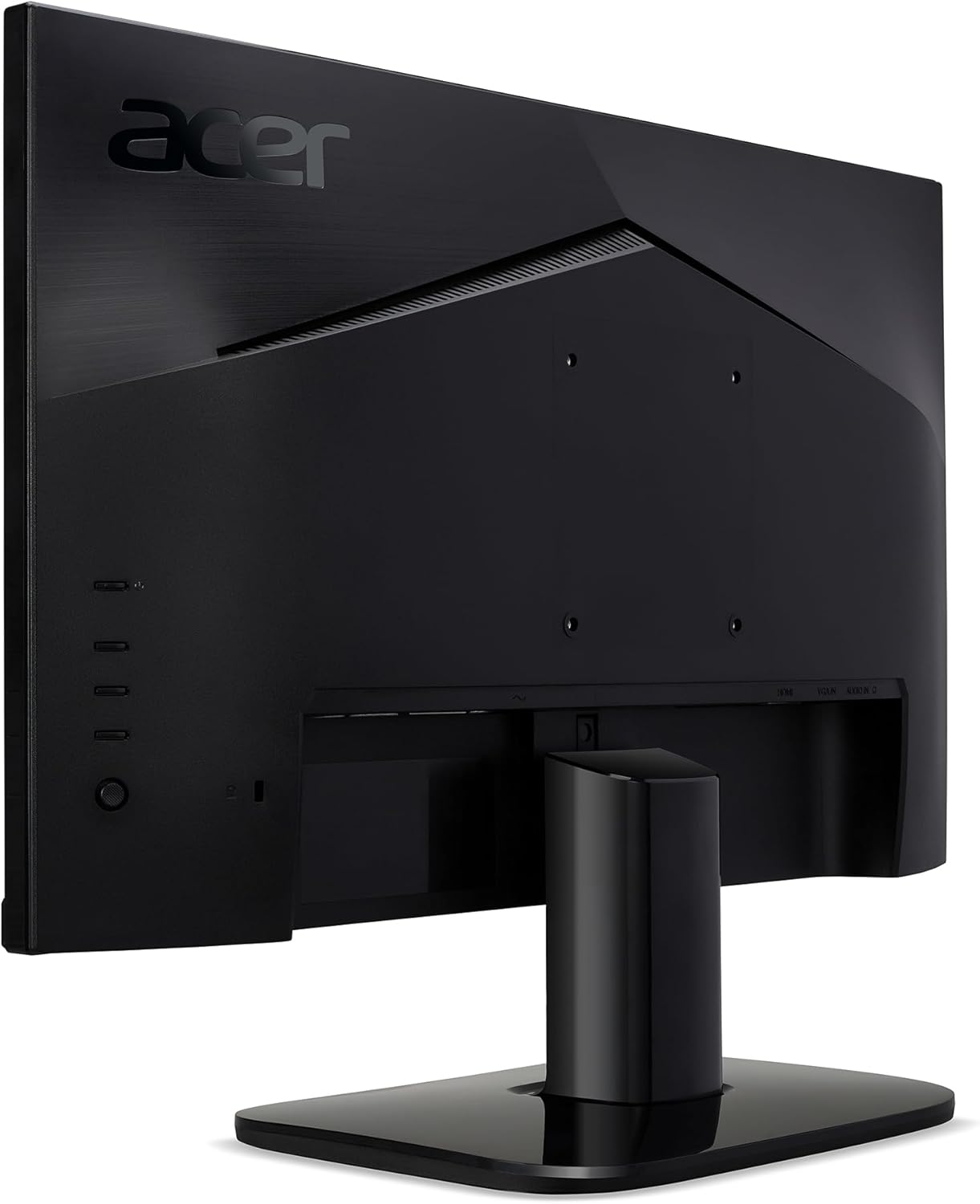
Figura 4.1: Posteriore view of the monitor, illustrating the stand attachment area and VESA mounting points.
4.2 Cavi di collegamento
Collegare i cavi necessari al monitor e al computer.
- Collegamento elettrico: Collegare il cavo di alimentazione all'ingresso di alimentazione del monitor e quindi a una presa di corrente.
- Collegamento video:
- HDMI: Connect one end of the HDMI cable to the monitor's HDMI port and the other end to the HDMI port on your computer.
- VGA: Connect one end of the VGA cable to the monitor's VGA port and the other end to the VGA port on your computer.

Figura 4.2: Posteriore view of the monitor, highlighting the HDMI and VGA input ports for video connection.

Figura 4.3: lato view of the monitor, showing the location of the control buttons for menu navigation and power.
5. Funzionamento del monitor
5.1 Accensione/spegnimento
Press the power button, usually located on the bottom right side or rear of the monitor, to turn the monitor on or off. The power indicator light will illuminate when the monitor is on.
5.2 Menu di visualizzazione su schermo (OSD)
The OSD menu allows you to adjust various monitor settings. Use the control buttons (refer to Figure 4.3) to navigate the menu.
- Luminosità/Contrasto: Regola i livelli di luminosità e contrasto del display.
- Impostazioni colore: Modify color temperature, gamma, and color saturation.
- Selezione input: Passa manualmente tra gli ingressi HDMI e VGA.
- Audio: Adjust volume if external speakers are connected to the monitor's audio out (if available).
- Caratteristiche di gioco: Enable/disable AMD FreeSync, adjust VRB (Visual Response Boost) settings for reduced motion blur.
- Impostazioni OSD: Modifica la lingua OSD, la trasparenza e il timeout.
5.3 Tecnologia AMD FreeSync
This monitor supports AMD FreeSync technology, which synchronizes the monitor's refresh rate with your graphics card's frame rate to eliminate screen tearing and stuttering during gaming. Ensure your graphics card supports FreeSync and that the feature is enabled in both your graphics card settings and the monitor's OSD menu.
6. Manutenzione
Una corretta manutenzione garantisce la longevità del monitor.
- Pulizia dello schermo: Pulire delicatamente lo schermo con un panno morbido e privo di lanugine. Per i segni ostinati, strofinare leggermenteampImmergere il panno in acqua o in un detergente specifico per schermi. Non spruzzare mai liquidi direttamente sullo schermo.
- Pulizia del Casing: Utilizzare un panno morbido e asciutto per pulire il monitor casing.
- Ventilazione: Assicurarsi che le aperture di ventilazione siano libere da polvere e ostruzioni per evitare il surriscaldamento.
7. Risoluzione Dei Problemi
| Problema | Possibile causa/soluzione |
|---|---|
| Nessuna immagine sullo schermo |
|
| L'immagine è sfocata o distorta |
|
| Nessun suono (se applicabile) |
|
8. Specifiche
| Caratteristica | Dettaglio |
|---|---|
| Numero di modello | KB242Y Abi |
| Dimensioni dello schermo | 23.8 pollici |
| Tipo di pannello | VA |
| Risoluzione | 1920 x 1080 (Full HD) |
| Proporzioni | 16:9 |
| Frequenza di aggiornamento | 75 Hz |
| Tempo di risposta | 1 ms VRB |
| Luminosità | 250 cd/m² (Nit) |
| Rapporto di contrasto | 100,000,000:1 (Adaptive Contrast Management) |
| Colori supportati | 16.7 milioni |
| Ingressi video | 1 HDMI, 1 VGA |
| Compatibilità montaggio VESA | 100 x 100 mm |
| Regolazioni | Inclinare |
| Dimensioni del prodotto | 2.48 x 21.26 x 12.72 pollici |
| Peso dell'articolo | 6 libbre |
9. Garanzia e supporto
This product is a Certified Refurbished item and includes a 90-day warranty. For technical support, warranty claims, or service inquiries, please refer to the contact information provided by your retailer or the official Acer support websito.
Per maggiori informazioni, visita il Negozio Amazon rinnovato.