
NACON 10946680
NACON Asymmetric Wireless Controller for PlayStation 4
Modello: 10946680
Introduzione
Thank you for choosing the NACON Asymmetric Wireless Controller for PlayStation 4. This controller is officially licensed for PlayStation 4 and designed to provide an immersive gaming experience with its unique asymmetric stick layout and wireless connectivity. This manual will guide you through the setup, operation, maintenance, and troubleshooting of your new controller.
Cosa c'è nella scatola
Si prega di controllare il contenuto del pacco per assicurarsi che siano presenti tutti gli articoli:
- NACON Asymmetric Wireless Controller
- Ricevitore USB
- Cavo di ricarica USB
- Guida rapida (non inclusa in questo manuale digitale)
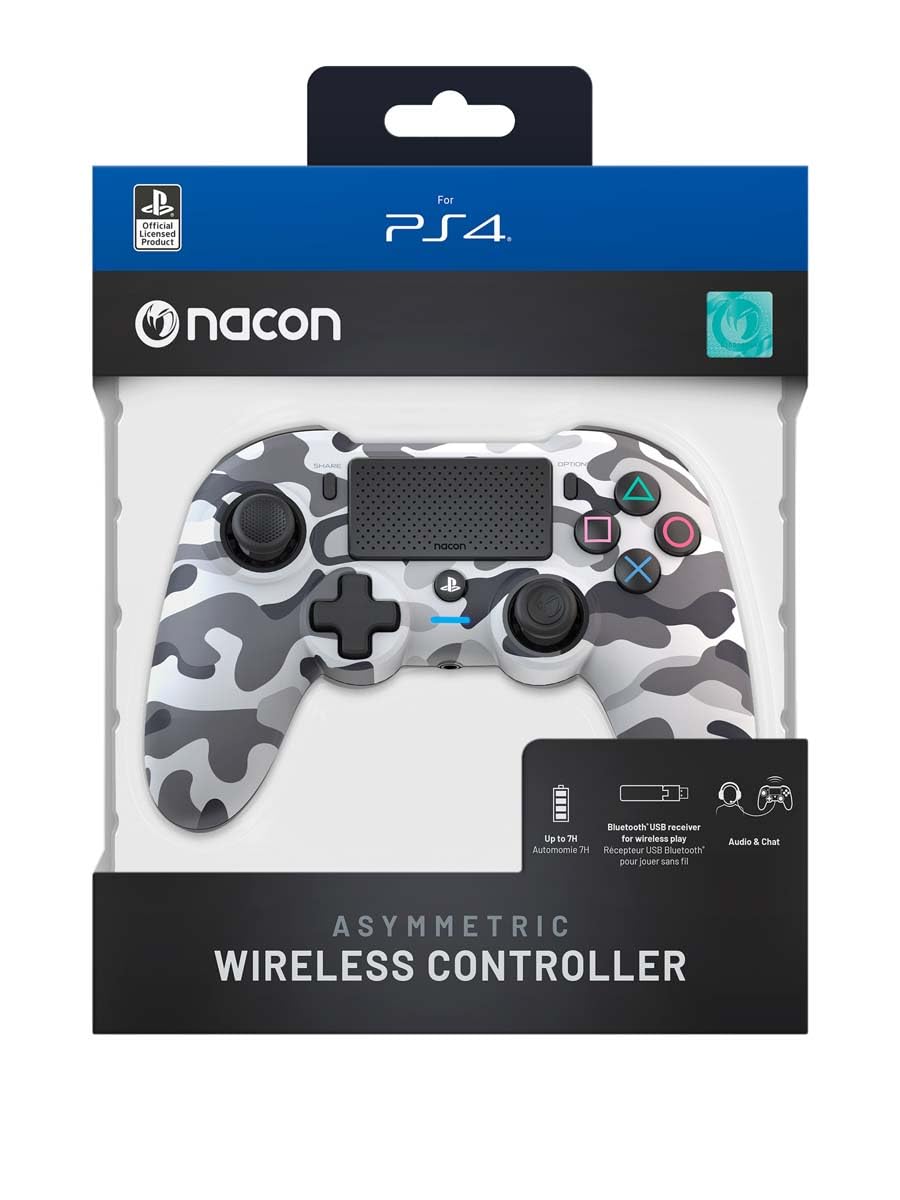
Image: The NACON Asymmetric Wireless Controller shown in its retail packaging, highlighting the product and its key features.
Impostare
1. Ricarica del controller
Before first use, fully charge the controller. Connect the small end of the USB charging cable to the controller's charging port and the larger end to a USB port on your PlayStation 4 console or a compatible USB wall adapter. The LED indicator on the controller will show charging status and turn off when fully charged.
2. Connessione alla PlayStation 4 (wireless)
- Insert the USB Receiver into an available USB port on your PlayStation 4 console.
- Press the PlayStation button on the controller. The controller will automatically attempt to pair with the USB Receiver.
- Once successfully paired, the LED indicator on the controller will illuminate steadily, indicating a stable connection.
3. Connessione al PC (wireless)
The controller can also be used with a PC. Insert the USB Receiver into an available USB port on your PC. The controller should be recognized automatically by Windows as a standard gamepad. Drivers may be installed automatically.

Immagine: Frontale view of the NACON Asymmetric Wireless Controller, showcasing its button layout and asymmetric stick design.
Funzionamento del controller
Layout e funzioni dei pulsanti
The NACON Asymmetric Wireless Controller features a familiar PlayStation button layout with an ergonomic asymmetric stick configuration for enhanced comfort and precision.
- Levetta analogica sinistra: Used for movement and navigation.
- Levetta analogica destra: Used for camera control and aiming.
- Pad direzionale (D-Pad): Per un input direzionale preciso.
- Pulsanti di azione (triangolo, cerchio, croce, quadrato): Standard PlayStation action buttons.
- Pulsanti L1/R1: Bottoni sulle spalle.
- Trigger L2/R2: Trigger analogici per un input preciso.
- Pulsante CONDIVIDI: Accedi alle funzionalità di condivisione su PS4.
- Pulsante OPZIONI: Accedi ai menu e alle opzioni del gioco.
- PlayStation Button: Power on/off the controller, access PS4 Home Menu.
- Touchpad: Superficie interattiva per funzioni di gioco specifiche.
Indicatore della batteria
The controller includes an LED indicator that provides information on battery status. Refer to the Quick Start Guide for specific LED patterns and their meanings (e.g., low battery, charging, fully charged).
Manutenzione
Pulizia
Per pulire il controller, utilizzare un panno morbido e asciutto. Per lo sporco ostinato, utilizzare un panno leggermente dampen the cloth with water. Do not use harsh chemicals, abrasive cleaners, or solvents, as these can damage the controller's finish and internal components.
Magazzinaggio
When not in use, store the controller in a cool, dry place away from direct sunlight and extreme temperatures. Avoid placing heavy objects on the controller.
Cura della batteria
Per prolungare la durata della batteria, evitare di scaricare completamente il controller frequentemente. Se si prevede di non utilizzarlo per un periodo prolungato, caricare la batteria a circa il 50% prima di riporlo e ricaricarla ogni pochi mesi.
Risoluzione dei problemi
| Problema | Possibile soluzione |
|---|---|
| Il controller non si connette. |
|
| Il controller non si carica. |
|
| I pulsanti o gli stick non rispondono. |
|
Reimpostazione del controller
If the controller is unresponsive or behaving erratically, a soft reset may resolve the issue. Locate the small reset button (often a pinhole) on the back or underside of the controller. Use a thin, pointed object (like a paperclip) to press and hold the button for a few seconds. Then, re-pair the controller with your console.
Specifiche
- Numero modello:
- 10946680
- Connettività:
- Wireless (via USB Receiver)
- Compatibilità:
- PlayStation 4, PC
- Dimensions (Controller):
- Circa 6.89 x 2.76 x 8.27 pollici (17.5 x 7 x 21 cm)
- Weight (Controller):
- Circa 14.1 once (400 grammi)
- Produttore:
- NACON
- Prima data disponibile:
- 6 luglio 2022
Garanzia e supporto
For warranty information, technical support, or further assistance with your NACON Asymmetric Wireless Controller, please visit the official NACON webo contattare direttamente l'assistenza clienti. Conservare la prova d'acquisto per eventuali reclami in garanzia.
Official NACON Websito: www.nacongaming.com
Ask a question about this manual
Ask about setup, troubleshooting, compatibility, parts, safety, or missing instructions. Manuals+ will review the question and use this page’s manual context to help answer it.