
1. Introduzione
This manual provides instructions for the NETVIP Bluetooth Car Speaker, a wireless hands-free device designed for in-car communication and media playback. It supports Bluetooth connectivity, voice assistants, and TF card playback, offering a convenient and safe way to manage calls and audio while driving.
2. Contenuto della confezione
Verifica che tutti gli articoli elencati di seguito siano inclusi nel tuo pacchetto:
- Bluetooth In-Car Speakerphone x 1
- Cavo USB x 1
- Magnetic Basement (Clip) x 1
- Cordino x 1
- Manuale utente x 1
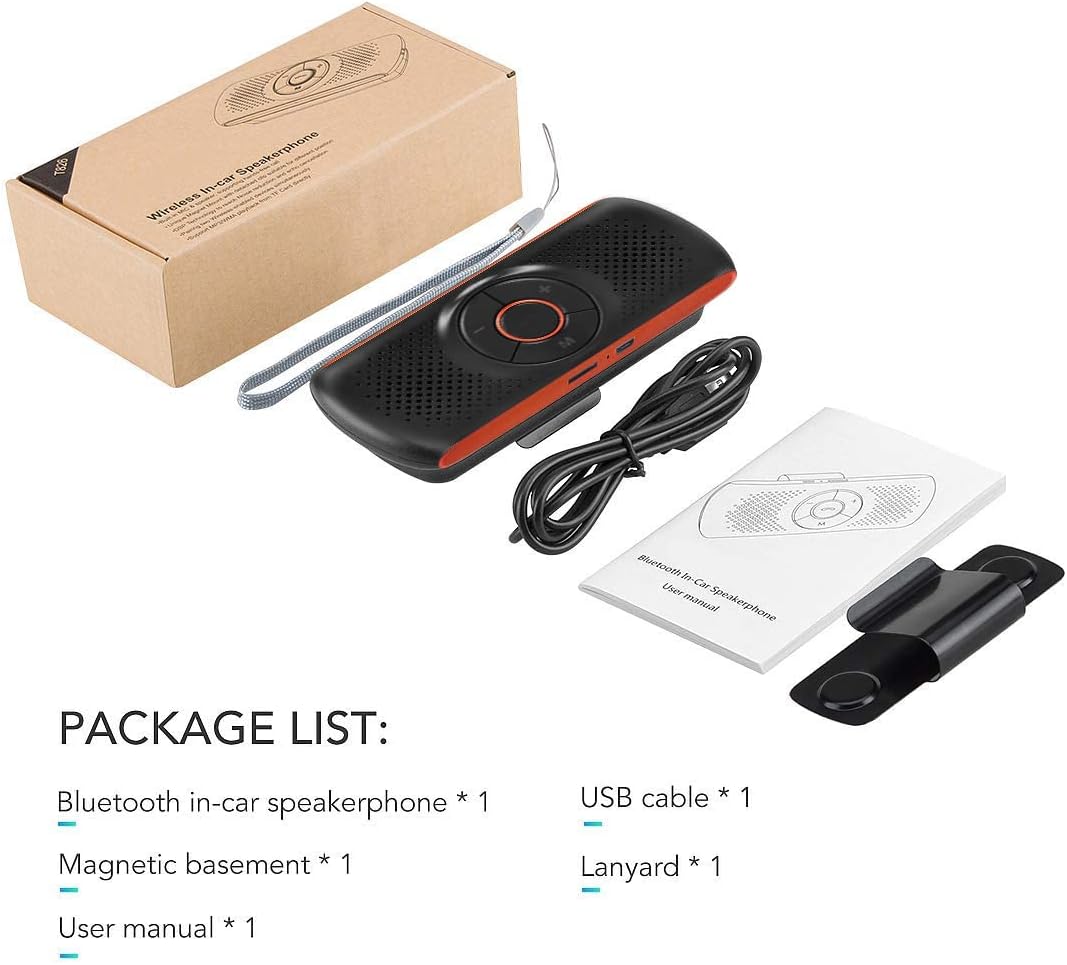
Image: Contents of the NETVIP Bluetooth Car Speaker package.
3. Caratteristiche del prodotto
- Chiamate in vivavoce: Designed for safe communication while driving, allowing one-click call answering.
- Enhanced Bluetooth Connectivity: Features Bluetooth V4.2+EDR with echo noise reduction technology for clear audio.
- Supporto per il controllo vocale: Compatible with Siri and Google Assistant for voice commands.
- Riconnessione automatica: Automatically reconnects to your paired phone upon power-on.
- Installazione semplice: Back-clip design with a durable magnetic base for sun visor mounting.
- Multiple Media Options: Supports music playback via Bluetooth, TF card, or USB cable.
- Connessione doppia del telefono: Capable of connecting to two phones simultaneously.
4. Impostazione
4.1 Ricarica del dispositivo
Before initial use, fully charge the speakerphone using the provided USB cable. Connect the USB cable to the device's charging port and a standard USB power source (e.g., car charger, computer USB port). The charging indicator light will show the charging status.
4.2 Montaggio del vivavoce
The speakerphone features a magnetic clip for easy attachment to your car's sun visor.
- Attach the magnetic basement clip to the back of the speakerphone.
- Slide the clip onto your car's sun visor. The magnetic connection allows for easy removal and reattachment.
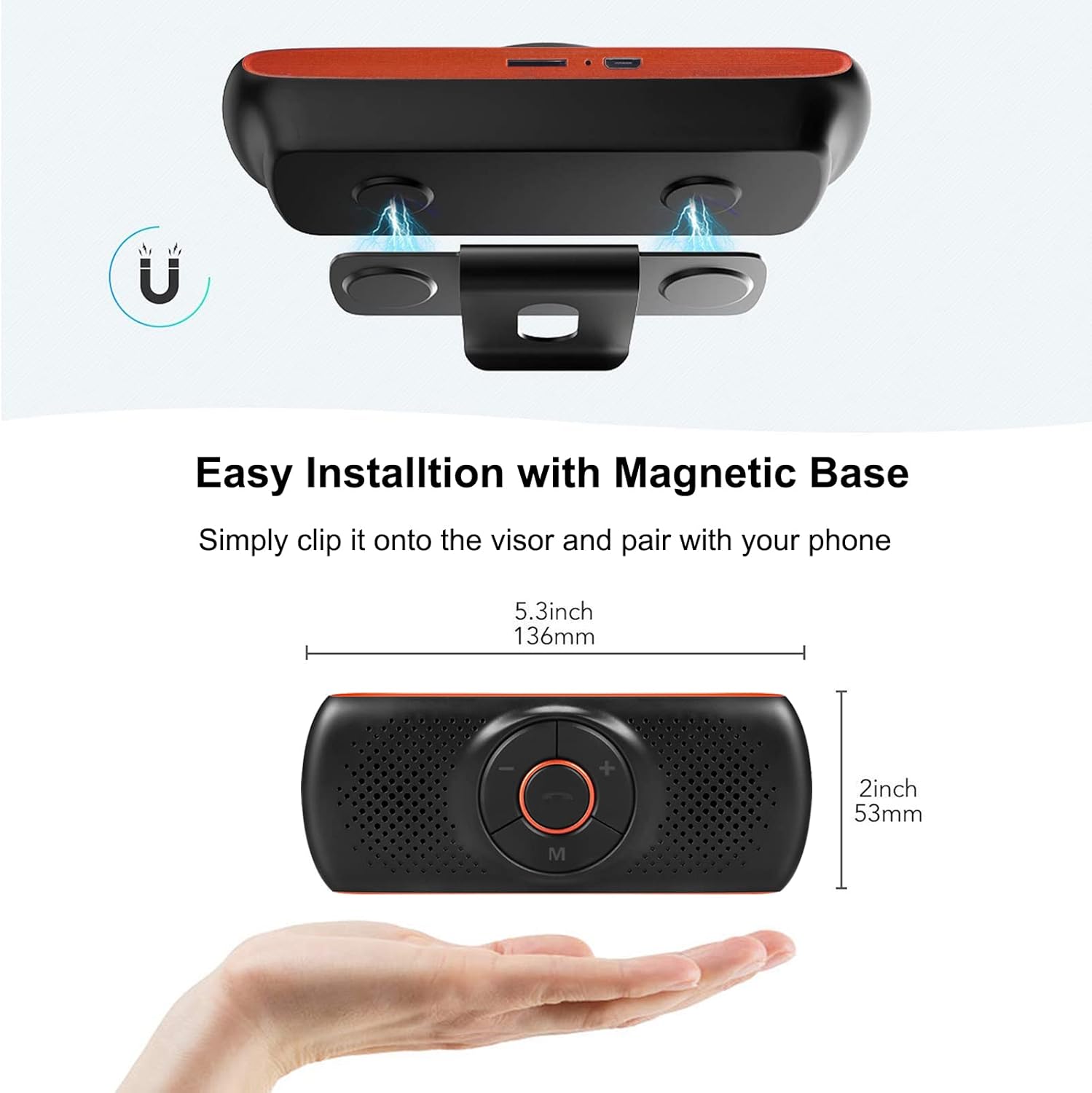
Image: Magnetic installation of the speakerphone on a car sun visor.
4.3 Associazione Bluetooth
To connect the speakerphone to your mobile phone:
- Ensure the speakerphone is charged and powered on.
- Attiva il Bluetooth sul tuo cellulare.
- Cercare available Bluetooth devices. The speakerphone will appear as "NETVIP" or a similar name.
- Select the speakerphone from the list to pair. A confirmation tone or voice prompt will indicate successful pairing.
- The device will automatically reconnect to the last paired phone when powered on and within range.
5. Istruzioni per l'uso
5.1 Accensione/spegnimento
- Per accendere, tenere premuto il pulsante di accensione finché la spia non si accende.
- Per spegnere, tenere premuto il pulsante di accensione finché la spia non si spegne.
5.2 Chiamate in vivavoce
When a call comes in, the speakerphone will announce the incoming call.
- Rispondi alla chiamata: Premere una volta il pulsante del telefono.
- Termina chiamata: Press the phone button once during a call.
- Rifiuta chiamata: Tieni premuto il pulsante del telefono per 2 secondi.
- Ricomponi l'ultimo numero: Premere due volte il pulsante del telefono.

Image: Driver using the NETVIP Bluetooth Car Speaker for hands-free communication.
5.3 Assistente vocale (Siri/Assistente Google)
The speakerphone supports voice commands through Siri or Google Assistant.
- Attiva l'assistente vocale: Double-click the 'M' button to activate Siri or Google Assistant on your connected phone.
- Once activated, you can issue voice commands for tasks like making calls, sending messages, or getting directions.

Image: Illustrates using voice commands with Google Assistant and Siri via the speakerphone.
5.4 Riproduzione di musica
The speakerphone can play music from your phone via Bluetooth or directly from a TF card.
- Musica Bluetooth: Once paired, play music from your phone, and it will stream through the speakerphone.
- Riproduzione della scheda TF: Inserisci una scheda TF con audio files into the designated slot. The speakerphone will automatically switch to TF card mode and begin playback.
- Controllo del volume: Use the '+' and '-' buttons on the speakerphone to adjust the volume.

Image: Detail of the TF card slot on the speakerphone for direct music playback.
5.5 Connecting Two Phones Simultaneously
The speakerphone can maintain a connection with two mobile phones at the same time.
- Pair the first phone as described in Section 4.3.
- After the first phone is paired, disable Bluetooth on the first phone.
- Pair the second phone to the speakerphone.
- Re-enable Bluetooth on the first phone. Both phones should now be connected.
- The speakerphone will prioritize incoming calls from either connected device.

Image: Demonstrates the speakerphone's ability to connect to two mobile phones concurrently.
6. Manutenzione
To ensure the longevity and optimal performance of your NETVIP Bluetooth Car Speaker, follow these maintenance guidelines:
- Pulizia: Use a soft, dry cloth to clean the device. Avoid using abrasive cleaners, solvents, or harsh chemicals.
- Magazzinaggio: Conservare il dispositivo in un luogo fresco e asciutto, lontano dalla luce solare diretta e da temperature estreme.
- Cura della batteria: Do not expose the battery to extreme heat or cold. Charge the device regularly, even if not in frequent use, to maintain battery health.
- Evitare l'acqua: This device is not waterproof. Keep it away from liquids and moisture.
7. Risoluzione Dei Problemi
If you encounter issues with your speakerphone, refer to the following common problems and solutions:
| Problema | Possibile causa | Soluzione |
|---|---|---|
| Il dispositivo non si accende | Batteria scarica | Carica completamente il dispositivo. |
| Impossibile associare il telefono | Bluetooth not enabled on phone; device not in pairing mode; too far from phone | Ensure phone Bluetooth is on. Power cycle the speakerphone. Move phone closer to device. |
| Nessun audio durante le chiamate/musica | Volume too low; device not connected; incorrect audio output selected on phone | Increase volume on both speakerphone and phone. Re-pair the device. Check phone's audio output settings. |
| L'assistente vocale non risponde | Not activated correctly; phone's voice assistant not enabled | Double-click 'M' button. Ensure Siri/Google Assistant is enabled on your phone. |
| La musica sulla scheda TF non viene riprodotta | Scheda TF non inserita correttamente; non supportata file formato | Reinserisci la scheda TF. Assicurati che l'audio sia corretto. filesono in un formato supportato. |
8. Specifiche
| Caratteristica | Specificazione |
|---|---|
| Marca | NETVIP |
| Tecnologia di connettività | Bluetooth, USB |
| Versione Bluetooth | 4.2 + EDR |
| Fonte di alimentazione | Alimentato a batteria |
| Uscita altoparlante | 3W |
| Capacità della batteria | 500 mAh agli ioni di litio |
| Tempo di carica della batteria | Circa 3 ore |
| Tipo di supporto supportato | Carta TF |
| Tipo di montaggio | Spoke Clip (Magnetic) |
| Tipo di controllo | Voice Control, Buttons |
| Dispositivi compatibili | Smartphones, Car Stereo Systems |
| Ingresso volumetage | 5 Volt (CC) |
9. Informazioni sulla sicurezza
Si prega di leggere e rispettare le seguenti linee guida sulla sicurezza:
- Avoid using the device near other wireless devices to prevent potential interference.
- Keep the battery away from extreme temperatures and high humidity.
- Dispose of the battery and product responsibly according to local regulations.
- Non tentare di smontare, riparare o modificare il dispositivo autonomamente. Contattare personale qualificato per assistenza.
- Ensure the device is securely mounted to avoid obstruction of vision or interference with vehicle controls.
10. Video del prodotto
Watch this video for an introduction to the NETVIP Wireless In-Car Speakerphone:
Video: Un'introduzione suview of the NETVIP Wireless In-Car Speakerphone, demonstrating its features and usage.
11. Garanzia e supporto
For warranty information or technical support, please contact NETVIP customer service through the retailer's platform or the official NETVIP webluogo. Conserva la ricevuta di acquisto per eventuali richieste di garanzia.