
1. Introduzione
The MageGee V650 Wireless Keyboard and Mouse Combo is designed for efficient and comfortable use with your computer. This combo features a full-size 104-key keyboard with a number pad and multimedia shortcuts, paired with a sensitive and quiet mouse. Both devices connect wirelessly via a single 2.4G USB receiver, offering a stable connection within a 10-meter range.

Image 1.1: MageGee V650 Wireless Keyboard and Mouse Combo.

Image 1.2: Key features of the MageGee V650 combo.
2. Contenuto della confezione
Si prega di controllare la confezione per verificare la presenza dei seguenti elementi:
- Tastiera wireless 1 x
- Mouse senza fili 1 x
- 1 x USB Receiver (stored inside the keyboard)
- 1 batteria AA (per il mouse)
- 2 batterie AAA (per la tastiera)
- 1 x Manuale utente
3. Istruzioni per l'installazione
3.1. Installazione della batteria
- Per la tastiera: Individuare il vano batterie sul lato inferiore della tastiera. Inserire due batterie AAA, assicurandosi della corretta polarità (+/-).
- Per il topo: Individuare il vano batterie sul lato inferiore del mouse. Inserire una batteria AA, assicurandosi che la polarità sia corretta (+/-).

Image 3.1: Keyboard battery compartment and USB receiver storage.
3.2. Collegamento del ricevitore USB
- Locate the USB receiver. It is typically stored in a dedicated slot on the underside of the keyboard for safekeeping.
- Plug the USB receiver into an available USB port on your computer (PC, desktop, laptop, or notebook).
- The system should automatically detect and install the necessary drivers. No additional software download is required.
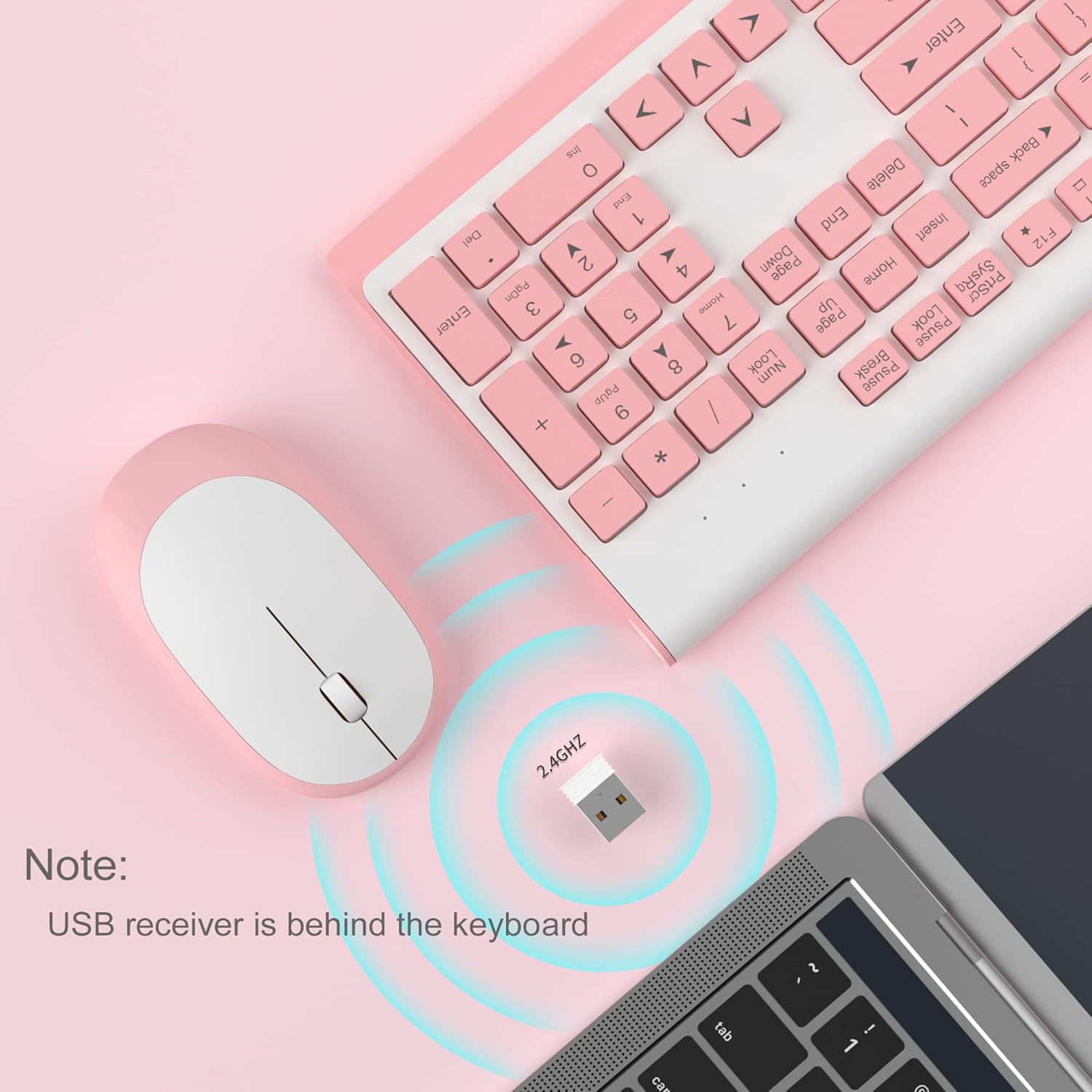
Image 3.2: USB receiver connection and storage location.

Image 3.3: 2.4G wireless connection diagram.
3.3. Accensione
Ensure the power switches on both the keyboard and mouse are in the 'ON' position. The devices should now be ready for use.
4. Istruzioni per l'uso
4.1. Funzioni della tastiera
The V650 keyboard features a standard 104-key layout, including a full number pad for data entry and dedicated arrow keys. The keys are designed for quiet and responsive typing.
Scorciatoie multimediali
The keyboard includes 12 multimedia shortcuts accessible by pressing the Fn key in combination with the F1-F12 function keys. These shortcuts allow quick access to common functions such as volume control, media playback, and more.

Image 4.1: Keyboard multimedia function key combinations.
| Combinazione | Funzione |
|---|---|
| Tasto F1 | Multimedia |
| Tasto F2 | Volume - |
| Tasto F3 | Volume + |
| Tasto F4 | Muto |
| Tasto F5 | Traccia precedente |
| Tasto F6 | Traccia successiva |
| Tasto F7 | Riproduci/Pausa |
| Tasto F8 | Fermare |
| Tasto F9 | Pagina iniziale |
| Tasto F10 | |
| Tasto F11 | Il mio computer |
| Tasto F12 | Preferiti |
4.2. Funzioni del mouse
The wireless mouse offers precise 1200 DPI tracking and quiet clicks. It features standard left and right click buttons and a scroll wheel for navigation.

Image 4.2: Mouse features: 1200 DPI and quiet operation.
4.3. Modalità di sospensione automatica
To conserve battery life, both the keyboard and mouse will enter an automatic sleep mode after a period of inactivity. To wake them up, simply press any key on the keyboard or move the mouse.
5. Manutenzione e cura
- Pulizia: Utilizzare un panno morbido e asciutto per pulire le superfici della tastiera e del mouse. Per lo sporco ostinato, un panno leggermenteamp cloth can be used, but ensure no liquid enters the devices. Avoid harsh chemicals or abrasive cleaners.
- Sostituzione della batteria: Replace batteries when performance degrades or devices stop responding. Always use new batteries of the specified type (AAA for keyboard, AA for mouse) and dispose of old batteries responsibly.
- Magazzinaggio: When not in use for extended periods, turn off the devices to save battery life. Store the USB receiver in its dedicated slot on the keyboard to prevent loss.
- Ambiente: Evitare di esporre i dispositivi a temperature estreme, alla luce solare diretta o a umidità eccessiva.
6. Risoluzione Dei Problemi
If you encounter issues with your MageGee V650 combo, please refer to the following common solutions:
- No Connection / Lag:
- Ensure both the keyboard and mouse are powered on and have fresh batteries.
- Verificare che il ricevitore USB sia collegato saldamente a una porta USB funzionante del computer.
- Prova a collegare il ricevitore USB a un'altra porta USB.
- Move the keyboard and mouse closer to the USB receiver to ensure they are within the 10-meter operating range.
- Evitare di posizionare il ricevitore vicino ad altri dispositivi wireless o a grandi oggetti metallici che potrebbero causare interferenze.
- Keys Not Responding / Stuck Keys:
- Controllare i livelli della batteria e sostituirla se necessario.
- Gently clean around the affected keys to remove any debris that might be causing them to stick.
- Ristabilire la connessione scollegando e ricollegando il ricevitore USB.
- Mouse Not Working / Cursor Jumps:
- Ensure the mouse has a fresh AA battery and is powered on.
- Pulisci il sensore ottico sul lato inferiore del mouse.
- Utilizzare il mouse su una superficie adatta (non molto riflettente o trasparente).
- Ristabilire la connessione scollegando e ricollegando il ricevitore USB.
- Letters Fading on Keys:
- This is typically a result of prolonged use and wear. While not a functional defect, it can affect visibility.
7. Specifiche del prodotto
| Caratteristica | Dettaglio |
|---|---|
| Modello | V650 |
| Tecnologia di connettività | 2.4G Wireless (Radio Frequency), USB Receiver |
| Disposizione della tastiera | Full Size, 104 Keys with Number Pad and 12 Multimedia Shortcuts |
| Tipo di tastiera | Scissor-cross low profile, Quiet Keys |
| DPI del mouse | 1200 DPI |
| Dispositivi compatibili | PC, Desktop, Laptop, Notebook |
| Sistemi operativi | Windows XP / Vista / 7 / 8 / 10 |
| Dimensioni della tastiera | 16.06 x 6.6 x 1.3 pollici (circa 40.8 x 16.8 x 3.3 cm) |
| Dimensioni del mouse | 4.25 x 2.4 x 1.18 pollici (circa 10.8 x 6.1 x 3 cm) |
| Peso dell'articolo | 1.63 libbre (circa 0.74 kg) |
| Batteria della tastiera | 2 batterie AAA |
| Batteria del mouse | 1 batteria AA |
| Caratteristica speciale | Round Keycaps, Ultra-Thin Design, Automatic Sleep Mode |

Immagine 7.1: Dimensioni del prodotto.
8. Garanzia e assistenza clienti
MageGee products are designed for reliability and performance. For any warranty inquiries, technical support, or assistance with your product, please contact MageGee customer support through the retailer where you purchased the item or visit the official MageGee store online.
Puoi trovare maggiori informazioni e recapiti sul sito Negozio MageGee su Amazon.